10 月 21 日,PHP的CVE-2026-109618 和 CVE-2026-109619,可能导致未经认证的远程代码执行。本服务器运行 Debian 13,使用 Nginx、PHP-FPM 和 MariaDB。将 PHP 和相关扩展升级到 8.4.27,重启 PHP-FPM。
Category: Essays
-
Upgrade server system
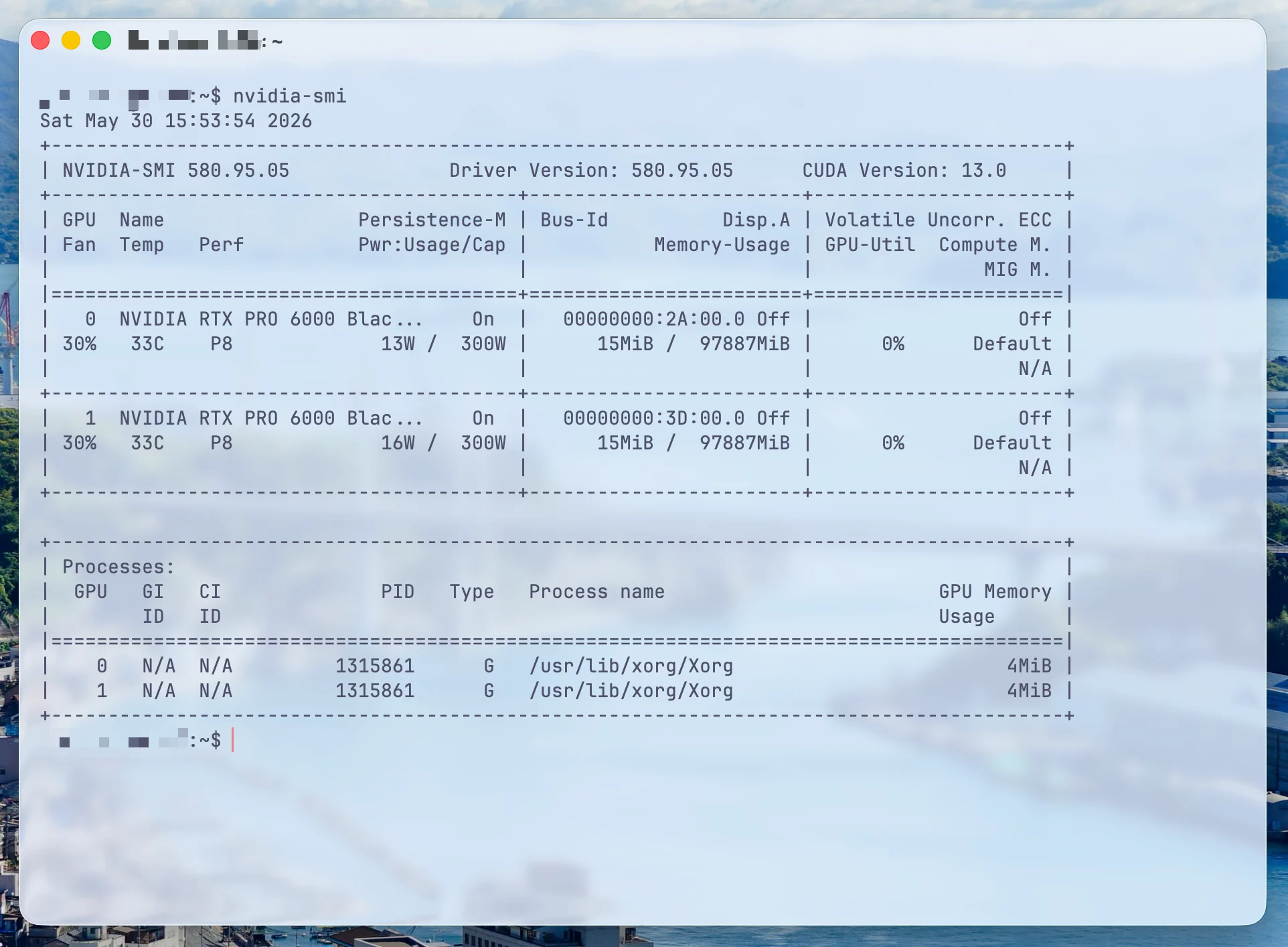
The system was upgraded to Debian 13 x86_64.
SSH is enabled only. The underlying components are Nginx 1.26.3, PHP 8.4.23, MariaDB 11.8.6, Docker 26.1.5, Compose 2.26.1, and Swap 4 GB.
Apply resource/log limits to SSH, nftables, Fail2ban, PHP-FPM, MariaDB, and Docker.
SSH password login disabled; root user only allowed key-based login; nftables defaults to denying and allowing logins.
22/80/443/1935.HTTPS Certbot scheduled renewal is now enabled.
-
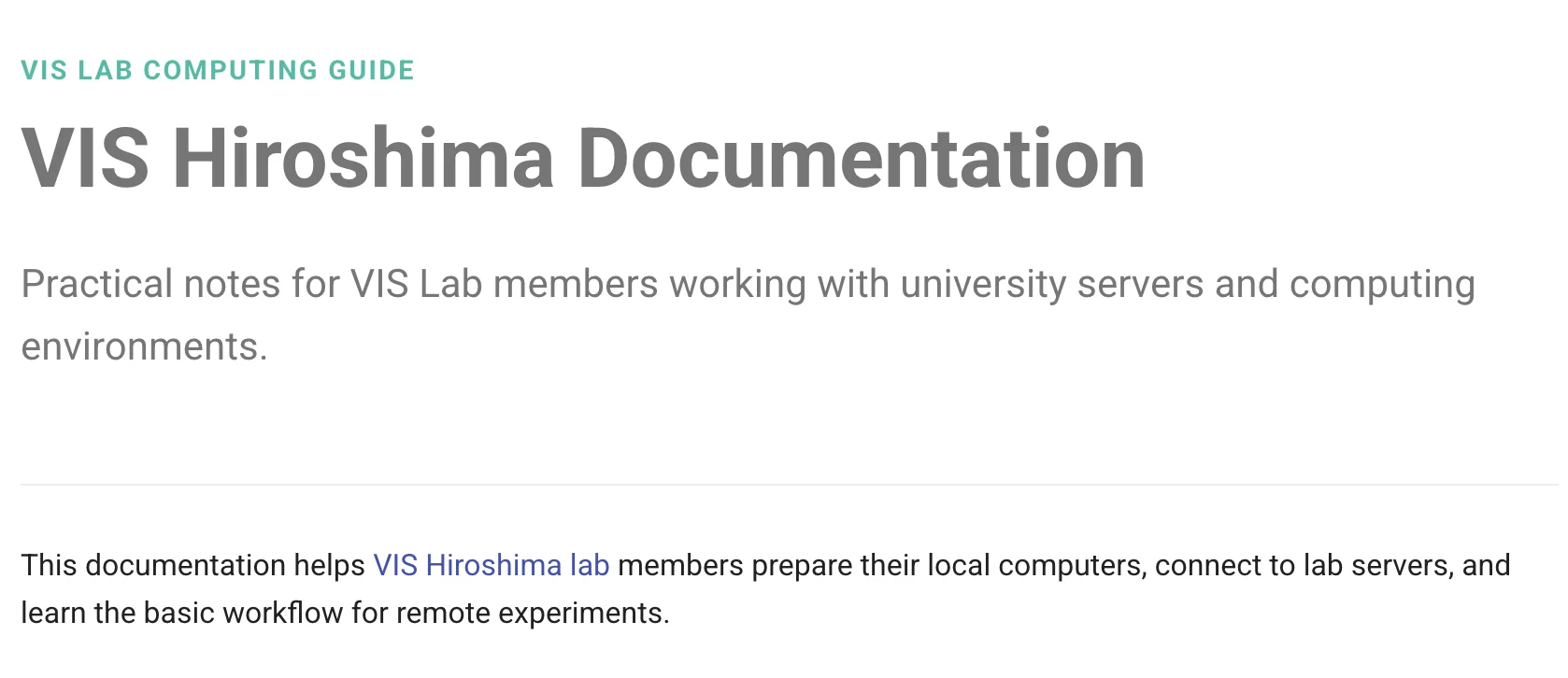
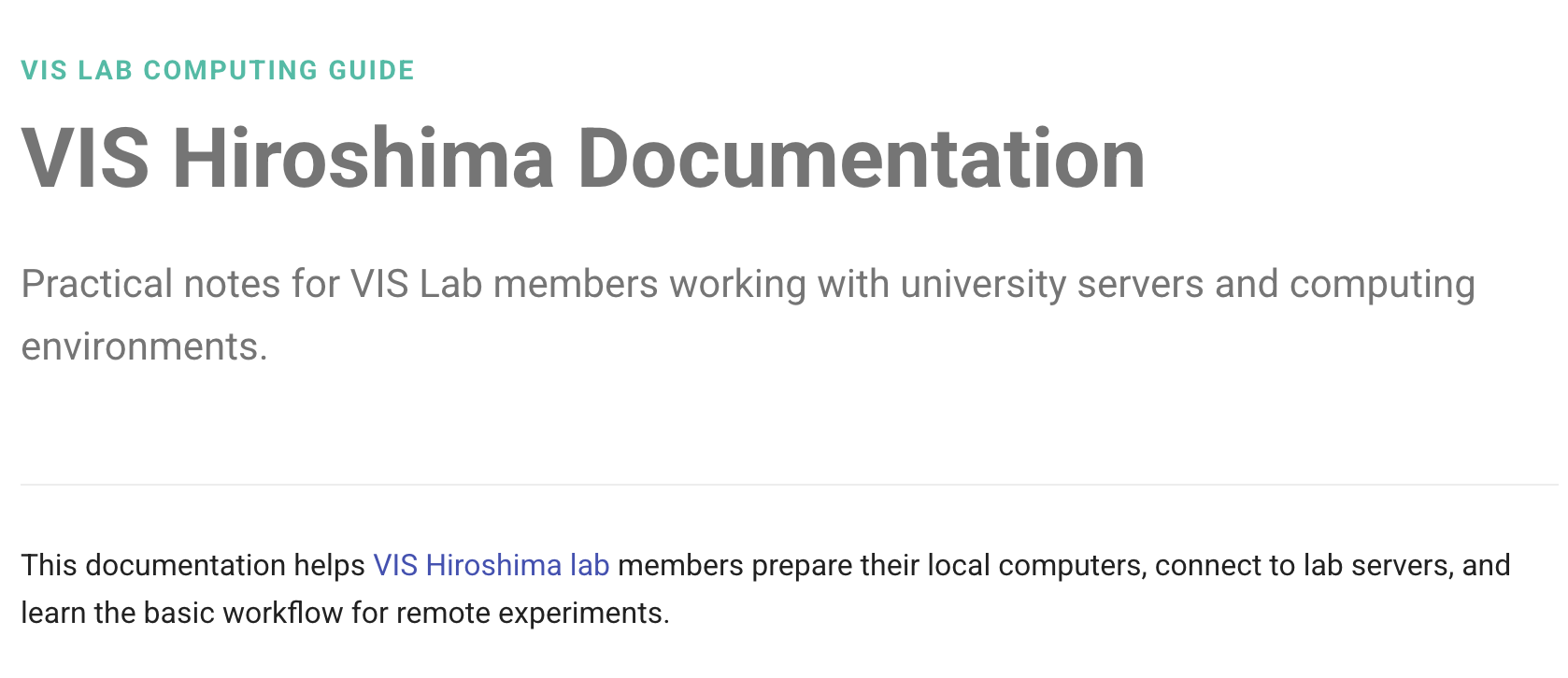
Try using MkDocs to write public documentation for the lab.
https://remyuu.github.io/VIS_Hiroshima
I wrote some documentation for the lab on how newcomers can connect to the school's computer lab server using SSH. It covers Chinese, English, and Japanese, and supports submitting edits.
-
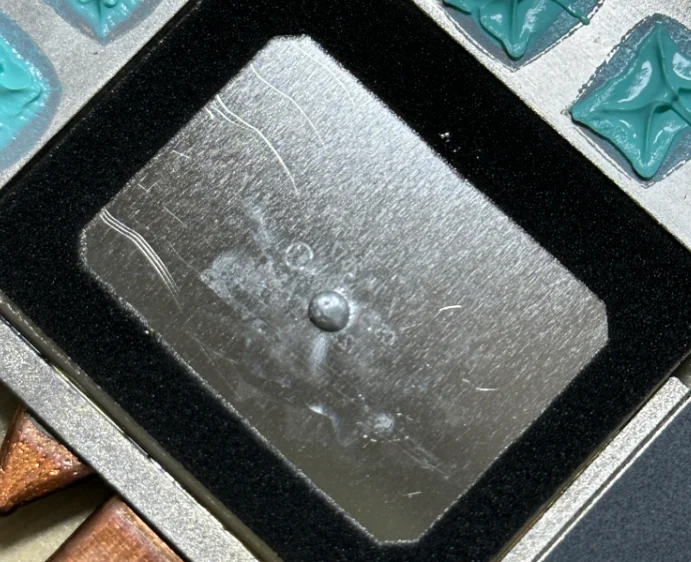
The server increases virtual memory.
JavaScriptfree -h df -h / fallocate -l 4G /swapfile chmod 600 /swapfile mkswap /swapfile swapon /swapfile echo '/swapfile none swap sw 0 0' >> /etc/fstab sysctl vm.swappiness=20 echo 'vm.swappiness=20' >> /etc/sysctl.conf free -h swapon --show -
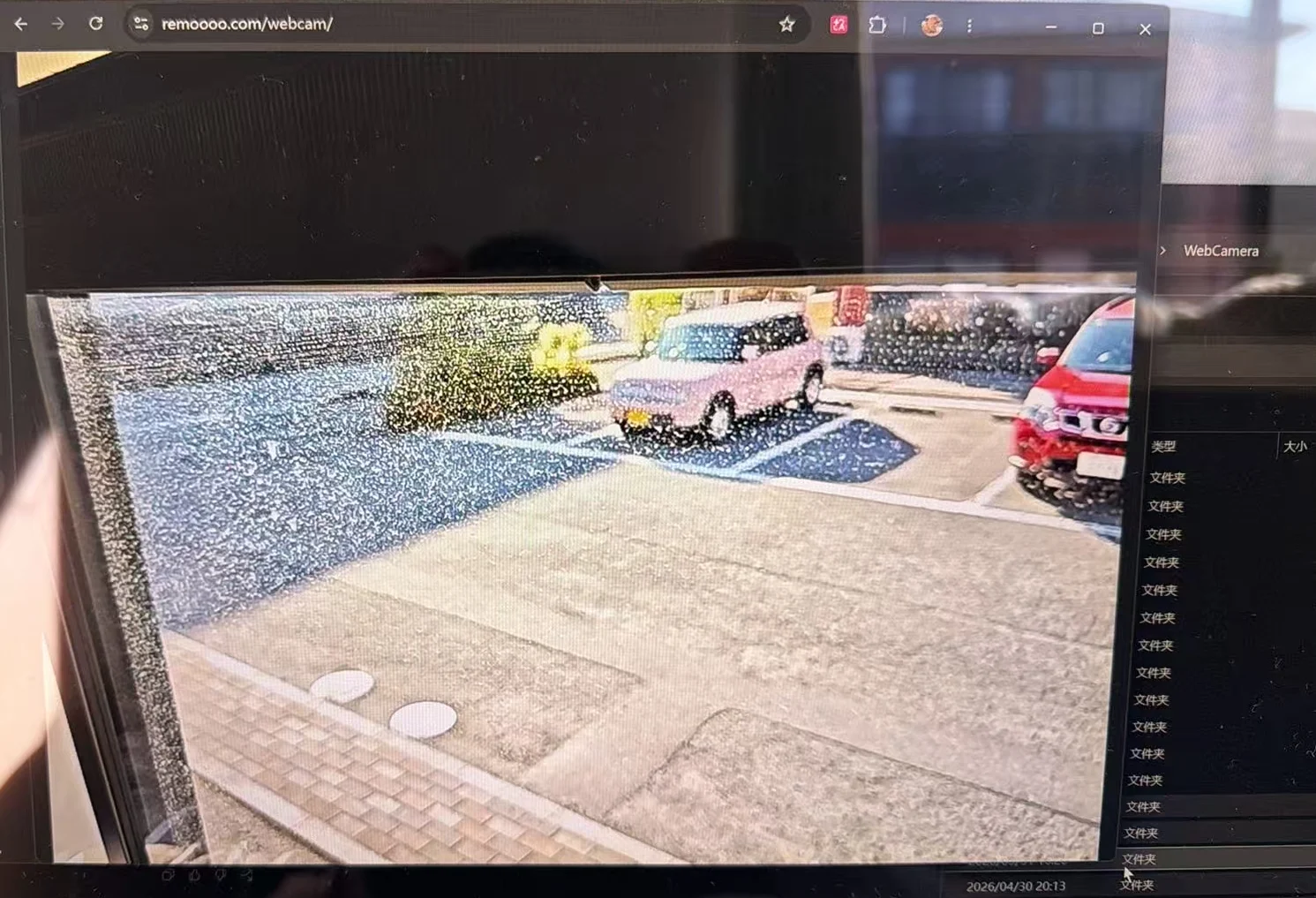
Android phone public network surveillance camera streaming
Security issue: Currently, unauthorized streaming is prevented only by using a random Stream Key.
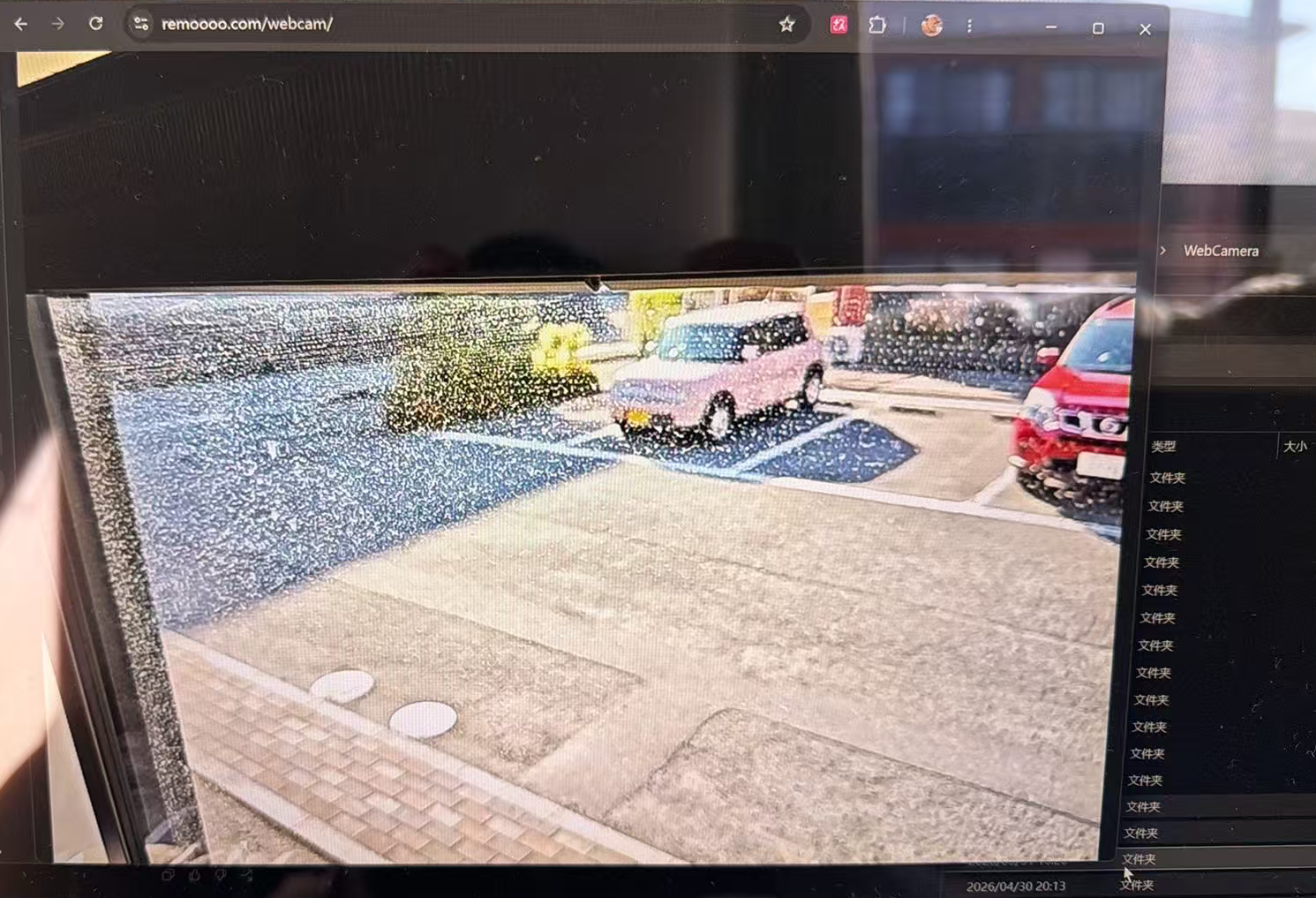
Using an Android phone as a camera, stream the video to remoooo.com via RTMP, and view it via https://remoooo.com/webcam with a password.
Android phones stream to the Public Server via RTMP.
The server connects to MediaMTX and converts it to an HLS listening address on the local machine.
localhost is reverse proxyed to nginx, using HTTPS + Basic Auth, and finally viewed in Browser Viewer.Viewing link: rtmp://example.com:1935/
In simple terms, the server uses MediaMTX as a media gateway. MediaMTX is responsible for receiving RTMP streams from mobile devices and converting them into HLS streams that can be played in a browser.
RTMP App:
BashProtocol: RTMP Server URL: rtmp://example.com:1935 Stream Key: <stream-key> Video Codec: H.264 Audio Codec: AAC Resolution: 1280x720 FPS: 30 Video Bitrate: 2000-3000 kbps Audio Bitrate: 96-128 kbps Keyframe Interval: 2s -
Ghostty customization configuration
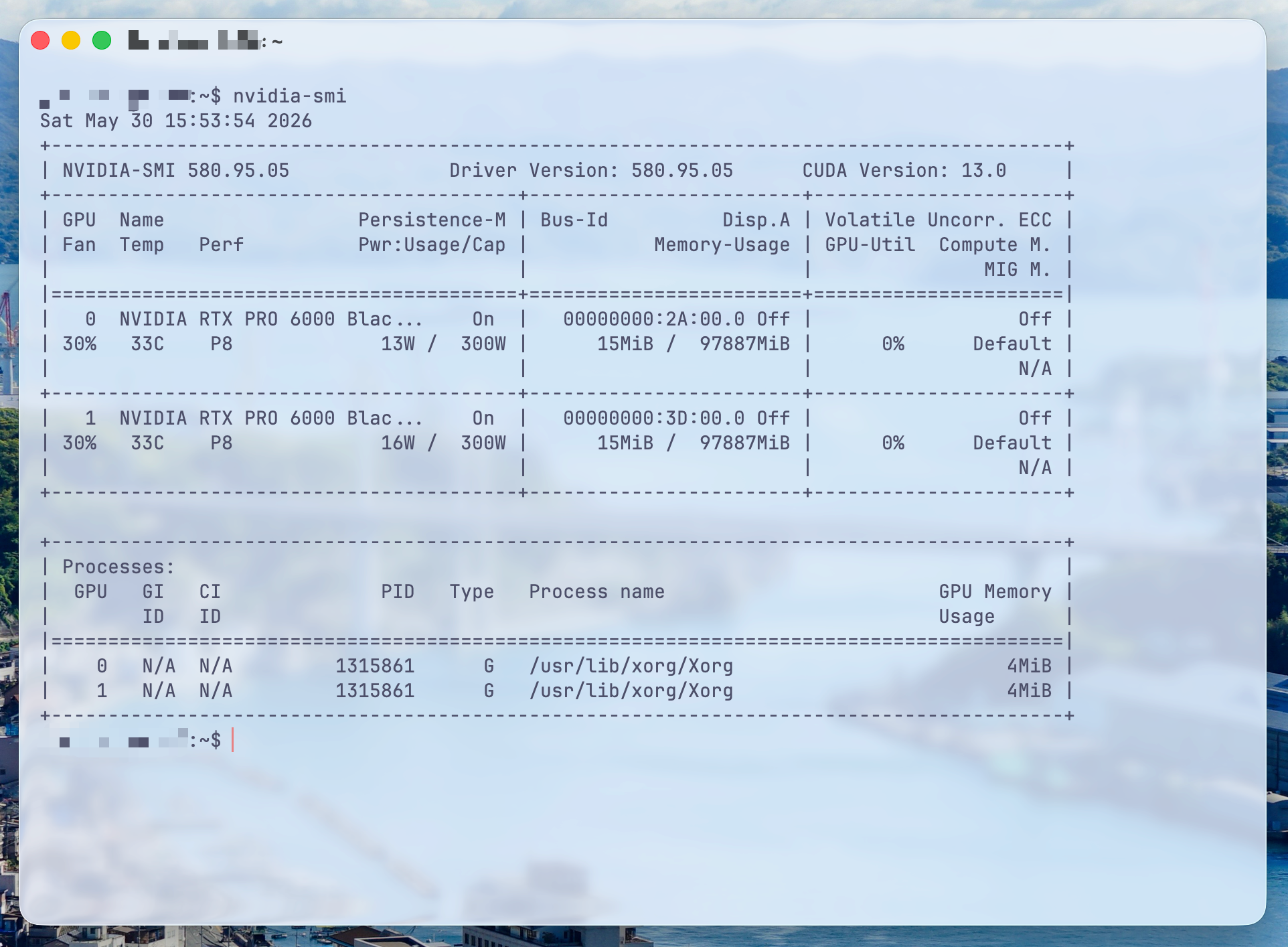
JavaScript# ========================= # Ghostty aesthetic config # ========================= # ---------- Font ---------- font-family = JetBrainsMono Nerd Font font-family = Maple Mono NF CN font-family = Noto Sans CJK SC font-family = Symbols Nerd Font Mono font-size = 14 font-thicken = true font-thicken-strength = 64 # ---------- Theme ---------- theme = dark:Catppuccin Frappe,light:Catppuccin Latte # ---------- Window ---------- window-padding-x = 12 window-padding-y = 10 window-padding-balance = true window-padding-color = background window-save-state = always # ---------- Transparency / Blur ---------- background-opacity = 0.58 background-blur = macos-glass-regular background-opacity-cells = false # ---------- Cursor ---------- cursor-style = bar cursor-style-blink = false cursor-color = #e78284 cursor-text = #303446 cursor-click-to-move = true mouse-hide-while-typing = true adjust-cursor-thickness = 2 # ---------- Selection ---------- selection-background = #626880 selection-foreground = #c6d0f5 # ---------- macOS titlebar ---------- macos-titlebar-style = sil macos-titlebar-proxy-icon = hidden macos-window-buttons = visible macos-option-as-alt = true # ---------- Shell integration ---------- shell-integration = detect shell-integration-features = cursor,title,sudo,ssh-env,ssh-terminfo # ---------- Notifications ---------- notify-on-command-finish = unfocused # ---------- Quick terminal ---------- keybind = global:ctrl+grave_accent=toggle_quick_terminal quick-terminal-position = top quick-terminal-size = 42% quick-terminal-autohide = true # ---------- Keybinds ---------- keybind = cmd+shift+r=reload_config keybind = cmd+d=new_split:right keybind = cmd+shift+d=new_split:down keybind = cmd+t=new_tab keybind = cmd+w=close_surface keybind = cmd+shift+up=jump_to_prompt:-1 keybind = cmd+shift+down=jump_to_prompt:1 keybind = cmd+shift+b=toggle_background_opacity -
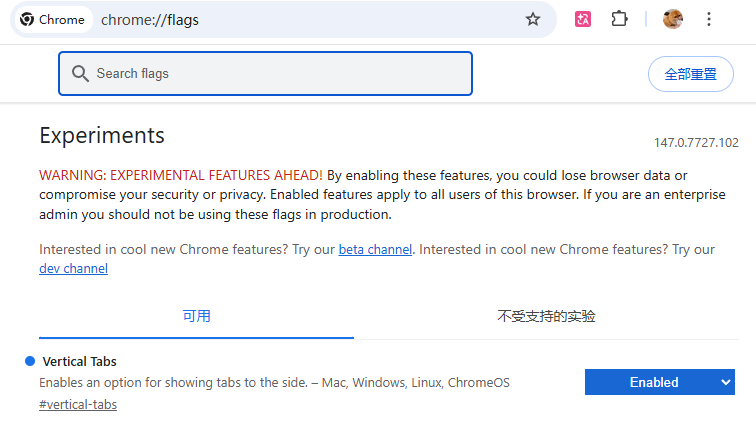
Chrome sidebar functionality
go to chrome://flags (in url bar)
search for vertical tabs and set it to enabled
right click on the horizontal tab bar (empty space)
Click “show tabs on the side”