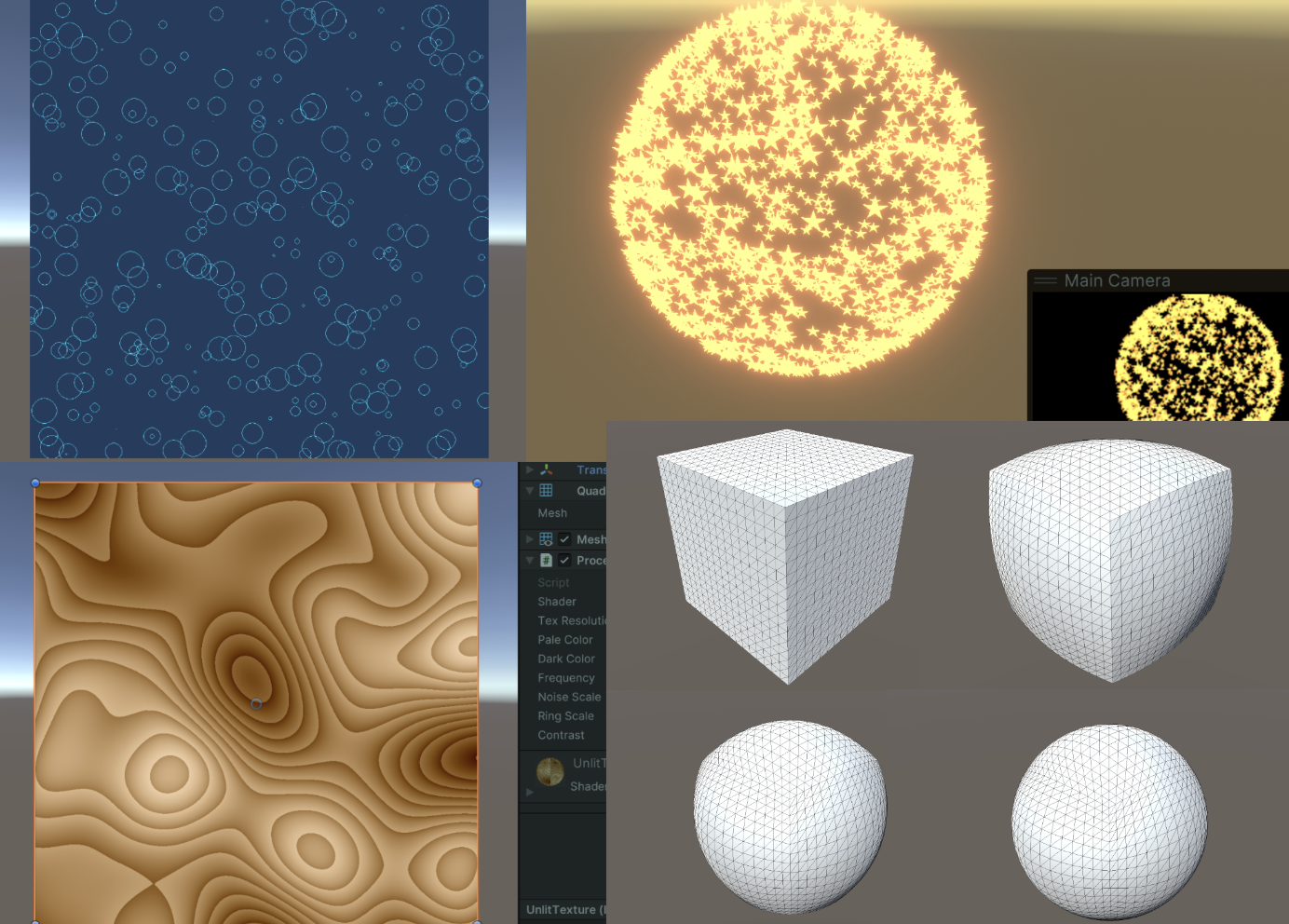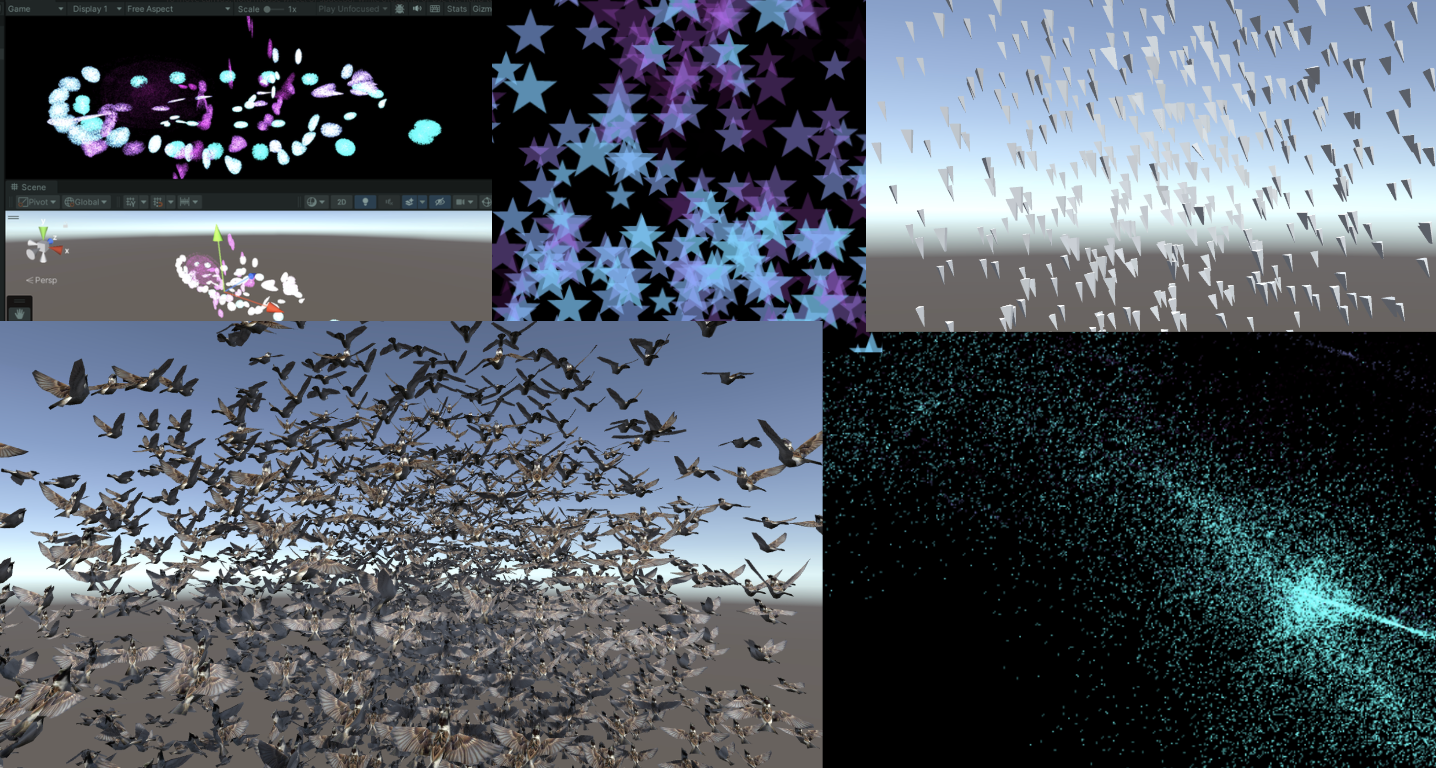
Category: Technical Blog

  • Compute Shader学习笔记(三)之 粒子效果与群集行为模拟

    Compute Shader Learning Notes (Part 3) Particle Effects and Cluster Behavior Simulation

    img

    Following the previous article

    remoooo: Compute Shader Learning Notes (II) Post-processing Effects

    L4 particle effects and crowd behavior simulation

    This chapter uses Compute Shader to generate particles. Learn how to use DrawProcedural and DrawMeshInstancedIndirect, also known as GPU Instancing.

    Summary of knowledge points:

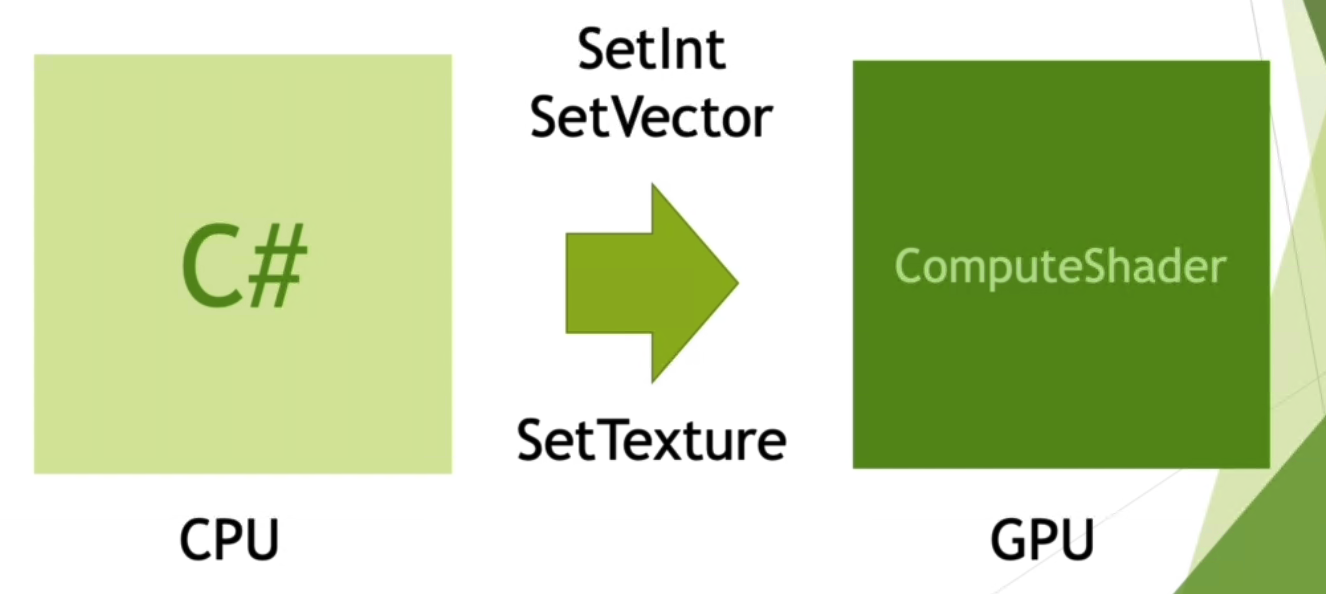
    • Compute Shader, Material, C# script and Shader work together
    • Graphics.DrawProcedural
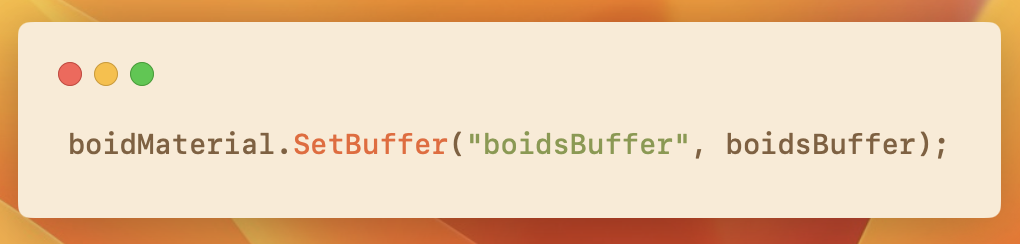
    • material.SetBuffer()
    • xorshift random algorithm
    • Swarm Behavior Simulation
    • Graphics.DrawMeshInstancedIndirect
    • Rotation, translation, and scaling matrices, homogeneous coordinates
    • Surface Shader
    • ComputeBufferType.Default
    • #pragma instancing_options procedural:setup
    • unity_InstanceID
    • Skinned Mesh Renderer
    • Data alignment

    1. Introduction and preparation

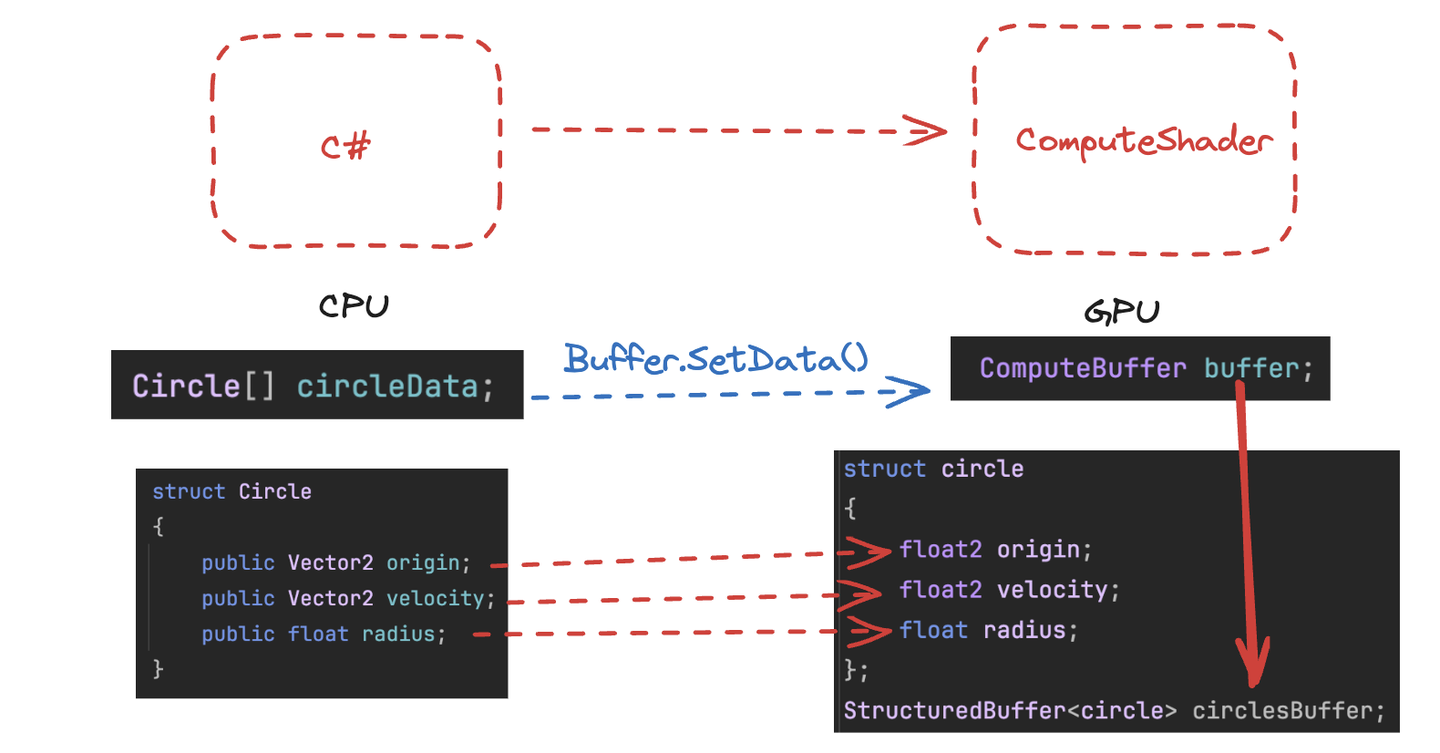
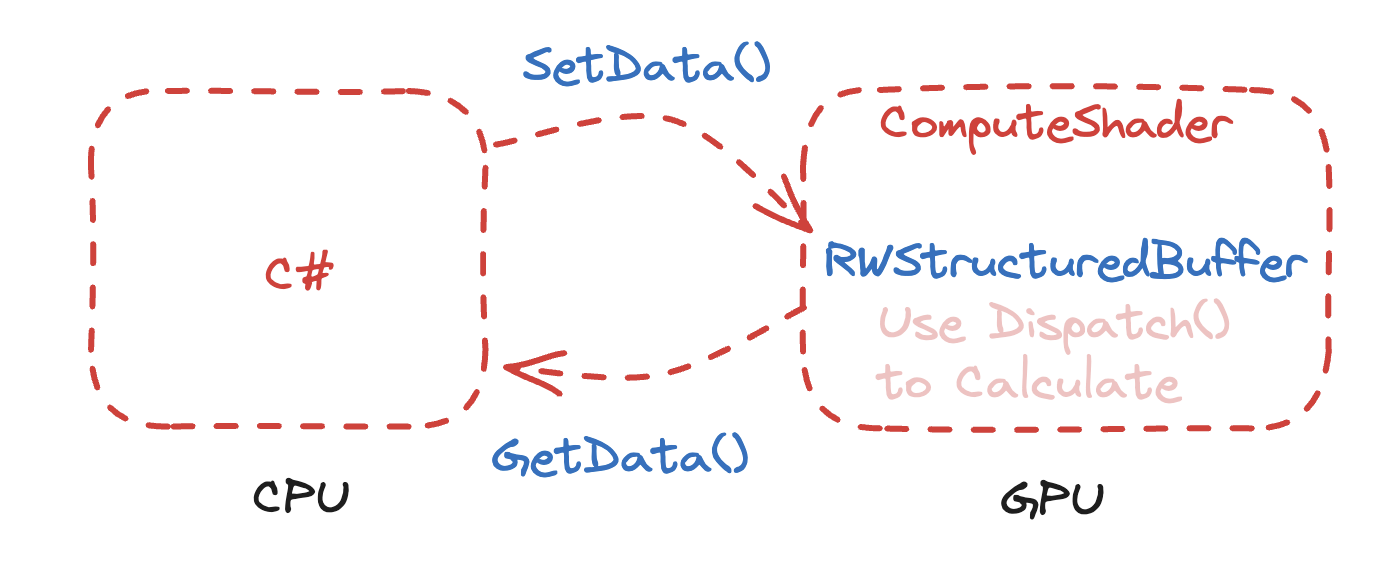
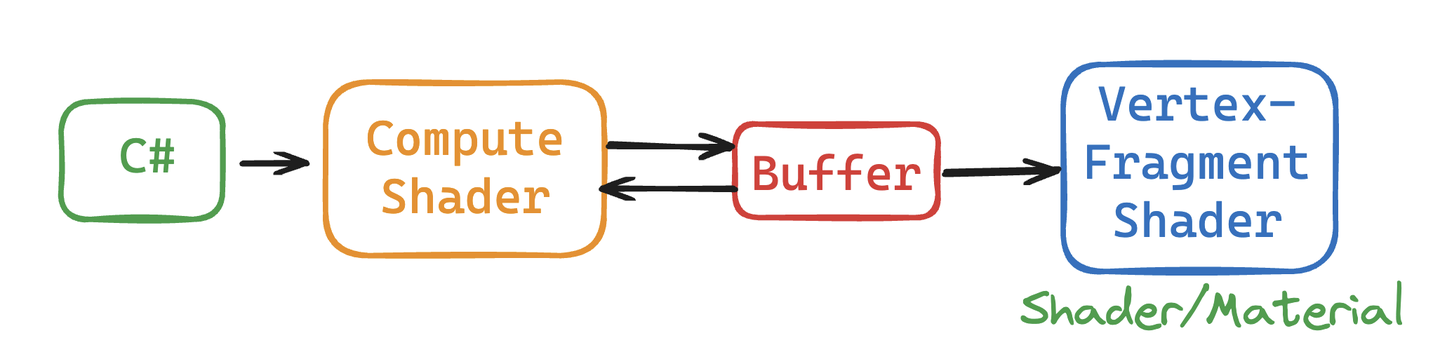
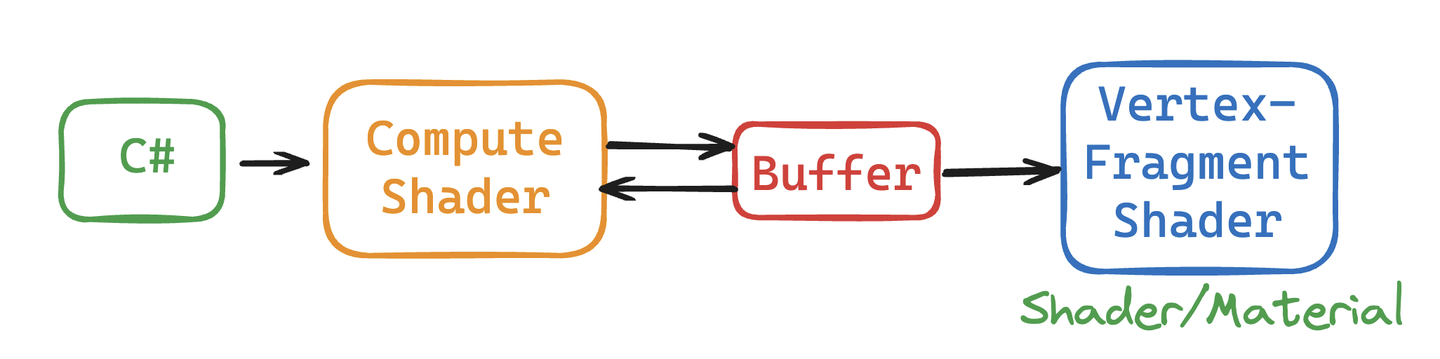
    In addition to being able to process large amounts of data at the same time, Compute Shader also has a key advantage, which is that the Buffer is stored in the GPU. Therefore, the data processed by the Compute Shader can be directly passed to the Shader associated with the Material, that is, the Vertex/Fragment Shader. The key here is that the material can also SetBuffer() like the Compute Shader, accessing data directly from the GPU's Buffer!
    img

    Using Compute Shader to create a particle system can fully demonstrate the powerful parallel capabilities of Compute Shader.

    During the rendering process, the Vertex Shader reads the position and other attributes of each particle from the Compute Buffer and converts them into vertices on the screen. The Fragment Shader is responsible for generating pixels based on the information of these vertices (such as position and color). Through the Graphics.DrawProcedural method, Unity canDirect RenderingThese vertices processed by the Shader do not require a pre-defined mesh structure and do not rely on the Mesh Renderer, which is particularly effective for rendering a large number of particles.

    2. Hello Particle

    The steps are also very simple. Define the particle information (position, speed and life cycle) in C#, initialize and pass the data to Buffer, bind Buffer to Compute Shader and Material. In the rendering stage, call Graphics.DrawProceduralNow in OnRenderObject() to achieve efficient particle rendering.

    img

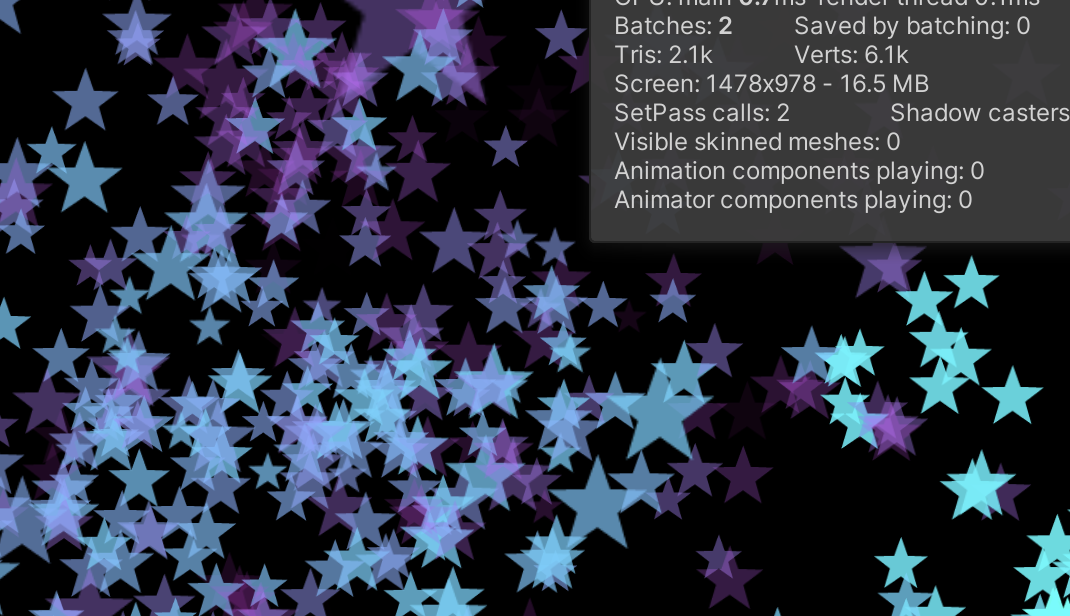
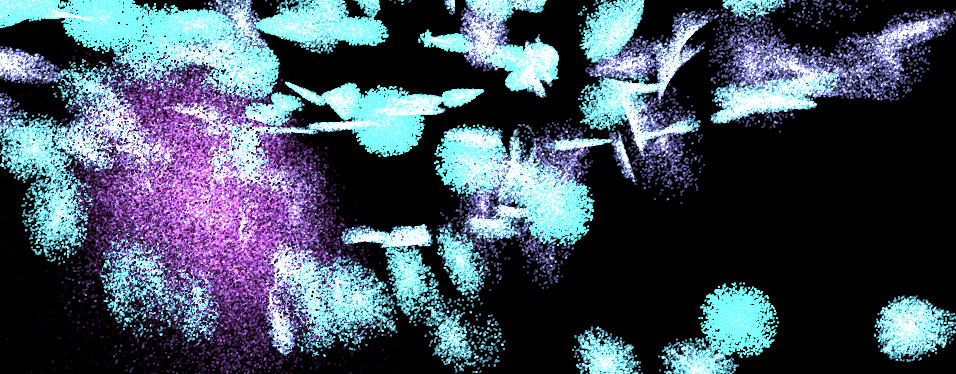
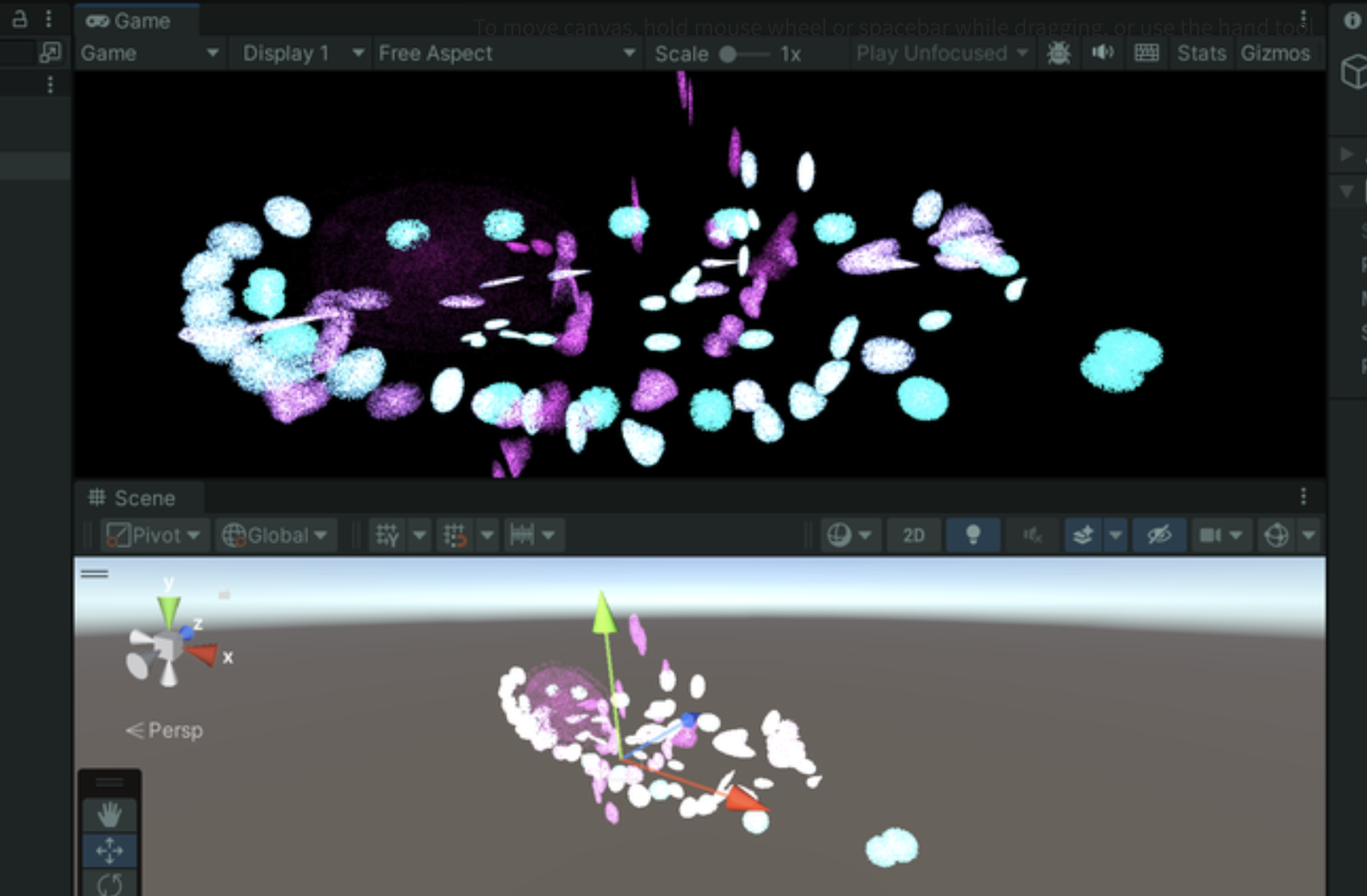
    Create a new scene and create an effect: millions of particles follow the mouse and bloom into life, as follows:
    img

    Writing this makes me think a lot. The life cycle of a particle is very short, ignited in an instant like a spark, and disappearing like a meteor. Despite thousands of hardships, I am just a speck of dust among billions of dust, ordinary and insignificant. These particles may float randomly in space (Use the "Xorshift" algorithm to calculate the position of particle spawning), may have unique colors, but they can't escape the fate of being programmed. Isn't this a portrayal of my life? I play my role step by step, unable to escape the invisible constraints.

    “God is dead! And how can we who have killed him not feel the greatest pain?” – Friedrich Nietzsche

    Nietzsche not only announced the disappearance of religious beliefs, but also pointed out the sense of nothingness faced by modern people, that is, without the traditional moral and religious pillars, people feel unprecedented loneliness and lack of direction. Particles are defined and created in the C# script, move and die according to specific rules, which is quite similar to the state of modern people in the universe described by Nietzsche. Although everyone tries to find their own meaning, they are ultimately restricted by broader social and cosmic rules.

    Life is full of various inevitable pains, reflecting the inherent emptiness and loneliness of human existence.Particle death logic to be writtenAll of these confirm what Nietzsche said: nothing in life is permanent. The particles in the same buffer will inevitably disappear at some point in the future, which reflects the loneliness of modern people described by Nietzsche. Individuals may feel unprecedented isolation and helplessness, so everyone is a lonely warrior who must learn to face the inner tornado and the indifference of the outside world alone.

    But it doesn’t matter, “Summer will come again and again, and those who are meant to meet will meet again.” The particles in this article will also be regenerated after the end, embracing their own Buffer in the best state.

    Summer will come around again. People who meet will meet again.

    img

    The current version of the code can be copied and run by yourself (all with comments):

    • Compute Shader: https://github.com/Remyuu/Unity-Compute-Shader-Learn/blob/L4_First_Particle/Assets/Shaders/ParticleFun.compute
    • CPU: https://github.com/Remyuu/Unity-Compute-Shader-Learn/blob/L4_First_Particle/Assets/Scripts/ParticleFun.cs
    • Shader: https://github.com/Remyuu/Unity-Compute-Shader-Learn/blob/L4_First_Particle/Assets/Shaders/Particle.shader

    Enough of the nonsense, let’s first take a look at how the C# script is written.
    img

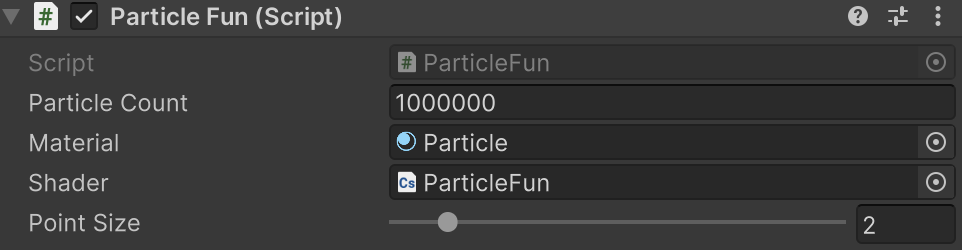
    As usual, first define the particle buffer (structure), initialize it, and then pass it to the GPU.The key lies in the last three lines that bind the Buffer to the shader operation.There is nothing much to say about the code in the ellipsis below. They are all routine operations, so they are just mentioned with comments.

    struct Particle{ public Vector3 position; // Particle positionpublic Vector3 velocity; // Particle velocitypublic float life; // Particle life cycle } ComputeBuffer particleBuffer; // GPU Buffer ... // Init() // Initialize particle array Particle[] particleArray = new Particle[particleCount]; for (int i = 0; i < particleCount; i++){ // Generate random positions and normalize... // Set the initial position and velocity of the particle... // Set the life cycle of the particle particleArray[i].life = Random.value * 5.0f + 1.0f; } // Create and set up the Compute Buffer ... // Find the kernel ID in the Compute Shader ... // Bind the Compute Buffer to the shader shader.SetBuffer(kernelID, "particleBuffer", particleBuffer); material.SetBuffer("particleBuffer", particleBuffer); material.SetInt("_PointSize", pointSize);

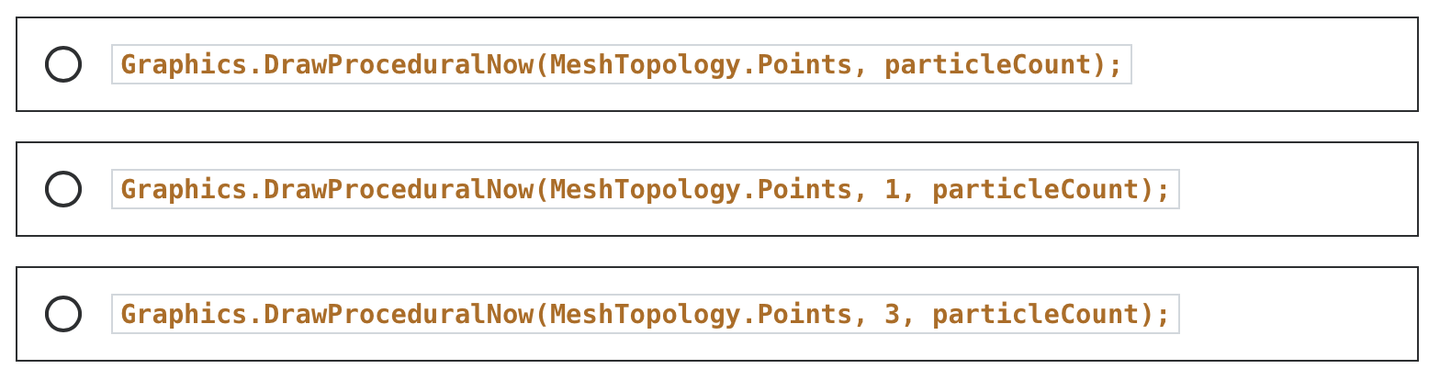
    The key rendering stage is OnRenderObject(). material.SetPass is used to set the rendering material channel. The DrawProceduralNow method draws geometry without using traditional meshes. MeshTopology.Points specifies the topology type of the rendering as points. The GPU will treat each vertex as a point and will not form lines or faces between vertices. The second parameter 1 means starting drawing from the first vertex. particleCount specifies the number of vertices to render, which is the number of particles, that is, telling the GPU how many points need to be rendered in total.

    void OnRenderObject() { material.SetPass(0); Graphics.DrawProceduralNow(MeshTopology.Points, 1, particleCount); }

    Get the current mouse position method. OnGUI() This method may be called multiple times per frame. The z value is set to the camera's near clipping plane plus an offset. Here, 14 is added to get a world coordinate that is more suitable for visual depth (you can also adjust it yourself).

    void OnGUI() { Vector3 p = new Vector3(); Camera c = Camera.main; Event e = Event.current; Vector2 mousePos = new Vector2(); // Get the mouse position from Event. // Note that the y position from Event is inverted. mousePos.x = e.mousePosition.x; mousePos.y = c.pixelHeight - e.mousePosition.y; p = c.ScreenToWorldPoint(new Vector3(mousePos.x, mousePos.y, c.nearClipPlane + 14)); cursorPos.x = px; cursorPos.y = py; }

    ComputeBuffer particleBuffer has been passed to Compute Shader and Shader above.

    Let's first look at the data structure of the Compute Shader. Nothing special.

    // Define particle data structure struct Particle { float3 position; // particle position float3 velocity; // particle velocity float life; // particle remaining life time }; // Structured buffer used to store and update particle data, which can be read and written from GPU RWStructuredBuffer particleBuffer; // Variables set from the CPU float deltaTime; // Time difference from the previous frame to the current frame float2 mousePosition; // Current mouse position
    img

    Here I will briefly talk about a particularly useful random number sequence generation method, the xorshift algorithm. It will be used to randomly control the movement direction of particles as shown above. The particles will move randomly in three-dimensional directions.

    • For more information, please refer to: https://en.wikipedia.org/wiki/Xorshift
    • Original paper link: https://www.jstatsoft.org/article/view/v008i14

    This algorithm was proposed by George Marsaglia in 2003. Its advantages are that it is extremely fast and very space-efficient. Even the simplest Xorshift implementation has a very long pseudo-random number cycle.

    The basic operations are shift and XOR. Hence the name of the algorithm. Its core is to maintain a non-zero state variable and generate random numbers by performing a series of shift and XOR operations on this state variable.

    // State variable for random number generation uint rng_state; uint rand_xorshift() { // Xorshift algorithm from George Marsaglia's paper rng_state ^= (rng_state << 13); // Shift the state variable left by 13 bits, then XOR it with the original state rng_state ^= (rng_state >> 17); // Shift the updated state variable right by 17 bits, and XOR it again rng_state ^= (rng_state << 5); // Finally, shift the state variable left by 5 bits, and XOR it one last time return rng_state; // Return the updated state variable as the generated random number }

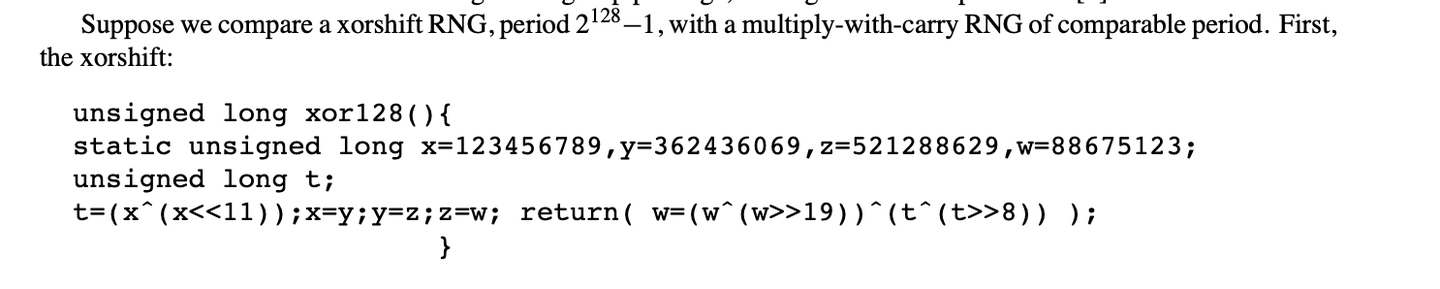
    Basic Xorshift The core of the algorithm has been explained above, but different shift combinations can create multiple variants. The original paper also mentions the Xorshift128 variant. Using a 128-bit state variable, the state is updated by four different shifts and XOR operations. The code is as follows:
    img
    // c language Ver uint32_t xorshift128(void) { static uint32_t x = 123456789; static uint32_t y = 362436069; static uint32_t z = 521288629; static uint32_t w = 88675123; uint32_t t = x ^ (x << 11); x = y; y = z; z = w; w = w ^ (w >> 19) ^ (t ^ (t >> 8)); return w; }

    This can produce longer periods and better statistical performance. The period of this variant is close, which is very impressive.

    In general, this algorithm is completely sufficient for game development, but it is not suitable for use in fields such as cryptography.

    When using this algorithm in Compute Shader, you need to pay attention to the range of random numbers generated by the Xorshift algorithm when it is the range of uint32, and you need to do another mapping ([0, 2^32-1] is mapped to [0, 1]):

    float tmp = (1.0 / 4294967296.0); // conversion factor rand_xorshift()) * tmp

    The direction of particle movement is signed, so we just need to subtract 0.5 from it. Random movement in three directions:

    float f0 = float(rand_xorshift()) * tmp - 0.5; float f1 = float(rand_xorshift()) * tmp - 0.5; float f2 = float(rand_xorshift()) * tmp - 0.5; float3 normalF3 = normalize(float3(f0, f1, f2)) * 0.8f; // Scaled the direction of movement

    Each Kernel needs to complete the following:

    • First get the particle information of the previous frame in the Buffer
    • Maintain particle buffer (calculate particle velocity, update position and health value), write back to buffer
    • If the health value is less than 0, regenerate a particle

    Generate particles. Use the random number obtained by Xorshift just now to define the particle's health value and reset its speed.

    // Set the new position and life of the particle particleBuffer[id].position = float3(normalF3.x + mousePosition.x, normalF3.y + mousePosition.y, normalF3.z + 3.0); particleBuffer[id].life = 4; // Reset life particleBuffer[id].velocity = float3(0,0,0); // Reset velocity

    Finally, the basic data structure of Shader:

    struct Particle{ float3 position; float3 velocity; float life; }; struct v2f{ float4 position : SV_POSITION; float4 color : COLOR; float life : LIFE; float size: PSIZE; }; // particles' data StructuredBuffer particleBuffer;

    Then the vertex shader calculates the vertex color of the particle, the Clip position of the vertex, and transmits the information of a vertex size.

    v2f vert(uint vertex_id : SV_VertexID, uint instance_id : SV_InstanceID){ v2f o = (v2f)0; // Color float life = particleBuffer[instance_id].life; float lerpVal = life * 0.25f; o.color = fixed4(1.0 f - lerpVal+0.1, lerpVal+0.1, 1.0f, lerpVal); // Position o.position = UnityObjectToClipPos(float4(particleBuffer[instance_id].position, 1.0f)); o.size = _PointSize; return o; }

    The fragment shader calculates the interpolated color.

    float4 frag(v2f i) : COLOR{ return i.color; }

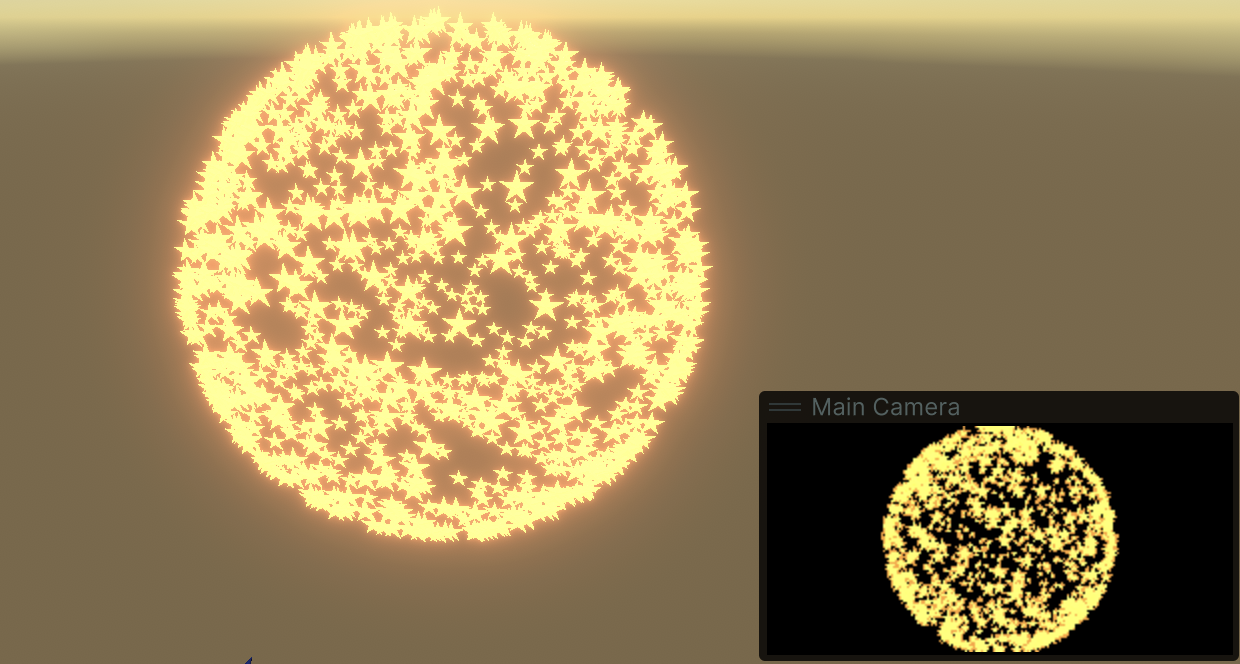
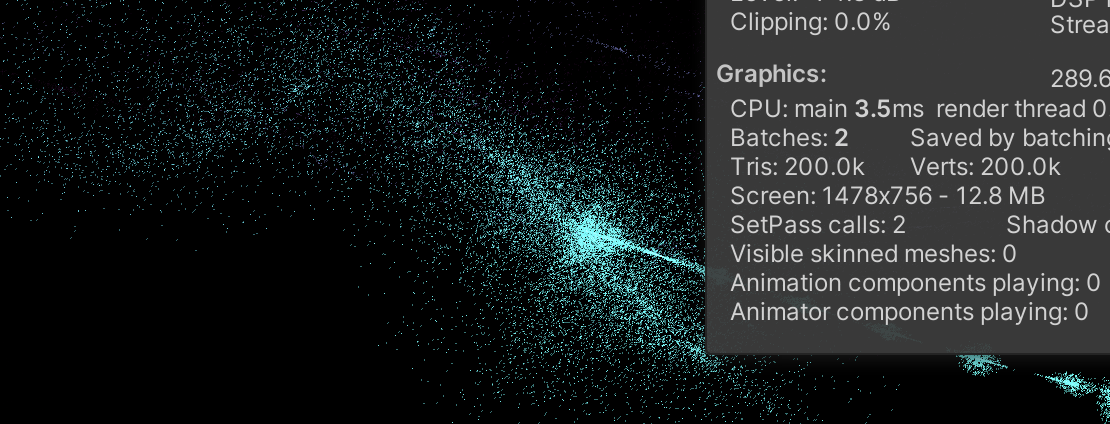
    At this point, you can get the above effect.
    img

    3. Quad particles

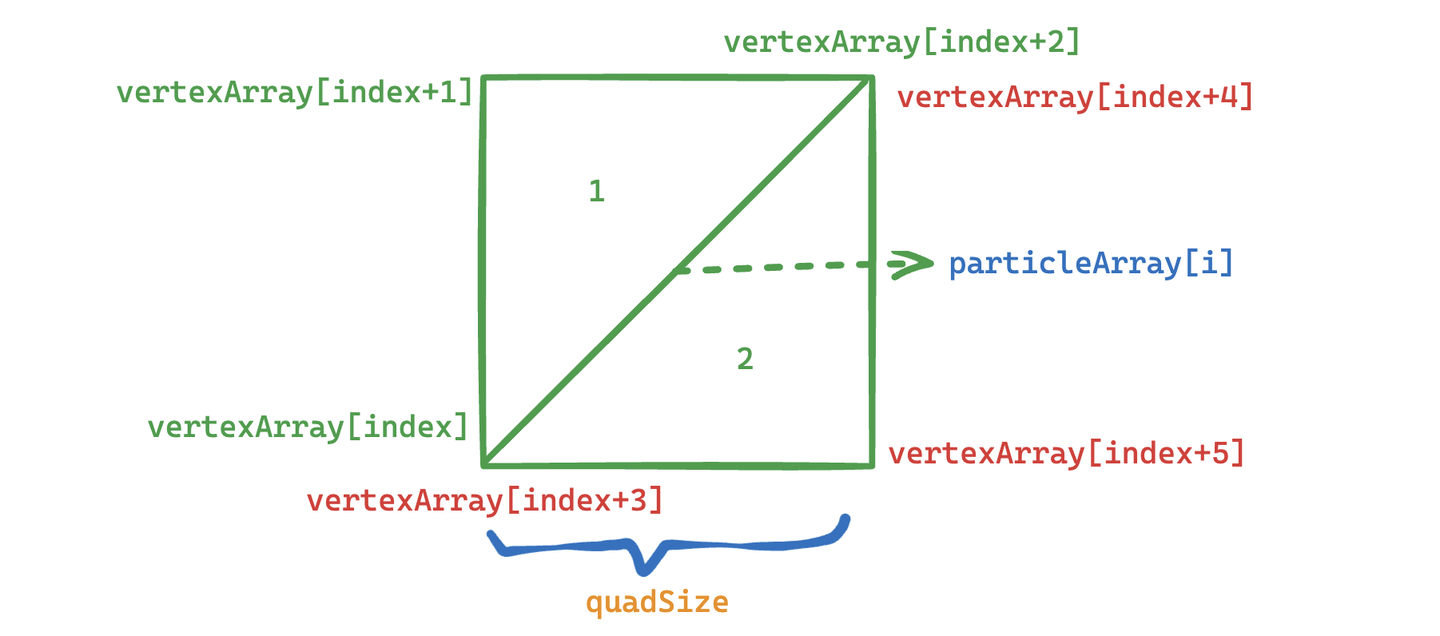
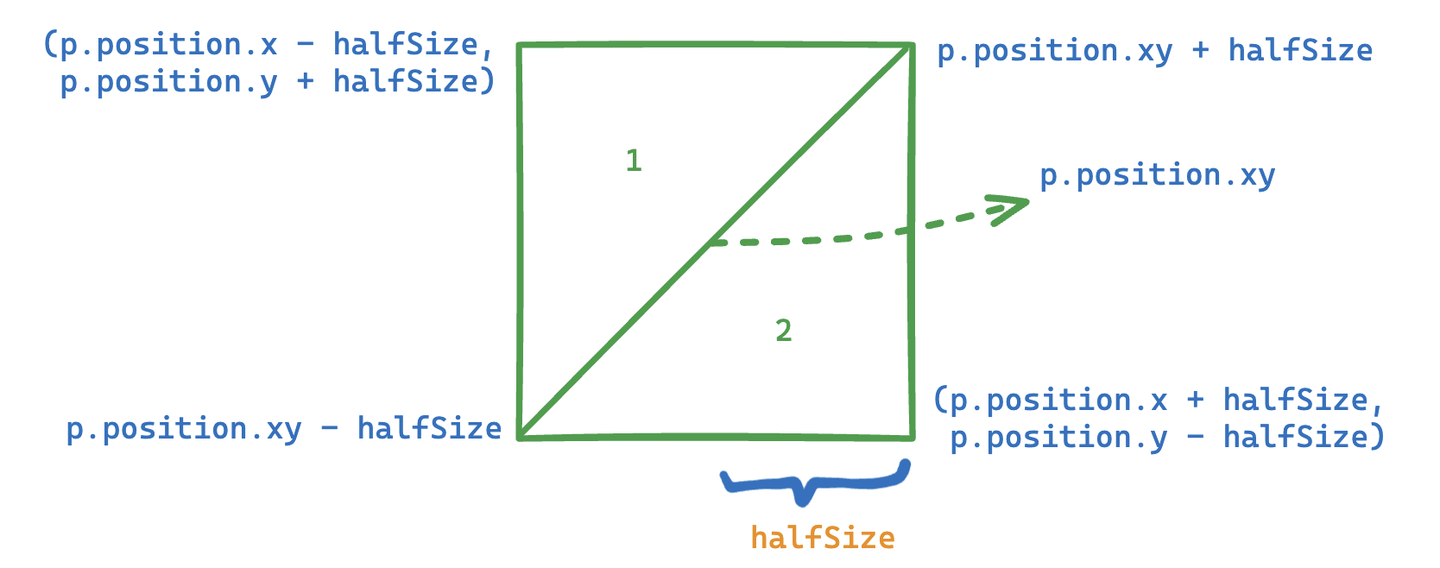
    In the previous section, each particle only had one point, which was not interesting. Now let's turn a point into a Quad. In Unity, there is no Quad, only a fake Quad composed of two triangles.

    Let's start working on it, based on the code above. Define the vertices in C#, the size of a Quad.

    // struct struct Vertex { public Vector3 position; public Vector2 uv; public float life; } const int SIZE_VERTEX = 6 * sizeof(float); public float quadSize = 0.1f; // Quad size
    img

    On a per-particle basis, set the UV coordinates of the six vertices for use in the vertex shader, and draw them in the order specified by Unity.

    index = i*6; //Triangle 1 - bottom-left, top-left, top-right vertexArray[index].uv.Set(0,0); vertexArray[index+1].uv.Set(0,1 ); vertexArray[index+2].uv.Set(1,1); //Triangle 2 - bottom-left, top-right, bottom-right vertexArray[index+3].uv.Set(0,0); vertexArray[index+4].uv.Set(1,1); vertexArray[index+5].uv.Set(1,0);

    Finally, it is passed to Buffer. The halfSize here is used to pass to Compute Shader to calculate the positions of each vertex of Quad.

    vertexBuffer = new ComputeBuffer(numVertices, SIZE_VERTEX); vertexBuffer.SetData(vertexArray); shader.SetBuffer(kernelID, "vertexBuffer", vertexBuffer); shader.SetFloat("halfSize", quadSize*0.5f); material.SetBuffer("vertexBuffer ", vertexBuffer);

    During the rendering phase, the points are changed into triangles with six points.

    void OnRenderObject() { material.SetPass(0); Graphics.DrawProceduralNow(MeshTopology.Triangles, 6, numParticles); }

    Change the settings in the Shader to receive vertex data and a texture for display. Alpha culling is required.

    _MainTex("Texture", 2D) = "white" {} ... Tags{ "Queue"="Transparent" "RenderType"="Transparent" "IgnoreProjector"="True" } LOD 200 Blend SrcAlpha OneMinusSrcAlpha ZWrite Off .. . struct Vertex{ float3 position; float2 uv; float life; }; StructuredBuffer vertexBuffer; sampler2D _MainTex; v2f vert(uint vertex_id : SV_VertexID, uint instance_id : SV_InstanceID) { v2f o = (v2f)0; int index = instance_id*6 + vertex_id; float lerpVal = vertexBuffer[index].life * 0.25f; o .color = fixed4(1.0f - lerpVal+0.1, lerpVal+0.1, 1.0f, lerpVal); o.position = UnityWorldToClipPos(float4(vertexBuffer[index].position, 1.0f)); o.uv = vertexBuffer[index].uv; return o; } float4 frag(v2f i) : COLOR { fixed4 color = tex2D( _MainTex, i.uv ) * i.color; return color; }

    In the Compute Shader, add receiving vertex data and halfSize.

    struct Vertex { float3 position; float2 uv; float life; }; RWStructuredBuffer vertexBuffer; float halfSize;

    Calculate the positions of the six vertices of each Quad.
    img
    //Set the vertex buffer // int index = id.x * 6; //Triangle 1 - bottom-left, top-left, top-right vertexBuffer[index].position.x = p.position.x-halfSize; vertexBuffer[index].position.y = p.position.y-halfSize; vertexBuffer[index].position.z = p.position.z; vertexBuffer[index].life = p.life; vertexBuffer[index+1].position.x = p.position.x-halfSize; vertexBuffer[index+1].position.y = p.position.y+halfSize; vertexBuffer[index+1].position.z = p .position.z; vertexBuffer[index+1].life = p.life; vertexBuffer[index+2].position.x = p.position.x+halfSize; vertexBuffer[index+2].position.y = p.position.y+halfSize; vertexBuffer[index+2].position.z = p.position.z; vertexBuffer[index+2].life = p.life; //Triangle 2 - bottom-left, top-right, bottom-right // // vertexBuffer[index+3].position.x = p.position.x-halfSize; vertexBuffer[index+3].position.y = p.position.y-halfSize; vertexBuffer[index+3].position.z = p.position.z; vertexBuffer[index+3].life = p.life; vertexBuffer[index+4].position.x = p.position.x+halfSize; vertexBuffer[index+4].position.y = p.position.y+halfSize ; vertexBuffer[index+4].position.z = p.position.z; vertexBuffer[index+4].life = p.life; vertexBuffer[index+5].position.x = p.position.x+halfSize; vertexBuffer[index+5].position.y = p.position.y-halfSize; vertexBuffer[index+5].position.z = p.position.z; vertexBuffer[index+5].life = p.life;

    Mission accomplished.

    img

    Current version code:

    • Compute Shader: https://github.com/Remyuu/Unity-Compute-Shader-Learn/blob/L4_Quad/Assets/Shaders/QuadParticles.compute
    • CPU: https://github.com/Remyuu/Unity-Compute-Shader-Learn/blob/L4_Quad/Assets/Scripts/QuadParticles.cs
    • Shader: https://github.com/Remyuu/Unity-Compute-Shader-Learn/blob/L4_Quad/Assets/Shaders/QuadParticle.shader

    In the next section, we will upgrade the Mesh to a prefab and try to simulate the flocking behavior of birds in flight.

    4. Flocking simulation
    img

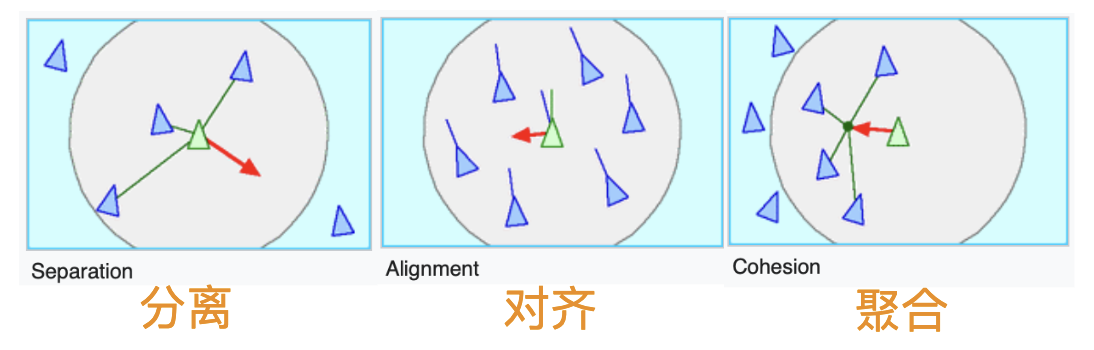
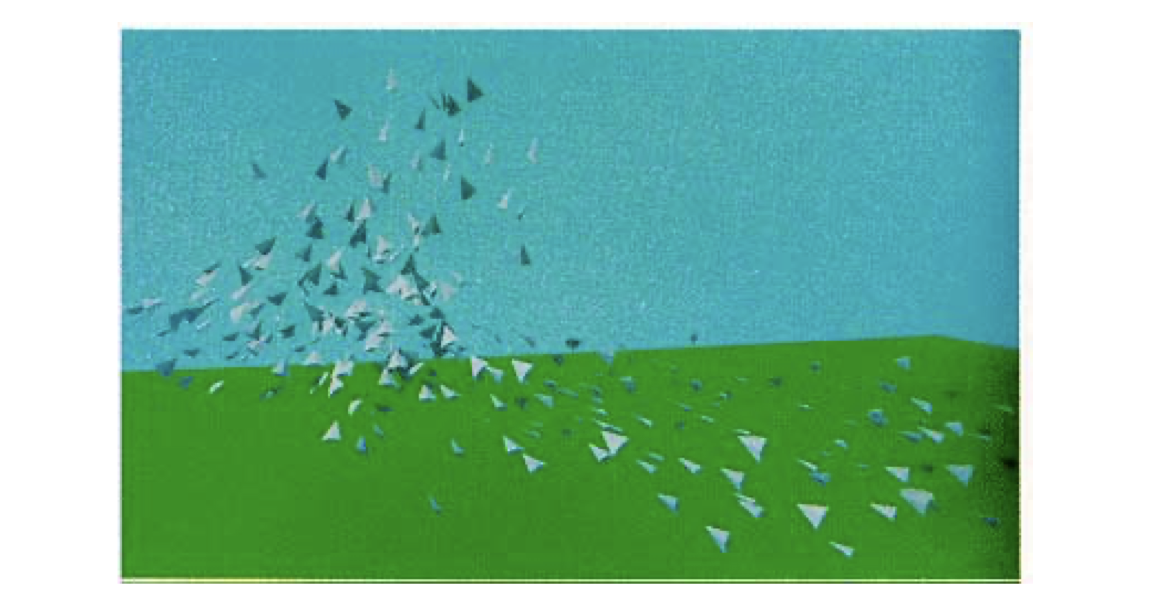
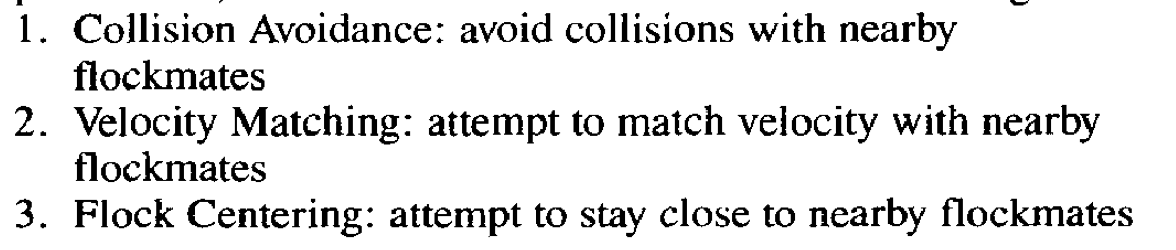
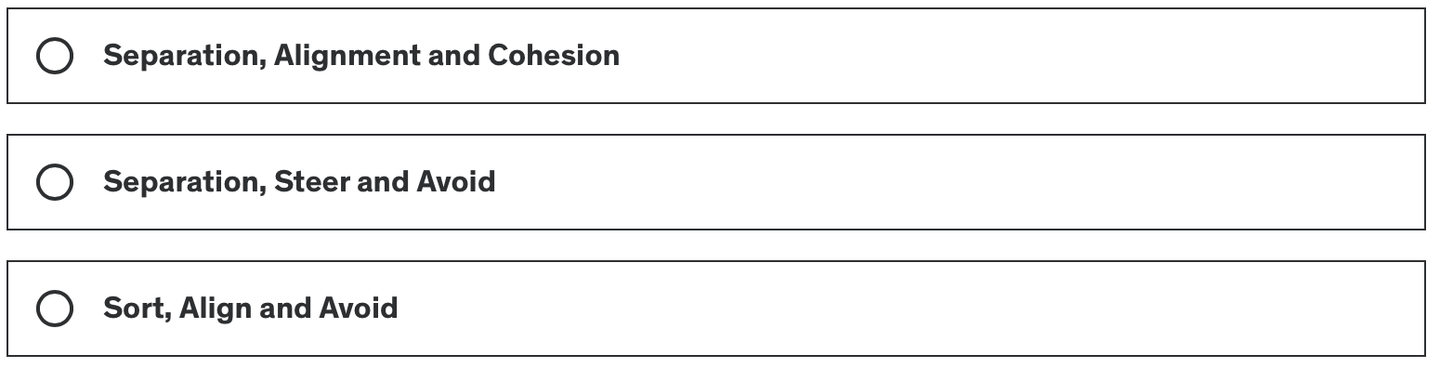
    Flocking is an algorithm that simulates the collective movement of animals such as flocks of birds and schools of fish in nature. The core is based on three basic behavioral rules, proposed by Craig Reynolds in Sig 87, and is often referred to as the "Boids" algorithm:

    • Separation Particles cannot be too close to each other, and there must be a sense of boundary. Specifically, the particles with a certain radius around them are calculated and then a direction is calculated to avoid collision.
    • Alignment The speed of an individual tends to the average speed of the group, and there should be a sense of belonging. Specifically, the average speed of particles within the visual range is calculated (the speed size direction). This visual range is determined by the actual biological characteristics of the bird, which will be mentioned in the next section.
    • Cohesion The position of the individual particles tends to the average position (the center of the group) to feel safe. Specifically, each particle finds the geometric center of its neighbors and calculates a moving vector (the final result is the averageLocation).
    img
    img

    Think about it, which of the above three rules is the most difficult to implement?

    Answer: Separation. As we all know, calculating collisions between objects is very difficult to achieve. Because each individual needs to compare distances with all other individuals, this will cause the time complexity of the algorithm to be close to O(n^2), where n is the number of particles. For example, if there are 1,000 particles, then nearly 500,000 distance calculations may be required in each iteration. In the original paper, the author took 95 seconds to render one frame (80 birds) in the original unoptimized algorithm (time complexity O(N^2)), and it took nearly 9 hours to render a 300-frame animation.

    Generally speaking, using a quadtree or spatial hashing method can optimize the calculation. You can also maintain a neighbor list to store the individuals around each individual at a certain distance. Of course, you can also use Compute Shader to perform hard calculations.
    img

    Without further ado, let’s get started.

    First download the prepared project files (if not prepared in advance):

    • Bird's Prefab: https://github.com/Remyuu/Unity-Compute-Shader-Learn/blob/main/Assets/Prefabs/Boid.prefab
    • Script: https://github.com/Remyuu/Unity-Compute-Shader-Learn/blob/main/Assets/Scripts/SimpleFlocking.cs
    • Compute Shader: https://github.com/Remyuu/Unity-Compute-Shader-Learn/blob/main/Assets/Shaders/SimpleFlocking.compute

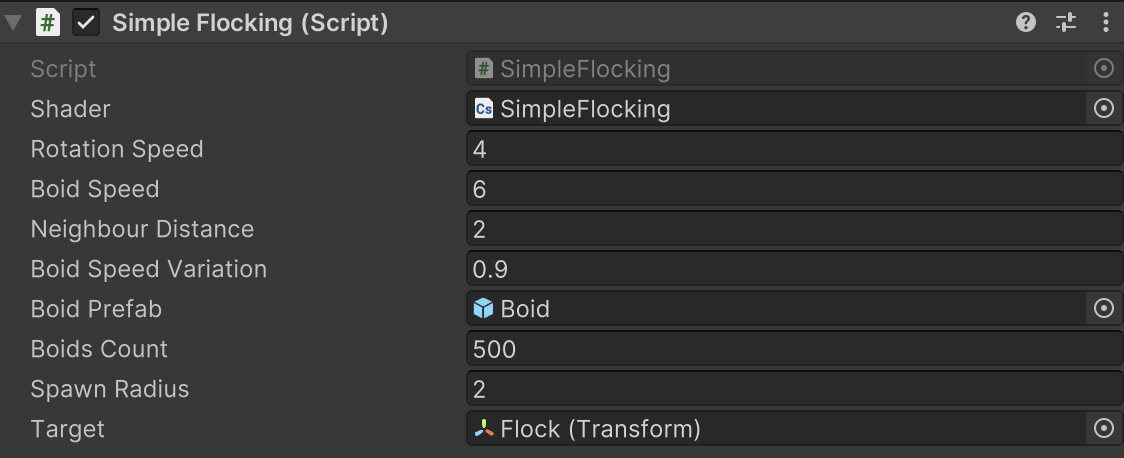
    Then add it to an empty GO.
    img

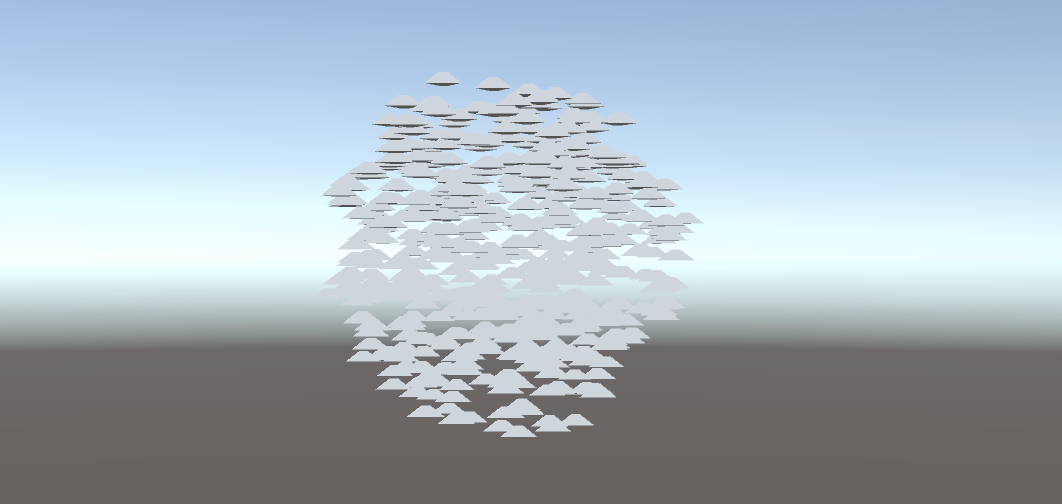
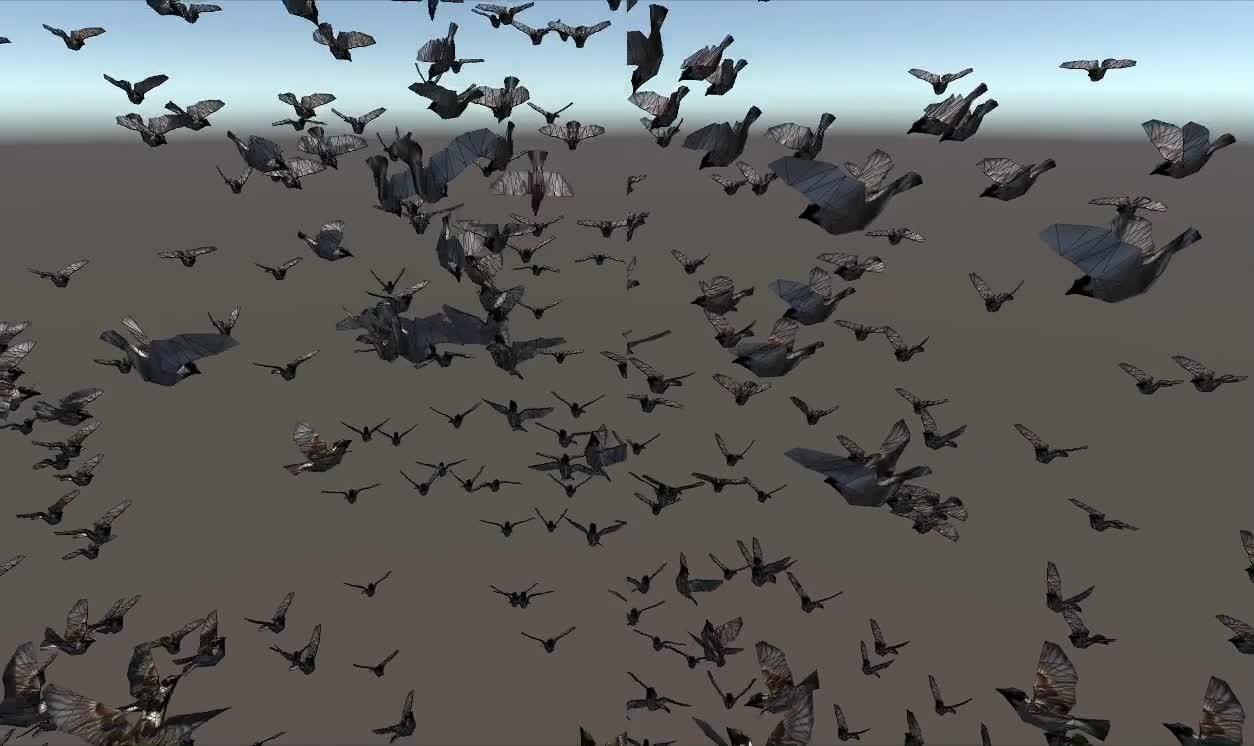
    Start the project and you'll see a bunch of birds.
    img

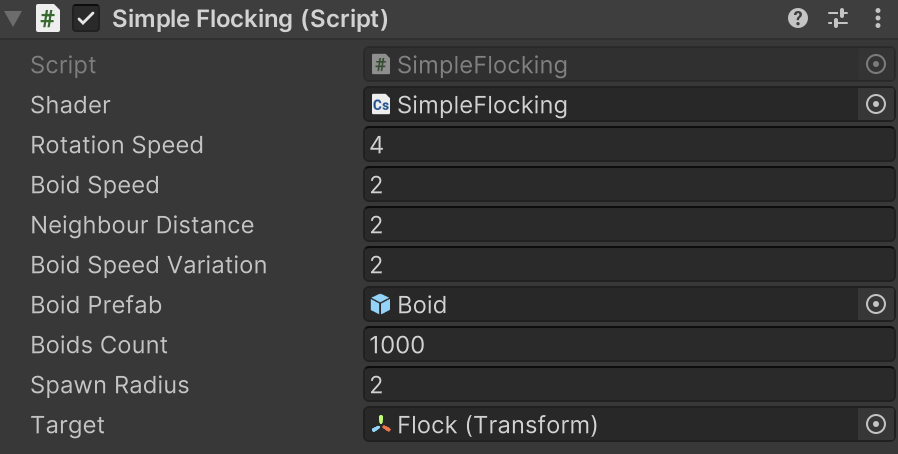
    Below are some parameters for group behavior simulation.

    // Define the parameters for the crowd behavior simulation. public float rotationSpeed = 1f; // Rotation speed. public float boidSpeed = 1f; // Boid speed. public float neighbourDistance = 1f; // Neighboring distance. public float boidSpeedVariation = 1f; // Speed variation. public GameObject boidPrefab; // Prefab of Boid object. public int boidsCount; // Number of Boids. public float spawnRadius; // Radius of Boid spawn. public Transform target; // The moving target of the crowd.

    Except for the Boid prefab boidPrefab and the spawn radius spawnRadius, everything else needs to be passed to the GPU.

    For the sake of convenience, let’s make a foolish mistake in this section. We will only calculate the bird’s position and direction on the GPU, and then pass it back to the CPU for the following processing:

    ... boidsBuffer.GetData(boidsArray); // Update the position and direction of each bird for (int i = 0; i < boidsArray.Length; i++){ boids[i].transform.localPosition = boidsArray[i].position; if (!boidsArray[i].direction.Equals(Vector3.zero)){ boids[i].transform.rotation = Quaternion.LookRotation(boidsArray[i].direction); } }

    The Quaternion.LookRotation() method is used to create a rotation so that an object faces a specified direction.

    Calculate the position of each bird in the Compute Shader.

    #pragma kernel CSMain #define GROUP_SIZE 256 struct Boid{ float3 position; float3 direction; }; RWStructuredBuffer boidsBuffer; float time; float deltaTime; float rotationSpeed; float boidSpeed; float boidSpeedVariation; float3 flockPosition; float neighborDistance; int boidsCount;
    

    [numthreads(GROUP_SIZE,1,1)]

    void CSMain (uint3 id : SV_DispatchThreadID) { … // Continue below }

    First write the logic of alignment and aggregation, and finally output the actual position and direction to the Buffer.

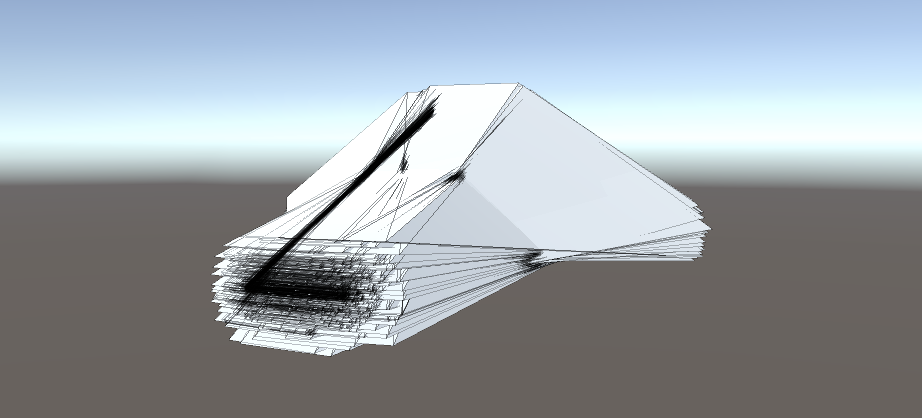
    Boid boid = boidsBuffer[id.x]; float3 separation = 0; // Separation float3 alignment = 0; // Alignment - direction float3 cohesion = flockPosition; // Aggregation - position uint nearbyCount = 1; // Count itself as a surrounding individual. for (int i=0; i

    This is the result of having no sense of boundaries (separation terms), all individuals appear to have a fairly close relationship and overlap.
    img

    Add the following code.

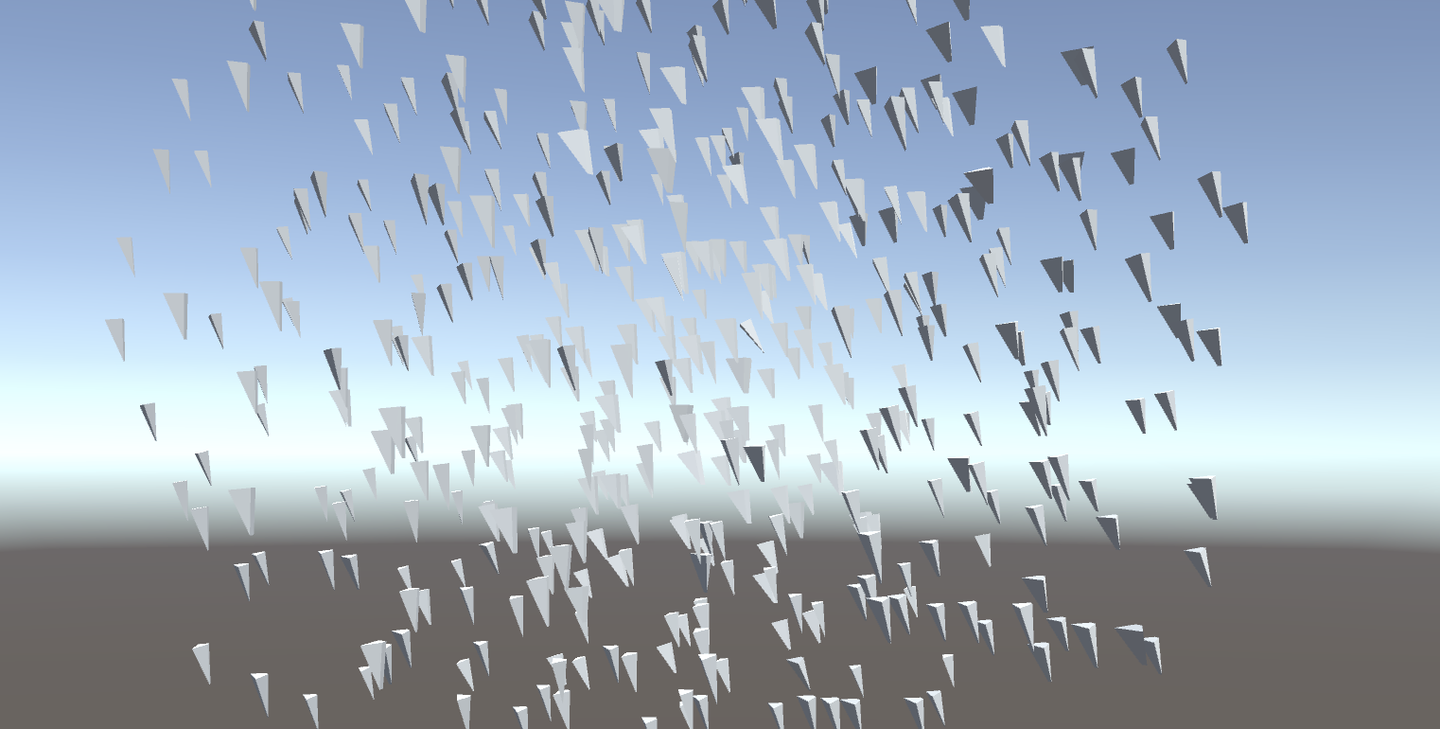
    if(distance(boid.position, temp.position)< neighborDistance) { float3 offset = boid.position - temp.position; float dist = length(offset); if(dist < neighborDistance) { dist = max(dist, 0.000001) ; separation += offset * (1.0/dist - 1.0/neighbourDistance); } ...

    1.0/dist When the Boids are closer together, this value is larger, indicating that the separation force should be greater. 1.0/neighbourDistance is a constant based on the defined neighbor distance. The difference between the two represents how much the actual separation force responds to the distance. If the distance between the two Boids is exactly neighborDistance, this value is zero (no separation force). If the distance between the two Boids is less than neighborDistance, this value is positive, and the smaller the distance, the larger the value.
    img

    Current code: https://github.com/Remyuu/Unity-Compute-Shader-Learn/blob/L4_Flocking/Assets/Shaders/SimpleFlocking.compute

    The next section will use Instanced Mesh to improve performance.

    5. GPU Instancing Optimization

    First, let's review the content of this chapter. In both the "Hello Particle" and "Quad Particle" examples, we used the Instanced technology (Graphics.DrawProceduralNow()) to pass the particle position calculated by the Compute Shader directly to the VertexFrag shader.
    img

    DrawMeshInstancedIndirect used in this section is used to draw a large number of geometric instances. The instances are similar, but the positions, rotations or other parameters are slightly different. Compared with DrawProceduralNow, which regenerates the geometry and renders it every frame, DrawMeshInstancedIndirect only needs to set the instance information once, and then the GPU can render all instances at once based on this information. Use this function to render grass and groups of animals.

    img

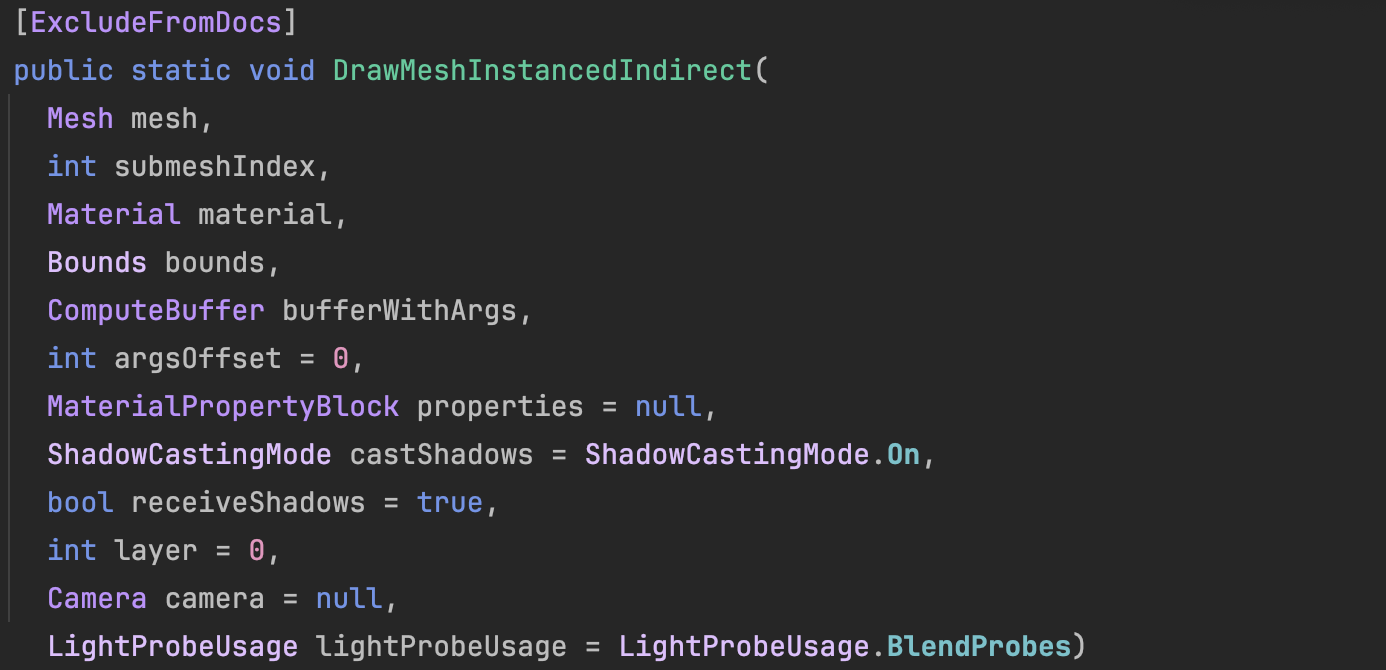
    This function has many parameters, only some of which are used.
    img
    Graphics.DrawMeshInstancedIndirect(boidMesh, 0, boidMaterial, bounds, argsBuffer);
    1. boidMesh: Throw the bird Mesh in.
    2. subMeshIndex: The submesh index to draw. Usually 0 if the mesh has only one submesh.
    3. boidMaterial: The material applied to the instanced object.
    4. Bounds: The bounding box specifies the drawing range. The instantiated object will only be rendered in the area within this bounding box. Used to optimize performance.
    5. argsBuffer: ComputeBuffer of parameters, including the number of indices of each instance's geometry and the number of instances.

    What is this argsBuffer? This parameter is used to tell Unity which mesh we want to render and how many meshes we want to render! We can use a special Buffer as a parameter.

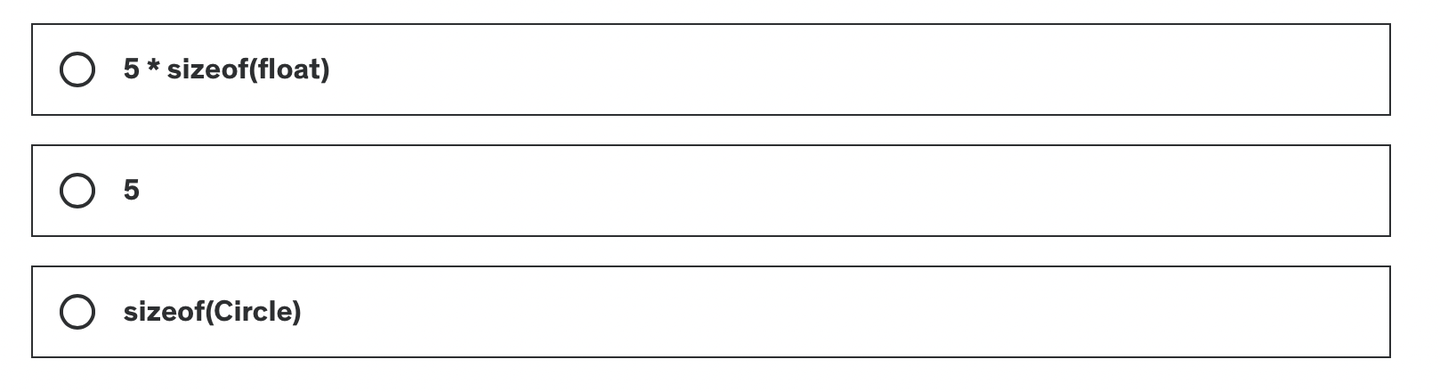
    When initializing the shader, a special Buffer is created, which is labeled ComputeBufferType.IndirectArguments. This type of buffer is specifically used to pass to the GPU so that indirect drawing commands can be executed on the GPU. The first parameter of new ComputeBuffer here is 1, which represents an args array (an array has 5 uints). Don't get it wrong.

    ComputeBuffer argsBuffer; ... argsBuffer = new ComputeBuffer(1, 5 * sizeof(uint), ComputeBufferType.IndirectArguments); if (boidMesh != null) { args[0] = (uint)boidMesh.GetIndexCount(0); args[ 1] = (uint)numOfBoids; } argsBuffer.SetData(args); ... Graphics.DrawMeshInstancedIndirect(boidMesh, 0, boidMaterial, bounds, argsBuffer);

    Based on the previous chapter, an offset is added to the individual data structure, which is used for the direction offset in the Compute Shader. In addition, the direction of the initial state is interpolated using Slerp, 70% keeps the original direction, and 30% is random. The result of Slerp interpolation is a quaternion, which needs to be converted to Euler angles using the quaternion method and then passed into the constructor.

    public float noise_offset; ... Quaternion rot = Quaternion.Slerp(transform.rotation, Random.rotation, 0.3f); boidsArray[i] = new Boid(pos, rot.eulerAngles, offset);

    After passing this new attribute noise_offset to the Compute Shader, a noise value in the range [-1, 1] is calculated and applied to the bird's speed.

    float noise = clamp(noise1(time / 100.0 + boid.noise_offset), -1, 1) * 2.0 - 1.0; float velocity = boidSpeed * (1.0 + noise * boidSpeedVariation);

    Then we optimized the algorithm a bit. Compute Shader is basically the same.

    if (distance(boid_pos, boidsBuffer[i].position) < neighborDistance) { float3 tempBoid_position = boidsBuffer[i].position; float3 offset = boid.position - tempBoid_position; float dist = length(offset); if (dist

    The biggest difference is in the shader. This section uses a surface shader instead of a fragment. This is actually a packaged vertex and fragment shader. Unity has already done a lot of tedious work such as lighting and shadows. You can still specify a vertice.

    When writing shaders to make materials, you need to do special processing for instanced objects. Because the positions, rotations and other properties of ordinary rendering objects are static in Unity. For the instantiated objects to be built, their positions, rotations and other parameters are constantly changing. Therefore, a special mechanism is needed in the rendering pipeline to dynamically set the position and parameters of each instantiated object. The current method is based on the instantiation technology of the program, which can render all instantiated objects at once without drawing them one by one. That is, one-time batch rendering.

    The shader uses the instanced technique. The instantiation phase is executed before vert. This way each instantiated object has its own rotation, translation, and scaling matrices.

    Now we need to create a rotation matrix for each instantiated object. From the Buffer, we get the basic information of the bird calculated by the Compute Shader (in the previous section, the data was sent back to the CPU, and here it is directly sent to the Shader for instantiation):
    img

    In Shader, the data structure and related operations passed by Buffer are wrapped with the following macros.

    // .shader #ifdef UNITY_PROCEDURAL_INSTANCING_ENABLED struct Boid { float3 position; float3 direction; float noise_offset; }; StructuredBuffer boidsBuffer; #endif

    Since I only specified the number of birds to be instantiated (the number of birds, which is also the size of the Buffer) in args[1] of DrawMeshInstancedIndirect of C#, I can directly access the Buffer using the unity_InstanceID index.

    #pragma instancing_options procedural:setup void setup() { #ifdef UNITY_PROCEDURAL_INSTANCING_ENABLED _BoidPosition = boidsBuffer[unity_InstanceID].position; _Matrix = create_matrix(boidsBuffer[unity_InstanceID].position, boidsBuffer[unity_InstanceID].direction, float3(0.0, 1.0, 0.0)); #endif }

    The calculation of the space transformation matrix here involvesHomogeneous Coordinates, you can review the GAMES101 course. The point is (x,y,z,1) and the coordinates are (x,y,z,0).

    If you use affine transformations, the code is as follows:

    void setup() { #ifdef UNITY_PROCEDURAL_INSTANCING_ENABLED _BoidPosition = boidsBuffer[unity_InstanceID].position; _LookAtMatrix = look_at_matrix(boidsBuffer[unity_InstanceID].direction, float3(0.0, 1.0, 0.0)); #endif } void vert(inout appdata_full v, out Input data) { UNITY_INITIALIZE_OUTPUT(Input, data); #ifdef UNITY_PROCEDURAL_INSTANCING_ENABLED v.vertex = mul(_LookAtMatrix, v.vertex); v.vertex.xyz += _BoidPosition; #endif }

    Not elegant enough, we can just use homogeneous coordinates. One matrix handles rotation, translation and scaling!

    void setup() { #ifdef UNITY_PROCEDURAL_INSTANCING_ENABLED _BoidPosition = boidsBuffer[unity_InstanceID].position; _Matrix = create_matrix(boidsBuffer[unity_InstanceID].position, boidsBuffer[unity_InstanceID].direction, float3(0.0, 1.0, 0.0)); #endif } void vert(inout appdata_full v, out Input data) { UNITY_INITIALIZE_OUTPUT(Input, data); #ifdef UNITY_PROCEDURAL_INSTANCING_ENABLED v.vertex = mul(_Matrix, v.vertex); #endif }

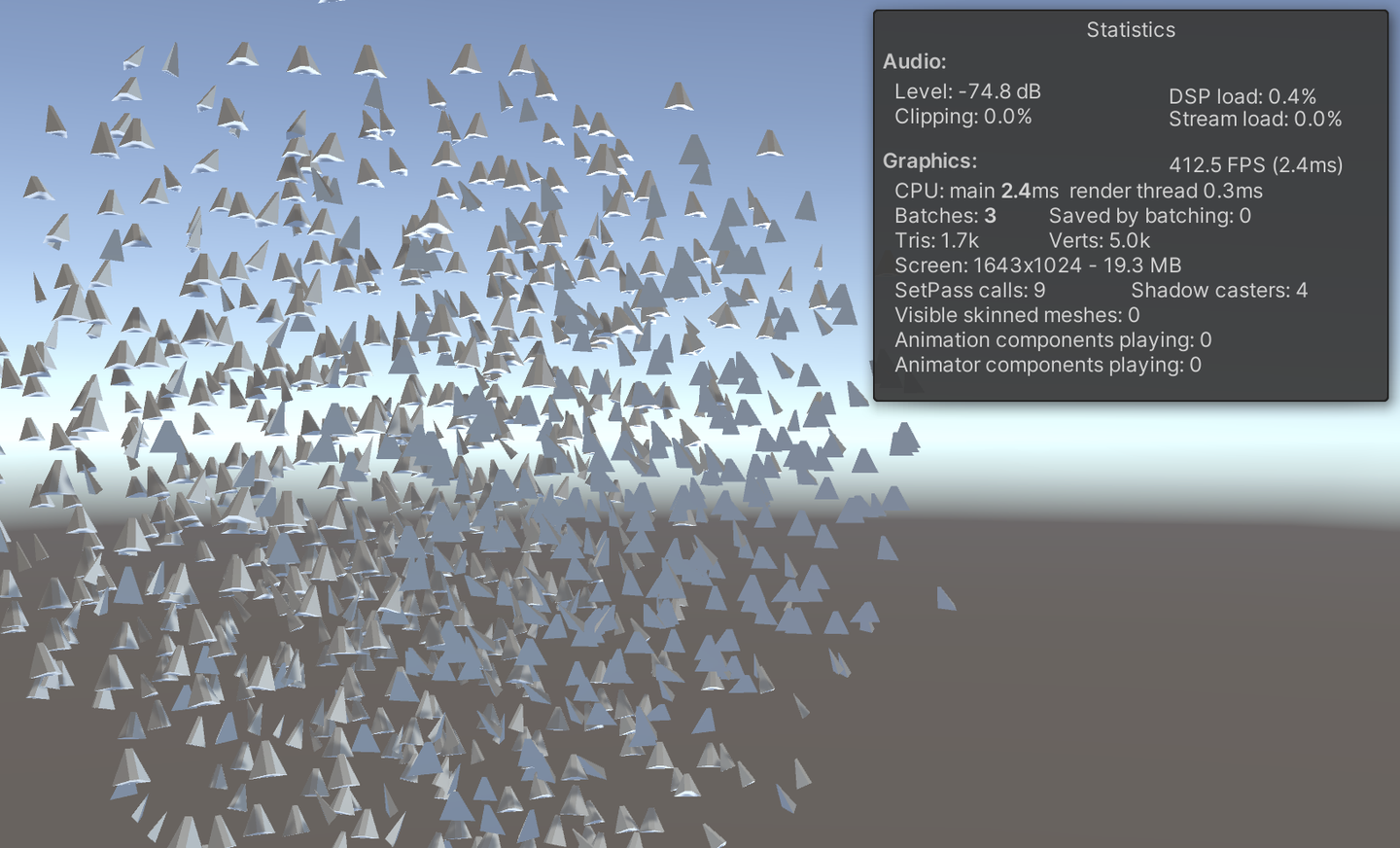
    Now, we are done! The current frame rate is nearly doubled compared to the previous section.
    img
    img

    Current version code:

    • Compute Shader: https://github.com/Remyuu/Unity-Compute-Shader-Learn/blob/L4_Instanced/Assets/Shaders/InstancedFlocking.compute
    • CPU: https://github.com/Remyuu/Unity-Compute-Shader-Learn/blob/L4_Instanced/Assets/Scripts/InstancedFlocking.cs
    • Shader: https://github.com/Remyuu/Unity-Compute-Shader-Learn/blob/L4_Instanced/Assets/Shaders/InstancedFlocking.shader

    6. Apply skin animation

    img

    What we need to do in this section is to use the Animator component to grab the Mesh of each keyframe into the Buffer before instantiating the object. By selecting different indexes, we can get Mesh of different poses. The specific skeletal animation production is beyond the scope of this article.

    You just need to modify the code based on the previous chapter and add the Animator logic. I have written comments below, you can take a look.

    And the individual data structure is updated:

    struct Boid{ float3 position; float3 direction; float noise_offset; float speed; // not useful for now float frame; // indicates the current frame index in the animation float3 padding; // ensure data alignment };

    Let's talk about alignment in detail. In a data structure, the size of the data should preferably be an integer multiple of 16 bytes.

    • float3 position; (12 bytes)
    • float3 direction; (12 bytes)
    • float noise_offset; (4 bytes)
    • float speed; (4 bytes)
    • float frame; (4 bytes)
    • float3 padding; (12 bytes)

    Without padding, the size is 36 bytes, which is not a common alignment size. With padding, the alignment is 48 bytes, perfect!

    private SkinnedMeshRenderer boidSMR; // Used to reference the SkinnedMeshRenderer component that contains the skinned mesh. private Animator animator; public AnimationClip animationClip; // Specific animation clips, usually used to calculate animation-related parameters. private int numOfFrames; // The number of frames in the animation, used to determine how many frames of data to store in the GPU buffer. public float boidFrameSpeed = 10f; // Controls the speed at which the animation plays. MaterialPropertyBlock props; // Pass parameters to the shader without creating a new material instance. This means that the material properties of the instance (such as color, lighting coefficient, etc.) can be changed without affecting other objects using the same material. Mesh boidMesh; // Stores the mesh data baked from the SkinnedMeshRenderer. ... void Start(){ // First initialize the Boid data here, then call GenerateSkinnedAnimationForGPUBuffer to prepare the animation data, and finally call InitShader to set the Shader parameters required for rendering. ... // This property block is used only for avoiding an instancing bug. props = new MaterialPropertyBlock(); props.SetFloat("_UniqueID", Random.value); ... InitBoids(); GenerateSkinnedAnimationForGPUBuffer(); InitShader(); } void InitShader(){ // This method configures the Shader and material properties to ensure that the animation playback can be displayed correctly according to the different stages of the instance. Enabling or disabling frameInterpolation determines whether to interpolate between animation frames for smoother animation effects. ... if (boidMesh)//Set by the GenerateSkinnedAnimationForGPUBuffer ... shader.SetFloat("boidFrameSpeed", boidFrameSpeed); shader.SetInt("numOfFrames", numOfFrames); boidMaterial.SetInt("numOfFrames", numOfFrames); if (frameInterpolation && !boidMaterial.IsKeywordEnabled("FRAME_INTERPOLATION")) boidMaterial.EnableKeyword("FRAME_INTERPOLATION"); if (!frameInterpolation && boidMaterial.IsKeywordEnabled("FRAME_INTERPOLATION")) boidMaterial.DisableKeyword("FRAME_INTERPOLATION"); } void Update(){ ... // The last two parameters: // 1. 0: Offset into the parameter buffer, used to specify where to start reading parameters. // 2. props: The MaterialPropertyBlock created earlier, containing properties shared by all instances. Graphics.DrawMeshInstancedIndirect( boidMesh, 0, boidMaterial, bounds, argsBuffer, 0, props); } void OnDestroy(){ ... if (vertexAnimationBuffer != null) vertexAnimationBuffer.Release(); } private void GenerateSkinnedAnimationForGPUBuffer() { ... // Continued }

    In order to provide the Shader with Mesh with different postures at different times, the mesh vertex data of each frame is extracted from the Animator and SkinnedMeshRenderer in the GenerateSkinnedAnimationForGPUBuffer() function, and then the data is stored in the GPU's ComputeBuffer for use in instanced rendering.

    GetCurrentAnimatorStateInfo to obtain the state information of the current animation layer for subsequent precise control of animation playback.

    numOfFrames is determined using the power of two that is closest to the product of the animation length and the frame rate, which can optimize GPU memory access.

    Then create a ComputeBuffer to store all vertex data for all frames. vertexAnimationBuffer

    In the for loop, bake all animation frames. Specifically, play and update immediately at each sampleTime point, then bake the mesh of the current animation frame into bakedMesh. And extract the newly baked Mesh vertices, update them into the array vertexAnimationData, and finally upload them to the GPU to end.

    // ...continued from above boidSMR = boidObject.GetComponentInChildren (); boidMesh = boidSMR.sharedMesh; animator = boidObject.GetComponentInChildren (); int iLayer = 0; AnimatorStateInfo aniStateInfo = animator.GetCurrentAnimatorStateInfo(iLayer); Mesh bakedMesh = new Mesh(); float sampleTime = 0; float perFrameTime = 0; numOfFrames = Mathf.ClosestPowerOfTwo((int)(animationClip.frameRate * animationClip.length)); perFrameTime = animationClip.length / numOfFrames; var vertexCount = boidSMR.sharedMesh.vertexCount; vertexAnimationBuffer = new ComputeBuffer(vertexCount * numOfFrames, 16); Vector4[] vertexAnimationData = new Vector4[vertexCount * numOfFrames]; for (int i = 0; i < numOfFrames; i++) { animator.Play(aniStateInfo.shortNameHash, iLayer, sampleTime); animator.Update(0f); boidSMR.BakeMesh(bakedMesh); for(int j = 0; j < vertexCount; j++) { Vector4 vertex = bakedMesh.vertices[j]; vertex.w = 1; vertexAnimationData[(j * numOfFrames) + i] = vertex; } sampleTime += perFrameTime; } vertexAnimationBuffer.SetData(vertexAnimationData); boidMaterial.SetBuffer("vertexAnimation", vertexAnimationBuffer); boidObject.SetActive(false);

    In the Compute Shader, maintain each frame variable stored in an individual data structure.

    boid.frame = boid.frame + velocity * deltaTime * boidFrameSpeed; if (boid.frame >= numOfFrames) boid.frame -= numOfFrames;

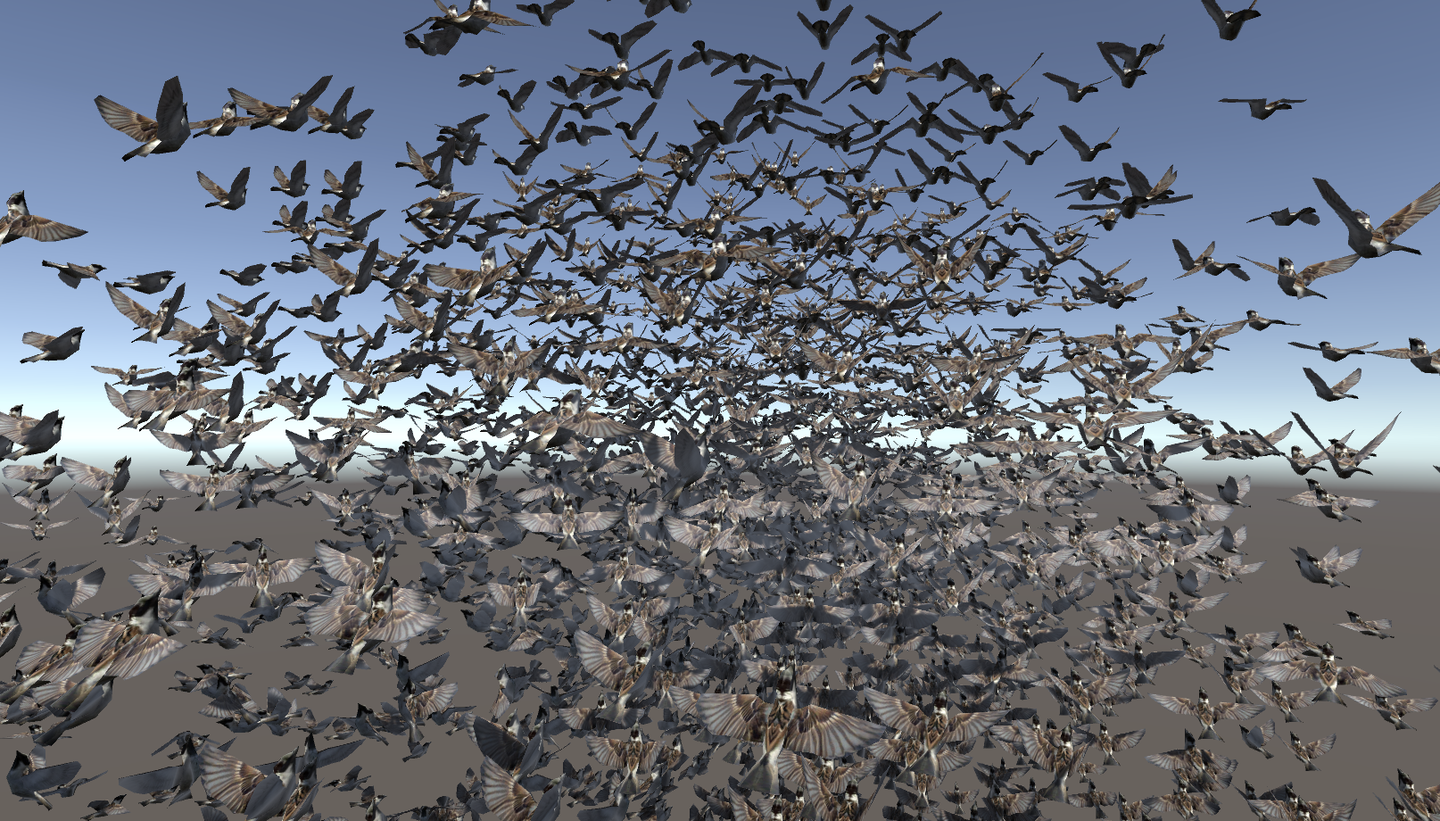
    Lerp different frames of animation in Shader. The left side is without frame interpolation, and the right side is after interpolation. The effect is very significant.
    视频封面

    A good title can get more recommendations and followers

    void vert(inout appdata_custom v) { #ifdef UNITY_PROCEDURAL_INSTANCING_ENABLED #ifdef FRAME_INTERPOLATION v.vertex = lerp(vertexAnimation[v.id * numOfFrames + _CurrentFrame], vertexAnimation[v.id * numOfFrames + _NextFrame], _FrameInterpolation); #else v.vertex = vertexAnimation[v.id * numOfFrames + _CurrentFrame]; #endif v.vertex = mul(_Matrix, v.vertex); #endif } void setup() { #ifdef UNITY_PROCEDURAL_INSTANCING_ENABLED _Matrix = create_matrix(boidsBuffer[unity_InstanceID].position, boidsBuffer[unity_InstanceID].direction, float3(0.0, 1.0, 0.0)); _CurrentFrame = boidsBuffer[unity_InstanceID].frame; #ifdef FRAME_INTERPOLATION _NextFrame = _CurrentFrame + 1; if (_NextFrame >= numOfFrames) _NextFrame = 0; _FrameInterpolation = frac(boidsBuffer[unity_InstanceID].frame); #endif #endif }

    It was not easy, but it is finally complete.
    img

    Complete project link: https://github.com/Remyuu/Unity-Compute-Shader-Learn/tree/L4_Skinned/Assets/Scripts

    8. Summary/Quiz

    When rendering points which gives the best answer?
    img

    What are the three key steps in flocking?
    img

    When creating an arguments buffer for DrawMeshInstancedIndirect, how many uints are required?

    img

    We created the wing flapping by using a skinned mesh shader. True or False.

    img

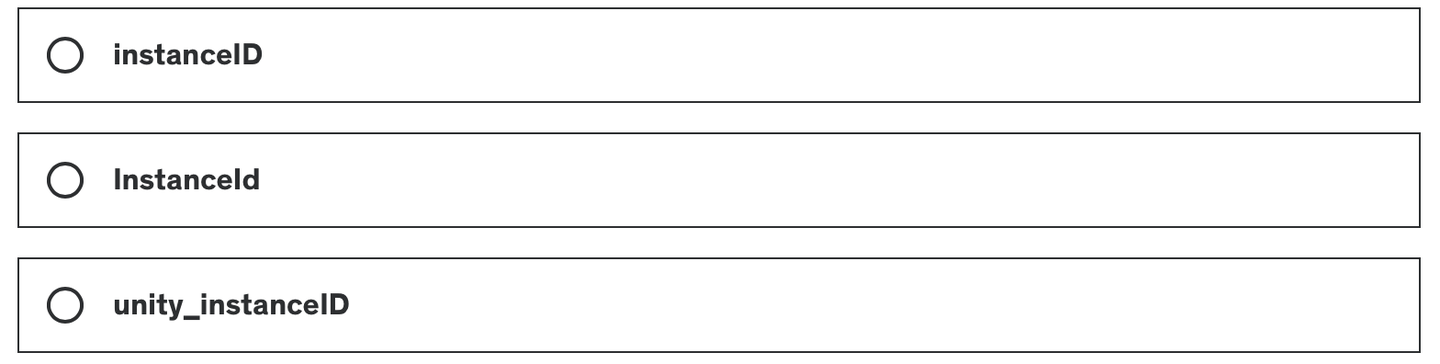
    In a shader used by DrawMeshInstancedIndirect, which variable name gives the correct index for the instance?
    img

    References

    1. https://en.wikipedia.org/wiki/Boids
    2. Flocks, Herds, and Schools: A Distributed Behavioral Model
  • Compute Shader学习笔记(二)之 后处理效果

    Compute Shader Learning Notes (II) Post-processing Effects

    img

    Preface

    Get a preliminary understanding of Compute Shader and implement some simple effects. All the codes are in:

    https://github.com/Remyuu/Unity-Compute-Shader-Learngithub.com/Remyuu/Unity-Compute-Shader-Learn

    The main branch is the initial code. You can download the complete project and follow me. PS: I have opened a separate branch for each version of the code.

    img

    This article learns how to use Compute Shader to make:

    • Post-processing effects
    • Particle System

    The previous article did not mention the GPU architecture because I felt that it would be difficult to understand if I explained a bunch of terms right at the beginning. With the experience of actually writing Compute Shader, you can connect the abstract concepts with the actual code.

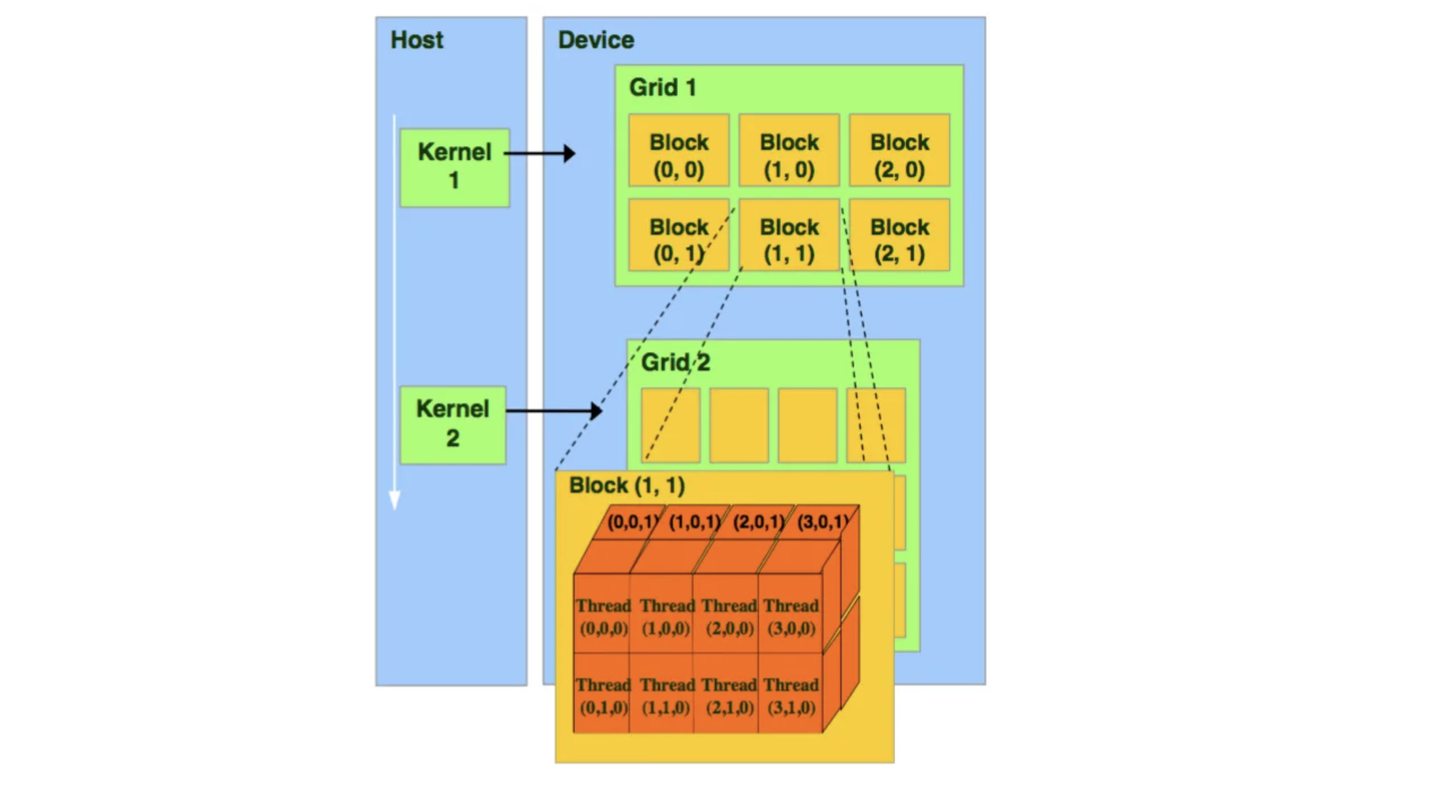
    CUDA on GPUExecution ProgramIt can be explained by a three-tier architecture:

    • Grid – corresponds to a Kernel
    • |-Block – A Grid has multiple Blocks, executing the same program
    • | |-Thread – The most basic computing unit on the GPU
    img

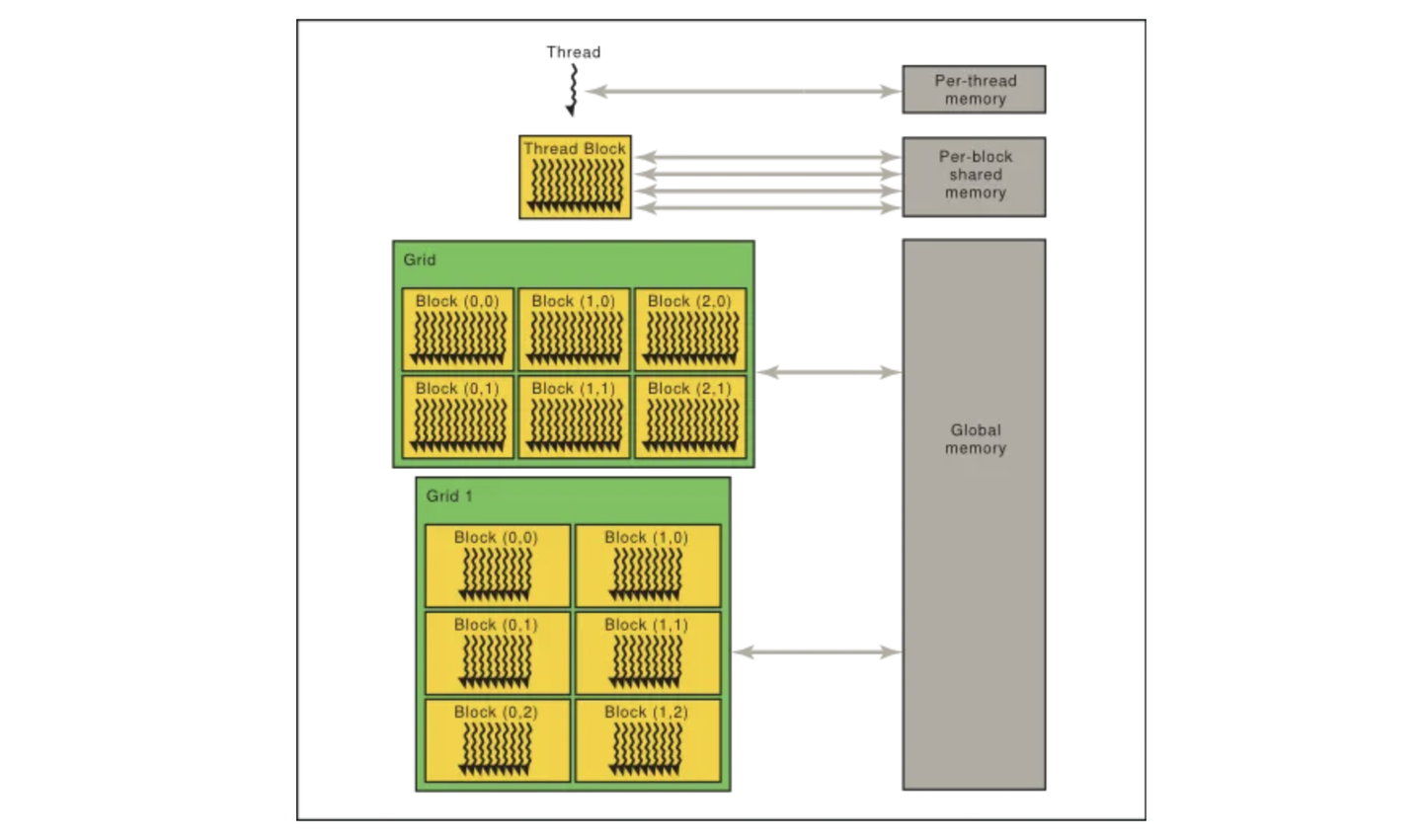
    Thread is the most basic unit of GPU, and there will naturally be information exchange between different threads. In order to effectively support the operation of a large number of parallel threads and solve the data exchange requirements between these threads, the memory is designed into multiple levels.Storage AngleIt can also be divided into three layers:

    • Per-Thread memory – Within a Thread, the transmission cycle is one clock cycle (less than 1 nanosecond), which can be hundreds of times faster than global memory.
    • Shared memory – Between blocks, the speed is much faster than the global speed.
    • Global memory – between all threads, but the slowest, usually the bottleneck of the GPU. The Volta architecture uses HBM2 as the global memory of the device, while Turing uses GDDR6.

    If the memory size limit is exceeded, it will be pushed to larger but slower storage space.

    Shared Memory and L1 cache share the same physical space, but they are functionally different: the former needs to be managed manually, while the latter is automatically managed by hardware. My understanding is that Shared Memory is functionally similar to a programmable L1 cache.

    img

    In NVIDIA's CUDA architecture,Streaming Multiprocessor (SM)It is a processing unit on the GPU that is responsible for executing theBlocksThreads in .Stream Processors, also known as "CUDA cores", are processing elements within the SM, and each stream processor can process multiple threads in parallel. In general:

    • GPU -> Multi-Processors (SMs) -> Stream Processors

    That is, the GPU contains multiple SMs (multiprocessors), each of which contains multiple stream processors. Each stream processor is responsible for executing the computing instructions of one or more threads.

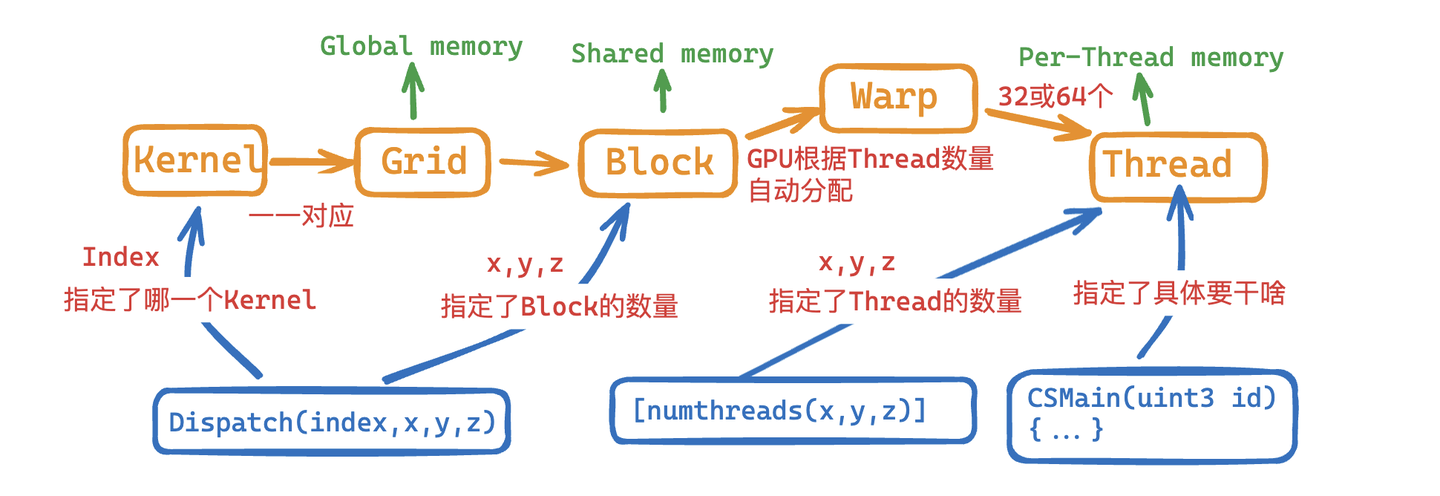
    In GPU,ThreadIt is the smallest unit for performing calculations.Warp (latitude)It is the basic execution unit in CUDA.

    In NVIDIA's CUDA architecture, eachWarpUsually contains 32Threads(AMD has 64).BlockA thread group contains multiple threads.BlockCan contain multipleWarp.Kernelis a function executed on the GPU. You can think of it as a specific piece of code that is executed in parallel by all activated threads. In general:

    • Kernel -> Grid -> Blocks -> Warps -> Threads

    But in daily development, it is usually necessary to executeThreadsFar more than 32.

    In order to solve the mismatch between software requirements and hardware architecture, the GPU adopts a strategy: grouping threads belonging to the same block. This grouping is called a "Warp", and each Warp contains a fixed number of threads. When the number of threads that need to be executed exceeds the number that a Warp can contain, the GPU will schedule additional Warps. The principle of doing this is to ensure that no thread is missed, even if it means starting more Warps.

    For example, if a block has 128 threads, and my graphics card is wearing a leather jacket (Nvidia has 32 threads per warp), then a block will have 128/32=4 warps. To give an extreme example, if there are 129 threads, then 5 warps will be opened. There are 31 thread positions that will be directly idle! Therefore, when we write a compute shader, the a in [numthreads(a,b,c)]bc should preferably be a multiple of 32 to reduce the waste of CUDA cores.

    You must be confused after reading this. I drew a picture based on my personal understanding. Please point out any mistakes.

    img

    L3 post-processing effects

    The current build is based on the BIRP pipeline, and the SRP pipeline only requires a few code changes.

    The key to this chapter is to build an abstract base class to manage the resources required by Compute Shader (Section 1). Then, based on this abstract base class, write some simple post-processing effects, such as Gaussian blur, grayscale effect, low-resolution pixel effect, and night vision effect. A brief summary of the knowledge points in this chapter:

    • Get and process the Camera's rendering texture
    • ExecuteInEditMode Keywords
    • SystemInfo.supportsComputeShaders Checks whether the system supports
    • Use of Graphics.Blit() function (the whole process is Bit Block Transfer)
    • Using smoothstep() to create various effects
    • Data transmission between multiple Kernels Shared keyword

    1. Introduction and preparation

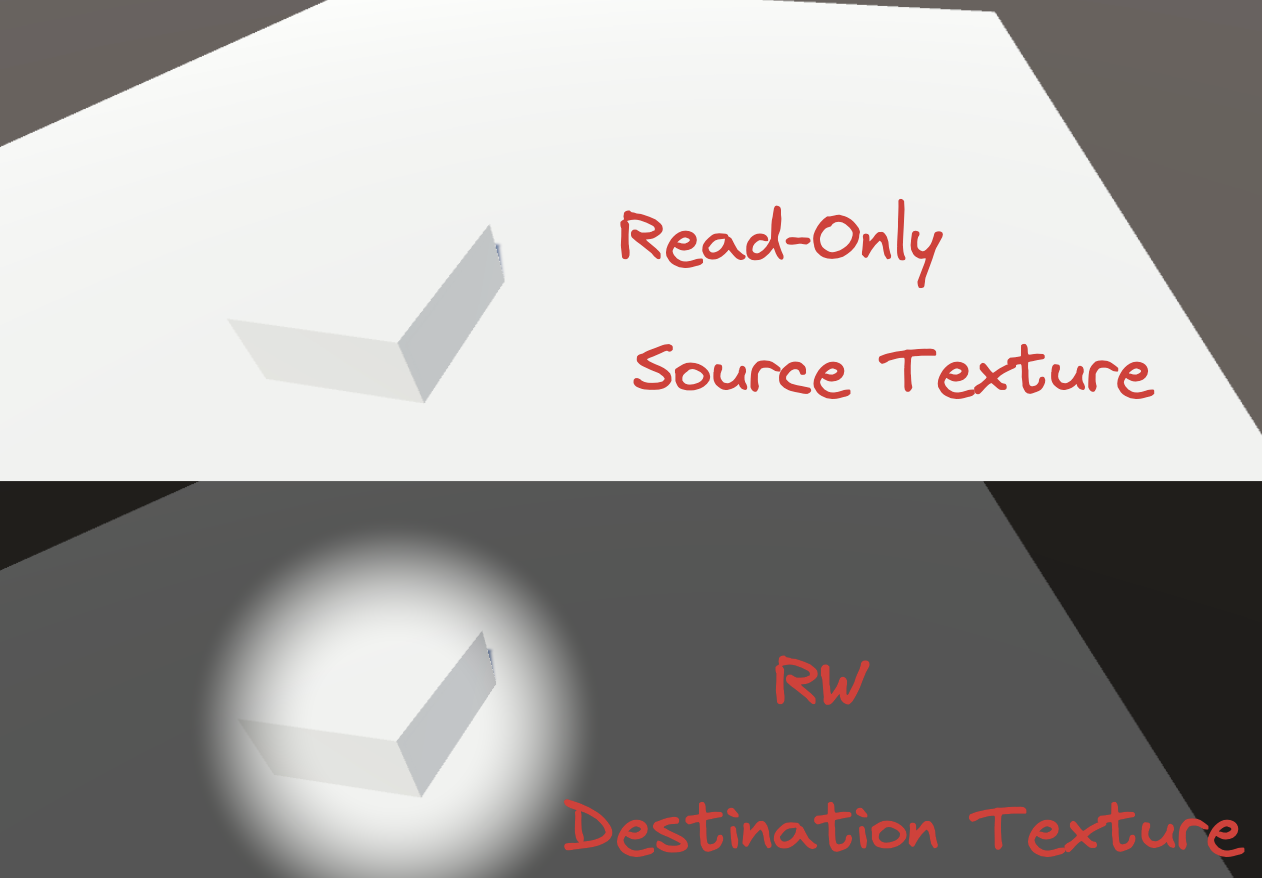
    Post-processing effects require two textures, one read-only and the other read-write. As for where the textures come from, since it is post-processing, it must be obtained from the camera, that is, the Target Texture on the Camera component.

    • Source: Read-only
    • Destination: Readable and writable, used for final output
    img

    Since a variety of post-processing effects will be implemented later, a base class is abstracted to reduce the workload in the later stage.

    The following features are encapsulated in the base class:

    • Initialize resources (create textures, buffers, etc.)
    • Manage resources (for example, recreate buffers when screen resolution changes, etc.)
    • Hardware check (check whether the current device supports Compute Shader)

    Abstract class complete code link: https://pastebin.com/9pYvHHsh

    First, when the script instance is activated or attached to a live GO, OnEnable() is called. Write the initialization operations in it. Check whether the hardware supports it, check whether the Compute Shader is bound in the Inspector, get the specified Kernel, get the Camera component of the current GO, create a texture, and set the initialized state to true.

    if (!SystemInfo.supportsComputeShaders) ... if (!shader) ... kernelHandle = shader.FindKernel(kernelName); thisCamera = GetComponent (); if (!thisCamera) ... CreateTextures(); init = true;

    Create two textures CreateTextures(), one Source and one Destination, with the size of the camera resolution.

    texSize.x = thisCamera.pixelWidth; texSize.y = thisCamera.pixelHeight; if (shader) { uint x, y; shader.GetKernelThreadGroupSizes(kernelHandle, out x, out y, out _); groupSize.x = Mathf.CeilToInt( (float)texSize.x / (float)x); groupSize.y = Mathf.CeilToInt((float)texSize.y / (float)y); } CreateTexture(ref output); CreateTexture(ref renderedSource); shader.SetTexture(kernelHandle, "source", renderedSource); shader.SetTexture(kernelHandle, " outputrt", output);

    Creation of specific textures:

    protected void CreateTexture(ref RenderTexture textureToMake, int divide=1) { textureToMake = new RenderTexture(texSize.x/divide, texSize.y/divide, 0); textureToMake.enableRandomWrite = true; textureToMake.Create(); }

    This completes the initialization. When the camera finishes rendering the scene and is ready to display it on the screen, Unity will call OnRenderImage(), and then call Compute Shader to start the calculation. If it is not initialized or there is no shader, it will be Blitted and the source will be directly copied to the destination, that is, nothing will be done. CheckResolution(out _) This method checks whether the resolution of the rendered texture needs to be updated. If so, it will regenerate the Texture. After that, it is time for the Dispatch stage. Here, the source map needs to be passed to the GPU through the Buffer, and after the calculation is completed, it will be passed back to the destination.

    protected virtual void OnRenderImage(RenderTexture source, RenderTexture destination) { if (!init || shader == null) { Graphics.Blit(source, destination); } else { CheckResolution(out _); DispatchWithSource(ref source, ref destination) ; } }

    Note that we don't use any SetData() or GetData() operations here. Because all the data is on the GPU now, we can just instruct the GPU to do it by itself, and the CPU should not get involved. If we fetch the texture back to memory and then pass it to the GPU, the performance will be very poor.

    protected virtual void DispatchWithSource(ref RenderTexture source, ref RenderTexture destination) { Graphics.Blit(source, renderedSource); shader.Dispatch(kernelHandle, groupSize.x, groupSize.y, 1); Graphics.Blit(output, destination); }

    I didn't believe it, so I had to transfer it back to the CPU and then back to the GPU. The test results were quite shocking, and the performance was more than 4 times worse. Therefore, we need to reduce the communication between the CPU and GPU, which is very important when using Compute Shader.

    // Dumb method protected virtual void DispatchWithSource(ref RenderTexture source, ref RenderTexture destination) { // Blit the source texture to the texture for processing Graphics.Blit(source, renderedSource); // Process the texture using the compute shader shader.Dispatch(kernelHandle, groupSize.x, groupSize.y, 1); // Copy the output texture into a Texture2D object so we can read the data to the CPU Texture2D tempTexture = new Texture2D(renderedSource.width, renderedSource.height, TextureFormat.RGBA32, false); RenderTexture.active = output; tempTexture.ReadPixels(new Rect(0, 0, output.width, output.height), 0, 0); tempTexture.Apply(); RenderTexture.active = null; // Pass the Texture2D data back to the GPU to a new RenderTexture RenderTexture tempRenderTexture = RenderTexture.GetTemporary(output.width, output.height); Graphics.Blit(tempTexture, tempRenderTexture); // Finally blit the processed texture to the target texture Graphics.Blit(tempRenderTexture, destination); // Clean up resources RenderTexture.ReleaseTemporary(tempRenderTexture); Destroy(tempTexture); }
    img

    Next, we will start writing our first post-processing effect.

    Interlude: Strange BUG

    Also insert a strange bug.

    In Compute Shader, if the final output map result is named output, there will be problems in some APIs such as Metal. The solution is to change the name.

    RWTexture2D outputrt;
    img

    Add a caption for the image, no more than 140 characters (optional)

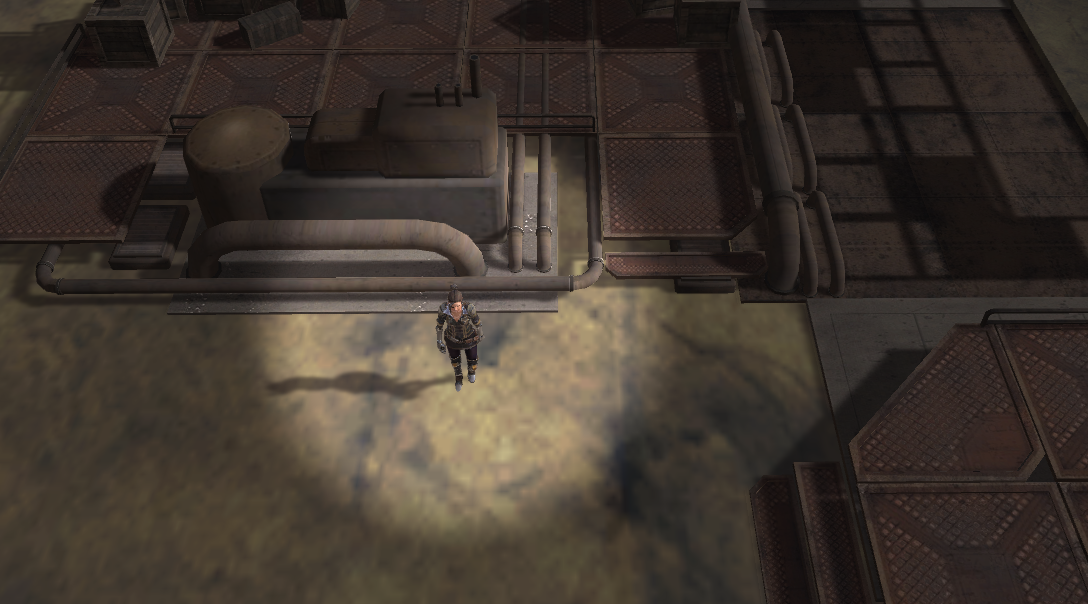
    2. RingHighlight effect

    img

    Create the RingHighlight class, inheriting from the base class just written.

    img

    Overload the initialization method and specify Kernel.

    protected override void Init() { center = new Vector4(); kernelName = "Highlight"; base.Init(); }

    Overload the rendering method. To achieve the effect of focusing on a certain character, you need to pass the coordinate center of the character's screen space to the Compute Shader. And if the screen resolution changes before Dispatch, reinitialize it.

    protected void SetProperties() { float rad = (radius / 100.0f) * texSize.y; shader.SetFloat("radius", rad); shader.SetFloat("edgeWidth", rad * softenEdge / 100.0f); shader.SetFloat ("shade", shade); } protected override void OnRenderImage(RenderTexture source, RenderTexture destination) { if (!init || shader == null) { Graphics.Blit(source, destination); } else { if (trackedObject && thisCamera) { Vector3 pos = thisCamera.WorldToScreenPoint(trackedObject.position ); center.x = pos.x; center.y = pos.y; shader.SetVector("center", center); } bool resChange = false; CheckResolution(out resChange); if (resChange) SetProperties(); DispatchWithSource(ref source, ref destination); } }

    And when changing the Inspector panel, you can see the parameter change effect in real time and add the OnValidate() method.

    private void OnValidate() { if(!init) Init(); SetProperties(); }

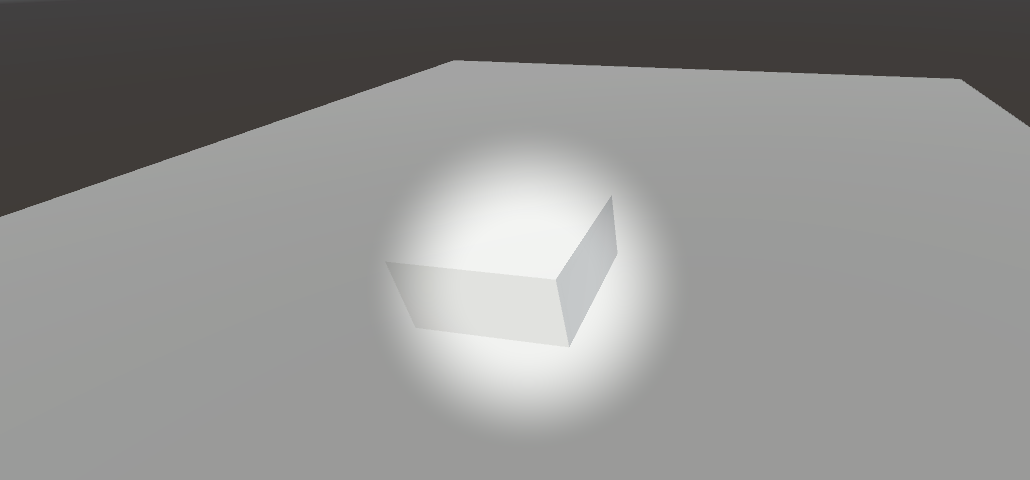
    In GPU, how can we make a circle without shadow inside, with smooth transition at the edge of the circle and shadow outside the transition layer? Based on the method of judging whether a point is inside the circle in the previous article, we can use smoothstep() to process the transition layer.

    #Pragmas kernel Highlight
    
    Texture2D<float4> source;
    RWTexture2D<float4> outputrt;
    float radius;
    float edgeWidth;
    float shade;
    float4 center;
    
    float inCircle( float2 pt, float2 center, float radius, float edgeWidth ){
        float len = length(pt - center);
        return 1.0 - smoothstep(radius-edgeWidth, radius, len);
    }
    
    [numthreads(8, 8, 1)]
    void Highlight(uint3 id : SV_DispatchThreadID)
    {
        float4 srcColor = source[id.xy];
        float4 shadedSrcColor = srcColor * shade;
        float highlight = inCircle( (float2)id.xy, center.xy, radius, edgeWidth);
        float4 color = lerp( shadedSrcColor, srcColor, highlight );
    
        outputrt[id.xy] = color;
    
    }

    img

    Current version code:

    • Compute Shader: https://github.com/Remyuu/Unity-Compute-Shader-Learn/blob/L3_RingHighlight/Assets/Shaders/RingHighlight.compute
    • CPU: https://github.com/Remyuu/Unity-Compute-Shader-Learn/blob/L3_RingHighlight/Assets/Scripts/RingHighlight.cs

    3. Blur effect

    img

    The principle of blur effect is very simple. The final effect can be obtained by taking the weighted average of the n*n pixels around each pixel sample.

    But there is an efficiency problem. As we all know, reducing the number of texture sampling is very important for optimization. If each pixel needs to sample 20*20 surrounding pixels, then rendering one pixel requires 400 samplings, which is obviously unacceptable. Moreover, for a single pixel, the operation of sampling a whole rectangular pixel around it is difficult to handle in the Compute Shader. How to solve it?

    The usual practice is to sample once horizontally and once vertically. What does this mean? For each pixel, only 20 pixels are sampled in the x direction and 20 pixels in the y direction, a total of 20+20 pixels are sampled, and then weighted average is taken. This method not only reduces the number of samples, but also conforms to the logic of Compute Shader. For horizontal sampling, set a kernel; for vertical sampling, set another kernel.

    #pragma kernel HorzPass #pragma kernel Highlight

    Since Dispatch is executed sequentially, after we calculate the horizontal blur, we use the calculated result to sample vertically again.

    shader.Dispatch(kernelHorzPassID, groupSize.x, groupSize.y, 1); shader.Dispatch(kernelHandle, groupSize.x, groupSize.y, 1);

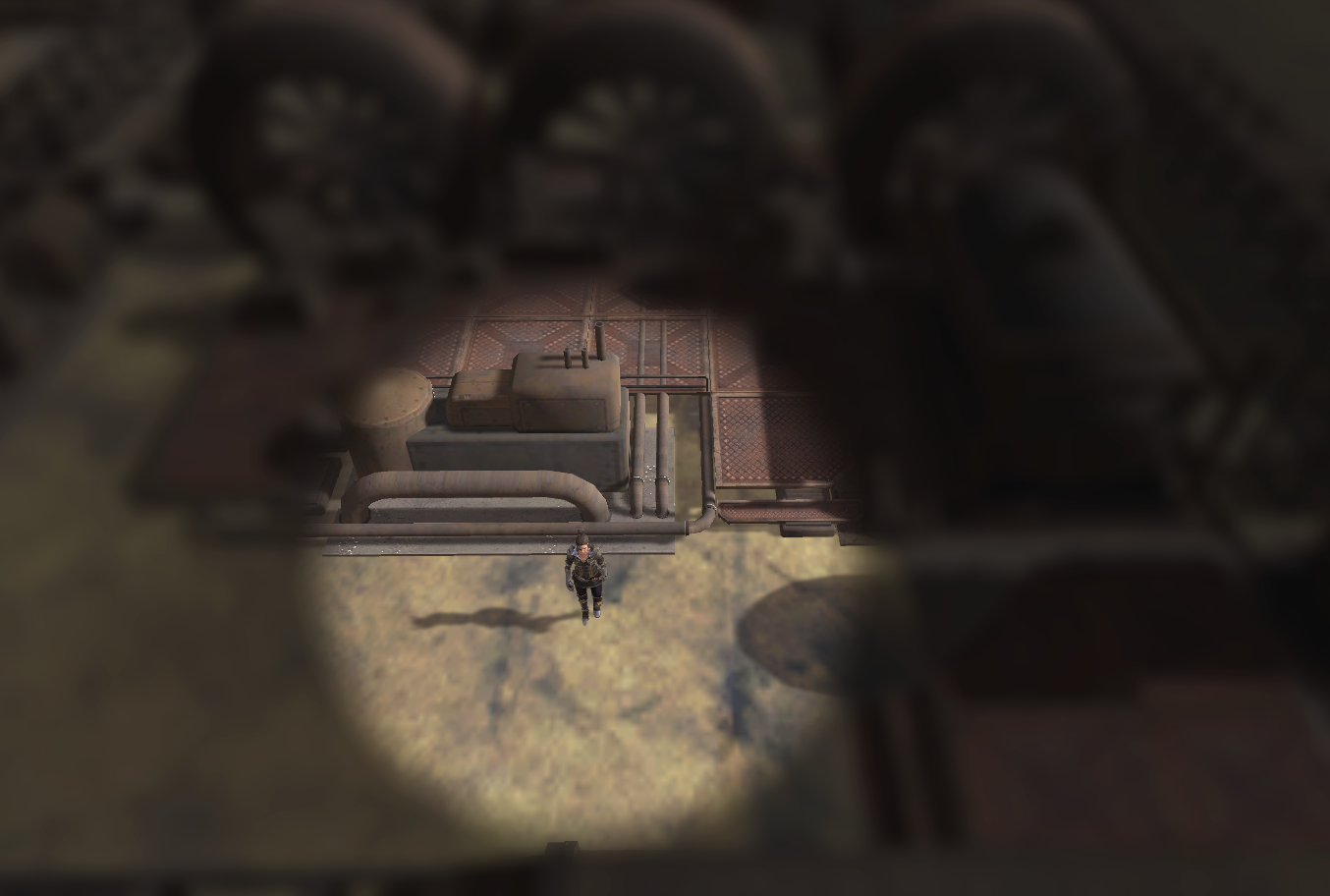
    After completing the blur operation, combine it with the RingHighlight in the previous section, and you’re done!

    One difference is, after calculating the horizontal blur, how do we pass the result to the next kernel? The answer is obvious: just use the shared keyword. The specific steps are as follows.

    Declare a reference to the horizontal blurred texture in the CPU, create a kernel for the horizontal texture, and bind it.

    RenderTexture horzOutput = null; int kernelHorzPassID; protected override void Init() { ... kernelHorzPassID = shader.FindKernel("HorzPass"); ... }

    Additional space needs to be allocated in the GPU to store the results of the first kernel.

    protected override void CreateTextures() { base.CreateTextures(); shader.SetTexture(kernelHorzPassID, "source", renderedSource); CreateTexture(ref horzOutput); shader.SetTexture(kernelHorzPassID, "horzOutput", horzOutput); shader.SetTexture(kernelHandle , "horzOutput", horzOutput); }

    The GPU is set up like this:

    shared Texture2D source; shared RWTexture2D horzOutput; RWTexture2D outputrt;

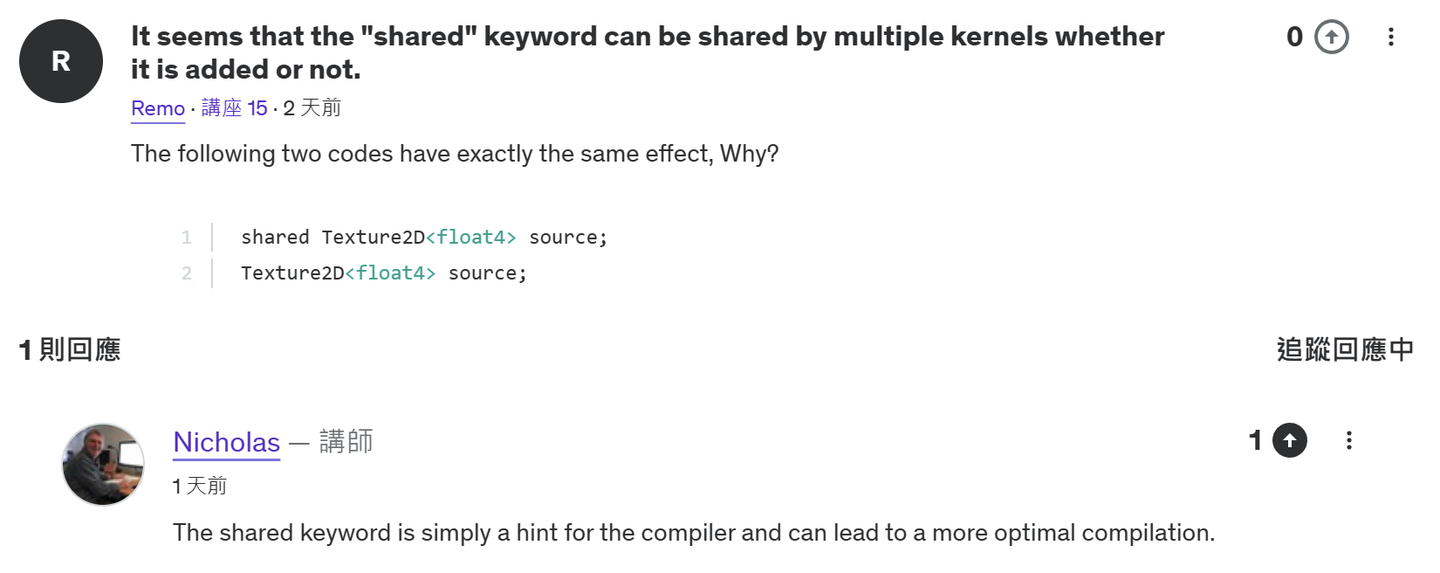
    Another question is, it seems that it doesn't matter whether the shared keyword is included or not. In actual testing, different kernels can access it. So what is the point of shared?

    In Unity, adding shared before a variable means that this resource is not reinitialized for each call, but keeps its state for use by different shader or dispatch calls. This helps to share data between different shader calls. Marking shared can help the compiler optimize code for higher performance.

    img

    When calculating the pixels at the border, there may be a situation where the number of available pixels is insufficient. Either the remaining pixels on the left are insufficient for blurRadius, or the remaining pixels on the right are insufficient. Therefore, first calculate the safe left index, and then calculate the maximum number that can be taken from left to right.

    [numthreads(8, 8, 1)] void HorzPass(uint3 id : SV_DispatchThreadID) { int left = max(0, (int)id.x-blurRadius); int count = min(blurRadius, (int)id.x) + min(blurRadius, source.Length.x - (int)id.x); float4 color = 0; uint2 index = uint2((uint)left, id.y); [unroll(100)] for(int x=0; x

    Current version code:

    • Compute Shader: https://github.com/Remyuu/Unity-Compute-Shader-Learn/blob/L3_BlurEffect/Assets/Shaders/BlurHighlight.compute
    • CPU: https://github.com/Remyuu/Unity-Compute-Shader-Learn/blob/L3_BlurEffect/Assets/Scripts/BlurHighlight.cs

    4. Gaussian Blur

    The difference from the above is that after sampling, the average value is no longer taken, but a Gaussian function is used to weight it.

    Where is the standard deviation, which controls the width.

    For more Blur content: https://www.gamedeveloper.com/programming/four-tricks-for-fast-blurring-in-software-and-hardware#close-modal

    Since the amount of calculation is not small, it would be very time-consuming to calculate this formula once for each pixel. We use the pre-calculation method to transfer the calculation results to the GPU through the Buffer. Since both kernels need to use it, add a shared when declaring the Buffer.

    float[] SetWeightsArray(int radius, float sigma) { int total = radius * 2 + 1; float[] weights = new float[total]; float sum = 0.0f; for (int n=0; n
    img

    Full code:

    • https://pastebin.com/0qWtUKgy
    • https://pastebin.com/A6mDKyJE

    5. Low-resolution effects

    GPU: It’s really a refreshing computing experience.

    img

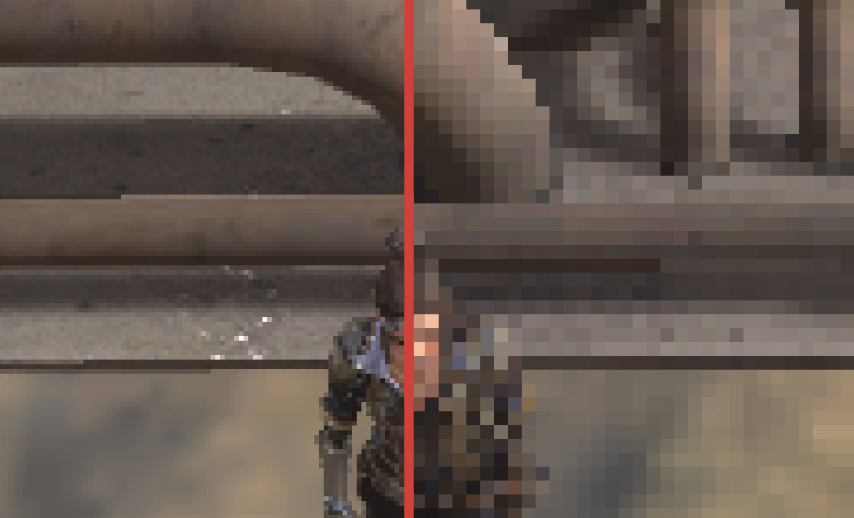
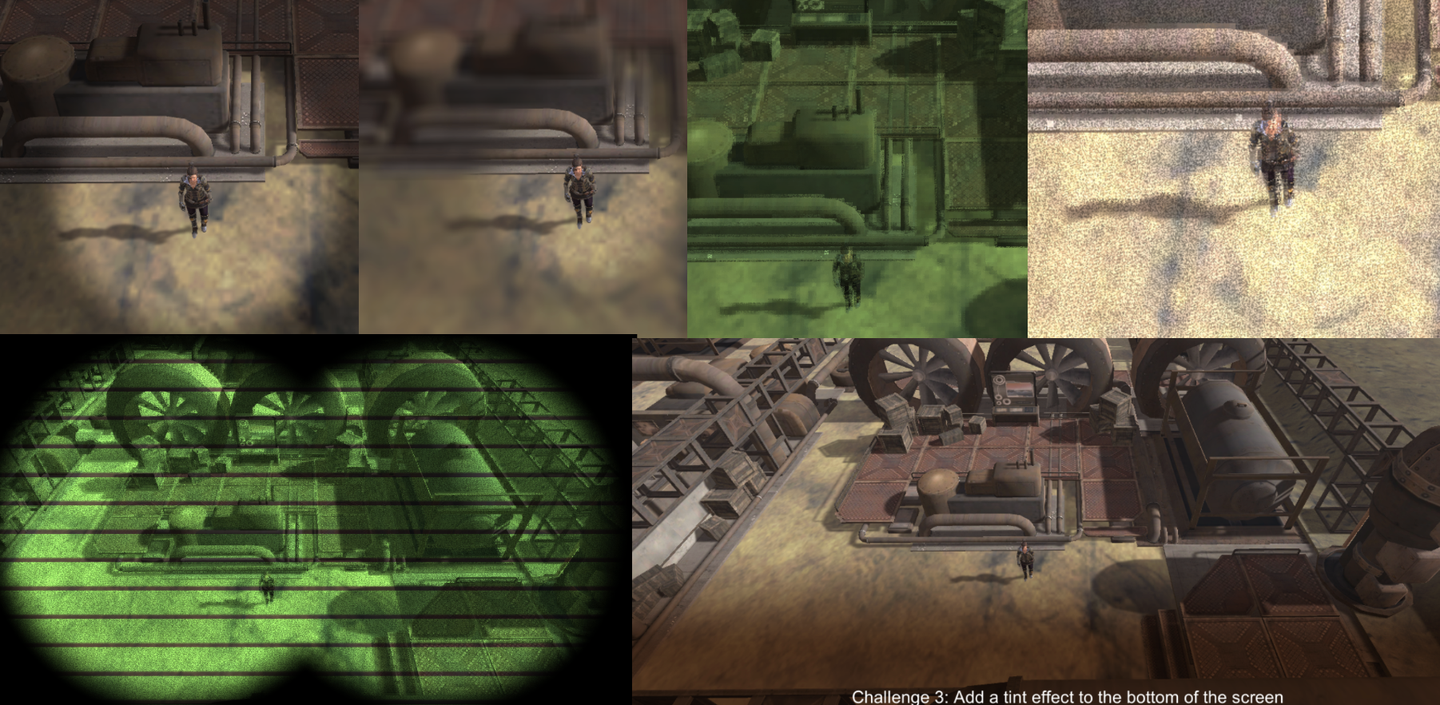
    Blur the edges of a high-definition texture without changing the resolution. The implementation method is very simple. For every n*n pixels, only the color of the pixel in the lower left corner is taken. Using the characteristics of integers, the id.x index is divided by n first, and then multiplied by n.

    uint2 index = (uint2(id.x, id.y)/3) * 3; float3 srcColor = source[index].rgb; float3 finalColor = srcColor;

    The effect is already there. But the effect is too sharp, so add noise to soften the jagged edges.

    uint2 index = (uint2(id.x, id.y)/3) * 3; float noise = random(id.xy, time); float3 srcColor = lerp(source[id.xy].rgb, source[index] ,noise); float3 finalColor = srcColor;
    img

    The pixel of each n*n grid no longer takes the color of the lower left corner, but takes the random interpolation result of the original color and the color of the lower left corner. The effect is much more refined. When n is relatively large, you can also see the following effect. It can only be said that it is not very good-looking, but it can still be explored in some glitch-style roads.

    img

    If you want to get a noisy picture, you can try adding coefficients at both ends of lerp, for example:

    float3 srcColor = lerp(source[id.xy].rgb * 2, source[index],noise);
    img

    6. Grayscale Effects and Staining

    Grayscale Effect & Tinted

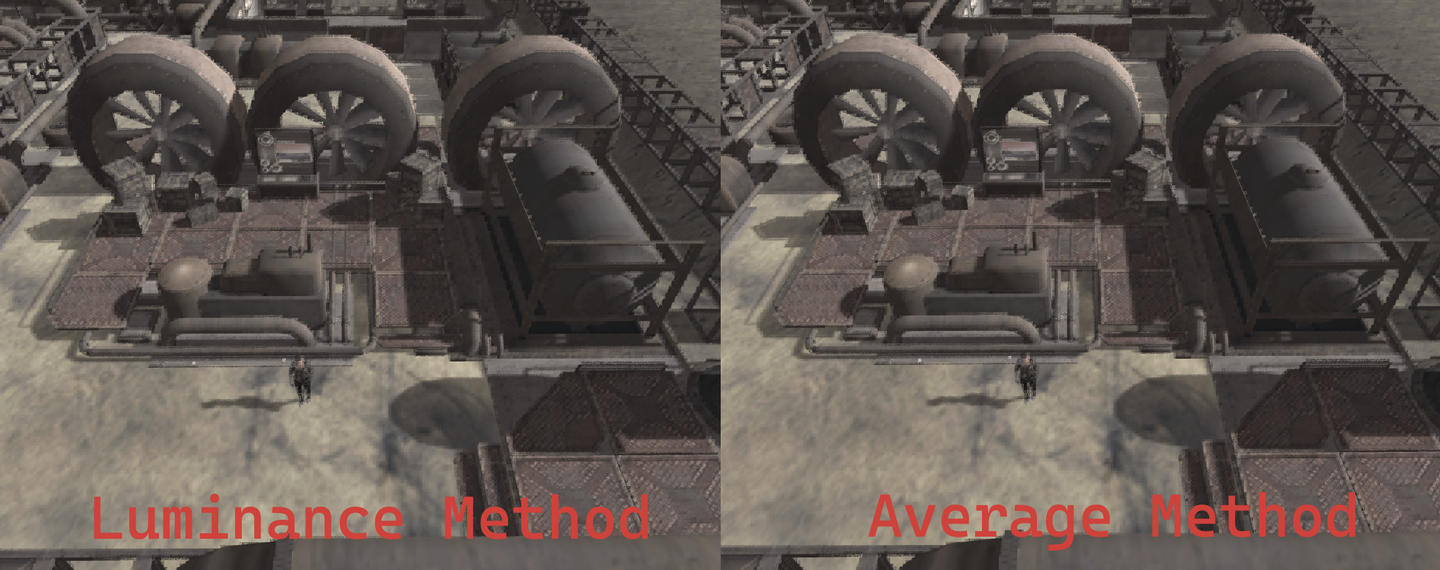
    The process of converting a color image to a grayscale image involves converting the RGB value of each pixel into a single color value. This color value is a weighted average of the RGB values. There are two methods here, one is a simple average, and the other is a weighted average that conforms to human eye perception.

    1. Average method (simple but inaccurate):

    This method gives equal weight to all color channels. 2. Weighted average method (more accurate, reflects human eye perception):

    This method gives different weights to different color channels based on the fact that the human eye is more sensitive to green, less sensitive to red, and least sensitive to blue. (The screenshot below doesn't look very good, I can't tell lol)

    img

    After weighting, the colors are simply mixed (multiplied) and finally lerp to obtain a controllable color intensity result.

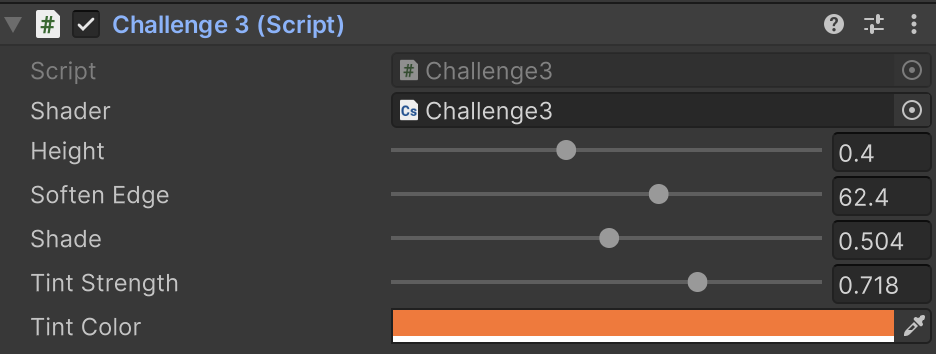
    uint2 index = (uint2(id.x, id.y)/6) * 6; float noise = random(id.xy, time); float3 srcColor = lerp(source[id.xy].rgb, source[index] ,noise); // float3 finalColor = srcColor; float3 grayScale = (srcColor.r+srcColor.g+srcColor.b)/3.0; // float3 grayScale = srcColor.r*0.299f+srcColor.g*0.587f+srcColor.b*0.114f; float3 tinted = grayScale * tintColor.rgb ; float3 finalColor = lerp(srcColor, tinted, tintStrength); outputrt[id.xy] = float4(finalColor, 1);

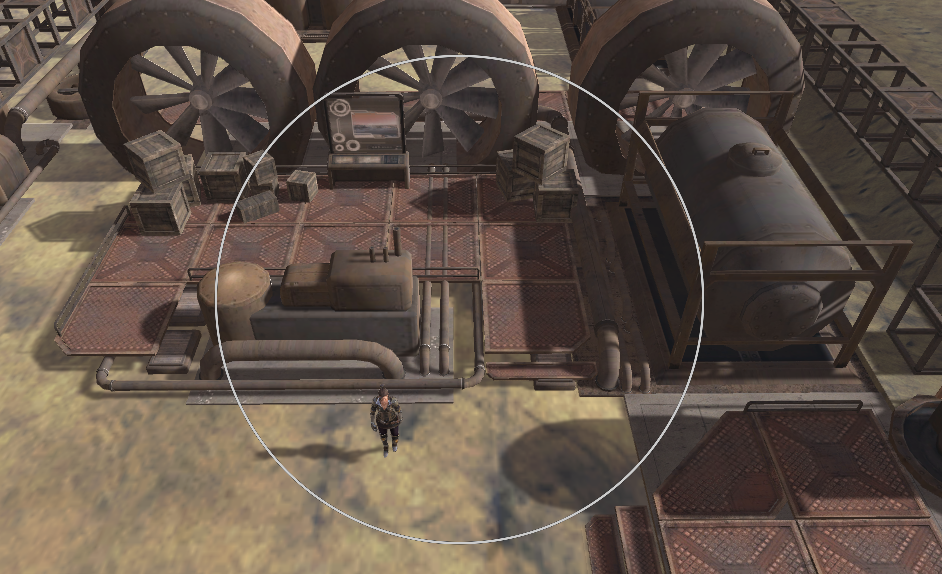
    Dye a wasteland color:

    img

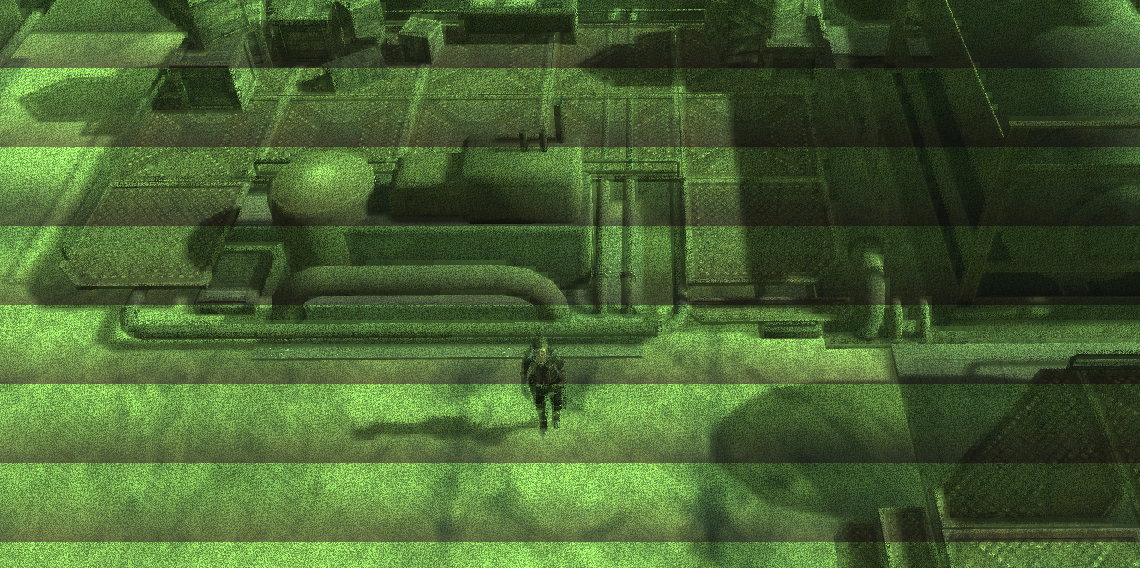
    7. Screen scan line effect

    First, uvY normalizes the coordinates to [0,1].

    lines is a parameter that controls the number of scan lines.

    Then add a time offset, and the coefficient controls the offset speed. You can open a parameter to control the speed of line offset.

    float uvY = (float)id.y/(float)source.Length.y; float scanline = saturate(frac(uvY * lines + time * 3));
    img

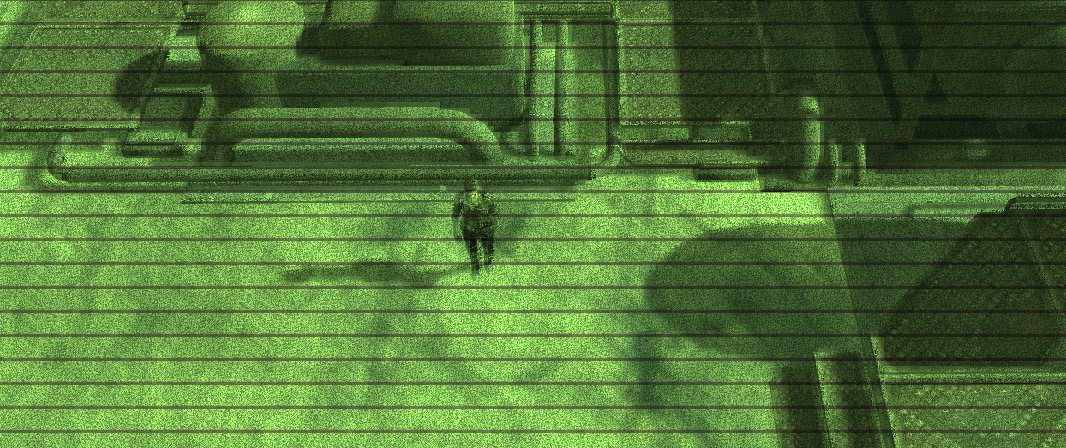
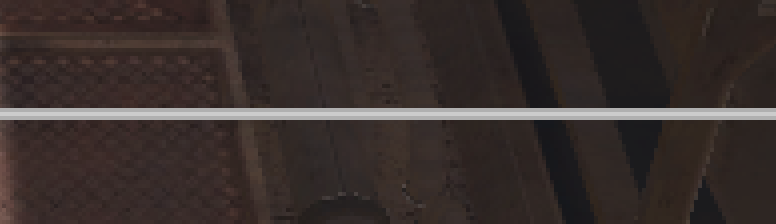
    This "line" doesn't look quite "line" enough, lose some weight.

    float uvY = (float)id.y/(float)source.Length.y; float scanline = saturate(smoothstep(0.1,0.2,frac(uvY * lines + time * 3)));
    img

    Then lerp the colors.

    float uvY = (float)id.y/(float)source.Length.y; float scanline = saturate(smoothstep(0.1, 0.2, frac(uvY * lines + time*3)) + 0.3); finalColor = lerp(source [id.xy].rgb*0.5, finalColor, scanline);
    img

    Before and after “weight loss”, each gets what they need!

    img

    8. Night Vision Effect

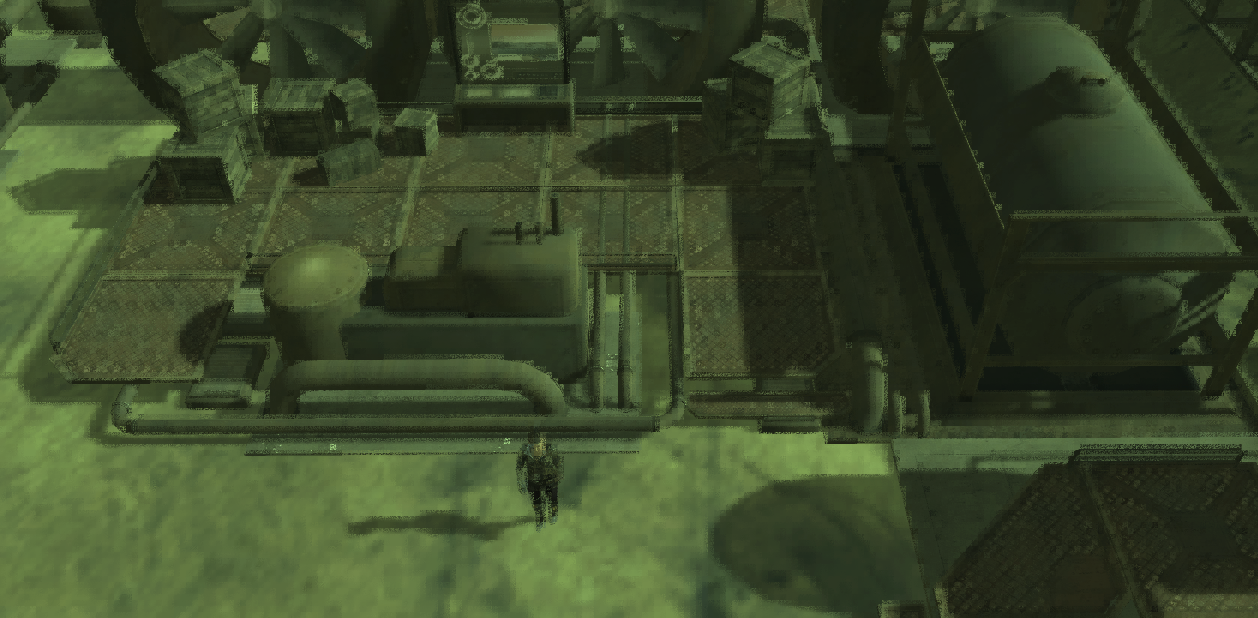
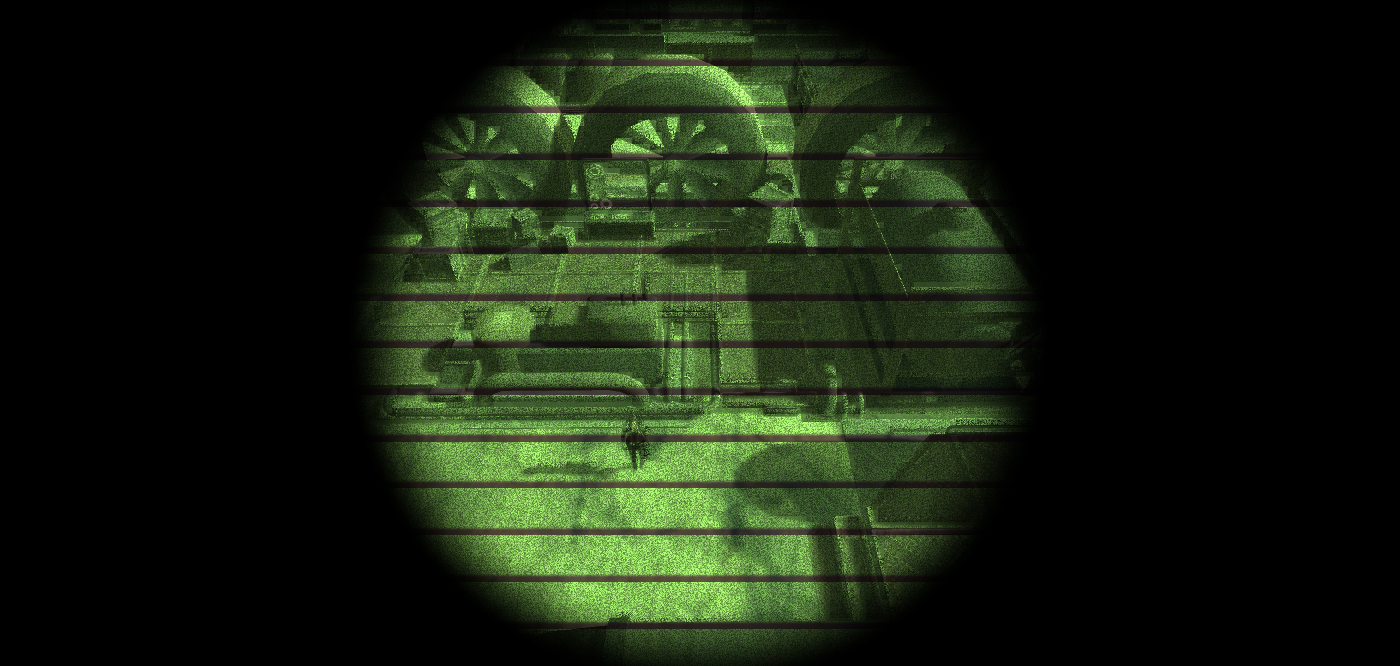
    This section summarizes all the above content and realizes the effect of a night vision device. First, make a single-eye effect.

    float2 pt = (float2)id.xy; float2 center = (float2)(source.Length >> 1); float inVision = inCircle(pt, center, radius, edgeWidth); float3 blackColor = float3(0,0,0) ; finalColor = lerp(blackColor, finalColor, inVision);
    img

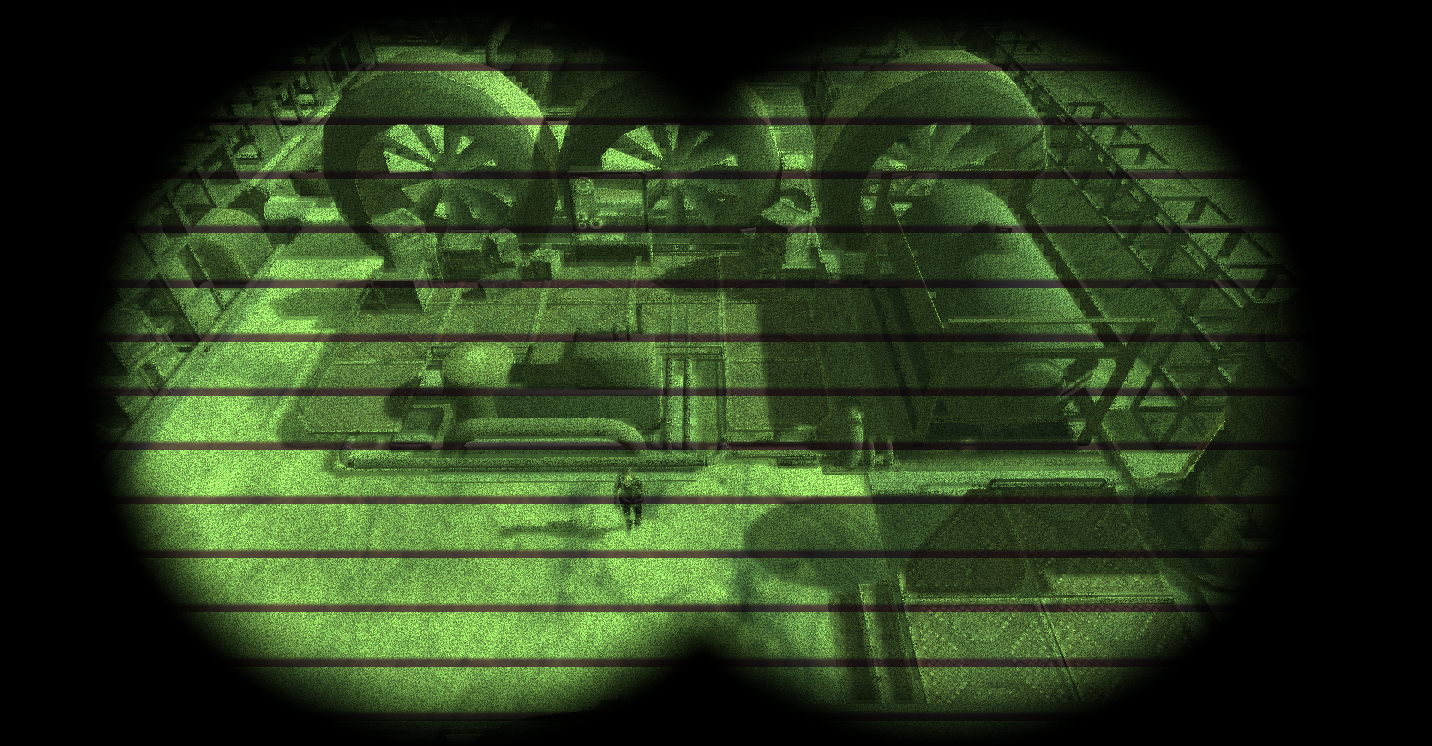
    The difference between the binocular effect and the binocular effect is that there are two centers of the circle. The two calculated masks can be merged using max() or saturate().

    float2 pt = (float2)id.xy; float2 centerLeft = float2(source.Length.x / 3.0, source.Length.y /2); float2 centerRight = float2(source.Length.x / 3.0 * 2.0, source.Length .y /2); float inVisionLeft = inCircle(pt, centerLeft, radius, edgeWidth); float inVisionRight = inCircle(pt, centerRight, radius, edgeWidth); float3 blackColor = float3(0,0,0); // float inVision = max(inVisionLeft, inVisionRight); float inVision = saturate(inVisionLeft + inVisionRight); finalColor = lerp (blackColor, finalColor, inVision);
    img

    Current version code:

    • Compute Shader: https://github.com/Remyuu/Unity-Compute-Shader-Learn/blob/L3_NightVision/Assets/Shaders/NightVision.compute
    • CPU: https://github.com/Remyuu/Unity-Compute-Shader-Learn/blob/L3_NightVision/Assets/Scripts/NightVision.cs

    9. Smooth transition lines

    Think about how we should draw a smooth straight line on the screen.

    img

    The smoothstep() function can do this. Readers familiar with this function can skip this section. This function is used to create a smooth gradient. The smoothstep(edge0, edge1, x) function outputs a gradient from 0 to 1 when x is between edge0 and edge1. If x < edge0, it returns 0; if x > edge1, it returns 1. Its output value is calculated based on Hermite interpolation:

    img
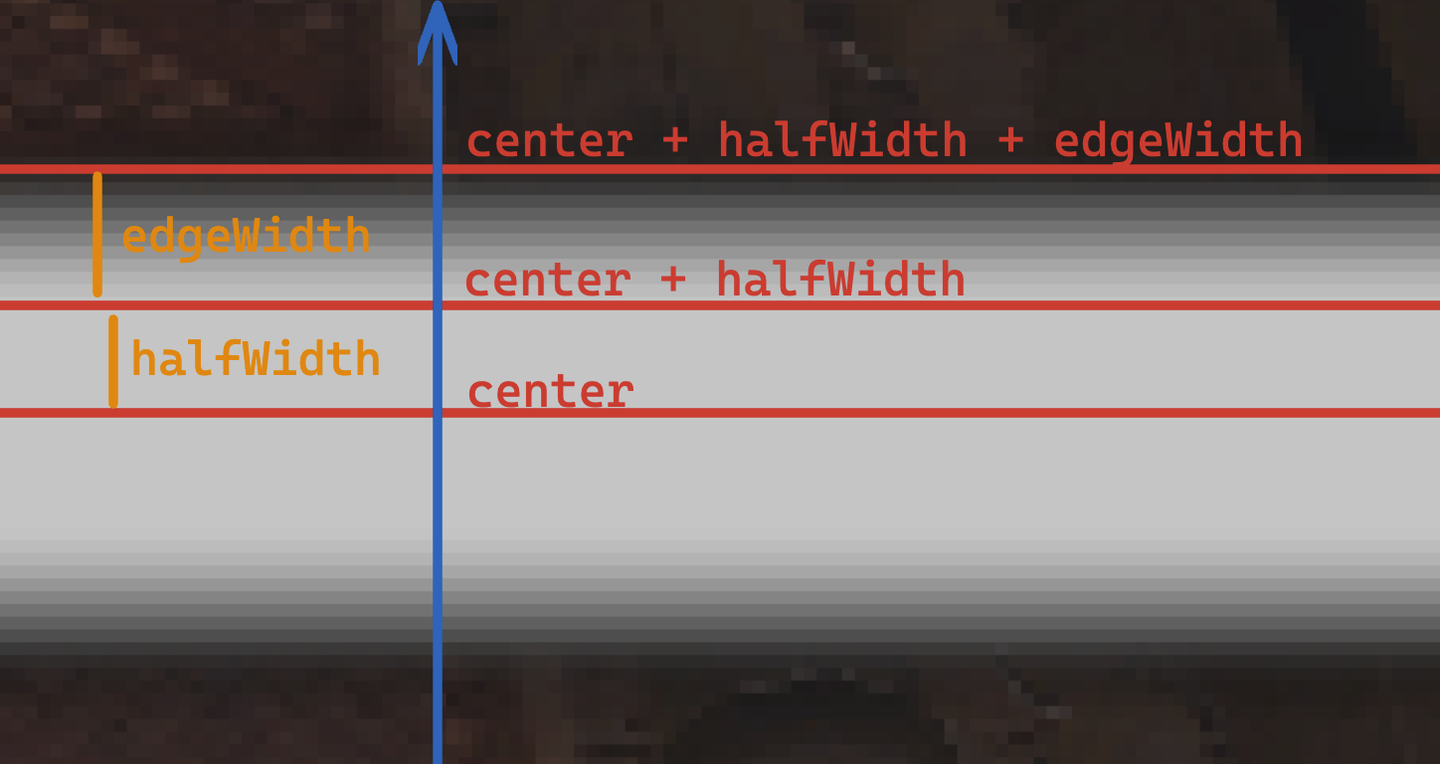
    float onLine(float position, float center, float lineWidth, float edgeWidth) { float halfWidth = lineWidth / 2.0; float edge0 = center - halfWidth - edgeWidth; float edge1 = center - halfWidth; float edge2 = center + halfWidth; float edge3 = center + halfWidth + edgeWidth; return smoothstep(edge0, edge1, position) - smoothstep(edge2, edge3, position); }

    In the above code, the parameters passed in have been normalized to [0,1]. position is the position of the point under investigation, center is the center of the line, lineWidth is the actual width of the line, and edgeWidth is the width of the edge, which is used for smooth transition. I am really unhappy with my ability to express myself! As for how to calculate it, I will draw a picture for you to understand!

    It's probably:,,.

    img

    Think about how to draw a circle with a smooth transition.

    For each point, first calculate the distance vector to the center of the circle and return the result to position, and then calculate its length and return it to len.

    Imitating the difference method of the above two smoothsteps, a ring line effect is generated by subtracting the outer edge interpolation result.

    float circle(float2 position, float2 center, float radius, float lineWidth, float edgeWidth){ position -= center; float len = length(position); //Change true to false to soften the edge float result = smoothstep(radius - lineWidth / 2.0 - edgeWidth, radius - lineWidth / 2.0, len) - smoothstep(radius + lineWidth / 2.0, radius + lineWidth / 2.0 + edgeWidth, len); return result; }
    img

    10. Scanline Effect

    Then add a horizontal line, a vertical line, and a few circles to create a radar scanning effect.

    float3 color = float3(0.0f,0.0f,0.0f); color += onLine(uv.y, center.y, 0.002, 0.001) * axisColor.rgb;//xAxis color += onLine(uv.x, center .x, 0.002, 0.001) * axisColor.rgb;//yAxis color += circle(uv, center, 0.2f, 0.002, 0.001) * axisColor.rgb; color += circle(uv, center, 0.3f, 0.002, 0.001) * axisColor.rgb; color += circle(uv, center, 0.4f , 0.002, 0.001) * axisColor.rgb;

    Draw another scan line with a trajectory.

    float sweep(float2 position, float2 center, float radius, float lineWidth, float edgeWidth) { float2 direction = position - center; float theta = time + 6.3; float2 circlePoint = float2(cos(theta), -sin(theta)) * radius; float projection = clamp(dot(direction, circlePoint) / dot(circlePoint, circlePoint), 0.0, 1.0); float lineDistance = length(direction - circlePoint * projection); float gradient = 0.0; const float maxGradientAngle = PI * 0.5; if (length(direction) < radius) { float angle = fmod(theta + atan2(direction.y, direction.x), PI2); gradient = clamp(maxGradientAngle - angle, 0.0, maxGradientAngle) / maxGradientAngle * 0.5; } return gradient + 1.0 - smoothstep(lineWidth, lineWidth + edgeWidth, lineDistance); }

    Add to the color.

    ... color += sweep(uv, center, 0.45f, 0.003, 0.001) * sweepColor.rgb; ...
    img

    Current version code:

    • Compute Shader: https://github.com/Remyuu/Unity-Compute-Shader-Learn/blob/L3_HUDOverlay/Assets/Shaders/HUDOverlay.compute
    • CPU: https://github.com/Remyuu/Unity-Compute-Shader-Learn/blob/L3_HUDOverlay/Assets/Scripts/HUDOverlay.cs

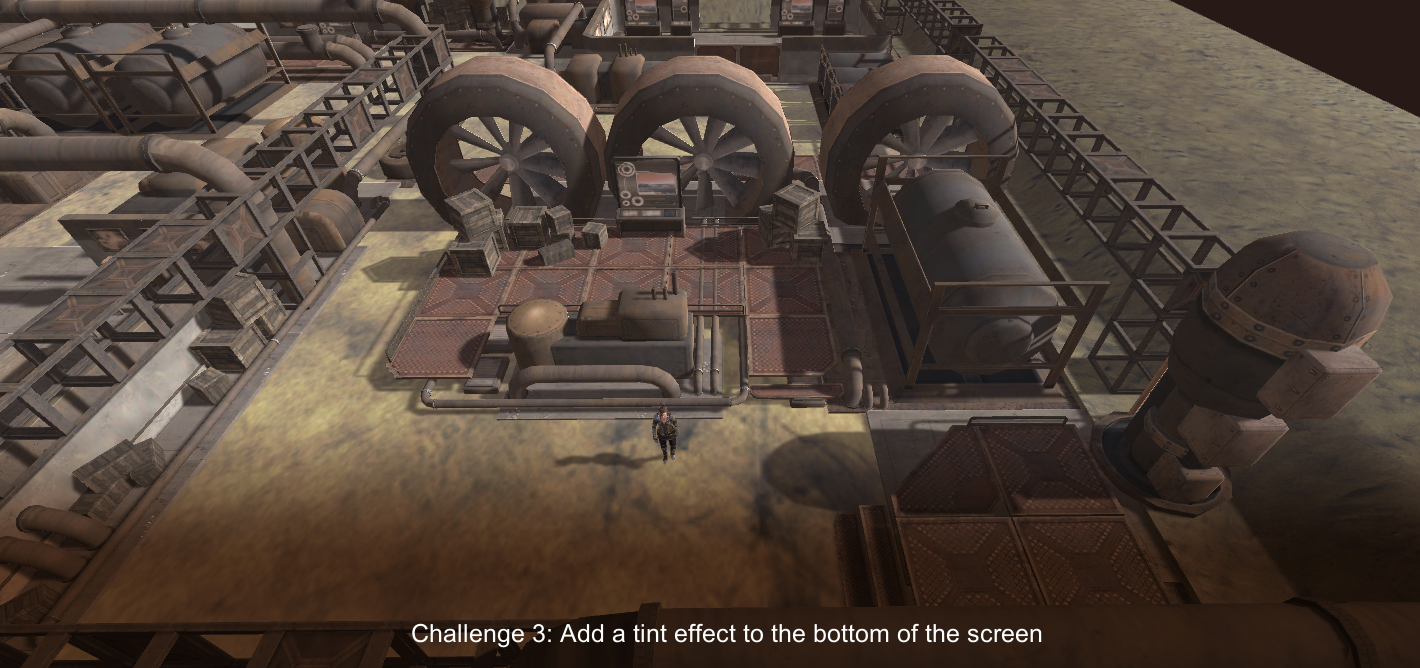
    11. Gradient background shadow effect

    This effect can be used in subtitles or some explanatory text. Although you can directly add a texture to the UI Canvas, using Compute Shader can achieve more flexible effects and resource optimization.

    img

    The background of subtitles and dialogue text is usually at the bottom of the screen, and the top is not processed. At the same time, a higher contrast is required, so the original picture is grayed out and a shadow is specified.

    if (id.y<(uint)tintHeight){ float3 grayScale = (srcColor.r + srcColor.g + srcColor.b) * 0.33 * tintColor.rgb; float3 shaded = lerp(srcColor.rgb, grayScale, tintStrength) * shade ; ... // Continue}else{ color = srcColor; }
    img

    Gradient effect.

    ...// Continue from the previous text float srcAmount = smoothstep(tintHeight-edgeWidth, (float)tintHeight, (float)id.y); ...// Continue from the following text
    img

    Finally, lerp it up again.

    ...// Continue from the previous text color = lerp(float4(shaded, 1), srcColor, srcAmount);
    img

    12. Summary/Quiz

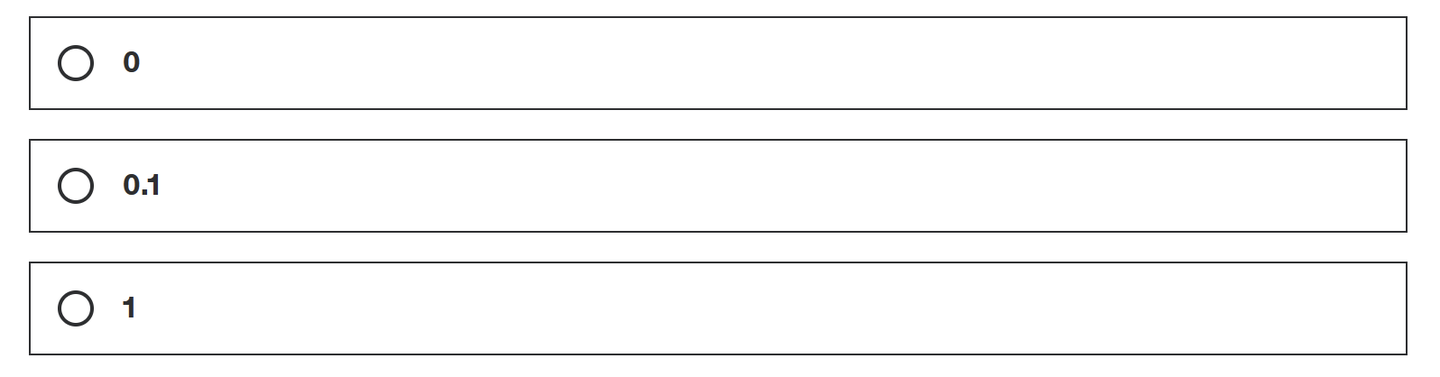
    If id.xy = [ 100, 30 ]. What would be the return value of inCircle((float2)id.xy, float2(130, 40), 40, 0.1)

    img

    When creating a blur effect which answer describes our approach best?

    img

    Which answer would create a blocky low resolution version of the source image?

    img

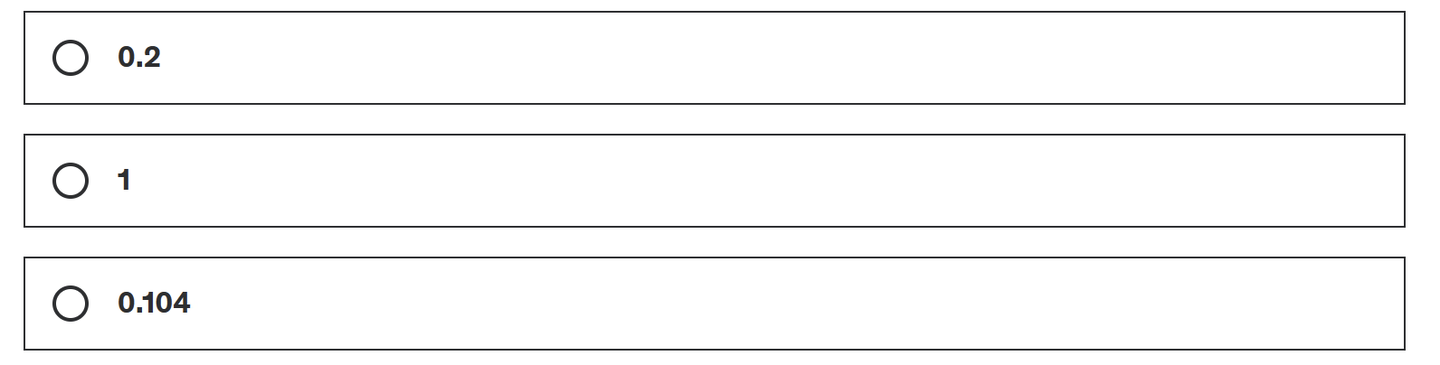
    What is smoothstep(5, 10, 6); ?

    img

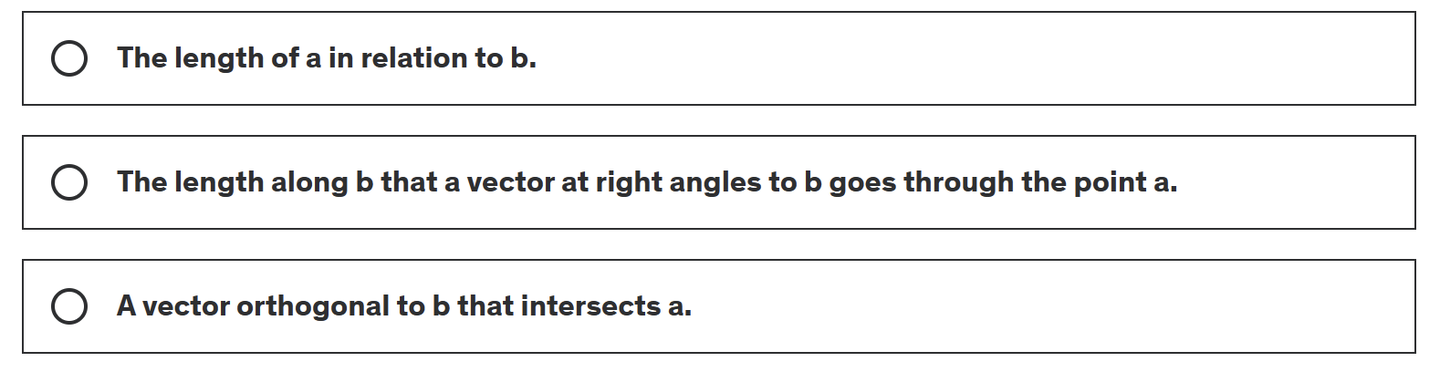
    If an and b are both vectors. Which answer best describes dot(a,b)/dot(b,b); ?

    img

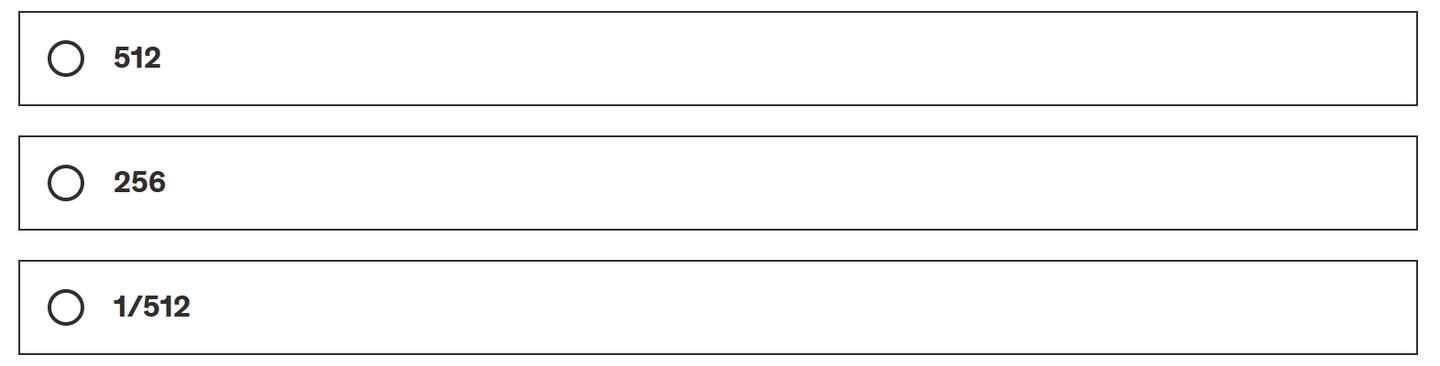
    What is _MainTex_TexelSize.x? If _MainTex is 512 x 256 pixel resolution.

    img

    13. Use Blit and Material for post-processing

    In addition to using Compute Shader for post-processing, there is another simple method.

    // .cs Graphics.Blit(source, dest, material, passIndex); // .shader Pass{ CGPROGRAM #pragma vertex vert_img #pragma fragment frag fixed4 frag(v2f_img input) : SV_Target{ return tex2D(_MainTex, input.uv); } ENDCG }

    Image data is processed by combining Shader.

    So the question is, what is the difference between the two? And isn't the input a texture? Where do the vertices come from?

    answer:

    The first question. This method is called "screen space shading" and is fully integrated into Unity's graphics pipeline. Its performance is actually higher than Compute Shader. Compute Shader provides finer-grained control over GPU resources. It is not restricted by the graphics pipeline and can directly access and modify resources such as textures and buffers.

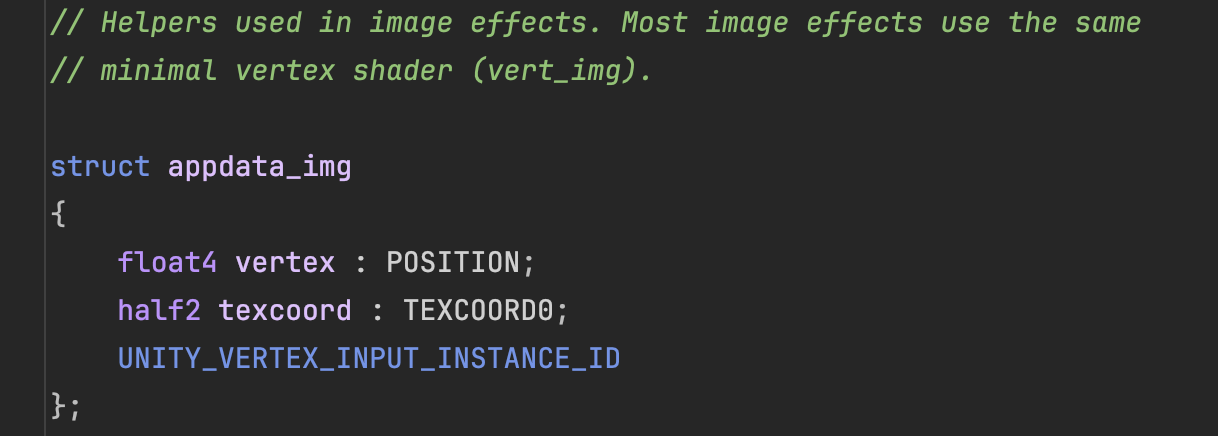
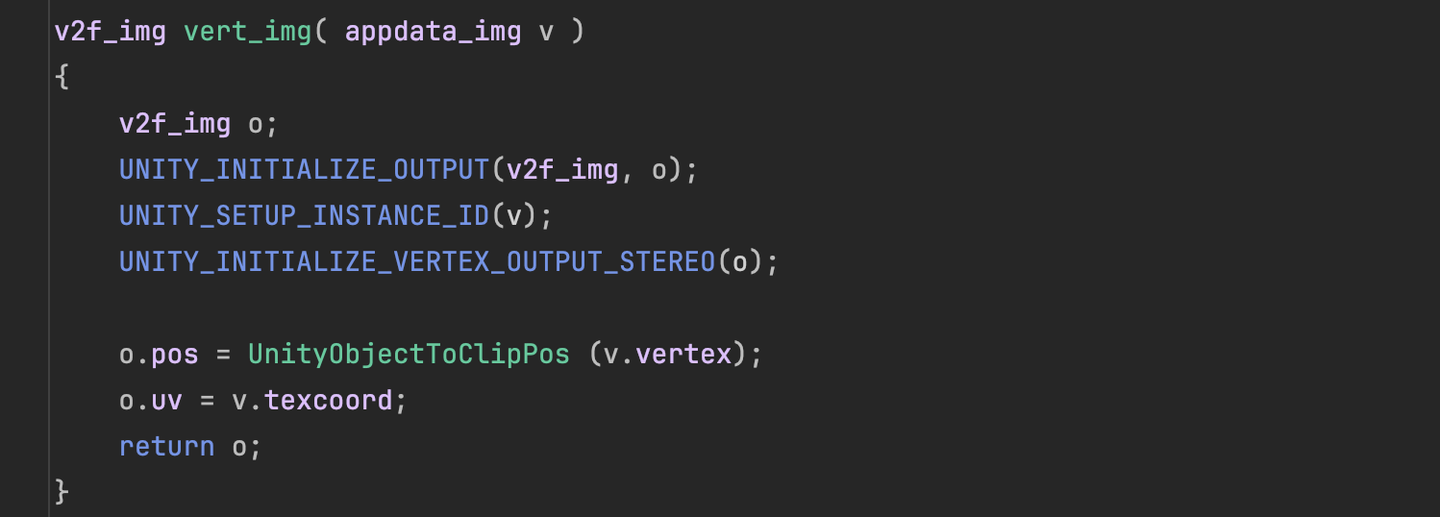
    The second question. Pay attention to vert_img. In UnityCG, you can find the following definition:

    img
    img

    Unity will automatically convert the incoming texture into two triangles (a rectangle that fills the screen). When we write post-processing using the material method, we can just write it directly on the frag.

    In the next chapter, you will learn how to connect Material, Shader, Compute Shader and C#.

  • Compute Shader学习笔记(一)之 入门

    Compute Shader Learning Notes (I) Getting Started

    Tags: Getting Started/Shader/Compute Shader/GPU Optimization

    img

    Preface

    Compute Shader is relatively complex and requires certain programming knowledge, graphics knowledge, and GPU-related hardware knowledge to master it well. The study notes are divided into four parts:

    • Get to know Compute Shader and implement some simple effects
    • Draw circles, planet orbits, noise maps, manipulate Meshes, and more
    • Post-processing, particle system
    • Physical simulation, drawing grass
    • Fluid simulation

    The main references are as follows:

    • https://www.udemy.com/course/compute-shaders/?couponCode=LEADERSALE24A
    • https://catlikecoding.com/unity/tutorials/basics/compute-shaders/
    • https://medium.com/ericzhan-publication/shader notes-a preliminary exploration of compute-shader-9efeebd579c1
    • https://docs.unity3d.com/Manual/class-ComputeShader.html
    • https://docs.unity3d.com/ScriptReference/ComputeShader.html
    • https://learn.microsoft.com/en-us/windows/win32/api/D3D11/nf-d3d11-id3d11devicecontext-dispatch
    • lygyue:Compute Shader(Very interesting)
    • https://medium.com/@sengallery/unity-compute-shader-basic-understanding-5a99df53cea1
    • https://kylehalladay.com/blog/tutorial/2014/06/27/Compute-Shaders-Are-Nifty.html (too old and outdated)
    • http://www.sunshine2k.de/coding/java/Bresenham/RasterisingLinesCircles.pdf
    • Wang Jiangrong: [Unity] Basic Introduction and Usage of Compute Shader
    • …To be continued

    L1 Introduction to Compute Shader

    1. Introduction to Compute Shader

    Simply put, you can use Compute Shader to calculate a material and then display it through Renderer. It should be noted that Compute Shader can do more than just this.

    img
    img

    You can copy the following two codes and test them.

    using System.Collections;
    using System.Collections.Generic;
    using UnityEngine;
    
    public class AssignTexture : MonoBehaviour
    {
        // ComputeShader is used to perform computing tasks on the GPU
        public ComputeShader shader;
    
        // Texture resolution
        public int texResolution = 256;
    
        // Renderer component
        private Renderer rend;
        // Render texture
        private RenderTexture outputTexture;
        // Compute shader kernel handle
        private int kernelHandle;
    
        // Start is called once when the script is started
        void Start()
        {
            // Create a new render texture, specifying width, height, and bit depth (here the bit depth is 0)
            outputTexture = new RenderTexture(texResolution, texResolution, 0);
            // Allow random write
            outputTexture.enableRandomWrite = true;
            // Create a render texture instance
            outputTexture.Create();
    
            // Get the renderer component of the current object
            rend = GetComponent<Renderer>();
            // Enable the renderer
            rend.enabled = true;
    
            InitShader();
        }
    
        private void InitShader()
        {
            // Find the handle of the compute shader kernel "CSMain"
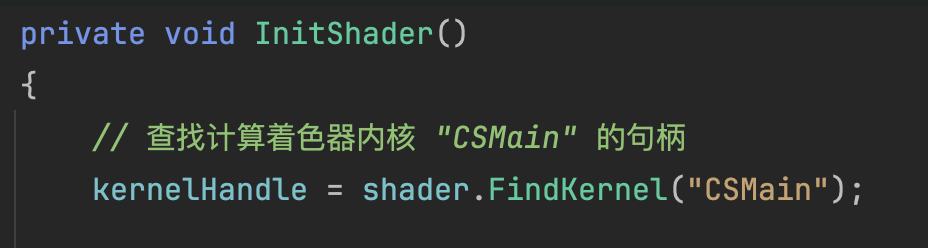
            kernelHandle = shader.FindKernel("CSMain");
    
            // Set up the texture used in the compute shader
            shader.SetTexture(kernelHandle, "Result", outputTexture);
    
            // Set the render texture as the material's main texture
            rend.Material.SetTexture("_MainTex", outputTexture);
    
            // Schedule the execution of the compute shader, passing in the size of the compute group
            // Here it is assumed that each working group is 16x16
            // Simply put, how many groups should be allocated to complete the calculation. Currently, only half of x and y are divided, so only 1/4 of the screen is rendered.
            DispatchShader(texResolution / 16, texResolution / 16);
        }
    
        private void DispatchShader(int x, int y)
        {
            // Schedule the execution of the compute shader
            // x and y represent the number of calculation groups, 1 represents the number of calculation groups in the z direction (here there is only one)
            shader.Dispatch(kernelHandle, x, y, 1);
        }
    
        void Update()
        {
            // Check every frame whether there is keyboard input (button U is released)
            if (Input.GetKeyUp(KeyCode.U))
            {
                // If the U key is released, reschedule the compute shader
                DispatchShader(texResolution / 8, texResolution / 8);
            }
        }
    }

    Unity's default Compute Shader:

    // Each #kernel tells which function to compile; you can have many kernels
    #Pragmas kernel CSMain
    
    // Create a RenderTexture with enableRandomWrite flag and set it
    // with cs.SetTexture
    RWTexture2D<float4> Result;
    
    [numthreads(8,8,1)]
    void CSMain (uint3 id : SV_DispatchThreadID) { 
      // TODO: insert actual code here! Result[id.xy] = float4(id.x & id.y, (id.x & 15)/15.0, (id.y & 15)/15.0, 0.0); 
    }

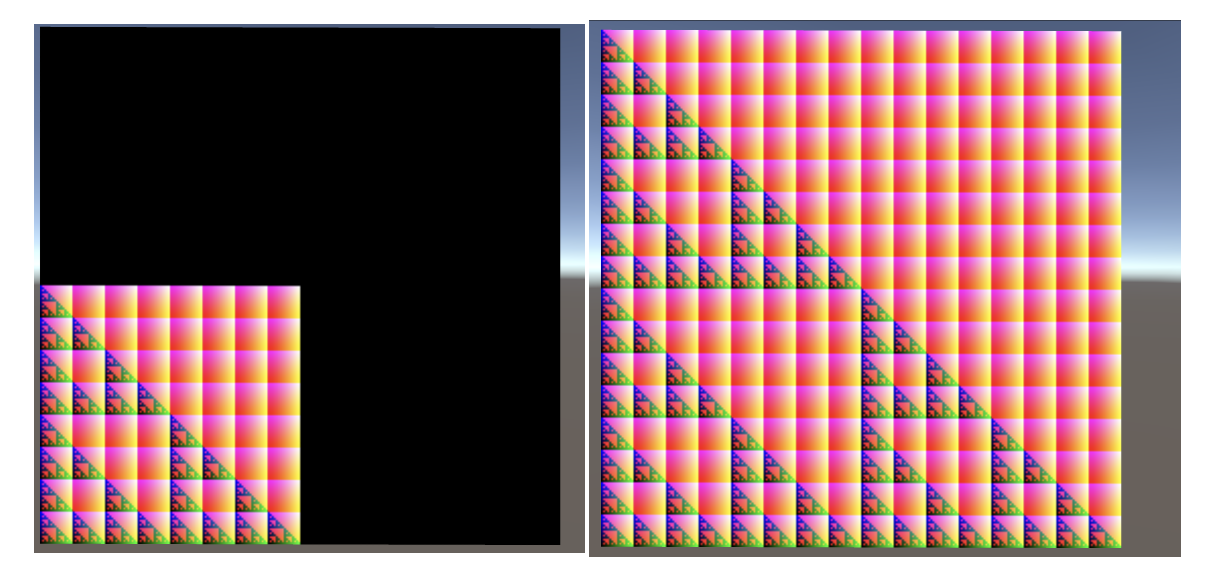
    In this example, we can see that a fractal structure called Sierpinski net is drawn in the lower left quarter. This is not important. Unity officials think this graphic is very representative and use it as the default code.

    Let's talk about the Compute Shader code in detail. You can refer to the comments for the C# code.

    #pragma kernel CSMain This line of code indicates the entry of Compute Shader. You can change the name of CSMain at will.

    RWTexture2D Result This line of code is a readable and writable 2D texture. R stands for Read and W stands for Write.

    Focus on this line of code:

    [numthreads(8,8,1)]

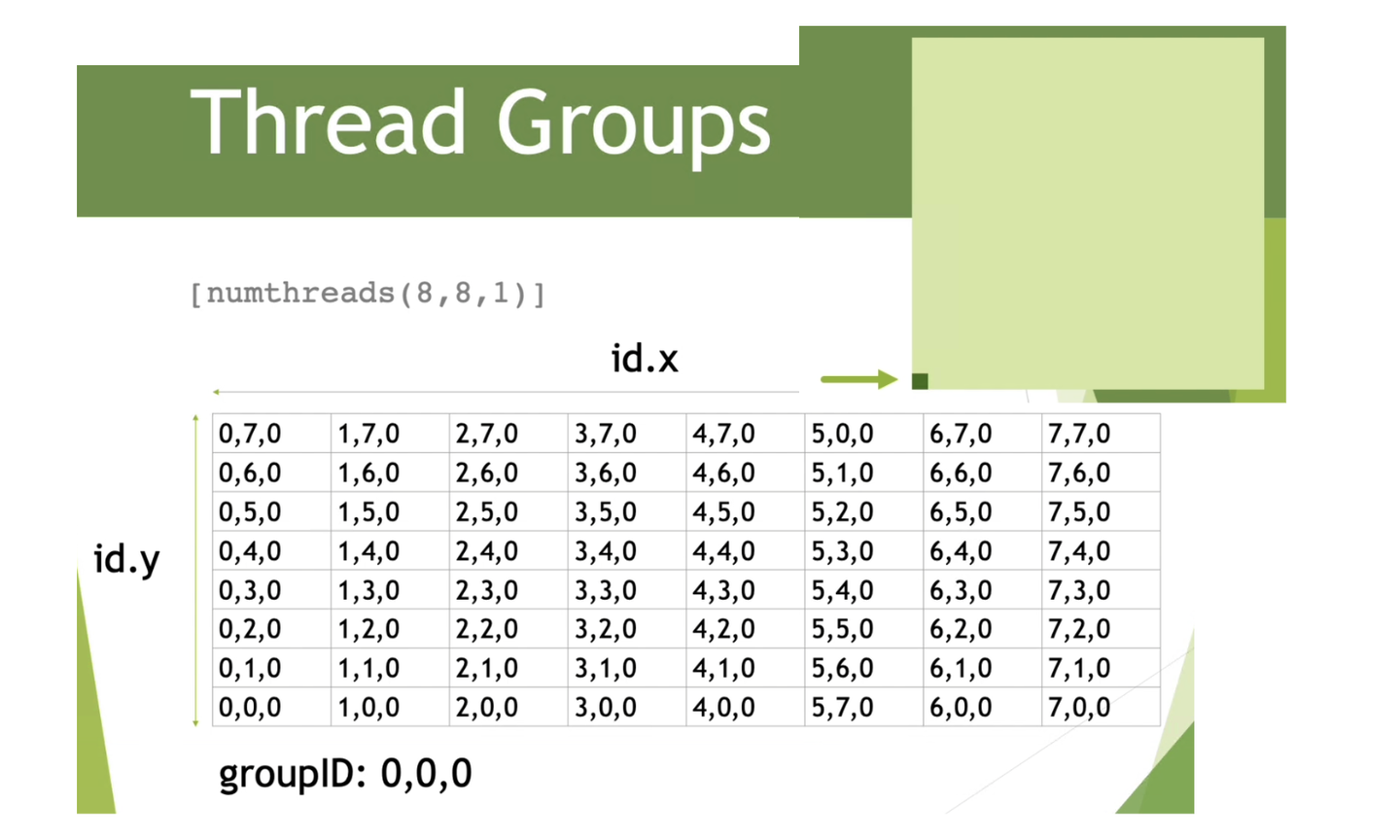
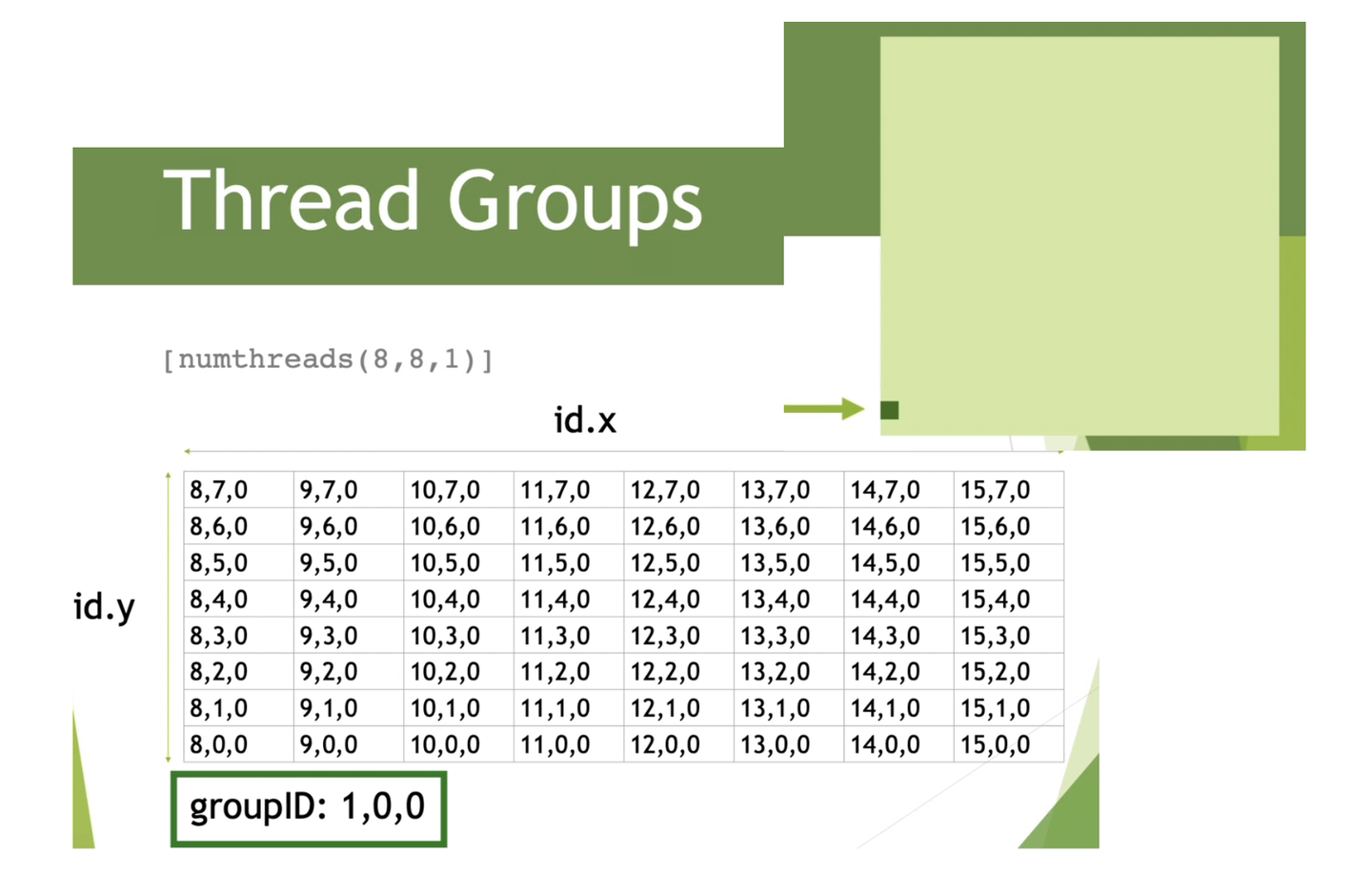
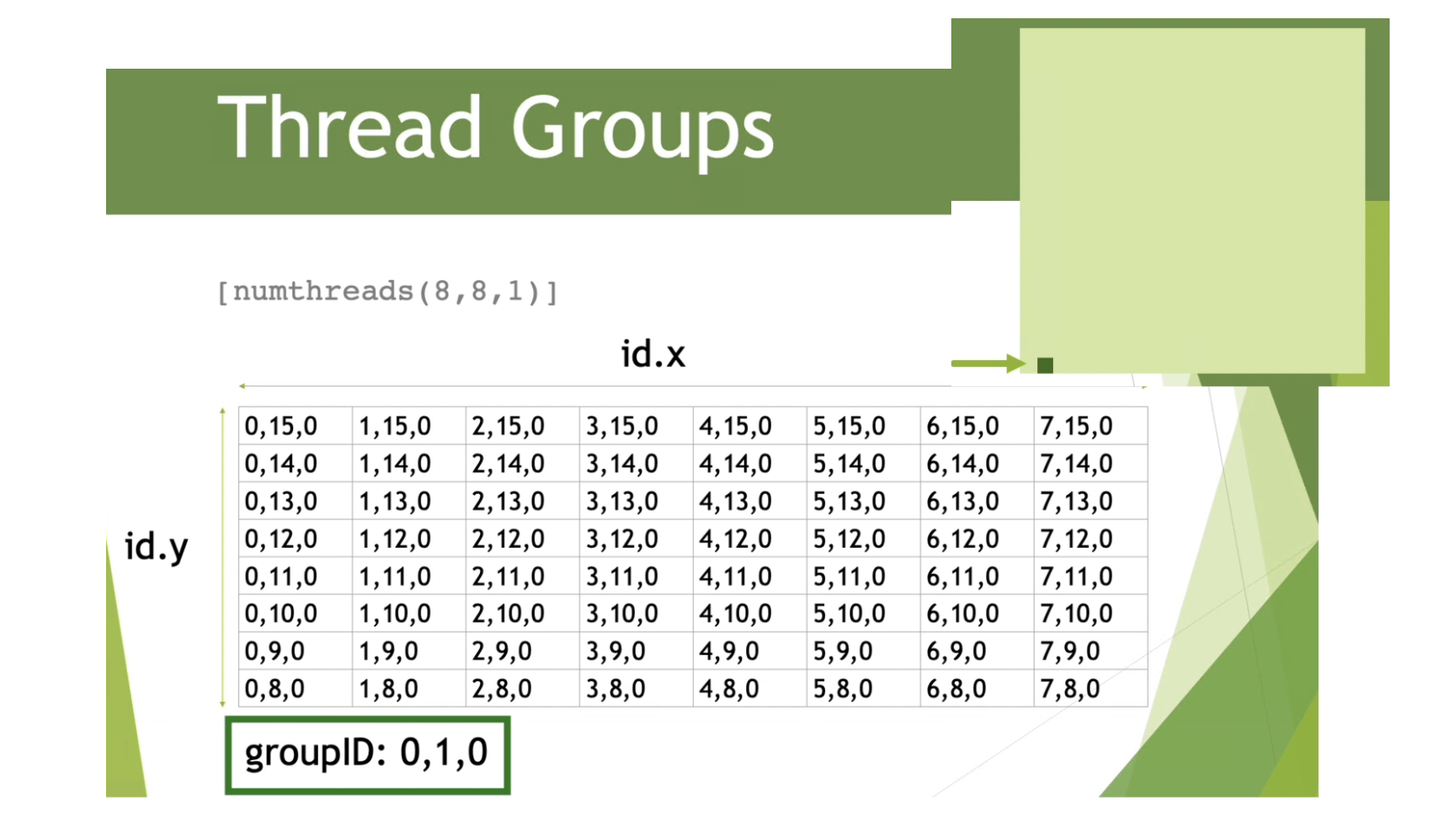
    In the Compute Shader file, this line of code specifies the size of a thread group. For example, in this 8 * 8 * 1 thread group, there are 64 threads in total. Each thread calculates a unit of pixels (RWTexture).

    In the C# file above, we use shader.Dispatch to specify the number of thread groups.

    img
    img
    img

    Next, let's ask a question. If the current thread group is specified as 881, so how many thread groups do we need to render a RWTexture of size res*res?

    The answer is: res/8. However, our code currently only calls res/16, so only the 1/4 area in the lower left corner is rendered.

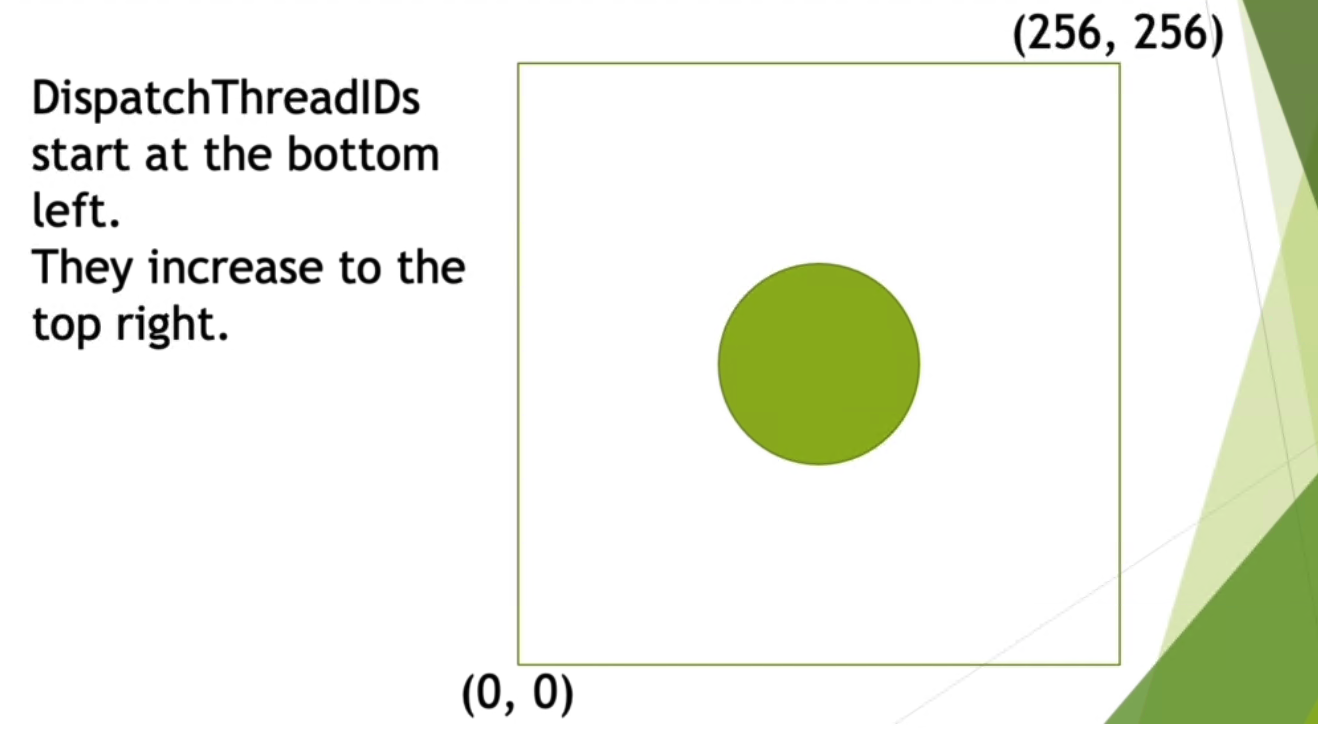
    In addition, the parameters passed into the entry function are also worth mentioning: uint3 id: SV_DispatchThreadID This id represents the unique identifier of the current thread.

    2. Quarter pattern

    Before you learn to walk, you must first learn to crawl. First, specify the task (Kernel) to be performed in C#.

    img

    Currently we have written it in stone, now we expose a parameter that indicates that different rendering tasks can be performed.

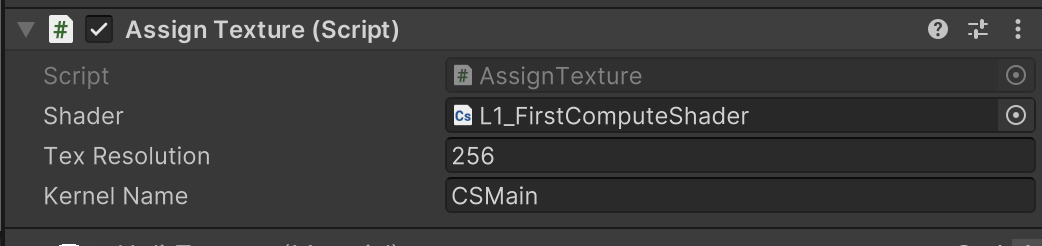
    public string kernelName = "CSMain"; ... kernelHandle = shader.FindKernel(kernelName);

    In this way, you can modify it at will in the Inspector.

    img

    However, it is not enough to just put the plate on the table, we need to serve the dish. We cook the dish in the Compute Shader.

    Let's set up a few menus first.

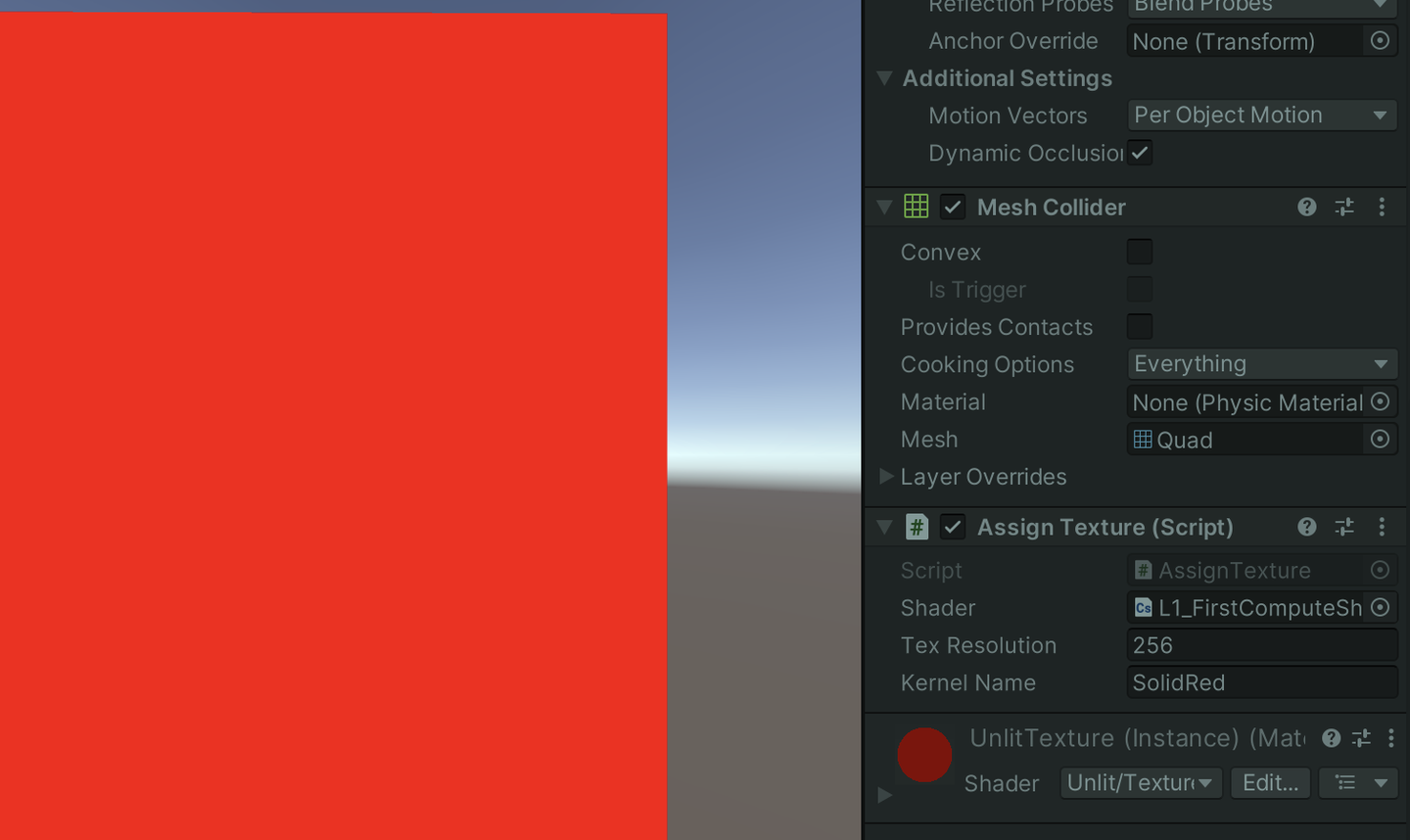
    #pragma kernel CSMain // We have just declared #pragma kernel SolidRed // Define a new dish and write it below... // You can write a lot [numthreads(8,8,1)] void CSMain (uint3 id : SV_DispatchThreadID){ ... } [numthreads(8,8,1)] void SolidRed (uint3 id : SV_DispatchThreadID){ Result[id.xy] = float4(1,0,0,0); }

    You can enable different Kernels by modifying the corresponding names in the Inspector.

    img

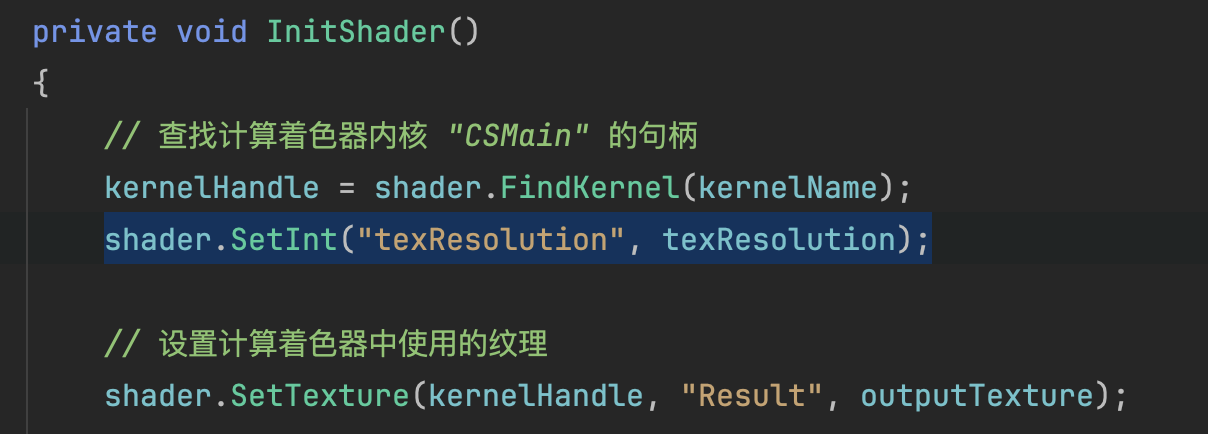
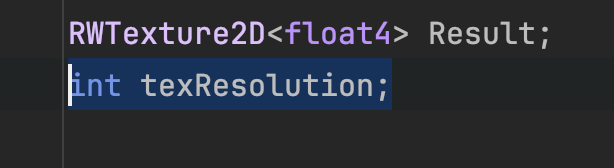
    What if I want to pass data to the Compute Shader? For example, pass the resolution of a material to the Compute Shader.

    shader.SetInt("texResolution", texResolution);
    img
    img

    And in the Compute Shader, it must also be declared.

    img

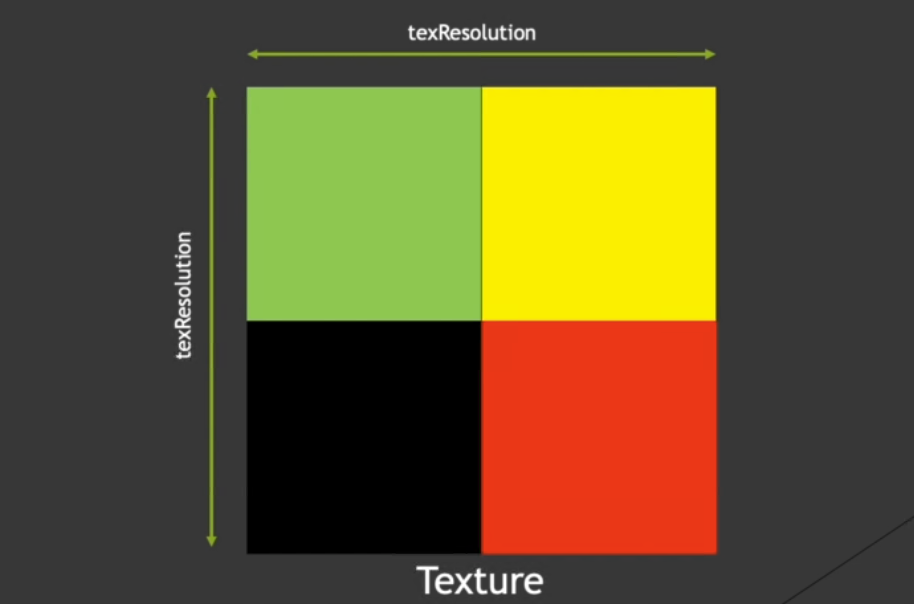
    Think about a question, how to achieve the following effect?

    img
    [numthreads(8,8,1)]
    void SplitScreen (uint3 id : SV_DispatchThreadID)
    {
        int halfRes = texResolution >> 1;
        Result[id.xy] = float4(step(halfRes, id.x),step(halfRes, id.y),0,1);
    }

    To explain, the step function is actually:

    step(edge, x){
        return x>=edge ? 1 : 0;
    }

    (uint)res >> 1 means that the bits of res are shifted one position to the right. This is equivalent to dividing by 2 (binary content).

    This calculation method simply depends on the current thread id.

    The thread at the bottom left corner always outputs black because the step return is always 0.

    For the lower left thread, id.x > halfRes , so 1 is returned in the red channel.

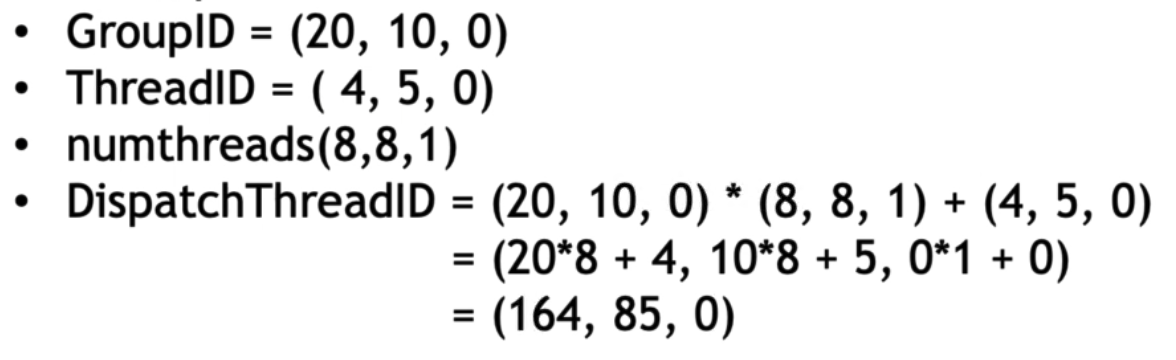
    If you are not convinced, you can do some calculations to help you understand the relationship between thread ID, thread group and thread group group.

    img
    img

    3. Draw a circle

    The principle sounds simple. It checks whether (id.x, id.y) is inside the circle. If yes, it outputs 1. Otherwise, it outputs 0. Let's try it.

    img
    float inCircle( float2 pt, float radius ){
        return ( length(pt)<radius ) ? 1.0 : 0.0;
    }
    
    [numthreads(8,8,1)]
    void Circle (uint3 id : SV_DispatchThreadID)
    {
        int halfRes = texResolution >> 1;
        int isInside = inCircle((float2)((int2)id.xy-halfRes), (float)(halfRes>>1));
        Result[id.xy] = float4(0.0,isInside ,0,1);
    }

    img

    4. Summary/Quiz

    If the output is a RWTexture with a side length of 256, which answer will produce a completely red texture?

    RWTexture2D<float4> output;
    
    [numthreads(16,16,1)]
    void CSMain (uint3 id : SV_DispatchThreadID)
    {
         output[id.xy] = float4(1.0, 0.0, 0.0, 1.0);
    }

    img

    Which answer will give red on the left side of the texture output and yellow on the right side?

    img

    L2 has begun

    1. Passing values to the GPU

    img

    Without further ado, let's draw a circle. Here are two initial codes.

    PassData.cs: https://pastebin.com/PMf4SicK

    PassData.compute: https://pastebin.com/WtfUmhk2

    The general structure is the same as above. You can see that a drawCircle function is called to draw a circle.

    [numthreads(1,1,1)] void Circles (uint3 id : SV_DispatchThreadID) { int2 center = (texResolution >> 1); int radius = 80; drawCircle( centre, radius ); }

    The circle drawing method used here is a very classic rasterization drawing method. If you are interested in the mathematical principles, you can read http://www.sunshine2k.de/coding/java/Bresenham/RasterisingLinesCircles.pdf. The general idea is to use a symmetric idea to generate.

    The difference is that here we use (1,1,1) as the size of a thread group. Call CS on the CPU side:

    private void DispatchKernel(int count) { shader.Dispatch(circlesHandle, count, 1, 1); } void Update() { DispatchKernel(1); }

    The question is, how many times does a thread execute?

    Answer: It is executed only once. Because a thread group has only 111 = 1 thread, and only 1 is called on the CPU side11 = 1 thread group is used for calculation. Therefore, only one thread is used to draw a circle. In other words, one thread can draw an entire RWTexture at a time, instead of one thread drawing one pixel as before.

    This also shows that there is an essential difference between Compute Shader and Fragment Shader. Fragment Shader only calculates the color of a single pixel, while Compute Shader can perform more or less arbitrary operations!

    img

    Back to Unity, if you want to draw a good-looking circle, you need an outline color and a fill color. Pass these two parameters to CS.

    float4 clearColor; float4 circleColor;

    And add color filling kernel, and modify the Circles kernel. If multiple kernels access a RWTexture at the same time, you can add the shared keyword.

    #Pragmas kernel Circles
    #Pragmas kernel Clear
        ...
    shared RWTexture2D<float4> Result;
        ...
    [numthreads(32,1,1)]
    void Circles (uint3 id : SV_DispatchThreadID)
    {
        // int2 center = (texResolution >> 1);
        int2 centre = (int2)(random2((float)id.x) * (float)texResolution);
        int radius = (int)(random((float)id.x) * 30);
        drawCircle( centre, radius );
    }
    
    [numthreads(8,8,1)]
    void Clear (uint3 id : SV_DispatchThreadID)
    {
        Result[id.xy] = clearColor;
    }

    Get the Clear kernel on the CPU side and pass in the data.

    private int circlesHandle; private int clearHandle; ... shader.SetVector( "clearColor", clearColor); shader.SetVector( "circleColor", circleColor); ... private void DispatchKernels(int count) { shader.Dispatch(clearHandle, texResolution/8, texResolution/8, 1); shader.Dispatch(circlesHandle, count, 1, 1); } void Update() { DispatchKernels(1); // There are now 32 circles on the screen }

    A question, if the code is changed to: DispatchKernels(10), how many circles will there be on the screen?

    Answer: 320. Initially, Dispatch is 111=1, a thread group has 3211=32 threads, each thread draws a circle. Elementary school mathematics.

    Next, add the _Time variable to make the circle change with time. Since there seems to be no such variable as _time in the Compute Shader, it can only be passed in by the CPU.

    On the CPU side, note that variables updated in real time need to be updated before each Dispatch (outputTexture does not need to be updated because this outputTexture actually points to a reference to the GPU texture!):

    private void DispatchKernels(int count) { shader.Dispatch(clearHandle, texResolution/8, texResolution/8, 1); shader.SetFloat( "time", Time.time); shader.Dispatch(circlesHandle, count, 1, 1) ; }

    Compute Shader:

    float time; ... void Circles (uint3 id : SV_DispatchThreadID){ ... int2 center = (int2)(random2((float)id.x + time) * (float)texResolution); ... }

    Current version code:

    • Compute Shader: https://github.com/Remyuu/Unity-Compute-Shader-Learn/blob/L2_Circle_Time/Assets/Shaders/PassData.compute
    • CPU: https://github.com/Remyuu/Unity-Compute-Shader-Learn/blob/L2_Circle_Time/Assets/Scripts/PassData.cs

    But now the circles are very messy. The next step is to use Buffer to make the circles look more regular.

    img

    At the same time, you don't need to worry about multiple threads trying to write to the same memory location (such as RWTexture) at the same time, which may cause race conditions. The current API will handle this problem well.

    2. Use Buffer to pass data to GPU

    So far, we have learned how to transfer some simple data from the CPU to the GPU. How do we pass a custom structure?

    img

    We can use Buffer as a medium, where Buffer is of course stored in the GPU, and the CPU side (C#) only stores its reference. First, declare a structure on the CPU, and then declare the CPU-side reference and the GPU-sideReferences.

    struct Circle { public Vector2 origin; public Vector2 velocity; public float radius; } Circle[] circleData; // on CPU ComputeBuffer buffer; // on GPU

    To get the size information of a thread group, you can do this. The following code only gets the number of threads in the x direction of the circlesHandles thread group, ignoring y and z (because it is assumed that the y and z of the thread group are both 1). And multiply it by the number of allocated thread groups to get the total number of threads.

    uint threadGroupSizeX; shader.GetKernelThreadGroupSizes(circlesHandle, out threadGroupSizeX, out _, out _); int total = (int)threadGroupSizeX * count;

    Now prepare the data to be passed to the GPU. Here we create circles with the number of threads, circleData[threadNums].

    circleData = new Circle[total]; float speed = 100; float halfSpeed = speed * 0.5f; float minRadius = 10.0f; float maxRadius = 30.0f; float radiusRange = maxRadius - minRadius; for(int i=0; i

    Then accept this Buffer in the Compute Shader. Declare an identical structure (Vector2 and Float2 are the same), and then create a reference to the Buffer.

    // Compute Shader struct circle { float2 origin; float2 velocity; float radius; }; StructuredBuffer circlesBuffer;

    Note that the StructureBuffer used here is read-only, which is different from the RWStructureBuffer mentioned in the next section.

    Back to the CPU side, send the CPU data just prepared to the GPU through the Buffer. First, we need to make clear the size of the Buffer we applied for, that is, how big we want to pass to the GPU. Here, a circle data has two float2 variables and one float variable, a float is 4 bytes (may be different on different platforms, you can use sizeof(float) to determine), and there are circleData.Length pieces of circle data to be passed. circleData.Length indicates how many circle objects the buffer needs to store, and stride defines how many bytes each object's data occupies. After opening up such a large space, use SetData() to fill the data into the buffer, that is, in this step, pass the data to the GPU. Finally, bind the GPU reference where the data is located to the Kernel specified by the Compute Shader.

    int stride = (2 + 2 + 1) * 4; //2 floats origin, 2 floats velocity, 1 float radius - 4 bytes per float buffer = new ComputeBuffer(circleData.Length, stride); buffer.SetData(circleData); shader.SetBuffer(circlesHandle, "circlesBuffer", buffer);

    So far, we have passed some data prepared by the CPU to the GPU through Buffer.

    img

    OK, now let’s make use of the data that was transferred to the GPU with great difficulty.

    [numthreads(32,1,1)] void Circles (uint3 id : SV_DispatchThreadID) { int2 center = (int2)(circlesBuffer[id.x].origin + circlesBuffer[id.x].velocity * time); while (centre .x>texResolution) centre.x -= texResolution; while (centre.x<0) centre.x += texResolution; while (centre.y>texResolution) centre.y -= texResolution; while (centre.y<0) centre.y += texResolution; uint radius = (int)circlesBuffer[id.x].radius; drawCircle( centre, radius ) ; }

    You can see that the circle is now moving continuously because our Buffer stores the position of the circle indexed by id.x in the previous frame and the movement status of the circle.

    img

    To sum up, in this section we learned how to customize a structure (data structure) on the CPU side, pass it to the GPU through a Buffer, and process the data on the GPU.

    In the next section, we will learn how to get data from the GPU back to the CPU.

    • Current version code:
    • Compute Shader: https://github.com/Remyuu/Unity-Compute-Shader-Learn/blob/L2_Using_Buffer/Assets/Shaders/BufferJoy.compute
    • CPU: https://github.com/Remyuu/Unity-Compute-Shader-Learn/blob/L2_Using_Buffer/Assets/Scripts/BufferJoy.cs

    3. Get data from GPU

    As usual, create a Buffer to transfer data from the GPU to the CPU. Define an array on the CPU side to receive the data. Then create the buffer, bind it to the shader, and finally create variables on the CPU ready to receive GPU data.

    ComputeBuffer resultBuffer; // Buffer Vector3[] output; // CPU accepts... //buffer on the gpu in the ram resultBuffer = new ComputeBuffer(starCount, sizeof(float) * 3); shader.SetBuffer(kernelHandle, "Result ", resultBuffer); output = new Vector3[starCount];

    Compute Shader also accepts such a Buffer. The Buffer here is readable and writable, which means that the Buffer can be modified by Compute Shader. In the previous section, Compute Shader only needs to read the Buffer, so StructuredBuffer is enough. Here we need to use RW.

    RWStructuredBuffer Result;

    Next, use GetData after Dispatch to receive the data.

    shader.Dispatch(kernelHandle, groupSizeX, 1, 1); resultBuffer.GetData(output);
    img

    The idea is so simple. Now let's try to make a scene where a lot of stars move around the center of the sphere.

    The task of calculating the star coordinates is put on the GPU to complete, and finally the calculated position data of each star is obtained, and the object is instantiated in C#.

    In Compute Shader, each thread calculates the position of a star and outputs it to the Buffer.

    [numthreads(64,1,1)] void OrbitingStars (uint3 id : SV_DispatchThreadID) { float3 sinDir = normalize(random3(id.x) - 0.5); float3 vec = normalize(random3(id.x + 7.1393) - 0.5) ; float3 cosDir = normalize(cross(sinDir, vec)); float scaledTime = time * 0.5 + random(id.x) * 712.131234; float3 pos = sinDir * sin(scaledTime) + cosDir * cos(scaledTime); Result[id.x] = pos * 2; }

    Get the calculation result through GetData on the CPU side, and modify the Pos of the corresponding previously instantiated GameObject at any time.

    void Update() { shader.SetFloat("time", Time.time); shader.Dispatch(kernelHandle, groupSizeX, 1, 1); resultBuffer.GetData(output); for (int i = 0; i < stars.Length ; i++) stars[i].localPosition = output[i]; }
    img

    Current version code:

    • Compute Shader: https://github.com/Remyuu/Unity-Compute-Shader-Learn/blob/L2_GetData_From_Buffer/Assets/Shaders/OrbitingStars.compute
    • CPU: https://github.com/Remyuu/Unity-Compute-Shader-Learn/blob/L2_GetData_From_Buffer/Assets/Scripts/OrbitingStars.cs

    4. Use noise

    Generating a noise map using Compute Shader is very simple and very efficient.

    float random (float2 pt, float seed) {
        const float a = 12.9898;
        const float b = 78.233;
        const float c = 43758.543123;
        return frac(sin(seed + dot(pt, float2(a, b))) * c );
    }
    
    [numthreads(8,8,1)]
    void CSMain (uint3 id : SV_DispatchThreadID)
    {
        float4 white = 1;
        Result[id.xy] = random(((float2)id.xy)/(float)texResolution, time) * white;
    }
    img

    There is a library to get more various noises. https://pastebin.com/uGhMLKeM

    #include "noiseSimplex.cginc" // Paste the code above and named "noiseSimplex.cginc"
    
    ...
    
    [numthreads(8,8,1)]
    void CSMain (uint3 id : SV_DispatchThreadID)
    {
        float3 POS = (((float3)id)/(float)texResolution) * 2.0;
        float n = snoise(POS);
        float ring = frac(noiseScale * n);
        float delta = pow(ring, ringScale) + n;
    
        Result[id.xy] = lerp(darkColor, paleColor, delta);
    }

    img

    5. Deformed Mesh

    In this section, we will transform a Cube into a Sphere through Compute Shader, and we will also need an animation process with gradual changes!

    img

    As usual, declare vertex parameters on the CPU side, then throw them into the GPU for calculation, and apply the calculated new coordinates newPos to the Mesh.

    Vertex structure declaration. We attach a constructor to the CPU declaration for convenience. The GPU declaration is similar. Here, we intend to pass two buffers to the GPU, one read-only and the other read-write. At first, the two buffers are the same. As time changes (gradually), the read-write buffer gradually changes, and the Mesh changes from a cube to a ball.

    // CPU public struct Vertex { public Vector3 position; public Vector3 normal; public Vertex( Vector3 p, Vector3 n ) { position.x = px; position.y = py; position.z = pz; normal.x = nx; normal .y = ny; normal.z = nz; } } ... Vertex[] vertexArray; Vertex[] initialArray; ComputeBuffer vertexBuffer; ComputeBuffer initialBuffer; // GPU struct Vertex { float3 position; float3 normal; }; ... RWStructuredBuffer vertexBuffer; StructuredBuffer initialBuffer;

    The complete steps of initialization ( Start() function) are as follows:

    1. On the CPU side, initialize the kernel and obtain the Mesh reference
    2. Transfer Mesh data to CPU
    3. Declare the Buffer of Mesh data in GPU
    4. Passing Mesh data and other parameters to the GPU

    After completing these operations, every frame Update, we apply the new vertices obtained from the GPU to the mesh.

    So how do we implement GPU computing?

    It's quite simple, we just need to normalize each vertex in the model space! Imagine that when all vertex position vectors are normalized, the model becomes a sphere.

    img

    In the actual code, we also need to calculate the normal at the same time. If we don't change the normal, the lighting of the object will be very strange. So the question is, how to calculate the normal? It's very simple. The coordinates of the original vertices of the cube are the final normal vectors of the ball!

    img

    In order to achieve the "breathing" effect, a sine function is added to control the normalization coefficient.

    float delta = (Mathf.Sin(Time.time) + 1)/ 2;

    Since the code is a bit long, I'll put a link.

    Current version code:

    • Compute Shader: https://github.com/Remyuu/Unity-Compute-Shader-Learn/blob/L2_Mesh_Cube2Sphere/Assets/Shaders/MeshDeform.compute
    • CPU: https://github.com/Remyuu/Unity-Compute-Shader-Learn/blob/L2_Mesh_Cube2Sphere/Assets/Scripts/MeshDeform.cs
    img

    6. Summary/Quiz

    How this structure should be defined on the GPU:

    struct Circle { public Vector2 origin; public Vector2 velocity; public float radius; }
    img

    How should this structure set the size of ComputeBuffer?

    struct Circle { public Vector2 origin; public Vector2 velocity; public float radius; }
    img

    Why is the following code wrong?

    StructuredBuffer positions; //Inside a kernel ... positions[id.x] = fixed3(1,0,0);
    img

    References

  • Games202 作业三 SSR实现

    Games202 Assignment 3 SSR Implementation

    Assignment source code:

    https://github.com/Remyuu/GAMES202-Homeworkgithub.com/Remyuu/GAMES202-Homework

    TODO List

    • Implements shading of the scene's direct lighting (taking shadows into account).
    • Implements screen space ray intersection (SSR).
    • Implements shading of indirect lighting of the scene.
    • Implement RayMarch with dynamic step size.
    • (Not written yet) Bonus 1: Screen Space Ray Tracing with Mipmap Optimization.
    img

    Number of samples: 32

    Written in front

    The basic part of this assignment is the easiest among all the assignments in 202. There is nothing particularly complicated. But I don't know how to start with the bonus part. Can someone please help me?

    Depth buffer problem of framework

    This time, the operation encountered a more serious problem on macOS. The part of the cube close to the ground showed abnormal cutting jagged problems as the distance of the camera changed. This phenomenon did not occur on Windows, which was quite strange.

    img

    I personally feel that this is related to the accuracy of the depth buffer, and may be caused by z-fighting, in which two or more overlapping surfaces compete for the same pixel. There are generally several solutions to this problem:

    • Adjust the near and far planes: don't make the near plane too close to the camera, and don't make the far plane too far away.
    • Improve the precision of the depth buffer: use 32-bit or higher precision.
    • Multi-Pass Rendering: Use different rendering schemes for objects in different distance ranges.

    The simplest solution is to modify the size of the near plane, located in line 25 of the framework's engine.js.

    // engine.js // const camera = new THREE.PerspectiveCamera(75, gl.canvas.clientWidth / gl.canvas.clientHeight, 0.0001, 1e5); const camera = new THREE.PerspectiveCamera(75, gl.canvas.clientWidth / gl.canvas.clientHeight, 5e-2, 1e2);

    This will give you a pretty sharp border.

    img

    Added "Pause Rendering" function

    This section is optional. To reduce the strain on your computer, simply write a button to pause the rendering.

    // engine.js let settings = { 'Render Switch': true }; function createGUI() { ... // Add the boolean switch here gui.add(settings, 'Render Switch'); ... } function mainLoop (now) { if(settings['Render Switch']){ cameraControls.update(); renderer.render(); } requestAnimationFrame(mainLoop); } requestAnimationFrame(mainLoop);
    img

    image-20231117191114477

    1. Implementing direct lighting

    Implement EvalDiffuse(vec3 wi, vec3 wo, vec2 uv) and EvalDirectionalLight(vec2 uv) in shaders/ssrShader/ssrFragment.glsl.

    // ssrFragment.glsl vec3 EvalDiffuse(vec3 wi, vec3 wo, vec2 screenUV) { vec3 reflectivity = GetGBufferDiffuse(screenUV); vec3 normal = GetGBufferNormalWorld(screenUV); float cosi = max(0., dot(normal, wi)); vec3 f_r = reflectivity * cosi; return f_r; } vec3 EvalDirectionalLight(vec2 screenUV) { vec3 Li = uLightRadiance * GetGBufferuShadow(screenUV); return Li; }

    The first code snippet actually implements the Lambertian reflection model, which corresponds to $f_r \cdot \text{cos}(\theta_i)$ in the rendering equation.

    Here I divide $\pi$, but according to the results given in the assignment framework, there should be no division, so just take it as it is here.

    The second part is responsible for direct lighting (including shadow occlusion), relative to the $L_i \cdot V$ of the rendering equation.

    Lo(p,ωo)=Le(p,ωo)+∫ΩLi(p,ωi)⋅fr(p,ωi,ωo)⋅V(p,ωi)⋅cos⁡(θi)dωi

    Let's review the Lambertian reflection model here. We noticed that EvalDiffuse passed in two directions, wi and wo, but we only used the direction of the incident light, wi. This is because the Lambertian model has nothing to do with the direction of observation, but only with the surface normal and the cosine value of the incident light.

    Finally, set the result in main().

    // ssrFragment.glsl void main() { float s = InitRand(gl_FragCoord.xy); vec3 L = vec3(0.0); vec3 wi = normalize(uLightDir); vec3 wo = normalize(uCameraPos - vPosWorld.xyz); vec2 worldPos = GetScreenCoordinate(vPosWorld.xyz); L = EvalDiffuse(wi, wo, worldPos) * EvalDirectionalLight(worldPos); vec3 color = pow(clamp(L, vec3(0.0), vec3(1.0)), vec3(1.0 / 2.2)) ; gl_FragColor = vec4(vec3(color.rgb), 1.0); }
    img

    2. Specular SSR – Implementing RayMarch

    Implement the RayMarch(ori, dir, out hitPos) function to find the intersection point between the ray and the object and return whether the ray intersects the object. The parameters ori and dir are values in the world coordinate system, representing the starting point and direction of the ray respectively, where the direction vector is a unit vector. For more information, please refer to EA's SIG15Course Report.

    The "cube1" of the work frame itself includes the ground, so the final SSR effect of this thing is not very beautiful. The "beautiful" here refers to the clarity of the result map in the paper or the exquisiteness of the water reflection effect in the game.

    To be precise, what we implement in this article is the most basic "mirror SSR", namely Basic mirror-only SSR.

    img

    The easiest way to implement "mirror SSR" is to use Linear Raymarch, which gradually determines the occlusion relationship between the current position and the depth position of gBuffer through small steps.

    img
    // ssrFragment.glsl bool RayMarch(vec3 ori, vec3 dir, out vec3 hitPos) { const int totalStepTimes = 60; const float threshold = 0.0001; float step = 0.05; vec3 stepDir = normalize(dir) * step; vec3 curPos = ori ; for(int i = 0; i < totalStepTimes; i++) { vec2 screenUV = GetScreenCoordinate(curPos); float rayDepth = GetDepth(curPos); float gBufferDepth = GetGBufferDepth(screenUV); // Check if the ray has hit an object if(rayDepth > gBufferDepth + threshold){ hitPos = curPos; return true; } curPos += stepDir; } return false; }

    Finally, fine-tune the step size. I ended up with 0.05. If the step size is too large, the reflection will be "broken". If the step size is too small and the number of steps is not enough, the calculation may be terminated because the step distance is not enough where the reflection should be. The maximum number of steps in the figure below is 150.

    img
    // ssrFragment.glsl vec3 EvalSSR(vec3 wi, vec3 wo, vec2 screenUV) { vec3 worldNormal = GetGBufferNormalWorld(screenUV); vec3 relfectDir = normalize(reflect(-wo, worldNormal)); vec3 hitPos; if(RayMarch(vPosWorld.xyz ,relfectDir, hitPos)){ vec2 INV_screenUV = GetScreenCoordinate(hitPos); return GetGBufferDiffuse(INV_screenUV); } else{ return vec3(0.); } }

    Write a function that calls RayMarch and wraps it up so it can be used in main().

    // ssrFragment.glsl void main() { float s = InitRand(gl_FragCoord.xy); vec3 L = vec3(0.0); vec3 wi = normalize(uLightDir); vec3 wo = normalize(uCameraPos - vPosWorld.xyz); vec2 screenUV = GetScreenCoordinate(vPosWorld.xyz); // Basic mirror-only SSR float reflectivity = 0.2; L = EvalDiffuse(wi, wo, screenUV) * EvalDirectionalLight(screenUV); L+= EvalSSR(wi, wo, screenUV) * reflectivity; vec3 color = pow(clamp(L, vec3(0.0), vec3(1.0)), vec3(1.0 / 2.2)); gl_FragColor = vec4(vec3(color.rgb), 1.0); }

    If you just want to test the effect of SSR, please adjust it yourself in main().

    img
    img

    Before the release of "Killzone Shadow Fall" in 2013, SSR technology was still subject to great restrictions, because in actual development, we usually need to simulate glossy objects. Due to the performance limitations at the time, SSR technology was not widely adopted. With the release of "Killzone Shadow Fall", it marks a significant progress in real-time reflection technology. Thanks to the special hardware of PS4, it is possible to render high-quality glossy and semi-reflective objects in real time.

    img

    In the following years, SSR technology developed rapidly, especially in combination with technologies such as PBR.

    Starting with Nvidia's RTX graphics cards, the rise of real-time ray tracing has gradually replaced SSR in some scenarios. However, in most development scenarios, traditional SSR still plays a considerable role.

    The future development trend will still be a mixture of traditional SSR technology and ray tracing technology.

    3. Indirect lighting

    Write it according to the pseudocode. That is, use the Monte Carlo method to solve the rendering equation. Unlike before, the samples this time are all in screen space. In the sampling process, you can use the SampleHemisphereUniform(inout s, ou pdf) and SampleHemisphereCos(inout s, out pdf) provided by the framework. These two functions return local coordinates, and the input parameters are the random number s and the sampling probability pdf.

    For this part, you need to understand the pseudo code in the figure below, and then complete EvalIndirectionLight() accordingly.

    img

    First of all, we need to know that our sampling is still based on screen space. Therefore, we treat the content that is not on the screen (gBuffer) as non-existent. It is understood that there is only one layer of shell facing the camera.

    Indirect lighting involves random sampling of the upper hemisphere direction and the calculation of the corresponding PDF. Use InitRand(screenUV) to get the random number, then choose one of the two, SampleHemisphereUniform(inout float s, out float pdf) or SampleHemisphereCos(inout float s, out float pdf), update the random number and get the corresponding PDF and the position dir of the local coordinate system on the unit hemisphere.

    Pass the normal coordinates of the current Shading Point into the function LocalBasis(n, out b1, out b2), and then return b1, b2, where the three unit vectors n, b1, b2 are orthogonal to each other. Through the local coordinate system formed by these three vectors, dir is converted to world coordinates. I will write about the principle of LocalBasis() at the end.

    By the way, the matrix constructed with the vectors n (normal), b1, and b2 is commonly referred to as the TBN matrix in computer graphics.

    // ssrFragment.glsl #define SAMPLE_NUM 5 vec3 EvalIndirectionLight(vec3 wi, vec3 wo, vec2 screenUV){ vec3 L_ind = vec3(0.0); float s = InitRand(screenUV); vec3 normal = GetGBufferNormalWorld(screenUV); vec3 b1, b2; LocalBasis(normal, b1, b2); for(int i = 0; i < SAMPLE_NUM; i++){ float pdf; vec3 direction = SampleHemisphereUniform(s, pdf); vec3 worldDir = normalize(mat3(b1, b2, normal) * direction); vec3 position_1; if(RayMarch(vPosWorld.xyz, worldDir, position_1)){ // The sampling ray hits position_1 vec2 hitScreenUV = GetScreenCoordinate(position_1); vec3 bsdf_d = EvalDiffuse(worldDir, wo, screenUV); // Direct lighting vec3 bsdf_i = EvalDiffuse(wi, worldDir, hitScreenUV); // Indirect lighting L_ind += bsdf_d / pdf * bsdf_i * EvalDirectionalLight(hitScreenUV); } } L_ind /= float(SAMPLE_NUM); return L_ind; } // ssrFragment.glsl // Main entry point for the shader void main() { vec3 wi = normalize(uLightDir); vec3 wo = normalize( uCameraPos - vPosWorld.xyz); vec2 screenUV = GetScreenCoordinate(vPosWorld.xyz); // Basic mirror-only SSR coefficient float ssrCoeff = 0.0; // Indirection Light coefficient float indCoeff = 0.3; // Direction Light vec3 L_d = EvalDiffuse(wi, wo, screenUV) * EvalDirectionalLight(screenUV); // SSR Light vec3 L_ssr = EvalSSR(wi, wo, screenUV) * ssrCoeff; // Indirection Light vec3 L_i = EvalIndirectionLight(wi, wo, screenUV) * IndCorff; vec3 result = L_d + L_ssr + L_i; vec3 color = pow(clamp(result, vec3(0.0), vec3(1.0)), vec3(1.0 / 2.2)); gl_FragColor = vec4(vec3(color.rgb), 1.0); }

    Show only indirect lighting. Samples = 5.

    img

    Direct lighting + indirect lighting. Number of samples = 5.

    img

    It was such a headache to write this part. Even with SAMPLE_NUM set to 1, my computer was sweating profusely. Once the Live Server was turned on, there was a delay when typing directly. I couldn't stand it. Is this the performance of the M1pro? And what I can't stand the most is that the Safari browser is stuck, why is the whole system stuck? Is this your User First strategy of macOS? I don't understand. I had no choice but to take out my gaming computer to pass the LAN test project (sad). I just didn't expect that the RTX3070 would also sweat profusely when running.It seems that the algorithm I wrote is a pile of shit, and my life is also a pile of shit..

    4. RayMarch Improvements

    The current RayMarch() is actually problematic and will cause light leakage.

    img

    When the sampling number is 5, it is only about 46.2 frames. My device is M1pro 16GB.

    img

    Here we will focus on why light leakage occurs. See the figure below. Our gBuffer only has the depth information of the blue part. Even if our algorithm above has determined that the current curPos is deeper than the depth of gBuffer, it cannot ensure that this curPos is the collision point. Therefore, the algorithm above does not consider the situation in the figure, which leads to light leakage.

    img

    forSolve the light leakage problemWe introduce a threshold to solve this problem (yes, it is an approximation). If the difference between curPos and the depth recorded by the current gBuffer is greater than a certain threshold, the situation shown in the figure below will occur. At this time, the information in the screen space cannot correctly provide the reflection information, so the SSR result of this Shading Point is vec3(0). It is so simple and crude!

    img

    The idea of the code is similar to the previous one. At each step, the relationship between the depth of the next step position and the depth of gBuffer is determined. If the next step position is in front of gBuffer (nextDepth

    bool RayMarch(vec3 ori, vec3 dir, out vec3 hitPos) { const float EPS = 1e-2; const int totalStepTimes = 60; const float threshold = 0.1; float step = 0.05; vec3 stepDir = normalize(dir) * step; vec3 curPos = ori + stepDir; vec3 nextPos = curPos + stepDir; for(int i = 0; i < totalStepTimes; i++) { if(GetDepth(nextPos) < GetGBufferDepth(GetScreenCoordinate(nextPos))){ curPos = nextPos; nextPos += stepDir; }else if(GetGBufferDepth(GetScreenCoordinate(curPos )) - GetDepth(curPos) + EPS > threshold){ return false; }else{ curPos += stepDir; vec2 screenUV = GetScreenCoordinate(curPos); float rayDepth = GetDepth(curPos); float gBufferDepth = GetGBufferDepth(screenUV); if(rayDepth > gBufferDepth + threshold){ hitPos = curPos; return true; } } } return false; }

    The frame rate dropped to around 42.6, but the picture was significantly improved! At least there was no noticeable light leakage.

    img

    However, there are still some flaws in the picture, that is, there will be hairy reflection patterns at the edges, which means that the light leakage problem is still not solved, as shown in the following figure:

    img

    The above methodThere is indeed a problemWhen comparing with the threshold, we mistakenly used curPos for comparison (i.e., Step n in the figure below), which caused the code to enter the third branch and return the hitPos of the wrong curPos.

    img

    Taking a step back, we have no way to guarantee that the final calculated curPos falls exactly on the line between the edge of the object and the origin of the camera. To put it bluntly, the blue line in the figure below is quite discrete. We want to get the curPos that is "just" at the boundary, and then deal with the defects in the distance from "Step n" to "the "just" curPos" (that is, the burr error above), but obviously due to various precision reasons, we can't get it. In the figure below, the green line represents a step.

    img

    Even if we adjust the ratio of threshold/step to make it close to 1, we can hardly eliminate the problem and can only alleviate it, as shown in the figure below.

    img

    Therefore, we need to improve the "anti-light leakage" method again.

    In other words, the idea of improvement is very simple. Since I can't get the "exact" curPos point, I will guess it. Specifically, I will do a linear interpolation directly. Before interpolation, I will make an approximation, that is, I will regard the sight lines as parallel to each other, and then make a similar triangle as shown in the figure below, guess the curPos we want, and then use it as hitPos.

    img

    hitPos=curPos+s1s1+s2

    bool RayMarch(vec3 ori, vec3 dir, out vec3 hitPos) { bool result = false; const float EPS = 1e-3; const int totalStepTimes = 60; const float threshold = 0.1; float step = 0.05; vec3 stepDir = normalize(dir ) * step; vec3 curPos = ori + stepDir; vec3 nextPos = curPos + stepDir; for(int i = 0; i < totalStepTimes; i++) { if(GetDepth(nextPos) < GetGBufferDepth(GetScreenCoordinate(nextPos))){ curPos = nextPos; nextPos += stepDir; continue; } float s1 = GetGBufferDepth(GetScreenCoordinate(curPos)) - GetDepth(curPos) + EPS; float s2 = GetDepth(nextPos) - GetGBufferDepth(GetScreenCoordinate(nextPos)) + EPS; if(s1 < threshold && s2 < threshold){ hitPos = curPos + stepDir * s1 / (s1 + s2); result = true; } break; } return result ; }

    The effect is quite good, with no ghosting or border artifacts. And the frame rate is similar to the original algorithm, averaging around 49.2.

    img

    Next, we will focus on optimizing performance, specifically:

    • Add adaptive step
    • Off-screen ignored judgment

    Off-screen ignored judgment Very simple. If the uvScreen of curPos is not between 0 and 1, then the current step is abandoned.

    Let's talk about the adaptive step in detail. That is, add two lines at the beginning of for. The actual frame rate will increase slightly by about 2-3 frames.

    vec2 uvScreen = GetScreenCoordinate(curPos); if(any(bvec4(lessThan(uvScreen, vec2(0.0)), greaterThan(uvScreen, vec2(1.0))))) break;

    Adaptive step It is not difficult. First, set a larger value for the initial step. IfAfter steppingcurPos Not on screen or The depth value is deeper than gBuffer or "s1 < threshold && s2 < threshold" is not satisfied , then let the step be halved to ensure accuracy.

    bool RayMarch(vec3 ori, vec3 dir, out vec3 hitPos) { const float EPS = 1e-2; const int totalStepTimes = 20; const float threshold = 0.1; bool result = false, firstIn = false; float step = 0.8; vec3 curPos = ori; vec3 nextPos; for(int i = 0; i < totalStepTimes; i++) { nextPos = curPos+dir*step; vec2 uvScreen = GetScreenCoordinate(curPos); if(any(bvec4(lessThan(uvScreen, vec2(0.0))), greaterThan(uvScreen, vec2(1.0))))) break; if (GetDepth(nextPos) < GetGBufferDepth(GetScreenCoordinate(nextPos))){ curPos += dir * step; if(firstIn) step *= 0.5; continue; } firstIn = true; if(step < EPS){ float s1 = GetGBufferDepth(GetScreenCoordinate(curPos)) - GetDepth(curPos) + EPS; float s2 = GetDepth(nextPos) - GetGBufferDepth(GetScreenCoordinate(nextPos)) + EPS; if(s1 < threshold && s2 < threshold){ hitPos = curPos + 2.0 * dir * step * s1 / (s1 + s2); result = true; } break; } if(firstIn) step *= 0.5; } return result; }

    After the improvement, the frame rate suddenly reached 100 frames, almost doubling.

    img

    Finally, tidy up the code.

    #define EPS 5e-2 #define TOTAL_STEP_TIMES 20 #define THRESHOLD 0.1 #define INIT_STEP 0.8 bool outScreen(vec3 curPos){ vec2 uvScreen = GetScreenCoordinate(curPos); return any(bvec4(lessThan(uvScreen, vec2(0.0)), greaterThan(uvScreen, vec2(1.0)))); } bool testDepth(vec3 nextPos){ return GetDepth(nextPos) < GetGBufferDepth(GetScreenCoordinate(nextPos)); } bool RayMarch(vec3 ori, vec3 dir, out vec3 hitPos) { float step = INIT_STEP; bool result = false, firstIn = false; vec3 nextPos, curPos = ori; for(int i = 0; i < TOTAL_STEP_TIMES; i++) { nextPos = curPos + dir * step; if(outScreen(curPos)) break; if(testDepth(nextPos)){ // You can improve curPos += dir * step; continue; }else{ // Too advanced firstIn = true; if(step < EPS){ float s1 = GetGBufferDepth(GetScreenCoordinate(curPos)) - GetDepth(curPos) + EPS; float s2 = GetDepth(nextPos) - GetGBufferDepth(GetScreenCoordinate(nextPos)) + EPS; if(s1 < THRESHOLD && s2 < THRESHOLD){ hitPos = curPos + 2.0 * dir * step * s1 / (s1 + s2); result = true; } break; } if(firstIn) step *= 0.5; } } return result; }

    Switching to the cave scene, the sampling rate is set to 32, and the frame rate is only a pitiful 4 frames.

    img

    And the quality of the secondary light source is very good.

    img

    However, this algorithm will cause new problems when applied to reflections, especially the following picture, which has serious distortion.

    img
    img

    5. Mipmap Implementation

    Hierarchical-Z map based occlusion culling

    6. LocalBasis builds TBN principle

    Generally speaking, constructing the normal tangent vector (normal, tangent, and bitangent vector) is achieved through the cross product. The implementation method is very simple. First, select an auxiliary vector that is not parallel to the normal vector, and do a cross product between the two to get the first tangent vector. Then, do a cross product between the tangent vector and the normal vector to get the bitangent vector. The specific code is written as follows:

    void CalculateTBN(const vec3 &normal, vec3 &tangent, vec3 &bitangent) { vec3 helperVec; if (abs(normal.x) < abs(normal.y)) helperVec = vec3(1.0, 0.0, 0.0); else helperVec = vec3(0.0 , 1.0, 0.0); tangent = normalize(cross(helperVec, normal)); bitangent = normalize(cross(normal, tangent)); }

    But the code in the job framework avoids usingCross Product, which is very clever. Simply put, it is to ensure that the vectorDot ProductAll are 0.

    • $b1⋅n=0$
    • $b2⋅n=0$
    • $b1⋅b2=0$
    void LocalBasis(vec3 n, out vec3 b1, out vec3 b2) { float sign_ = sign(nz); if (nz == 0.0) { sign_ = 1.0; } float a = -1.0 / (sign_ + nz); float b = nx * ny * a; b1 = vec3(1.0 + sign_ * nx * nx * a, sign_ * b, -sign_ * nx); b2 = vec3(b, sign_ + ny * ny * a, -ny); }

    This algorithm is a heuristic one, which introduces a symbolic function, which is quite impressive. It also considers the case of division by 0, and the pattern is also full. However, the following four lines should be the author's random disassembly when he wrote the formula one day. Here I will restore the author's disassembly steps at that time. That is, the process of reverse deduction.

    img

    By the way, the sign function in the code can be multiplied in the last step.

    In fact, I can create a hundred such formulas, and I don’t know the difference between them. If you know, please tell me QAQ. If you insist, then it can be explained like this:

    Traditional cross-product-based methods may be numerically unstable because the cross-product result is close to the zero vector in this case. The method adopted in this paper is a heuristic method that constructs an orthogonal basis through a series of carefully designed steps. This method pays special attention to numerical stability, making it effective and stable when dealing with normal vectors close to extreme directions.

    grateful @I am a dragon set little fruit As pointed out by , the above method is very particular. The algorithm provided in the homework framework was obtained by Tom Duff et al. in 2017 by improving Frisvad's method. For details, please refer to the following two papers.

    https://graphics.pixar.com/library/OrthonormalB/paper.pdfgraphics.pixar.com/library/OrthonormalB/paper.pdf

    https://backend.orbit.dtu.dk/ws/portalfiles/portal/126824972/onb_frisvad_jgt2012_v2.pdfbackend.orbit.dtu.dk/ws/portalfiles/portal/126824972/onb_frisvad_jgt2012_v2.pdf

    References

    1. Games 202
    2. LearnOpenGL – Normal Mapping
  • Games202 作业二 PRT实现

    Games202 Assignment 2 PRT Implementation

    img
    img
    img

    Because I am also a newbie, I can't ensure that everything is correct. I hope the experts can correct me.

    Zhihu's formula is a bit ugly, you can go to:GitHub

    Project source code:

    https://github.com/Remyuu/GAMES202-Homeworkgithub.com/Remyuu/GAMES202-Homework

    Precomputed spherical harmonic coefficients

    The spherical harmonics coefficients are pre-computed using the framework nori.

    Ambient lighting: Calculate the spherical harmonic coefficients for each pixel of the cubemap

    ProjEnv::PrecomputeCubemapSH(images, width, height, channel); Use the Riemann integral method to calculate the coefficients of the ambient light spherical harmonics.

    Complete code

    // TODO: here you need to compute light sh of each face of cubemap of each pixel
    // TODO: Here you need to calculate the spherical harmonic coefficients of a certain face of the cubemap for each pixel
    Eigen::Vector3f dir = cubemapDirs[i * width * height + y * width + x];
    int index = (y * width + x) * channel;
    Eigen::Array3f Le(images[i][index + 0], images[i][index + 1],
                      images[i][index + 2]);
    // Describe the current angle in spherical coordinates
    double theta = acos(dir.z());
    double phi = atan2(dir.y(), dir.x());
    // Traverse each basis function of spherical harmonics
    for (int l = 0; l <= SHOrder; l++){
        for (int m = -l; m <= l; m++){
            float sh = sh::EvalSH(l, m, phi, theta);
            float delta = CalcArea((float)x, (float)y, width, height);
            SHCoeffiecents[l*(l+1)+m] += Le * sh * delta;
        }
    }
    C#

    analyze

    Spherical harmonic coefficientsIt is the projection of the spherical harmonic function on a sphere, which can be used to represent the distribution of the function on the sphere. Since we have three channels of RGB values, the spherical harmonic coefficients we will store as a three-dimensional vector. Parts that need to be improved:

    /// prt.cpp - PrecomputeCubemapSH()
    // TODO: here you need to compute light sh of each face of cubemap of each pixel
    // TODO: Here you need to calculate the spherical harmonic coefficients of a certain face of the cubemap for each pixel
    Eigen::Vector3f dir = cubemapDirs[i * width * height + y * width + x];
    int index = (y * width + x) * channel;
    Eigen::Array3f Le(images[i][index + 0], images[i][index + 1],
                      images[i][index + 2]);
    C#

    First, we sample a direction (a 3D vector representing the direction from the center to the pixel) from each pixel of the six cubemaps (the images array) and convert the direction to spherical coordinates (theta and phi).

    Then, each spherical coordinate is passed into sh::EvalSH() to calculate the real value sh of each spherical harmonic function (basis function) and the proportion delta of the spherical area occupied by each pixel in each cubemap is calculated.

    Finally, we accumulate the spherical harmonic coefficients. In the code, we can accumulate all the pixels of the cubemap, which is similar to the original operation of calculating the integral of the spherical harmonic function.

    $$
    Ylm=∫ϕ=02π∫θ=0πf(θ,ϕ)Ylm(θ,ϕ)sin⁡(θ)dθdϕ
    $$

    in:

    • θ is the zenith angle, ranging from 0 to π; ϕ is the azimuth angle, ranging from 0 to 2pi.
    • f(θ,ϕ) is the value of the function at a point on the sphere.
    • Ylm is a spherical harmonic function, which consists of the corresponding Legendre polynomials Plm and some trigonometric functions.
    • l is the order of the spherical harmonics; m is the ordinal number of the spherical harmonics, ranging from −l to l.

    In order to make the readers understand more specifically, here is the estimate of the discrete form of the spherical harmonics in the code, that is, the Riemann integral method for calculation.

    $$
    Ylm=∑i=1Nf(θi,ϕi)Ylm(θi,ϕi)Δωi
    $$

    in:

    • f(θi,ϕi) is the value of the function at a point on the sphere.
    • Ylm(θi,ϕi) is the value of the spherical harmonics at that point.
    • Δωi is the tiny area or weight of the point on the sphere.
    • N is the total number of discrete points.

    Code Details

    • Get RGB lighting information from cubemap
    Eigen::Array3f Le(images[i][index + 0], images[i][index + 1],
                      images[i][index + 2]);
    C#

    The value of channel is 3, corresponding to the three channels of RGB. Therefore, index points to the position of the red channel of a pixel, index + 1 points to the position of the green channel, and index + 2 points to the position of the blue channel.

    • Convert direction vector to spherical coordinates
    double theta = acos(dir.z());
    double phi = atan2(dir.y(), dir.x());
    C#

    theta is the angle from the positive z-axis to the direction of dir, and phi is the angle from the positive x-axis to the projection of dir on the xz plane.

    • Traversing the basis functions of spherical harmonics
    for (int l = 0; l <= SHOrder; l++){
        for (int m = -l; m <= l; m++){
            float sh = sh::EvalSH(l, m, phi, theta);
            float delta = CalcArea((float)x, (float)y, width, height);
            SHCoeffiecents[l*(l+1)+m] += Le * sh * delta;
        }
    }
    C#

    Unshadowed diffuse term

    scene->getIntegrator()->preprocess(scene); calculation Diffuse Unshadowed Simplify the rendering equation and substitute the spherical harmonic function in the previous section to further calculate the coefficients of the spherical harmonic projection of the BRDF. The key function is ProjectFunction. We need to write a lambda expression for this function to calculate the transfer function term.

    analyze

    For the diffuse transmission term, we canThere are three situationsconsider:Shadowed,No shadowandMutually Reflective.

    Let's first consider the simplest case without shadows. We have the rendering equation

    in,

    • is the incident radiance.
    • It is a geometric function, and the microscopic properties of the surface are related to the direction of the incident light.
    • is the incident light direction.

    For a diffuse surface with equal reflection everywhere, we can simplify to Unshadowed Lighting equation

    in:

    • is the diffuse outgoing radiance of the point.
    • is the surface normal.

    The incident radiance and transfer function terms are independent of each other, as the former represents the contribution of the light sources in the scene, and the latter represents how the surface responds to the incident light. Therefore, these two components are treated independently.

    Specifically, when using spherical harmonics approximation, we expand these two items separately. The input of the former is the incident direction of light, and the input of the latter is the reflection (or outgoing direction), and the expansion is two series of arrays, so we use a data structure called Look-Up Table (LUT).

    auto shCoeff = sh::ProjectFunction(SHOrder, shFunc, m_SampleCount);
    C#

    Among them, the most important one is the function ProjectFunction above. We need to write a Lambda expression (shFunc) as a parameter for this function, which is used to calculate the transfer function term.

    ProjectFunction function parameter passing:

    • Spherical harmonic order
    • Functions that need to be projected onto basis functions (that we need to write)
    • Number of samples

    This function will take the result returned by the Lambda function and project it onto the basis function to get the coefficient. Finally, it will add up the coefficients of each sample and multiply them by the weight to get the final coefficient of the vertex.

    Complete code

    Compute the geometric terms, i.e. the transfer function terms.

    //prt.cpp
    ...
    double H = wi.normalized().dot(n.normalized()) / M_PI;
    if (m_Type == Type::Unshadowed){
        // TODO: here you need to calculate unshadowed transport term of a given direction
        // TODO: Here you need to calculate the unshadowed transmission term spherical harmonics value in a given direction
        return (H > 0.0) ? H : 0.0;
    }
    C#

    In short, remember to divide the final integral result by , and then pass it to m_TransportSHCoeffs.

    Shadowed Diffuse Term

    scene->getIntegrator()->preprocess(scene); calculation Diffuse Shadowed This item has an additional visible item.

    analyze

    The Visibility item () is a value that is either 1 or 0. The bool rayIntersect(const Ray3f &ray) function is used to reflect a ray from the vertex position to the sampling direction. If it hits the object, it is considered to be blocked and has a shadow, and 0 is returned; if the ray does not hit the object, it is still returned.

    Complete code

    //prt.cpp
    ...
    double H = wi.normalized().dot(n.normalized()) / M_PI;
    ...
    else{
        // TODO: here you need to calculate shadowed transport term of a given direction
        // TODO: Here you need to calculate the spherical harmonic value of the shadowed transmission term in a given direction
        if (H > 0.0 && !scene->rayIntersect(Ray3f(v, wi.normalized())))
            return H;
        return 0.0;
    }
    C#

    In short, remember to divide the final integral result by , and then pass it to m_TransportSHCoeffs.

    Export calculation results

    The nori framework will generate two pre-calculated result files.

    Add run parameters:

    ./scenes/prt.xml

    In prt.xml, you need to do the followingRevise, you can choose to render the ambient light cubemap. In addition, the model, camera parameters, etc. can also be modified by yourself.

    //prt.xml
    
    <!-- Render the visible surface normals -->
    <integrator type="prt">
        <string name="type" value="unshadowed" />
        <integer name="bounce" value="1" />
        <integer name="PRTSampleCount" value="100" />
    <!--        <string name="cubemap" value="cubemap/GraceCathedral" />-->
    <!--        <string name="cubemap" value="cubemap/Indoor" />-->
    <!--        <string name="cubemap" value="cubemap/Skybox" />-->
        <string name="cubemap" value="cubemap/CornellBox" />
    
    </integrator>
    C#

    Among them, the label optional value:

    • type: unshadowed, shadowed, interreflection
    • bounce: The number of light bounces under the interreflection type (not yet implemented)
    • PRTSampleCount: The number of samples per vertex of the transmission item
    • cubemap: cubemap/GraceCathedral, cubemap/Indoor, cubemap/Skybox, cubemap/CornellBox
    img

    The above pictures are the unshadowed rendering results of GraceCathedral, Indoor, Skybox and CornellBox, with a sampling number of 1.

    Coloring using spherical harmonics

    Manually drag the files generated by nori into the real-time rendering framework and make some changes to the real-time framework.

    After the calculation in the previous chapter is completed, copy the light.txt and transport.txt in the corresponding cubemap path to the cubemap folder of the real-time rendering framework.

    Precomputed data analysis

    Cancel The comments on lines 88-114 in engine.js are used to parse the txt file just added.

    // engine.js
    // file parsing
    ... // Uncomment this code
    C#

    Import model/create and use PRT material shader

    In the materials folderEstablishFile PRTMaterial.js.

    //PRTMaterial.js
    
    class PRTMaterial extends Material {
        constructor(vertexShader, fragmentShader) {
            super({
                'uPrecomputeL[0]': { type: 'precomputeL', value: null},
                'uPrecomputeL[1]': { type: 'precomputeL', value: null},
                'uPrecomputeL[2]': { type: 'precomputeL', value: null},
            }, 
            ['aPrecomputeLT'], 
            vertexShader, fragmentShader, null);
        }
    }
    
    async Function buildPRTMaterial(vertexPath, fragmentPath) {
        let vertexShader = await getShaderString(vertexPath);
        let fragmentShader = await getShaderString(fragmentPath);
    
        return new PRTMaterial(vertexShader, fragmentShader);
    }
    C#

    Then import it in index.html.

    // index.html
    <script src="src/materials/Material.js" defer></script>
    <script src="src/materials/ShadowMaterial.js" defer></script>
    <script src="src/materials/PhongMaterial.js" defer></script>
    <!-- Edit Start -->script src="src/materials/PRTMaterial.js" defer></script> Edit End -->
    <script src="src/materials/SkyBoxMaterial.js" defer></script>
    C#

    Load the new material in loadOBJ.js.

    // loadOBJ.js
    
    switch (objMaterial) {
        case 'PhongMaterial':
            Material = buildPhongMaterial(colorMap, mat.specular.toArray(), light, Translation, Scale, "./src/shaders/phongShader/phongVertex.glsl", "./src/shaders/phongShader/phongFragment.glsl");
            shadowMaterial = buildShadowMaterial(light, Translation, Scale, "./src/shaders/shadowShader/shadowVertex.glsl", "./src/shaders/shadowShader/shadowFragment.glsl");
            break;
        // TODO: Add your PRTmaterial here
        //Edit Start
        case 'PRTMaterial':
            Material = buildPRTMaterial("./src/shaders/prtShader/prtVertex.glsl", "./src/shaders/prtShader/prtFragment.glsl");
            break;
        //Edit End
        // ...
    }
    C#

    Add the Mary model to the scene, set its position and size, and use the material just created.

    //engine.js
    
    // Add shapes
    ...
    // Edit Start
    let maryTransform = setTransform(0, -35, 0, 20, 20, 20);
    // Edit End
    ...
    // TODO: load model - Add your Material here
    ...
    // Edit Start
    loadOBJ(Renderer, 'assets/mary/', 'mary', 'PRTMaterial', maryTransform);
    // Edit End
    C#

    Compute Shading

    Load precomputed data into the GPU.

    在渲染循环的camera pass中给材质设置precomputeL实时的值,也就是传递预先计算的数据给shader。下面代码是每一帧中每一趟camera pass中每一个网格mesh的每一个uniforms的遍历。实时渲染框架已经解析了预计算的数据并且存储到了uniforms中。precomputeL是一个 9×3 的矩阵,代表这里分别有RGB三个通道的前三阶(9个)球谐函数(实际上我们会说这是一个 3×3 的矩阵,但是我们写代码直接写成一个长度为9的数组)。为了方便使用,通过 tool.js 的函数将 precomputeL 转换为 3×9 的矩阵。

    Through the uniformMatrix3fv function, we can upload the information stored in the material to the GPU. This function accepts three parameters, please refer to WebGL文档 – uniformMatrix . The first parameter is used in the PRTMaterial we created ourselves. Uniforms include uPrecomputeL[0], uPrecomputeL[1] and uPrecomputeL[2]. We don't need to pay attention to the work in the GPU. We only need to have the uniform on the CPU to automatically access the corresponding content on the GPU through the API. In other words, when getting the location of a uniform or attribute, what you actually get is a reference on the CPU side, but at the bottom level, this reference will be mapped to a specific location on the GPU. The step of linking uniforms is completed in this.program = this.addShaderLocations() in Shader.js (you can understand it by looking at the code, but it is a bit complicated. I have also analyzed it in my HW1 article). shader.program has three attributes: glShaderProgram, uniforms, and attribs. The specific declaration location is in XXXshader.glsl, which we will complete in the next step.

    To summarize, the following code mainly provides pre-processed data to the fragment shader.

    // WebGLRenderer.js
    
    if (k == 'uMoveWithCamera') { // The rotation of the skybox
        gl.uniformMatrix4fv(
            this.meshes[i].shader.program.uniforms[k],
            false,
            cameraModelMatrix);
    }
    
    // Bonus - Fast Spherical Harmonic Rotation
    //let precomputeL_RGBMat3 = getRotationPrecomputeL(precomputeL[guiParams.envmapId], cameraModelMatrix);
    
    // Edit Start
    let Mat3Value = getMat3ValueFromRGB(precomputeL[guiParams.envmapId]);
    
    if (/^uPrecomputeL\[\d\]$$/.test(k)) {
        let index = parseInt(k.split('[')[1].split(']')[0]);
        if (index >= 0 && index < 3) {
            gl.uniformMatrix3fv(
                this.meshes[i].shader.program.uniforms[k],
                false,
                Mat3Value[index]
            );
        }
    }
    // Edit End
    C#

    You can also put the calculation of Mat3Value outside the i loop to reduce the number of calculations.

    Writing the vertex shader

    After understanding the purpose of the above code, the next task is very clear. In the previous step, we passed each spherical harmonic coefficient to the uPrecomputeL[] of the GPU. Next, we program the GPU to calculate the dot product of the spherical harmonic coefficient and the transport matrix, which is light_coefficient * transport_matrix in the figure below.

    The real-time rendering framework has already simplified the matrix from Light_Transport to the corresponding direction. We only need to do dot multiplication on the vectors of length 9 of the three color channels. It is worth mentioning that PrecomputeL and PrecomputeLT can be passed to both the vertex shader and the fragment shader. If passed to the vertex shader, only the color difference in the fragment shader is needed, which is faster but less realistic. How to calculate depends on different needs.

    img
    //prtVertex.glsl
    
    attribute vec3 aVertexPosition;
    attribute vec3 aNormalPosition;
    attribute mat3 aPrecomputeLT;  // Precomputed Light Transfer matrix for the vertex
    
    uniform mat4 uModelMatrix;
    uniform mat4 uViewMatrix;
    uniform mat4 uProjectionMatrix;
    uniform mat3 uPrecomputeL[3];  // Precomputed Lighting matrices
    varying highp vec3 vNormal;
    
    varying highp vec3 vColor;     // Outgoing color after the dot product calculations
    
    float L_dot_LT(const mat3 PrecomputeL, const mat3 PrecomputeLT) {
      return dot(PrecomputeL[0], PrecomputeLT[0]) 
            + dot(PrecomputeL[1], PrecomputeLT[1]) 
            + dot(PrecomputeL[2], PrecomputeLT[2]);
    }
    
    void main(void) {
      // Prevent errors due to browser optimization, no practical effect
      aNormalPosition;
    
      for(int i = 0; i < 3; i++) {
          vColor[i] = L_dot_LT(aPrecomputeLT, uPrecomputeL[i]);
      }
    
      gl_Position = uProjectionMatrix * uViewMatrix * uModelMatrix * vec4(aVertexPosition, 1.0);
    }
    C#

    It is also worth mentioning that in the rendering framework, a value is set for an attribute called aNormalPosition. If it is not used in the Shader, it will be optimized by WebGL, causing the browser to keep reporting errors.

    Writing fragment shaders

    After the vertex shader completes the color calculation for the current vertex, the fragment shader interpolates the color. Since the vColor value calculated for each vertex in the vertex shader will be automatically interpolated in the fragment shader, it can be used directly.

    //prtFragment.glsl
    
    #ifdef GL_ES
    precision mediump float;
    #endif
    
    varying highp vec3 vColor;
    
    void main(){
      gl_FragColor = vec4(vColor, 1.0);
    }
    C#

    Exposure and color correction

    Although the framework author mentioned that the results saved by PRT pre-calculation are in linear space and no gamma correction is required, the final result is obviously problematic. If you do not divide beforehand when calculating the coefficient, then taking the Skybox scene as an example, there will be an overexposure problem. If you divide beforehand but do not do color correction, it will be too dark in the real-time rendering framework.

    img

    First, divide by when calculating the coefficient, and then do a color correction. How to do it? We can refer to the toSRGB() function in the export process of the nori framework:

    // common.cpp
    Color3f Color3f::toSRGB() const {
        Color3f Result;
    
        for (int i=0; i<3; ++i) {
            float value = coeff(i);
    
            if (value <= 0.0031308f)
                Result[i] = 12.92f * value;
            else
                Result[i] = (1.0f + 0.055f)
                    * std::pow(value, 1.0f/2.4f) -  0.055f;
        }
    
        return Result;
    }
    C#

    We can imitate this and do color correction in fragment shading.

    //prtFragment.glsl
    
    #ifdef GL_ES
    precision mediump float;
    #endif
    
    varying highp vec3 vColor;
    
    vec3 toneMapping(vec3 color){
        vec3 Result;
    
        for (int i=0; i<3; ++i) {
            if (color[i] <= 0.0031308)
                Result[i] = 12.92 * color[i];
            else
                Result[i] = (1.0 + 0.055) * pow(color[i], 1.0/2.4) - 0.055;
        }
    
        return Result;
    }
    
    void main(){
      vec3 color = toneMapping(vColor); 
      gl_FragColor = vec4(color, 1.0);
    }
    C#

    This ensures that the rendering results of the real-time rendering framework are consistent with the screenshot results of the nori framework.

    img

    We can also do other color corrections. Here are several common Tone Mapping methods for converting the HDR range to the LDR range.

    vec3 linearToneMapping(vec3 color) {
        return color / (color + vec3(1.0));
    }
    vec3 reinhardToneMapping(vec3 color) {
        return color / (vec3(1.0) + color);
    }
    vec3 exposureToneMapping(vec3 color, float exposure) {
        return vec3(1.0) - exp(-color * exposure);
    }
    vec3 filmicToneMapping(vec3 color) {
        color = max(vec3(0.0), color - vec3(0.004));
        color = (color * (6.2 * color + 0.5)) / (color * (6.2 * color + 1.7) + 0.06);
        return color;
    }
    C#

    So far, the basic part of the assignment has been completed.

    Add CornellBox scene

    There is no CornellBox in the default framework code, but there is one in the resource file, so we need to add it ourselves:

    // engine.js
    
    var envmap = [
        'assets/cubemap/GraceCathedral',
        'assets/cubemap/Indoor',
        'assets/cubemap/Skybox',
        // Edit Start
        'assets/cubemap/CornellBox',
        // Edit End
    ];
    // engine.js
    
    Function createGUI() {
        const gui = new dat.gui.GUI();
        const panelModel = gui.addFolder('Switch Environemtn Map');
        // Edit Start
        panelModel.add(guiParams, 'envmapId', { 'GraceGathedral': 0, 'Indoor': 1, 'Skybox': 2, 'CornellBox': 3}).name('Envmap Name');
        // Edit End
        panelModel.open();
    }
    C#
    img

    Results of the basic part

    Four shadowed and unshadowed scenes are shown respectively.

    img

    Consider multiple bounces of the transport ray (bonus 1)

    This is the first part of the improvement. Calculating the transport of light for multiple bounces has similarities to ray tracing, and you can combine ray tracing with the lighting approximation using spherical harmonics (SH) to calculate the effect of these multiple bounces.

    Complete code

    // TODO: leave for bonus
    Eigen::MatrixXf m_IndirectCoeffs = Eigen::MatrixXf::Zero(SHCoeffLength, mesh->getVertexCount());
    int sample_side = static_cast<int>(floor(sqrt(m_SampleCount)));
    
    std::random_device rd;
    std::mt19937 gen(rd());
    std::uniform_real_distribution<> rng(0.0, 1.0);
    
    const double twoPi = 2.0 * M_PI;
    
    for(int bo = 0; bo < m_Bounce; bo++)
    {
        for (int i = 0; i < mesh->getVertexCount(); i++)
        {
            const Point3f &v = mesh->getVertexPositions().col(i);
            const Normal3f &n = mesh->getVertexNormals().col(i);
    
            std::vector<float> coeff(SHCoeffLength, 0.0f);
            for (int t = 0; t < sample_side; t++) {
                for (int p = 0; p < sample_side; p++) {
                    double alpha = (t + rng(gen)) / sample_side;
                    double beta = (p + rng(gen)) / sample_side;
                    double phi = twoPi * beta;
                    double theta = acos(2.0 * alpha - 1.0);
    
                    Eigen::Array3d d = sh::ToVector(phi, theta);
                    const Vector3f wi(d[0], d[1], d[2]);
    
                    double H = wi.dot(n);
                    if(H > 0.0) {
                        const auto ray = Ray3f(v, wi);
                        Intersection intersect;
                        bool is_inter = scene->rayIntersect(ray, intersect);
                        if(is_inter) {
                            for(int j = 0; j < SHCoeffLength; j++) {
                                const Vector3f coef3(
                                    m_TransportSHCoeffs.col((int)intersect.tri_index[0]).coeffRef(j),
                                    m_TransportSHCoeffs.col((int)intersect.tri_index[1]).coeffRef(j),
                                    m_TransportSHCoeffs.col((int)intersect.tri_index[2]).coeffRef(j)
                                );
                                coeff[j] += intersect.bary.dot(coef3) / m_SampleCount;
                            }
                        }
                    }
                }
            }
    
            for (int j = 0; j < SHCoeffLength; j++)
            {
                m_IndirectCoeffs.col(i).coeffRef(j) = coeff[j] - m_IndirectCoeffs.col(i).coeffRef(j);
            }
        }
        m_TransportSHCoeffs += m_IndirectCoeffs;
    }
    C#

    analyze

    Based on the calculation of occluded shadows (Direct Lighting), plus the secondary reflected light (Indirect lighting). The same steps can be followed for the secondary reflected light. For the calculation of indirect lighting, spherical harmonics are used to approximate the illumination of these reflected rays. If multiple bounces are considered, recursive calculations are performed, and the termination condition can be the recursive depth or the light intensity is lower than a certain threshold. The following is a textual formula description.

    The brief code and comments are as follows:

    // TODO: leave for bonus
    //First initialize the spherical harmonic coefficients
    Eigen::MatrixXf m_IndirectCoeffs = Eigen::MatrixXf::Zero(SHCoeffLength, mesh->getVertexCount());
    // The size of the sampling side = the square root of the number of samples // This way we can perform two-dimensional sampling later
    int sample_side = static_cast<int>(floor(sqrt(m_SampleCount)));
    
    // Generate a random number in the range [0,1]
    ...
    std::uniform_real_distribution<> rng(0.0, 1.0);
    
    // Define constant 2 \pi
    ...
    
    // Loop to calculate multiple reflections (m_Bounce times)
    for (int bo = 0; bo < m_Bounce; bo++) {
      // Process each vertex
      // For each vertex, the following operations are performed
      // - Get the position and normal vn of the vertex
      // - rng() gets random two-dimensional direction alpha beta
      // - If wi is on the same side of the vertex normal, then proceed:
      // - Generate a ray from the vertex and check if the ray intersects with other objects in the scene
      // - If there is an intersecting object, the code uses the information of the intersection and the existing spherical harmonic coefficients to update the indirect reflection information of the light at that vertex.
      for (int i = 0; i < mesh->getVertexCount(); i++) {
        const Point3f &v = mesh->getVertexPositions().col(i);
        const Normal3f &n = mesh->getVertexNormals().col(i);
        ...
        for (int t = 0; t < sample_side; t++) {
          for (int p = 0; p < sample_side; p++) {
            ...
            double H = wi.dot(n);
            if (H > 0.0) {
              // Here is the formula $$(1-V(w_i))$$. If it is not satisfied, this round of loop will not accumulate.
              bool is_inter = scene->rayIntersect(ray, intersect);
              if (is_inter) {
                for (int j = 0; j < SHCoeffLength; j++) {
                  ...
                  coeff[j] += intersect.bary.dot(coef3) / m_SampleCount;
                }
              }
            }
          }
        }
        // For each vertex, its spherical harmonic coefficients are updated based on the calculated reflection information.
        for (int j = 0; j < SHCoeffLength; j++) {
          m_IndirectCoeffs.col(i).coeffRef(j) = coeff[j] - m_IndirectCoeffs.col(i).coeffRef(j);
        }
      }
      m_TransportSHCoeffs += m_IndirectCoeffs;
    }
    C#

    In the previous steps, we only calculated the spherical harmonics of each vertex, and did not involve the interpolation calculation of the triangle center. However, in the implementation of multiple ray bounces, the light emitted from the vertex to the positive hemisphere will intersect with the position outside the vertex, so we need to obtain the information of the intersection of the emitted light and the inside of the triangle through barycentric coordinate interpolation calculation, which is the role of intersect.bary.

    result

    If you observe, there is not much difference overall, except that the shadow areas are brighter.

    img

    Ambient lighting spherical harmonics rotation (bonus 2)

    Improved by 2. The rotation of low-level sneaker lighting can use the "low-level SH fast rotation method".

    Code

    First, let Skybox rotate. [0, 1, 0] means rotation around the y axis. Then calculate the spherical harmonics after rotation through the getRotationPrecomputeL function. Finally, apply it to Mat3Value.

    // WebGLRenderer.js
    let cameraModelMatrix = mat4.create();
    // Edit Start
    mat4.fromRotation(cameraModelMatrix, timer, [0, 1, 0]);
    // Edit End
    if (k == 'uMoveWithCamera') { // The rotation of the skybox
        gl.uniformMatrix4fv(
            this.meshes[i].shader.program.uniforms[k],
            false,
            cameraModelMatrix);
    }
    
    // Bonus - Fast Spherical Harmonic Rotation
    // Edit Start
    let precomputeL_RGBMat3 = getRotationPrecomputeL(precomputeL[guiParams.envmapId], cameraModelMatrix);
    Mat3Value = getMat3ValueFromRGB(precomputeL_RGBMat3);
    // Edit End
    C#

    Next, jump to tool.js and write the getRotationPrecomputeL function.

    // tools.js
    Function getRotationPrecomputeL(precompute_L, rotationMatrix){
        let rotationMatrix_inverse = mat4.create()
        mat4.invert(rotationMatrix_inverse, rotationMatrix)
        let r = mat4Matrix2mathMatrix(rotationMatrix_inverse)
    
        let shRotateMatrix3x3 = computeSquareMatrix_3by3(r);
        let shRotateMatrix5x5 = computeSquareMatrix_5by5(r);
    
        let Result = [];
        for(let i = 0; i < 9; i++){
            Result[i] = [];
        }
        for(let i = 0; i < 3; i++){
            let L_SH_R_3 = math.multiply([precompute_L[1][i], precompute_L[2][i], precompute_L[3][i]], shRotateMatrix3x3);
            let L_SH_R_5 = math.multiply([precompute_L[4][i], precompute_L[5][i], precompute_L[6][i], precompute_L[7][i], precompute_L[8][i]], shRotateMatrix5x5);
    
            Result[0][i] = precompute_L[0][i];
            Result[1][i] = L_SH_R_3._data[0];
            Result[2][i] = L_SH_R_3._data[1];
            Result[3][i] = L_SH_R_3._data[2];
            Result[4][i] = L_SH_R_5._data[0];
            Result[5][i] = L_SH_R_5._data[1];
            Result[6][i] = L_SH_R_5._data[2];
            Result[7][i] = L_SH_R_5._data[3];
            Result[8][i] = L_SH_R_5._data[4];
        }
    
        return Result;
    }
    
    Function computeSquareMatrix_3by3(rotationMatrix){ // Calculate the square matrix SA(-1) 3*3 
    
        // 1. pick ni - {ni}
        let n1 = [1, 0, 0, 0]; let n2 = [0, 0, 1, 0]; let n3 = [0, 1, 0, 0];
    
        // 2. {P(ni)} - A A_inverse
        let n1_sh = SHEval(n1[0], n1[1], n1[2], 3)
        let n2_sh = SHEval(n2[0], n2[1], n2[2], 3)
        let n3_sh = SHEval(n3[0], n3[1], n3[2], 3)
    
        let A = math.matrix(
        [
            [n1_sh[1], n2_sh[1], n3_sh[1]], 
            [n1_sh[2], n2_sh[2], n3_sh[2]], 
            [n1_sh[3], n2_sh[3], n3_sh[3]], 
        ]);
    
        let A_inverse = math.inv(A);
    
        // 3. Use R to rotate ni - {R(ni)}
        let n1_r = math.multiply(rotationMatrix, n1);
        let n2_r = math.multiply(rotationMatrix, n2);
        let n3_r = math.multiply(rotationMatrix, n3);
    
        // 4. R(ni) SH projection - S
        let n1_r_sh = SHEval(n1_r[0], n1_r[1], n1_r[2], 3)
        let n2_r_sh = SHEval(n2_r[0], n2_r[1], n2_r[2], 3)
        let n3_r_sh = SHEval(n3_r[0], n3_r[1], n3_r[2], 3)
    
        let S = math.matrix(
        [
            [n1_r_sh[1], n2_r_sh[1], n3_r_sh[1]], 
            [n1_r_sh[2], n2_r_sh[2], n3_r_sh[2]], 
            [n1_r_sh[3], n2_r_sh[3], n3_r_sh[3]], 
    
        ]);
    
        // 5. S*A_inverse
        return math.multiply(S, A_inverse)   
    
    }
    
    Function computeSquareMatrix_5by5(rotationMatrix){ // Calculate the square matrix SA(-1) 5*5
    
        // 1. pick ni - {ni}
        let k = 1 / math.sqrt(2);
        let n1 = [1, 0, 0, 0]; let n2 = [0, 0, 1, 0]; let n3 = [k, k, 0, 0]; 
        let n4 = [k, 0, k, 0]; let n5 = [0, k, k, 0];
    
        // 2. {P(ni)} - A A_inverse
        let n1_sh = SHEval(n1[0], n1[1], n1[2], 3)
        let n2_sh = SHEval(n2[0], n2[1], n2[2], 3)
        let n3_sh = SHEval(n3[0], n3[1], n3[2], 3)
        let n4_sh = SHEval(n4[0], n4[1], n4[2], 3)
        let n5_sh = SHEval(n5[0], n5[1], n5[2], 3)
    
        let A = math.matrix(
        [
            [n1_sh[4], n2_sh[4], n3_sh[4], n4_sh[4], n5_sh[4]], 
            [n1_sh[5], n2_sh[5], n3_sh[5], n4_sh[5], n5_sh[5]], 
            [n1_sh[6], n2_sh[6], n3_sh[6], n4_sh[6], n5_sh[6]], 
            [n1_sh[7], n2_sh[7], n3_sh[7], n4_sh[7], n5_sh[7]], 
            [n1_sh[8], n2_sh[8], n3_sh[8], n4_sh[8], n5_sh[8]], 
        ]);
    
        let A_inverse = math.inv(A);
    
        // 3. Use R to rotate ni - {R(ni)}
        let n1_r = math.multiply(rotationMatrix, n1);
        let n2_r = math.multiply(rotationMatrix, n2);
        let n3_r = math.multiply(rotationMatrix, n3);
        let n4_r = math.multiply(rotationMatrix, n4);
        let n5_r = math.multiply(rotationMatrix, n5);
    
        // 4. R(ni) SH projection - S
        let n1_r_sh = SHEval(n1_r[0], n1_r[1], n1_r[2], 3)
        let n2_r_sh = SHEval(n2_r[0], n2_r[1], n2_r[2], 3)
        let n3_r_sh = SHEval(n3_r[0], n3_r[1], n3_r[2], 3)
        let n4_r_sh = SHEval(n4_r[0], n4_r[1], n4_r[2], 3)
        let n5_r_sh = SHEval(n5_r[0], n5_r[1], n5_r[2], 3)
    
        let S = math.matrix(
        [    
            [n1_r_sh[4], n2_r_sh[4], n3_r_sh[4], n4_r_sh[4], n5_r_sh[4]], 
            [n1_r_sh[5], n2_r_sh[5], n3_r_sh[5], n4_r_sh[5], n5_r_sh[5]], 
            [n1_r_sh[6], n2_r_sh[6], n3_r_sh[6], n4_r_sh[6], n5_r_sh[6]], 
            [n1_r_sh[7], n2_r_sh[7], n3_r_sh[7], n4_r_sh[7], n5_r_sh[7]], 
            [n1_r_sh[8], n2_r_sh[8], n3_r_sh[8], n4_r_sh[8], n5_r_sh[8]], 
        ]);
    
        // 5. S*A_inverse
        return math.multiply(S, A_inverse)  
    }
    
    Function mat4Matrix2mathMatrix(rotationMatrix){
    
        let mathMatrix = [];
        for(let i = 0; i < 4; i++){
            let r = [];
            for(let j = 0; j < 4; j++){
                r.push(rotationMatrix[i*4+j]);
            }
            mathMatrix.push(r);
        }
        // Edit Start
        //return math.matrix(mathMatrix)
        return math.transpose(mathMatrix)
        // Edit End
    }
    Function getMat3ValueFromRGB(precomputeL){
    
        let colorMat3 = [];
        for(var i = 0; i<3; i++){
            colorMat3[i] = mat3.fromValues( precomputeL[0][i], precomputeL[1][i], precomputeL[2][i],
                                            precomputeL[3][i], precomputeL[4][i], precomputeL[5][i],
                                            precomputeL[6][i], precomputeL[7][i], precomputeL[8][i] ); 
        }
        return colorMat3;
    }
    C#

    result

    img

    Animated GIFs can be found onHere Get.

    principle

    Two key properties

    First, let me briefly explain the principle. Two properties of spherical harmonics are used here.

    1. Rotational invariance

    If you rotate the coordinates of a function in 3D space and substitute the rotated coordinates into the spherical harmonics, you will get the same result as the original function.

    1. Linearity of rotation

    For each "layer" or "band" of spherical harmonics (that is, all spherical harmonics of a given order l), its SH coefficients can be rotated, and this rotation is linear. That is, the coefficients of a spherical harmonic expansion can be rotated by a matrix multiplication.

    Overview of Wigner D Matrix Rotation Method

    The rotation of spherical harmonics is an in-depth topic, so we will give a brief overview here without involving complicated mathematical proofs. The method given in the homework framework is based on projection. This article will first introduce a more precise method, the Wigner D matrix. For more details, please see:球谐光照笔记(旋转篇) – 网易游戏雷火事业群的文章 – 知乎 Anyway, I didn’t understand it QAQ.

    Since the first three order spherical harmonics are currently used and band0 has only one projection coefficient, we only need to process the rotation matrices of band1 and band2.

    The rotation of spherical harmonics can be expressed as:

    where is the rotation matrix element that gives how to rotate the spherical harmonic coefficients from their original orientations to their new orientations.

    Suppose there is a function that canExpanded into a linear combination of spherical harmonics :

    If we want to rotate this function, we do not rotate each spherical harmonic directly, butRotate their coefficientsThe new expansion coefficients can be obtained from the original coefficients through the rotation matrix:

    Now comes the crucial step: how toCalculate the rotation matrix?

    img

    In the homework framework, we learned that band 1 needs to construct a matrix, and band 2 needs to construct a matrix. In other words, for each band of order, it has a legal solution, and each solution corresponds to a basis function on the current band, which is a feature of the Legendre equation.

    Now, let's consider the effect of rotation.

    When we rotate an environment light, we don't rotate the basis functions, but rather "rotate" all the coefficients. The process of rotating a specific coefficient involves using the Wigner D matrix. First, when we talk about rotations, we usually mean rotations around some axis, defined by Euler angles. For each order, we calculate a square matrix with side length .

    Once we get the rotation matrix corresponding to each order, we can easily calculate the new coefficients after "rotation":

    However, computing the elements of the Wigner D matrix can be a bit complicated, especially for higher orders. Therefore, the assignment prompt gives a projection-based method. Next, let's see how the above two code snippets are implemented.

    Projection approximation

    First, select a normal vector. The selection of this quantity needs to ensure linear independence, that is, to cover the sphere as evenly as possible (Fibonacci spherical sampling may be a good choice), otherwise there will be errors in calculating singular matrices later.Make sure the resulting matrix is full rank.

    For each normal vector, project it onto the spherical harmonics (SHEval function), which actually calculates the dot product of the spherical harmonics with that direction. From this projection, you can get a dimensional vector, each of whose components is a coefficient of the spherical harmonics.

    Using the vectors obtained above, we can construct the matrix and the inverse matrix. If we denote the normal vector as the coefficient of the spherical harmonic function, then the matrix can be written as:

    For each normal vector, apply the rotation, and we get (pre-multiplication):

    Then, for these rotated normal vectors, spherical harmonic projection is performed again to obtain.

    Using the vectors obtained from the rotated normal vectors, we can construct the matrix S. Calculating the rotation matrix: The rotation matrix tells us how to rotate the spherical harmonic coefficients by simple matrix multiplication.

    By multiplying the original spherical harmonic coefficient vector by the matrix, we can get the rotated spherical harmonic coefficients. Repeat for each layer: To get the complete rotated spherical harmonic coefficients, we need to repeat the above process for each layer.

    Reference

    1. Games 202
    2. https://github.com/DrFlower/GAMES_101_202_Homework/tree/main/Homework_202/Assignment2
  • Games202 作业一 软阴影实现

    Games202 Assignment 1 Soft Shadow Implementation

    Contents of this article: JS and WebGL related knowledge, 2-pass shadow algorithm, BIAS to alleviate self-occlusion, PCF algorithm, PCSS, object movement.

    Project source code:

    GitHub – Remyuu/GAMES202-Homework: GAMES202-Homework​

    The picture above is fun to draw.


    Written in front

    Since I know nothing about JS and WebGL, I can only use console.log() when I encounter problems.

    In addition to the content required by the assignment, I also have some questions when coding, and I hope you can answer them QAQ.

    1. How to achieve dynamic point light shadow effect? We need to use point light shadow technology to achieve omnidirectional shadow maps. How to do it specifically?
    2. The possionDiskSamples function is not really a Poisson disk distribution?

    Framework Modification

    Please make some corrections to the assignment framework at the beginning of the assignment. Original text of the framework change:https://games-cn.org/forums/topic/zuoyeziliao-daimakanwu/

    • The unpack function algorithm provided by the framework is not accurately implemented. When no bias is added, it will cause serious banding (the ground is half white and half black instead of the typical z-fighting effect), which will affect job debugging to a certain extent.
    // homework1/src/shaders/shadowShader/shadowFragment.glsl
    vec4 pack (float depth) {
        // Use RGBA 4 bytes, 32 bits in total, to store the z value, and the precision of 1 byte is 1/255
        const vec4 bitShift = vec4(1.0, 255.0, 255.0 * 255.0, 255.0 * 255.0 * 255.0);
        const vec4 bitMask = vec4(1.0/255.0, 1.0/255.0, 1.0/255.0, 0.0);
        // gl_FragCoord: the coordinates of the fragment, fract(): returns the decimal part of the value
        vec4 rgbaDepth = fract(depth * bitShift); // Calculate the z value of each point
        rgbaDepth -= rgbaDepth.gba * bitMask; // Cut off the value which do not fit in 8 bits
        return rgbaDepth;
    }
    
    // homework1/src/shaders/phongShader/phongFragment.glsl
    float unpack(vec4 rgbaDepth) {
        const vec4 bitShift = vec4(1.0, 1.0/255.0, 1.0/(255.0*255.0), 1.0/(255.0*255.0*255.0));
        return dot(rgbaDepth, bitShift);
    }
    • To clear the screen, you also need to add a glClear.
    // homework1/src/renderers/WebGLRenderer.js
    gl.clearColor(0.0, 0.0, 0.0,1.0);// Clear to black, fully opaque
    gl.clearDepth(1.0);// Clear everything
    gl.clear(gl.COLOR_BUFFER_BIT | gl.DEPTH_BUFFER_BIT);

    The most basic knowledge of JS

    variable

    • In JavaScript, we mainly use three keywords: var, let and const to declare variables/constants.
    • var is a keyword for declaring variables.The entire function scopeIn the use statementvariable(Function scope).
    • The behavior of let is similar to var, which also declares avariable, but letScope is limited to blocks(Block scope), such as a block defined in a for loop or if statement.
    • const: used to declareconstantThe scope of const is alsoBlock Levelof.
    • It is recommended to use let and const instead of var to declare variables because they follow block-level scope, are more consistent with the scope rules in most programming languages, and are easier to understand and predict.

    kind

    A basic JavaScript class structure is as follows:

    class MyClass {
      constructor(parameter1, parameter2) {
        this.property1 = parameter1;
        this.property2 = parameter2;
      }
      method1() {
        // method body
      }
      static sayHello() {
        console.log('Hello!');
      }
    }

    Create an instance:

    let myInstance = new MyClass('value1', 'value2');
    myInstance.method1(); //Calling class method

    You can also call static classes directly (without creating an instance):

    MyClass.sayHello();  // "Hello!"

    Brief description of project process

    The program entry is engine.js, and the main function is GAMES202Main. First, initialize WebGL related content, including the camera, camera interaction, renderer, light source, object loading, user GUI interface and the most important main loop.

    During the object loading process, loadOBJ.js will be called. First, the corresponding glsl is loaded from the file, and the Phong material, Phong-related shadows, and shadow materials are constructed.

    // loadOBJ.js
    case 'PhongMaterial':
        Material = buildPhongMaterial(colorMap, mat.specular.toArray(), light, Translation, Scale, "./src/shaders/phongShader/phongVertex.glsl", "./src/shaders/phongShader/phongFragment.glsl");
        shadowMaterial = buildShadowMaterial(light, Translation, Scale, "./src/shaders/shadowShader/shadowVertex.glsl", "./src/shaders/shadowShader/shadowFragment.glsl");
        break;
    }

    Then, the 2-pass shadow map and conventional Phong material are directly generated through MeshRender. The specific code is as follows:

    // loadOBJ.js
    Material.then((data) => {
        // console.log("Now making surface material")
        let meshRender = new MeshRender(Renderer.gl, mesh, data);
        Renderer.addMeshRender(meshRender);
    });
    shadowMaterial.then((data) => {
        // console.log("Now making shadow material")
        let shadowMeshRender = new MeshRender(Renderer.gl, mesh, data);
        Renderer.addShadowMeshRender(shadowMeshRender);
    });

    Note that MeshRender has a certain degree of versatility, it accepts any type of material as its parameter. How is it distinguished specifically? By judging whether the incoming material.frameBuffer is empty, if it is empty, the surface material will be loaded, otherwise the shadow map will be loaded. In the draw() function of MeshRender.js, you can see the following code:

    // MeshRender.js
    if (this.Material.frameBuffer != null) {
        // Shadow map
        gl.viewport(0.0, 0.0, resolution, resolution);
    } else {
        gl.viewport(0.0, 0.0, window.screen.width, window.screen.height);
    }

    After the shadow is generated by MeshRender, it is pushed into the renderer. The corresponding implementation can be found in WebGLRenderer.js:

    addShadowMeshRender(mesh) { this.shadowMeshes.push(mesh); }

    Finally, enter the mainLoop() main loop to update the screen frame by frame.

    Detailed explanation of the project process

    This chapter will start from a small problem and explore how the fragment shader is constructed. This will connect almost the entire project, and this is also the reading project flow that I think is more comfortable.

    Where does glsl work? — Explain the code flow in detail starting from the fragment shader process

    In the above we did not mention in detail how the glsl file is called, here we will talk about it in detail.

    First inloadOBJ.jsThe .glsl file is introduced for the first time using the path method:

    // loadOBJ.js - function loadOBJ()
    Material = buildPhongMaterial(colorMap, mat.specular.toArray(), light, Translation, Scale, "./src/shaders/phongShader/phongVertex.glsl", "./src/shaders/phongShader/phongFragment.glsl");
    shadowMaterial = buildShadowMaterial(light, Translation, Scale, "./src/shaders/shadowShader/shadowVertex.glsl", "./src/shaders/shadowShader/shadowFragment.glsl");

    Here we take phongFragment.glsl as an example. phongFragment.glsl loads the glsl code from the hard disk through the getShaderString method in the buildPhongMaterial function of PhongMaterial.js. At the same time, the glsl code is passed in as a construction parameter and used to construct a PhongMaterial object. During the construction process, PhongMaterial calls the super() function to implement the constructor of the parent class Material.js, that is, to pass the glsl code to Material.js:

    // PhongMaterial.js
    super({...}, [], ..., fragmentShader);

    In C++, a subclass can choose whether to completely inherit the parameters of the parent class's constructor. Here, the parent class has 5 constructors, but only 4 are actually implemented, which is completely fine.

    In Material.js, the subclass passes the glsl code here through the fourth parameter #fsSrc of the constructor. So far, the transmission path of glsl code isCome to the end, the next function waiting for him will be called compile().

    // Material.js
    this.#fsSrc = fsSrc;
    ...
    compile(gl) {
        return new Shader(..., ..., this.#fsSrc,{...});
    }

    As for when is the compile function called? Back to the process of loadOBJ.js, now that we have completely executed the buildPhongMaterial() code, the next step is the then() part mentioned in the previous section.

    Note that loadOBJ() is just a function, not an object!

    // loadOBJ.js
    Material.then((data) => {
        let meshRender = new MeshRender(Renderer.gl, mesh, data);
        Renderer.addMeshRender(meshRender);
        Renderer.ObjectID[ObjectID][0].push(Renderer.meshes.length - 1);
    });

    When constructing a MeshRender object, compile() is called:

    // MeshRender.js
    constructor(gl, mesh, Material) {
    ...
        this.shader = this.Material.compile(gl);
    }
    // Material.js
    compile(gl) {
        return new Shader(..., ..., this.#fsSrc,{...});
    }

    Next, let's take a closer look at the structure of shader.js. Material implements all four construction parameters when constructing the shader object. Let's focus on fsSrc here, that is, continue to see the fate of the glsl code.

    // shader.js
    constructor(gl, vsSrc, fsSrc, shaderLocations) {
        ...
        const fs = this.compileShader(fsSrc, ...);
        ...
    }

    When constructing a shader object to implement fs compile shader, the compileShader() function is used. This compileShader function will create a global variable shader, the code is as follows:

    // shader.js
    compileShader(shaderSource, shaderType) {
        const gl = this.gl;
        var shader = gl.createShader(shaderType);
        gl.shaderSource(shader, shaderSource);
        gl.compileShader(shader);
    
        if (!gl.getShaderParameter(shader, gl.COMPILE_STATUS)) {
            console.error(shaderSource);
            console.error('shader compiler error:\n' + gl.getShaderInfoLog(shader));
        }
    
        return shader;
    };

    What is this gl? It is passed to shader.js as the parameter renderer.gl when loadOBJ() constructs the MeshRender object. And renderer is the first parameter of loadOBJ(), which is passed in engine.js.

    Actually, renderer in loadOBJ.js is a WebGLRenderer object. And the gl of renderer.gl is created in engine.js:

    // engine.js
    const gl = canvas.getContext('webgl');

    gl can be understood as getting the WebGL object of canvas from index.html. In fact, gl provides an interface for developers to interact with the WebGL API.

    <!-- index.html -->
    <canvas id="glcanvas">

    WebGL recommended references:

    1. https://developer.mozilla.org/en-US/docs/Web/API/WebGL_API
    2. https://webglfundamentals.org
    3. https://www.w3cschool.cn/webgl/vjxu1jt0.html

    Tips: The website has a corresponding Chinese version, but it is recommended to read the English version if you are capable~ WebGL API:

    1. https://developer.mozilla.org/en-US/docs/Web/API
    2. https://webglfundamentals.org/docs/

    After knowing what gl is, it is natural to find out where and how the project framework is connected with WebGL.

    // Shader.js
    compileShader(shaderSource, shaderType) {
        const gl = this.gl;
        var shader = gl.createShader(shaderType);
        gl.shaderSource(shader, shaderSource);
        gl.compileShader(shader);
    
        if (!gl.getShaderParameter(shader, gl.COMPILE_STATUS)) {
            console.error(shaderSource);
            console.error('shader compiler error:\n' + gl.getShaderInfoLog(shader));
        }
    
        return shader;
    };

    That is to say, all gl methods are called through the WebGL API. gl.createShader is the first WebGL API we come into contact with.

    We just need to know that this createShader() function will return WebGLShader shader objectWe will explain this in more detail later, but let’s focus on where shaderSource goes.

    • gl.shaderSource:A string containing the GLSL source code to set.

    In other words, the GLSL source code we have been tracking is parsed into the WebGLShader through the gl.shaderSource function.

    The WebGLShader is then compiled through the gl.compileShader() function to make it binary data, which can then be used by the WebGLProgram object.

    Simply put, a WebGLProgram is a GLSL program that contains compiled WebGL shaders, which must contain at least a vertex shader and a fragment shader. In WebGL, one or more WebGLProgram objects are created, each containing a specific set of rendering instructions. By using different WebGLPrograms, you can achieve a variety of screens.

    The if statement is the part that checks whether the shader was compiled successfully. If the compilation fails, the code inside the brackets is executed. Finally, the shader object shader is returned after compilation (or attempted compilation).

    At this point, we have completed the work of taking the GLSL file from the hard disk and compiling it into a shader object.

    But the rendering process is not over yet. Let's go back to the construction of the Shadow object:

    // Shadow.js
    class Shader {
        constructor(gl, vsSrc, fsSrc, shaderLocations) {
            this.gl = gl;
            const vs = this.compileShader(vsSrc, gl.VERTEX_SHADER);
            const fs = this.compileShader(fsSrc, gl.FRAGMENT_SHADER);
    
            this.program = this.addShaderLocations({
                glShaderProgram: this.linkShader(vs, fs),
            }, shaderLocations);
        }
        ...

    Although we just explained the GLSL compilation process of the fragment shader, the vertex shader is quite similar, so it is omitted here.


    Here we introduce the process of linking shaders using linkShader(). The code is below the text.

    1. First create aCreating a programName it WebGLProgram.
    2. Add the compiled vertex shader and fragment shader vs and fs to the program. This step is calledAdditional ShadersSpecifically, they are attached to the WebGLProgram using gl.attachShader().
    3. Link the WebGLProgram using gl.linkProgram(). This generates an executable program that combines the shaders attached previously. This step is calledLinker.
    4. Finally, check the link status and return the WebGL object.
    // Shader.js
    linkShader(vs, fs) {
        const gl = this.gl;
        var prog = gl.createProgram();
        gl.attachShader(prog, vs);
        gl.attachShader(prog, fs);
        gl.linkProgram(prog);
    
        if (!gl.getProgramParameter(prog, gl.LINK_STATUS)) {
            abort('shader linker error:\n' + gl.getProgramInfoLog(prog));
        }
        return prog;
    };

    A WebGLProgram can be thought of as a container for shaders, which contains all the information and instructions needed to transform 3D data into 2D pixels on the screen.


    After getting the program glShaderProgram that is linked to the shader, it will be loaded together with the shaderLocations object.

    Simply put, the shaderLocations object contains two properties

    • Attributes are "individual" data (such as information about each vertex)
    • Uniforms are "overall" data (such as information about a light)

    The framework packages the loading process into addShaderLocations(). Simply put, after this step, when you need to assign values to these uniforms and attributes, you can directly operate through the acquired locations without having to query the locations every time.

    addShaderLocations(Result, shaderLocations) {
        const gl = this.gl;
        Result.uniforms = {};
        Result.attribs = {};
    
        if (shaderLocations && shaderLocations.uniforms && shaderLocations.uniforms.length) {
            for (let i = 0; i < shaderLocations.uniforms.length; ++i) {
                Result.uniforms = Object.assign(Result.uniforms, {
                    [shaderLocations.uniforms[i]]: gl.getUniformLocation(Result.glShaderProgram, shaderLocations.uniforms[i]),
                });
            }
        }
        if (shaderLocations && shaderLocations.attribs && shaderLocations.attribs.length) {
            for (let i = 0; i < shaderLocations.attribs.length; ++i) {
                Result.attribs = Object.assign(Result.attribs, {
                    [shaderLocations.attribs[i]]: gl.getAttribLocation(Result.glShaderProgram, shaderLocations.attribs[i]),
                });
            }
        }
    
        return Result;
    }

    Let's review what has been done so far: successfully construct a compiled (or attempted compiled) Shader object for MeshRender:

    // MeshRender.js - construct()
    this.shader = this.Material.compile(gl);

    At this point, the task of loadOBJ has been successfully completed. In engine.js, such loading needs to be done three times:

    // loadOBJ(renderer, path, name, objMaterial, transform, meshID);
    loadOBJ(Renderer, 'assets/mary/', 'Marry', 'PhongMaterial', obj1Transform);
    loadOBJ(Renderer, 'assets/mary/', 'Marry', 'PhongMaterial', obj2Transform);
    loadOBJ(Renderer, 'assets/floor/', 'floor', 'PhongMaterial', floorTransform);

    Next, we come to the main loop of the program. That is, one loop represents one frame:

    // engine.js
    loadOBJ(...);
    ...
    Function mainLoop() {...}
    ...

    Main program loop — mainLoop()

    In fact, when mainLoop is executed, the function will call itself again, forming an infinite loop. This is the basic mechanism of the so-called game loop or animation loop.

    // engine.js
    Function mainLoop() {
        cameraControls.update();
        Renderer.Render();
        requestAnimationFrame(mainLoop);
    };
    requestAnimationFrame(mainLoop);

    cameraControls.update(); Updates the camera's position or orientation, for example in response to user input.

    renderer.render(); The scene is rendered or drawn to the screen. The specific content and method of rendering depends on the implementation of the renderer object.

    The benefit of requestAnimationFrame is that it will try to synchronize with the screen refresh rate, which can provide smoother animations and higher performance because it will not execute code unnecessarily between screen refreshes.

    For more information about the requestAnimationFrame() function, refer to the following article: https://developer.mozilla.org/en-US/docs/Web/API/window/requestAnimationFrame

    Next, focus on the operation of the render() function.

    render()

    This is a typical process of light source rendering, shadow rendering and final camera perspective rendering. I will not go into details here and will move on to the multi-light source section later.

    // WebGLRenderer.js - render()
    const gl = this.gl;
    
    gl.clearColor(0.0, 0.0, 0.0, 1.0); // The default value of shadowmap is white (no occlusion), which solves the problem of shadows on the ground edge (because the ground cannot be sampled, the default value of 0 will be considered as occluded)
    gl.clearDepth(1.0);// Clear everything
    gl.enable(gl.DEPTH_TEST); // Enable depth testing
    gl.depthFunc(gl.LEQUAL); // Near things obscure far things
    
    console.assert(this.lights.length != 0, "No light");
    console.assert(this.lights.length == 1, "Multiple lights");
    
    for (let l = 0; l < this.lights.length; l++) {
        gl.bindFramebuffer(gl.FRAMEBUFFER, this.lights[l].entity.fb);
        gl.clear(gl.DEPTH_BUFFER_BIT);
        // Draw light
        // TODO: Support all kinds of transform
        this.lights[l].meshRender.mesh.transform.translate = this.lights[l].entity.lightPos;
        this.lights[l].meshRender.draw(this.camera);
    
        // Shadow pass
        if (this.lights[l].entity.hasShadowMap == true) {
            for (let i = 0; i < this.shadowMeshes.length; i++) {
                this.shadowMeshes[i].draw(this.camera);
            }
        }
    }
    // Camera pass
    for (let i = 0; i < this.meshes.length; i++) {
        this.gl.useProgram(this.meshes[i].shader.program.glShaderProgram);
        this.gl.uniform3fv(this.meshes[i].shader.program.uniforms.uLightPos, this.lights[0].entity.lightPos);
        this.meshes[i].draw(this.camera);
    }

    GLSL Quick Start - Analyzing the Fragment Shader FragmentShader.glsl

    Above we discussed how to load GLSL. This section introduces the concept and practical usage of GLSL.

    When rendering in WebGL, we need at least one Vertex Shader and a Fragment Shader In the previous section, we took the fragment shader as an example to introduce how the framework reads the GLSL file from the hard disk into the renderer. Next, we will take the Flagment Shader fragment shader as an example (i.e. phongFragment.glsl) to introduce the process of writing GLSL.

    What is the use of FragmentShader.glsl?

    The role of the fragment shader is to render the correct color for the current pixel when rasterizing. The following is the simplest form of a fragment shader, which contains a main() function, in which the color of the current pixel gl_FragColor is specified.

    void main(void){
        ...
        gl_FragColor = vec4(Color, 1.0);
    }

    What data does the Fragment Shader accept?

    Fragment Shader needs to know data, which is provided by the following three main methods. For specific usage, please refer to Appendix 1.6 :

    1. Uniforms (global variables): These are values that remain constant for all vertices and fragments within a single draw call. Common examples include transformation matrices (translation, rotation, etc.), light parameters, and material properties. Since they are constant across draw calls, they are called "uniforms".
    2. Textures: Textures are arrays of image data that can be sampled by the fragment shader to get color, normal, or other types of information for each fragment.
    3. Varyings: These are the values output by the vertex shader, which are interpolated between the vertices of a graphics primitive (such as a triangle) and passed to the fragment shader. This allows us to calculate values (such as transformed positions or vertex colors) in the vertex shader and interpolate between fragments for use in the fragment shader.

    Uniforms and Varyings were used in the project.

    GLSL Basic Syntax

    I won't go over the basic usage here, because that would be too boring. Let's just look at the project:

    // phongFragment.glsl - PCF pass
    void main(void) {
        // Declare variables
        float visibility;     // Visibility (for shadows)
        vec3 shadingPoint;     // Viewpoint coordinates from the light source
        vec3 phongColor;      // Calculated Phong lighting color
    
        // Normalize the coordinate value of vPositionFromLight to the range [0,1]
        shadingPoint = vPositionFromLight.xyz / vPositionFromLight.w;
        shadingPoint = shadingPoint * 0.5 + 0.5; //Convert the coordinates to the range [0,1]
    
        // Calculate visibility (shadows).
        visibility = PCF(uShadowMap, vec4(shadingPoint, 1.0)); // Use PCF (Percentage Closer Filtering) technology
    
        // Use the blinnPhong() function to calculate the Phong lighting color
        phongColor = blinnPhong();
    
        // Calculate the final fragment color, multiply the Phong lighting color by the visibility to get the fragment color that takes shadows into account
        gl_FragColor = vec4(phongColor * visibility, 1.0);
    }

    Like C language, GLSL is a strongly typed language. You cannot assign a value like this: float visibility = 1;, because 1 is of type int.

    vector or matrix

    In addition, glsl has many special built-in types, such as floating-point type vectors vec2, vec3 and vec4, and matrix types mat2, mat3 and mat4.

    The access method of the above data is also quite interesting.

    • .xyzw: Usually used to represent points or vectors in three-dimensional or four-dimensional space.
    • .rgba: Used when the vector represents a color, where r represents red, g represents green, b represents blue, and a represents transparency.
    • .stpq: Used when vectors are used as texture coordinates.

    therefore,

    • vx and v[0] and vr and vs all represent the first component of the vector.
    • vy and v[1] and vg and vt all represent the second component of the vector.
    • For vec3 and vec4, vz and v[2] and vb and vp all represent the third component of the vector.
    • For vec4, vw and v[3] and va and vq all represent the fourth component of the vector.

    You can even access these types of data using a technique called "component reassembly" or "component selection":

    1. Repeat a certain amount:
    2. v.yyyy results in a new vec4 where each component is the y component of the original v. This has the same effect as vec4(vy, vy, vy, vy).
    3. Exchange Components:
    4. v.bgra will produce a new vec4 with the components taken from v in the order b, g, r, a. This is the same as vec4(vb, vg, vr, va).

    When constructing a vector or matrix you can provide multiple components at once, for example:

    • vec4(v.rgb, 1) is equivalent to vec4(vr, vg, vb, 1)
    • vec4(1) is also equivalent to vec(1, 1, 1, 1)

    Reference: GLSL language specification https://www.khronos.org/files/opengles_shading_language.pdf

    Matrix storage method

    These tips can be found in the Doc of glmatrix: https://glmatrix.net/docs/mat4.js.html. In addition, if we look closely, we will find that this component is also usedColumn-first storageThe matrix is also stored in columns in WebGL and GLSL. It is shown below:

    To move an object to a new position, you can use the mat4.translate() function, which accepts three parameters: a 4×4 output out, an incoming 4×4 matrix a, and a 1×3 displacement matrix v.

    The simplest matrix multiplication can be done using mat4.multiply, scaling the matrix using mat4.scale(), adjusting the "looking" direction using mat4.lookAt(), and the orthogonal projection matrix using mat4.ortho().

    Implementing matrix transformation of light source camera

    If we use perspective projection, we need to scale the following Frustum to an orthogonal perspective space, as shown below:

    But if we use orthogonal projection, we can keep the linearity of the depth value and make the accuracy of the Shadow Map as large as possible.

    // DirectionalLight.js - CalcLightMVP()
    let lightMVP = mat4.create();
    let modelMatrix = mat4.create();
    let viewMatrix = mat4.create();
    let projectionMatrix = mat4.create();
    
    // Model transform
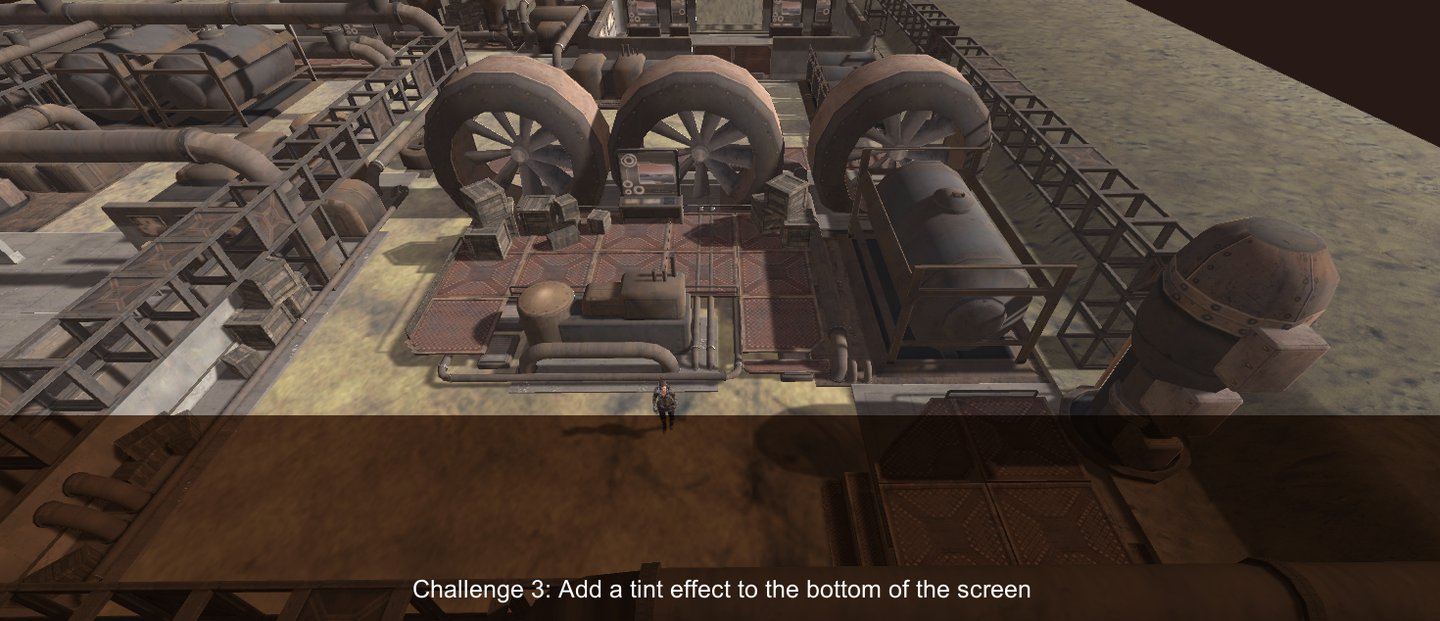
    mat4.translate(modelMatrix, modelMatrix, translate);
    mat4.scale(modelMatrix, modelMatrix, scale);
    
    // View transform
    mat4.lookAt(viewMatrix, this.lightPos, this.focalPoint, this.lightUp);
    
    // Projection transform
    let left = -100.0, right = -left, bottom = -100.0, top = -bottom, 
        near = 0.1, far = 1024.0;  
        // Set these values as per your requirement
    mat4.ortho(projectionMatrix, left, right, bottom, top, near, far);
    
    
    mat4.multiply(lightMVP, projectionMatrix, viewMatrix);
    mat4.multiply(lightMVP, lightMVP, modelMatrix);
    
    return lightMVP;

    2-Pass Shadow Algorithm

    Before implementing the two-pass algorithm, let’s take a look at how the main() function is called.

    // phongFragment.glsl
    void main(void){  
      vec3 shadingPoint = vPositionFromLight.xyz / vPositionFromLight.w;
      shadingPoint = shadingPoint*0.5+0.5;// Normalize to [0,1]
    
      float visibility = 1.0;
      visibility = useShadowMap(uShadowMap, vec4(shadingPoint, 1.0));
    
      vec3 phongColor = blinnPhong();
    
      gl_FragColor=vec4(phongColor * visibility,1.0);
    }

    So the question is, how does vPositionFromLight come from? It is calculated in the vertex shader.

    Unified space coordinates

    In layman's terms, the world coordinates of the scene's vertices are converted to new coordinates corresponding to the NDC space of the light camera. The purpose is to retrieve the required depth value in the light camera's space when rendering the shadow of a shading point of the main camera.

    vPositionFromLight represents the homogeneous coordinates of a point seen from the perspective of the light source. This coordinate is in the orthogonal space of the light source, and its range is [-w, w]. It is calculated by phongVertex.glsl. The function of phongVertex.glsl is to process the input vertex data and convert a series of vertices into clip space coordinates through the MVP matrix calculated in the previous chapter. Convert vPositionFromLight to the NDC standard space to get the shadingPoint, and then pass the Shading Point in the shadingPoint that needs to be used for shadow judgment into the useShadowMap function. Attached is the relevant code for vertex conversion:

    // phongVertex.glsl - main()
    vFragPos = (uModelMatrix * vec4(aVertexPosition, 1.0)).xyz;
    vNormal = (uModelMatrix * vec4(aNormalPosition, 0.0)).xyz;
    
    gl_Position = uProjectionMatrix * uViewMatrix * uModelMatrix *
                vec4(aVertexPosition, 1.0);
    
    vTextureCoord = aTextureCoord;
    vPositionFromLight = uLightMVP * vec4(aVertexPosition, 1.0);

    phongVertex.glsl is loaded in loadOBJ.js together with phongFragment.glsl.

    Compare depth values

    Next, implement the useShadowMap() function. The purpose of this function is to determine whether a fragment (pixel) is in the shadow.

    texture2D() is a GLSL built-in function used to sample a 2D texture.

    The unpack() and pack() functions in the code framework are set to increase numerical precision. The reasons are as follows:

    • Depth information is a continuous floating point number, and its range and precision may exceed what an 8-bit channel can provide. Storing such a depth value directly in an 8-bit channel will result in a lot of precision loss, resulting in incorrect shadow effects. Therefore, we can make full use of the other three channels, that is, encode the depth value into multiple channels. By allocating different parts of the depth value to the four channels of R, G, B, and A, we can store the depth value with higher precision. When we need to use the depth value, we can decode it from these four channels.

    closestDepthVec is the depth information of the blocker.

    Finally, the closestDepth is compared with the currentDepth. If the blocker (closestDepth) is greater than the depth value (shadingPoint.z) of the fragment to be rendered by the main camera, it means that the current Shading Point is not blocked, and visibility returns 1.0. In addition, in order to solve some shadow acne and self-occlusion problems, the position of the blocker can be increased, that is, EPS can be added.

    // phongFragment.glsl
    float useShadowMap(sampler2D shadowMap, vec4 shadingPoint){
      // Retrieve the closest depth value from the light's perspective using the fragment's position in light space.
      float closestDepth = unpack(texture2D(shadowMap, shadingPoint.xy));
      // Compare the fragment's depth with the closest depth to determine if it's in shadow.
      return (closestDepth + EPS + getBias(.4)> shadingPoint.z) ? 1.0 : 0.0;
    }

    Actually, there is still a problem. Our current light camera is not omnidirectional, which means that its illumination range is only a small part. If the model is within the range of the lightCam, then the picture is completely correct.

    But when the model is outside the range of lightCam, it should not participate in the calculation of useShadowMap. But we have not yet completed the relevant logic. In other words, if the position is outside the range of lightCam's MVP transformation matrix, unexpected errors may occur after calculation. Take a look at the soul diagram again:

    In the previous section, we defined zFar, zNear and other information in the directional light source script. The following code is shown:

    // DirectionalLight.js - CalcLightMVP()
    let left = -100.0, right = -left, bottom = -100.0, top = -bottom, near = 0.1, far = 1024.0;

    Therefore, in order to solve the problem that the model is outside the lightCam range, we add the following logic to useShadowMap or in the code before useShadowMap to remove the sampling points that are not in the lightCam range:

    // phongFragment.glsl - main()
    ...
    if(shadingPoint.x<0.||shadingPoint.x>1.||
       shadingPoint.y<0.||shadingPoint.y>1.){
      visibility=1.;// The light source cannot see the area, so it will not be covered by the shadow
    }else{
      visibility=useShadowMap(uShadowMap,vec4(shadingPoint,1.));
    }
    ...

    The effect is shown in the figure below. The left side has culling logic, and the right side has no culling logic. When 202 moves to the edge of the lightCam's frustum, her limbs are amputated directly, which is very scary:

    Of course, it is okay not to complete this step. In fact, in development, we will use a universal light source, that is, the lightCam is 360 degrees omnidirectional, and we only need to remove those points outside the zFar plane.

    Add bias to improve self-occlusion problem

    When we render the depth map from the light source's point of view, errors may occur due to the limitations of floating point precision. Therefore, when we use the depth map in the main rendering process, we may see the object's own shadow, which is called self-occlusion or shadow distortion.

    After completing the 2-pass rendering, we found shadow acne in many places such as 202's hair, which is very unsightly. As shown in the following figure:

    In theory, we can alleviate the self-occlusion problem by adding bias. Here I provide a method to dynamically adjust the bias:

    // phongFragment.glsl
    // Use bias offset value to optimize self-occlusion
    float getBias(float ctrl) {
      vec3 lightDir = normalize(uLightPos);
      vec3 normal = normalize(vNormal);
      float m = 200.0 / 2048.0 / 2.0; // Orthogonal matrix width and height/shadowmap resolution/2
      float bias = max(m, m * (1.0 - dot(normal, lightDir))) * ctrl;
      return bias;
    }

    First, when the light and the normal are almost perpendicular, self-occlusion is very likely to occur, such as the back of our 202 sauce's head. Therefore, we need to obtain the direction of the light and the direction of the normal. Among them, m represents the size of the scene space represented by each pixel under the light source view.

    Finally, change useShadowMap() in phongFragment.glsl to the following:

    // phongFragment.glsl
    float useShadowMap(sampler2D shadowMap, vec4 shadingPoint){
      ...
      return (closestDepth + EPS + getBias(.3)> shadingPoint.z) ? 1.0 : 0.0;
    }

    The effect is as follows:

    It should be noted that a larger bias value may lead to over-correction and shadow loss, while a smaller value may not improve acne, so multiple attempts are required.

    PCF

    However, the resolution of ShadowMap is limited. In actual games, the resolution of ShadowMap is much smaller than the resolution (because of the high performance consumption), so we need a method to soften the jagged edges. The PCF method calculates the Shading Point by taking the average of multiple pixels around each pixel on ShadowMap.

    Initially people wanted to use this method to soften shadows, but later they found that this method can achieve the effect of soft shadows.

    Before using the PCF algorithm to estimate the shadow ratio, we need to prepare a set of sampling points. For PCF shadows, we only use 4-8 sampling points on mobile devices, while high-quality images use 16-32. In this section, we use 8 sampling points, and on this basis, we adjust the parameters of the generated samples to improve the image, reduce noise, etc.

    However, the above different sampling methods do not have a particularly large impact on the final image. The most important factor affecting the image is the size of the shadow map when doing PCF. Specifically, it is the textureSize in the code, but generally speaking, this item is a fixed value in the project.

    So our next idea is to implement PCF first and then fine-tune the sampling method.

    After all, premature optimization is a taboo.

    Implementing PCF

    In main(), modify the shading algorithm used.

    // phongFragment.glsl
    void main(void){  
        ...
        visibility = PCF(uShadowMap, vec4(shadingPoint, 1.0));
        ...
    }

    shadowMap.xy is the texture coordinate used to sample the shadow map, and shadowMap.z is the depth value for that pixel.

    The sampling function requires us to pass in a Vec2 variable as a random seed, and then returns a random point within a circle with a radius of 1.

    Then divide the uv coordinates of $[0, 1]^2$ into textureSize parts. After setting the filter window, sample multiple times near the current shadingPoint position and finally count:

    // phongFragment.glsl
    float PCF(sampler2D shadowMap,vec4 shadingPoint){
      // The sampling result will be returned to the global variable - poissonDisk[]
      poissonDiskSamples(shadingPoint.xy);
    
      float textureSize=256.; // The size of the shadow map, the larger the size, the smaller the filtering range
      float filterStride=1.; // Filter step size
      float filterRange=1./textureSize*filterStride; // The range of the filter window
      int noShadowCount=0; // How many points are not in the shadow
      for(int i=0;i<NUM_SAMPLES;i++){
        vec2 sampleCoord=poissonDisk[i]*filterRange+shadingPoint.xy;
        vec4 closestDepthVec=texture2D(shadowMap,sampleCoord);
        float closestDepth=unpack(closestDepthVec);
        float currentDepth=shadingPoint.z;
        if(currentDepth<closestDepth+EPS){
          noShadowCount+=1;
        }
      }
      return float(noShadowCount)/float(NUM_SAMPLES);
    }

    The effect is as follows:

    image-20230805213129275

    poissonDisk sampling parameter settings

    In the homework framework, I found that this possionDiskSamples function is not really a Poisson disk distribution? A bit strange.I personally feel that it is more like points evenly distributed on the spiral line.I hope readers can give me some guidance. I will first analyze the code in the framework.


    Mathematical formulas related to poissonDiskSamples in the framework:

    // phongFragment.glsl
    float ANGLE_STEP = PI2 * float( NUM_RINGS ) / float( NUM_SAMPLES );
    float INV_NUM_SAMPLES = 1.0 / float( NUM_SAMPLES );
    float angle = rand_2to1( randomSeed ) * PI2;
    float radius = INV_NUM_SAMPLES;
    float radiusStep = radius;

    Convert polar coordinates to Cartesian coordinates: Update rule: Radius change:

    The specific code is as follows:

    // phongFragment.glsl
    vec2 poissonDisk[NUM_SAMPLES];
    
    void poissonDiskSamples( const in vec2 randomSeed ) {
      float ANGLE_STEP = PI2 * float( NUM_RINGS ) / float( NUM_SAMPLES );
      float INV_NUM_SAMPLES = 1.0 / float( NUM_SAMPLES );//Put the sample in a circle with a radius of 1
    
      float angle = rand_2to1( randomSeed ) * PI2;
      float radius = INV_NUM_SAMPLES;
      float radiusStep = radius;
    
      for( int i = 0; i < NUM_SAMPLES; i ++ ) {
        poissonDisk[i] = vec2( cos( angle ), sin( angle ) ) * pow( radius, 0.75 );
        radius += radiusStep;
        angle += ANGLE_STEP;
      }
    }

    That is, we can adjust the following parameters:

    • Selection of radius variation index

    As for why the number 0.75 is used in the homework framework, I made a more vivid animation, showing the change of the exponent of the distance (radius) between each result coordinate and the center of the circle between 0.2 and 1.1 during Poisson sampling. In other words, when the value is above 0.75, it can be basically considered that the center of gravity of the data will be more inclined to the position of the center of the circle. I put the code of the animation below Appendix 1.2 Readers can compile and debug by themselves.

    The above is a video. If you want the PDF version, you need to go to the website to view it.

    • Number of turnsNUM_RINGS

    NUM_RINGS is used together with NUM_SAMPLES to calculate the angle difference ANGLE_STEP between each sample point.

    At this point, the following analysis can be made:

    If NUM_RINGS is equal to NUM_SAMPLES, then ANGLE_STEP will be equal to $2π$, which means that the angle increment in each iteration is a full circle, which obviously does not make sense. If NUM_RINGS is less than NUM_SAMPLES, then ANGLE_STEP will be less than $2π$, which means that the angle increment in each iteration is a portion of a circle. If NUM_RINGS is greater than NUM_SAMPLES, then ANGLE_STEP will be greater than $2π$, which means that the angle increment in each iteration exceeds a circle, which may cause coverage and overlap.

    So in this code framework, when our sampling number is fixed (8 here), we can make decisions to make the sampling points more evenly distributed.

    Therefore, in theory, NUM_RINGS can be set directly to 1 here.

    The above is a video. If you want the PDF version, you need to go to the website to view it.

    When the sampling points are evenly distributed, the effect is quite good:

    If the sampling is very uneven, such as when NUM_RINGS is equal to NUM_SAMPLES, a dirty picture will appear:

    After getting these sampling points, we can also perform weight distribution on the sampling points. For example, in the 202 course, Professor Yan mentioned that different weights can be set according to the distance of the original pixel, and farther sampling points may be assigned lower weights, but this part of the code is not involved in the project.

    PCSS

    First find the AVG Blocker Depth of any uv coordinate in the Shadow Map.

    float findBlocker(sampler2D shadowMap,vec2 uv,float z_shadingPoint){
      float count=0., depth_sum=0., depthOnShadowMap, is_block;
      vec2 nCoords;
      for(int i=0;i<BLOCKER_SEARCH_NUM_SAMPLES;i++){
        nCoords=uv+BLOKER_SIZE*poissonDisk[i];
    
        depthOnShadowMap=unpack(texture2D(shadowMap,nCoords));
        if(abs(depthOnShadowMap) < EPS)depthOnShadowMap=1.;
        // The step function is used to compare two values.
        is_block=step(depthOnShadowMap,z_shadingPoint-EPS);
        count+=is_block;
        depth_sum+=is_block*depthOnShadowMap;
      }
      if(count<EPS)
        return z_shadingPoint;
      return depth_sum/count;
    }

    There are three steps, and I will not go into details here. It is not difficult to follow the theoretical formula.

    image-20230731142003749
    float PCSS(sampler2D shadowMap,vec4 shadingPoint){
      poissonDiskSamples(shadingPoint.xy);
      float z_shadingPoint=shadingPoint.z;
      // STEP 1: avgblocker depth
      float avgblockerdep=findBlocker(shadowMap,shadingPoint.xy,z_shadingPoint);
      if(abs(avgblockerdep - z_shadingPoint) <= EPS) // No Blocker
        return 1.;
    
      // STEP 2: penumbra size
      float dBlocker=avgblockerdep,dReceiver=z_shadingPoint-avgblockerdep;
      float wPenumbra=min(LWIDTH*dReceiver/dBlocker,MAX_PENUMBRA);
    
      // STEP 3: filtering
      float _sum=0.,depthOnShadowMap,vis;
      vec2 nCoords;
      for(int i=0;i<NUM_SAMPLES;i++){
        nCoords=shadingPoint.xy+wPenumbra*poissonDisk[i];
    
        depthOnShadowMap=unpack(texture2D(shadowMap,nCoords));
        if(abs(depthOnShadowMap)<1e-5)depthOnShadowMap=1.;
    
        vis=step(z_shadingPoint-EPS,depthOnShadowMap);
        _sum+=vis;
      }
    
      return _sum/float(NUM_SAMPLES);
    }

    Framework Part Analysis

    This part is the comments I wrote when I was casually browsing the code, and I have organized them here a little bit.

    loadShader.js

    Although both functions in this file load glsl files, the latter getShaderString(filename) function is more concise and advanced. This is mainly reflected in the fact that the former returns a Promise object, while the latter directly returns the file content. For more information about Promise, please refer to this article. Appendix 1.3 – Simple usage of JS Promise For more information about async await, see this article Appendix 1.4 – Introduction to async awaitFor the usage of .then(), see Appendix 1.5 - About .then .

    To put it more professionally, these two functions provide different levels of abstraction. The former provides the atomic level capability of directly loading files and has finer-grained control, while the latter is more concise and convenient.

    Add object translation effect

    Adding controllers to the GUI

    It is very expensive to calculate shadows for each frame, so I manually create a light controller and manually adjust whether to calculate shadows for each frame. In addition, when Light Moveable is unchecked, users are prohibited from changing the light position:

    After checking Light Moveable, the lightPos option box appears:

    Specific code implementation:

    // engine.js
    // Add lights
    // light - is open shadow map == true
    let lightPos = [0, 80, 80];
    let focalPoint = [0, 0, 0]; // Directional light focusing direction (starting point is lightPos)
    let lightUp = [0, 1, 0]
    const lightGUI = {// Light source movement controller. If not checked, shadows will not be recalculated.
        LightMoveable: false,
        lightPos: lightPos
    };
    ...
    Function createGUI() {
        const gui = new dat.gui.GUI();
        const panelModel = gui.addFolder('Light properties');
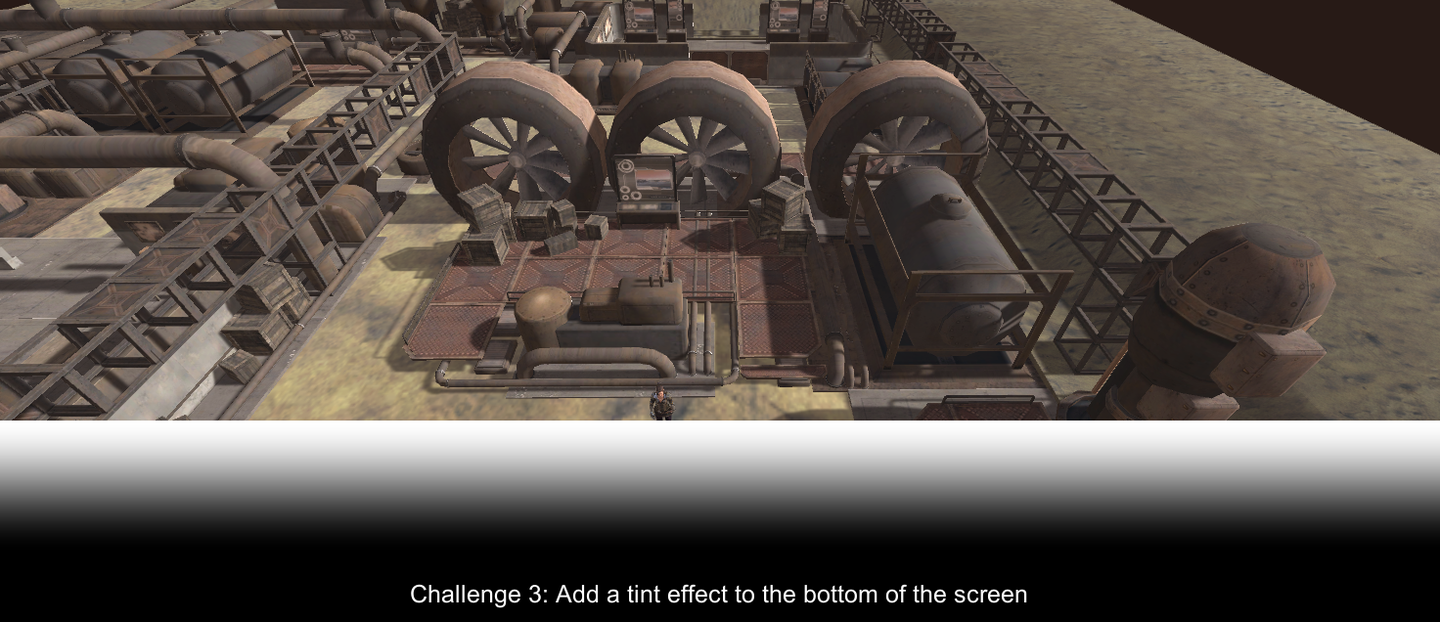
        const panelCamera = gui.addFolder("OBJ properties");
        const lightMoveableController = panelModel.add(lightGUI, 'LightMoveable').name("Light Moveable");
        const arrayFolder = panelModel.addFolder('lightPos');
        arrayFolder.add(lightGUI.lightPos, '0').min(-10).max( 10).step(1).name("light Pos X");
        arrayFolder.add(lightGUI.lightPos, '1').min( 70).max( 90).step(1).name("light Pos Y");
        arrayFolder.add(lightGUI.lightPos, '2').min( 70).max( 90).step(1).name("light Pos Z");
        arrayFolder.domElement.style.display = lightGUI.LightMoveable ? '' : 'none';
        lightMoveableController.onChange(Function(value) {
            arrayFolder.domElement.style.display = value ? '' : 'none';
        });
    }

    Appendix 1.1

    import numpy as np
    import matplotlib.pyplot as plt
    
    def simulate_poisson_disk_samples(random_seed, num_samples=100, num_rings=2):
        PI2 = 2 * np.pi
        ANGLE_STEP = PI2 * num_rings / num_samples
        INV_NUM_SAMPLES = 1.0 / num_samples
    
        # Initial angle and radius
        angle = random_seed * PI2
        radius = INV_NUM_SAMPLES
        radius_step = radius
    
        x_vals = []
        y_vals = []
    
        for _ in range(num_samples):
            x = np.cos(angle) * pow(radius, 0.1)
            y = np.sin(angle) * pow(radius, 0.1)
    
            x_vals.append(x)
            y_vals.append(y)
    
            radius += radius_step
            angle += ANGLE_STEP
    
        return x_vals, y_vals
    
    plt.figure(figsize=(8, 8))
    
    # Generate and plot the spiral 5 times with different random seeds
    for _ in range(50):
        random_seed = np.random.rand()
        x_vals, y_vals = simulate_poisson_disk_samples(random_seed)
        plt.plot(x_vals, y_vals, '-o', markersize=5, linewidth=2)
    
    plt.title("Poisson Disk Samples")
    plt.axis('on')
    plt.gca().set_aspect('equal', adjustable='box')
    plt.show()

    Appendix 1.2 – Poisson sampling point post-processing animation code

    illustrate:Appendix 1.2 The code is directly based on Appendix 1.1 Modified.

    import numpy as np
    import matplotlib.pyplot as plt
    from matplotlib.animation import FuncAnimation
    
    def simulate_poisson_disk_samples_with_exponent(random_seed, exponent, num_samples=100, num_rings=2):
        PI2 = 2 * np.pi
        ANGLE_STEP = PI2 * num_rings / num_samples
        INV_NUM_SAMPLES = 1.0 / num_samples
    
        angle = random_seed * PI2
        radius = INV_NUM_SAMPLES
        radius_step = radius
    
        x_vals = []
        y_vals = []
    
        for _ in range(num_samples):
            x = np.cos(angle) * pow(radius, exponent)
            y = np.sin(angle) * pow(radius, exponent)
            x_vals.append(x)
            y_vals.append(y)
            radius += radius_step
            angle += ANGLE_STEP
    
        return x_vals, y_vals
    
    fig, ax = plt.subplots(figsize=(8, 8))
    ax.axis('on')
    ax.set_xlim(-1, 1)
    ax.set_ylim(-1, 1)
    ax.set_aspect('equal', adjustable='box')
    
    lines = [ax.plot([], [], '-o', markersize=5, linewidth=2)[0] for _ in range(50)]
    exponent = 0.2
    
    def init():
        for line in lines:
            line.set_data([], [])
        return lines
    
    def update(frame):
        global exponent
        exponent += 0.005  # Increment to adjust the exponent
        for line in lines:
            random_seed = np.random.rand()
            x_vals, y_vals = simulate_poisson_disk_samples_with_exponent(random_seed, exponent)
            # plt.title(exponent +"Poisson Disk Samples")
            line.set_data(x_vals, y_vals)
        plt.title(f"{exponent:.3f} Poisson Disk Samples")
        return lines
    
    ani = FuncAnimation(fig, update, frames=180, init_func=init, blit=False)
    
    ani.save('animation.mp4', writer='ffmpeg', fps=12)
    
    # plt.show()

    Appendix 1.3 – Simple usage of JS Promise

    Here is an example of how to use Promise:

    Function delay(milliseconds) {
        return new Promises(Function(resolve, reject) {
            if (milliseconds < 0) {
                reject('Delay time cannot be negative!');
            } else {
                setTimeout(Function() {
                    resolve('Waited for ' + milliseconds + ' milliseconds!');
                }, milliseconds);
            }
        });
    }
    
    // Example
    delay(2000).then(Function(message) {
        console.log(message);  // Output after two seconds: "Waited for 2000 milliseconds!"
    }).catch(Function(error) {
        console.log('Error: ' + error);
    });
    
    // Error example
    delay(-1000).then(Function(message) {
        console.log(message);
    }).catch(Function(error) {
        console.log('Error: ' + error);  // Immediately output: "Error: Delay time cannot be negative!"
    });

    The fixed operation of using Promise is to write a Promise constructor, which has two parameters (parameters are also functions): resolve and reject. This allows you to build error handling branches. For example, in this case, if the input content does not meet the requirements, you can call reject to enter the Promise rejection branch.

    For example, now enter the reject branch, reject(XXX) is passed to the following then(function(XXX))'s XXX.

    To sum up, Promise is an object in JS. Its core value lies in that it provides aVery elegantandunifiedIt handles asynchronous operations and chain operations in a way that also provides error handling functions.

    1. With Promise’s .then() method, you can ensure that one asynchronous operation completes before executing another asynchronous operation.
    2. The .catch() method can be used to handle errors, without having to set up error handling for each asynchronous callback.

    Appendix 1.4 – async/await

    Async/await is a feature introduced in ES8, which aims to simplify the steps of using Promise.

    Let’s look at the example directly:

    async Function asyncFunction() {
        return "Hello from async function!";
    }
    
    asyncFunction().then(Result => console.log(Result));  // Output: Hello from async function!

    After adding async to the function, a Promise object will be implicitly returned.

    The await keyword can only be used inside an async function. It "pauses" the execution of the function until the Promise is completed (resolved or rejected). Alternatively, you can also use try/catch to capture the reject.

    async Function handleAsyncOperation() {
        try {
            const Result = await maybeFails();// 
            console.log(Result);// If the Promise is resolved, this will output "Success!"
        } catch (error) {
            console.error('An error occurred:', error);// If the Promise is rejected, this will output "An error occurred: Failure!"
        }
    }

    The "pause" here means pausing theSpecific asynchronous functions, not the entire application or JavaScript event loop.

    Here is a simplified explanation of how await works:

    1. When the await keyword is executed,The asynchronous functionThe execution of is suspended.
    2. Control is returned to the event loop, allowing other code (such as other functions, event callbacks, etc.) to run immediately after the current asynchronous function.
    3. Once the Promise following the await is fulfilled or rejected, the previously paused asynchronous function continues to execute, resumes from the paused position, and processes the result of the Promise.

    That is, although your specific async function is logically "paused", the main thread of JavaScript is not blocked. Other events and functions can still be executed in the background.

    Here is an example:

    console.log('Start');
    
    async Function demo() {
        console.log('Before await');
        await new Promises(resolve => setTimeout(resolve, 2000));
        console.log('After await');
    }
    
    demo();
    
    console.log('End');

    The output will be:

    Start Before await End (wait for 2 seconds) After await

    I hope the above explanation can help you understand the asynchronous mechanism of JS. Welcome to discuss in the comment area, I will try my best to reply to you immediately.

    Appendix 1.5 About .then()

    .then() is defined on the Promise object and is used to handle the result of the Promise. When you call .then(), it will not be executed immediately, but after the Promise is resolved (fulfilled) or rejected (rejected).

    Key points about .then() :

    1. Non-blocking: When you call .then(), the code does not pause to wait for the Promise to complete. Instead, it returns immediately and executes the callback in then when the Promise is completed.
    2. Returns a new Promise: .then() always returns a new Promise. This allows you to chain calls, i.e. a series of .then() calls, each one handling the result of the previous Promise.
    3. Asynchronous callbacks: The callbacks in .then() are executed asynchronously when the original Promise is resolved or rejected. This means that they are queued in the event loop's microtask queue instead of being executed immediately.

    For example:

    console.log('Start');
    
    const promise = new Promises((resolve, reject) => {
        setTimeout(() => {
            resolve('Promise resolved');
        }, 2000);
    });
    
    promise.then(Result => {
        console.log(Result);
    });
    
    console.log('End');

    The output will be:

    Start End (wait for 2 seconds) Promise resolved

    Appendix 1.6 - Fragment Shaders: Uniforms/Textures

    https://webglfundamentals.org/webgl/lessons/zh_cn/webgl-fundamentals.html

    Uniforms Global Variables

    The value of a global variable passed to the shader during a drawing process is the same. In the following simple example, an offset is added to the vertex shader using a global variable:

    attribute vec4 a_position;uniform vec4 u_offset; void main() {   gl_Position = a_position + u_offset;}

    Now we can offset all vertices by a fixed value. First, we find the address of the global variable during initialization.

    var offsetLoc = gl.getUniformLocation(someProgram, "u_offset");

    Then set the global variable before drawing

    gl.uniform4fv(offsetLoc, [1, 0, 0, 0]);  // Offset to the right by half the screen width

    It is important to note that global variables belong to a single shader program. If multiple shaders have global variables with the same name, you need to find each global variable and set its own value.

    Textures

    To get texture information in the shader, you can first create a sampler2D type global variable, and then use the GLSL method texture2D to extract information from the texture.

    precision mediump float; 
    uniform sampler2D u_texture; 
    void main() {   
        vec2 texcoord = vec2(0.5, 0.5);  // Get the value of the texture center   
        gl_FragColor = texture2D(u_texture, texcoord);
    }

    Data obtained from the textureDepends on many settingsAt a minimum, you need to create and fill the texture with data, for example

    var tex = gl.createTexture();
    gl.bindTexture(gl.TEXTURE_2D, tex);
    var level = 0;
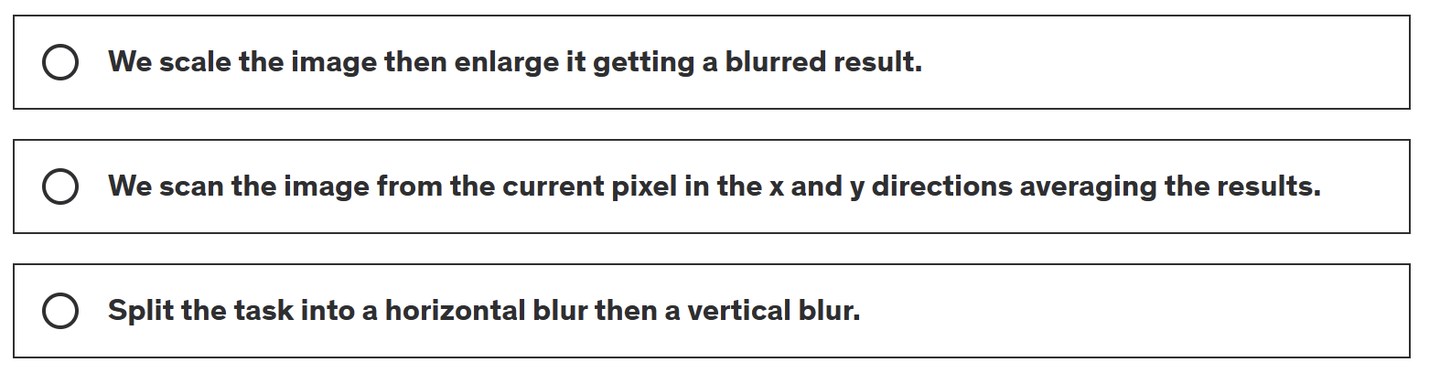
    var width = 2;
    var height = 1;
    var data = new Uint8Array([
       255, 0, 0, 255,   // A red pixel
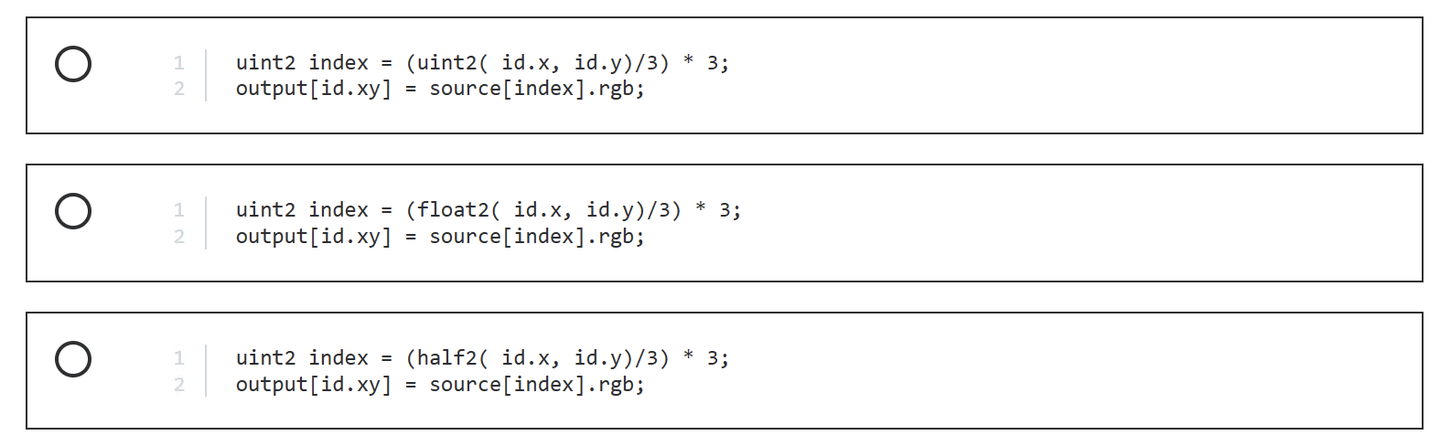
       0, 255, 0, 255,   // A green pixel
    ]);
    gl.texImage2D(gl.TEXTURE_2D, level, gl.RGBA, width, height, 0, gl.RGBA, gl.UNSIGNED_BYTE, data);
    gl.texParameteri(gl.TEXTURE_2D, gl.TEXTURE_MIN_FILTER, gl.LINEAR);

    Find the address of a global variable at initialization time
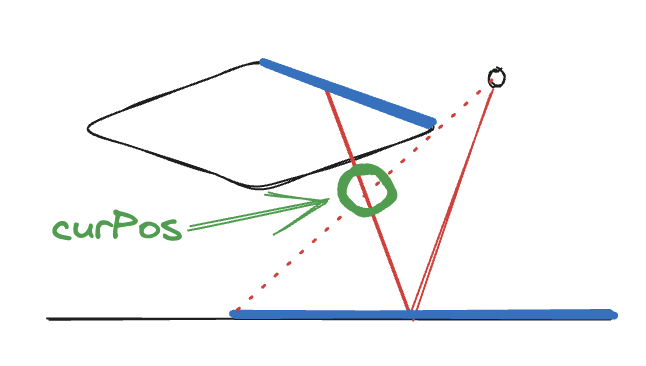
    var someSamplerLoc = gl.getUniformLocation(someProgram, "u_texture");

    WebGL requires that textures must be bound to a texture unit when rendering.

    var unit = 5;  // Pick a texture unit
    gl.activeTexture(gl.TEXTURE0 + unit);
    gl.bindTexture(gl.TEXTURE_2D, tex);

    Then tell the shader which texture unit you want to use.

    gl.uniform1i(someSamplerLoc, unit);

    References

    1. GAMES202
    2. Real-Time Rendering 4th Edition
    3. https://webglfundamentals.org/webgl/lessons/webgl-shaders-and-glsl.html
  • C++ Lambda Note

    C++ Lambda Note

    I am also a rookie QAQ, so I will share my notes on learning C++ Lambda. This is just like a glimpse of the big guys on Zhihu exploring the vast world of wisdom through a narrow slit. If I make any mistakes, please correct me.

    Lambda expressions are introduced in the C++11 standard and allow anonymous functions to be defined in code. Each chapter of this article will have a large number of code examples to help you understand. Some of the code in this article refers to Microsoft official documentation | Lambda expressions in C++ | Microsoft Learn.

    Table of contents

    Basics

    • 1. Lambda Basic Syntax
    • 2. How to use Lambda expressions
    • 3. Detailed discussion of capture lists
    • 4. mutable keyword
    • 5. Lambda return value deduction
    • 6. Nested Lambda
    • 7. Lambda, std:function and delegates
    • 8. Lambda in asynchronous and concurrent programming
    • 9. Generic Lambda (C++14)
      1. Lambda Scope
      1. practice

    Intermediate

    • 1. Lambda's underlying implementation
    • 2. Lambda type, decltype and conditional compilation
    • 3. Lambda’s evolution in the new standard
    • 4. State-preserving Lambda
    • 5. Optimization and Lambda
    • 6. Integration with other programming paradigms
    • 7. Lambda and Exception Handling

    Advanced

    • 1. Lambda and noexcept
    • 2. Template parameters in Lambda (C++20 feature)
    • 3. Lambda Reflection
    • 4. Cross-platform and ABI issues

    Basics

    1. Lambda Basic Syntax

    Lambda basically looks like this:

    [ capture_clause ] ( parameters ) -> return_type { // function_body }
    • Capture clause (capture_clause) determines which variables in the outer scope will be captured by this lambda and how they will be captured (by value, by reference, or not captured). We discuss capture clauses in detail in the next chapter.
    • Parameter list (parameters) and the function body (function_body) is the same as a normal function, there is no difference.
    • Return Type (return_type) is slightly different. If the function body contains multiple statements and needs to return a value, the return type must be explicitly specified, unless all return statements return the same type, in which case the return type can be inferred automatically.

    2. How to use Lambda expressions

    Syntax example:

    // a lambda that captures no outer variables, takes no arguments, and has no return value auto greet = [] { std::cout << "Hello, World!" << std::endl; }; // a lambda that captures outer variables by reference, takes one int argument, and returns an int int x = 42; auto add_to_x = [&x](int y) -> int { return x + y; }; // a lambda that captures all outer variables by value, takes two arguments, and has its return type automatically inferred int a = 1, b = 2; auto sum = [=](int x, int y) { return a + b + x + y; }; // a lambda that creates new variables using initializer capture (C++14 feature) auto multiply = [product = a * b](int scalar) { return product * scalar; };

    Practical example:

    1. As a sorting criterion
    // As sorting criteria #include #include #include int main() { std::vector v{4, 1, 3, 5, 2}; std::sort(v.begin(), v.end(), [](int a, int b) { return a < b; // Sort in ascending order}); for (int i : v) { std::cout << i << ' '; } // Output: 1 2 3 4 5 }
    1. For forEach operation
    #include #include #include int main() { std::vector v{1, 2, 3, 4, 5}; std::for_each(v.begin(), v.end(), [](int i) { std::cout << i * i << ' '; // print the square of each number }); // output: 1 4 9 16 25 }
    1. For cumulative functions
    #include #include #include int main() { std::vector v{1, 2, 3, 4, 5}; int sum = std::accumulate(v.begin(), v.end(), 0, [](int a, int b) { return a + b; // Sum }); std::cout << sum << std::endl; // Output: 15 }
    1. For thread constructor
    #include #include int main() { int x = 10; std::thread t([x]() { std::cout << "Value in thread: " << x << std::endl; }); t.join(); // Output: Value in thread: 10 // Note: x used in the thread is captured by value when the thread is created }

    3. Detailed discussion of the capture list

    The capture list is optional. It specifies the external variables that can be accessed from within the lambda expression. Referenced external variables can be modified from within the lambda expression, but external variables captured by value cannot be modified, that is, variables prefixed with an ampersand (&) are accessed by reference, and variables without the prefix are accessed by value.

    1. Do not capture any external variables:

    cpp []{ // }

    This lambda does not capture any variables from the outer scope.

    1. By default, all external variables are captured (by reference):

    cpp [&]{ // }

    This lambda captures all variables in the outer scope and captures them by reference. If the captured variables are destroyed or out of scope when the lambda is called, undefined behavior occurs.

    1. By default, all external variables are captured (by value):

    cpp[=]{ // }

    This lambda captures all outer scope variables by value, which means it uses a copy of the variables.

    1. Explicitly capture specific variables (by value):

    cpp [x]{ // }

    This lambda captures the outer variable x by value.

    1. Explicitly capture specific variables (by reference):

    cpp [&x]{ // }

    This lambda captures the outer variable x by reference.

    1. Mixed capture (by value and by reference):

    cpp [x, &y]{ // }

    This lambda captures the variable x by value and the variable y by reference.

    1. By default, variables are captured by value, but some variables are captured by reference.:

    cpp [=, &x, &y]{ // }

    This lambda captures all outer variables by value by default, but captures variables x and y by reference.

    1. By default, variables are captured by reference, but some are captured by value.:

    cpp [&, x, y]{ // }

    This lambda captures all outer variables by reference by default, but captures variables x and y by value.

    1. Capturing the this pointer:

    cpp [this]{ // }

    This allows the lambda expression to capture the this pointer of the class member function, thus giving access to the class's member variables and functions.

    1. Capture with initializer expression (since C++14) – Generic lambda capture:cpp [x = 42]{ // } creates an anonymous variable x inside the lambda, which can be used in the lambda function body. This is quite useful, for example, you can directly transfer std::unique_ptr with move semantics, which is discussed in detail in the "reference" below.
    2. Capturing the asterisk this (since C++17):cpp [this]{ /…*/ } This lambda captures the current object (the instance of its class) by value. This avoids the risk of the this pointer becoming a dangling pointer during the lambda's lifetime. Before C++17, you could get this by reference, but this had a potential memory risk, that is, if the lifetime of this ended, it would cause a memory leak. Using the asterisk this is equivalent to making a deep copy of the current object.

    std::unique_ptr is a smart pointer with exclusive ownership. Its original design is to ensure that only one entity can own the object at a time. Therefore, std::unique_ptr cannot be copied, but can only be moved. If you want to capture by value, the compiler will report an error. If you capture by reference, the compiler will not report an error. But there are potential problems. I can think of three:

    1. The life of std::unique_ptr ends before lambda. In this case, accessing this destroyed std::unique_ptr from within lambda will cause the program to crash.
    2. If std::unique_ptr is moved after capture, the reference in the lambda is null, causing the program to crash.
    3. In a multi-threaded environment, the above two problems will occur more frequently. To avoid these problems, you can consider value capture, that is, explicitly use std::move to transfer ownership. In a multi-threaded environment, lock.

    Code example:

    1. Using Lambda as callback function – This example also involves function()
    #include #include // Suppose there is a function that calls the callback function void performOperationAsync(std::function callback) { // Async operation... int result = 42; // Assume this is the result of the asynchronous operation callback(result); // Call callback function } int main() { int capture = 100; performOperationAsync([capture](int result) { std::cout << "Async operation result: " << result << " with captured value: " << capture << std::endl; }); }
    1. Used with smart pointers – This example also involves the mutable keyword
    #include #include void processResource(std::unique_ptr ptr) { // do some processing std::cout << "Processing resource with value " << *ptr << std::endl; } int main() { auto ptr = std::make_unique (10); // Use Lambda to delay resource processing auto deferredProcess = [p = std::move(ptr)]() { processResource(std::move(p)); }; // Do some other operations... // ... deferredProcess(); // Finally process the resource }
    1. Synchronizing data access in multiple threads
    int main() { std::vector data; std::mutex data_mutex; std::vector threadsPool; // Lambda is used to add data to vector to ensure thread safety auto addData = [&](int value) { std::lock_guard lock(data_mutex); data.push_back(value); std::cout << "Added " << value << " to the data structure." << std::endl; }; threadsPool.reserve(10); for (int i = 0; i < 10; ++i) { threadsPool.emplace_back(addData, i); } // Wait for all threads to complete for (auto& thread: threadsPool) { thread.join(); } }
    1. Application of Lambda in range query
    #include int main() { std::vector v = {1, 2, 3, 4, 5, 6, 7, 8, 9, 10}; int lower_bound = 3; int upper_bound = 7; // Use Lambda to find all numbers in a specific range auto range_begin = std::find_if(v.begin(), v.end(), [lower_bound](int x) { return x >= lower_bound; }); auto range_end = std::find_if(range_begin, v.end(), [upper_bound](int x) { return x > upper_bound; }); std::cout << "Range: "; std::for_each(range_begin, range_end, [](int x) { std::cout << x << ' '; }); std::cout << std::endl; }
    1. Delayed execution
    #include // Simulate a potentially time-consuming operation void expensiveOperation(int data) { // Simulate a time-consuming operation std::this_thread::sleep_for(std::chrono::seconds(1)); std::cout << "Processed data: " << data << std::endl; } int main() { std::vector <std::function > deferredOperations; deferredOperations.reserve(10); // Assume this is a loop that needs to perform expensive operations, but we don't want to do them right away for (int i = 0; i < 10; ++i) { // Capture i and defer execution deferredOperations.emplace_back([i] { expensiveOperation(i); }); } std::cout << "All operations have been scheduled, doing other work now." << std::endl; // Assume now is a good time to do these expensive operations for (auto& operation : deferredOperations) { // Execute the lambda expression on a new thread to avoid blocking the main thread std::thread(operation).detach(); } // Give the thread some time to process the operation std::this_thread::sleep_for(std::chrono::seconds(2)); std::cout << "Main thread finished." << std::endl; } /* Note: In actual multithreaded programs, you usually need to consider thread synchronization and resource management, such as using std::async instead of std::thread().detach(), and using appropriate synchronization mechanisms such as mutexes and condition variables to ensure thread safety. In this simplified example, these details are omitted to maintain clarity and focus on the delay operation. */ // The following shows a more reasonable version of this example #include #include #include #include // Simulate a potentially time-consuming operation int expensiveOperation(int data) { // Simulate a time-consuming operation std::this_thread::sleep_for(std::chrono::seconds(1)); return data * data; // Return some processing results } int main() { std::vector <std::future > deferredResults; // Launch multiple asynchronous tasks deferredResults.reserve(10); for (int i = 0; i < 10; ++i) { deferredResults.emplace_back( std::async(std::launch::async, expensiveOperation, i) ); } std::cout << "All operations have been scheduled, doing other work now." << std::endl; // Get the results of asynchronous tasks for (auto& future : deferredResults) { // get() will block until the asynchronous operation is completed and returns the result std::cout << "Processed data: " << future.get() << std::endl; } std::cout << "Main thread finished." << std::endl; } /* Note: std::async manages all of this for us. We also don't need to use mutexes or other synchronization mechanisms because each asynchronous operation runs on its own thread and will not interfere with each other, and the returned future object handles all the necessary synchronization for us. std::async is used with the std::launch::async parameter, which ensures that each task runs asynchronously on a different thread. If you don't specify std::launch::async, the C++ runtime can decide to execute the tasks synchronously (delayed), which is not what we want to see. The future.get() call will block the main thread until the corresponding task is completed and the result is returned. This allows us to safely obtain the results without race conditions or the need to use mutexes. */

    4. mutable keyword

    First, let's review what the mutable keyword is. In addition to being used in lambda expressions, we also generally use it in class member declarations.

    When in aClass member variablesWhen you use the mutable keyword, you can modify this member variable in the const member function of the class. This is usually used for members that do not affect the external state of the object, such as caches, debugging information, or data that can be calculated lazily.

    class MyClass { public: mutable int cache; // int data can be modified in const member functions; MyClass() : data(0), cache(0) {} void setData(int d) const { // data = d; // Compile error: non-mutable member cache = d cannot be modified in const function; } };

    In lambda expressions, the mutable keyword allows you to modify the copy of the variable captured inside the Lambda. By default, the () in the Lambda expression is const, and generally you cannot modify the variable captured by value. Unless you use mutable.

    HereKey PointsMutable allows modification of the closure's own member variablesInstances, rather than the original variables in the outer scope. This means that the closure has "Closedness" is still maintained, because it does not change the state of the outer scope, but only changes its own internal state.

    Invalid example:

    int x = 0; auto f = [x]() { x++; // error: cannot modify captured variable}; f();

    It should be like this:

    int x = 0; auto f = [x]() mutable { x++; std::cout << x << std::endl; }; f(); // Correct: outputs 1

    Practical example:

    1. Capturing variable modifications
    #include #include int main() { int count = 0; // creates a mutable lambda expression that increments count on each call auto increment = [count]() mutable { count++; std::cout << count << std::endl; }; increment(); // prints 1 increment(); // prints 2 increment(); // prints 3 // The external count is still 0 because it was captured by value std::cout << "External count: " << count << std::endl; // prints External count: 0 }
    1. Generate a unique ID
    #include int main() { int lastId = 0; auto generateId = [lastId]() mutable -> int { return ++lastId; // Increment and return the new ID }; std::cout << "New ID: " << generateId() << std::endl; // Output New ID: 1 std::cout << "New ID: " << generateId() << std::endl; // Output New ID: 2 std::cout << "New ID: " << generateId() << std::endl; // Output New ID: 3 }
    1. State retention
    #include #include #include int main() { std::vector numbers = {1, 2, 3, 4, 5}; // Initial state int accumulator = 0; // Create a mutable lambda expression to accumulate values auto sum = [accumulator](int value) mutable { accumulator += value; return accumulator; // Returns the current accumulated value }; std::vector runningTotals(numbers.size()); // Apply sum to each element to generate a running total std::transform(numbers.begin(), numbers.end(), runningTotals.begin(), sum); // Print the running total for (int total : runningTotals) { std::cout << total << " "; // Prints 1 3 6 10 15 } std::cout << std::endl; }

    5. Lambda return value deduction

    When lambda expressions were introduced in C++11, the return type of the lambda usually needed to be explicitly specified.

    Starting from C++14, the deduction of Lambda return values has been improved and automatic type deduction has been introduced.

    The deduction of lambda return values in C++14 follows the following rules:

    1. If the lambda function body contains the return keyword, and the type of the expressions following all return statements is the same, then the lambda return type is deduced to be that type.
    2. If the body of the lambda function is a single return statement, or can be considered a single return statement (such as a constructor or brace initializer), the return type is inferred to be the type of the return statement expression.
    3. If the lambda function does not return any value (i.e. there is no return statement in the function body), or if the function body contains only return statements that do not return a value (i.e. return;), the deduced return type is void.
    4. C++11 return value deduction example

    In C++11, if the lambda body contains multiple return statements, the return type must be explicitly specified.

    auto f = [](int x) -> double { // explicitly specify the return type if (x > 0) return x * 2.5; else return x / 2.0; };
    • C++14 automatic deduction

    In C++14, the return type of the above lambda expression can be automatically deduced.

    auto f = [](int x) { // The return type is automatically deduced to double if (x > 0) return x * 2.5; // double else return x / 2.0; // double };
    • Error demonstration

    If the type of the return statement does not match, it cannot be automatically deduced, which will result in a compilation error.

    auto g = [](int x) { // Compilation error because the return type is inconsistent if (x > 0) return x * 2.5; // double else return x; // int };

    But after C++17, if the return types are so different that they cannot be unified into a common type directly or through conversion, you can use std::variant or std::any, which can contain multiple different types:

    #include auto g = [](int x) -> std::variant { if (x > 0) return x * 2.5; // Returns double type else return x; // Returns int type };

    The lambda expression returns a std::variant type, that is, a superposition state of int or double type, and subsequent callers can then check this variable and handle it accordingly. This part will not be discussed in detail.

    6. Nested Lambda

    It can also be called nested lambda, which is an advanced functional programming technique to write a lambda inside a lambda.

    Here is a simple example:

    #include #include #include int main() { std::vector numbers = {1, 2, 3, 4, 5}; // Outer Lambda is used to iterate over the collection std::for_each(numbers.begin(), numbers.end(), [](int x) { // Nested Lambda is used to calculate the square auto square = [](int y) { return y * y; }; // Call the nested Lambda and print the result std::cout << square(x) << ' '; }); std::cout << std::endl; return 0; }

    But we need to pay attention to many issues:

    1. Don't make it too complicated; readability is the main consideration.
    2. Note the lifetime of variables in the capture list, which will also be discussed in detail in the following examples.
    3. Capture lists should be kept as simple as possible to avoid errors.
    4. The compiler may not optimize nested lambdas as well as top-level functions or class member functions.

    If a nested Lambda captures local variables of an outer Lambda, you need to pay attention to the lifecycle of the variables. If the execution of the nested Lambda continues beyond the lifecycle of the outer Lambda, the captured local variables will no longer be valid and an error will be reported.

    #include #include std::function createLambda() { int localValue = 10; // local variable of the outer lambda // returns a lambda that captures localValue return [localValue]() mutable { return ++localValue; // attempts to modify captured variable (legal since it's value capture) }; } int main() { auto myLambda = createLambda(); // myLambda now holds a copy of a captured local variable that has been destroyed std::cout << myLambda() << std::endl; // this will print 11, but depends on the destroyed copy of localValue std::cout << myLambda() << std::endl; // calling it again will print 12, continuing to depend on that copy return 0; }

    To explain, since Lambda captures localValue by value, it holds a copy of localValue, and the life cycle of this copy is the same as that of the returned Lambda object.

    When we call myLambda() in the main function, it operates on the state of the localValue copy, not the original localValue (which has been destroyed after the createLambda function is executed). Although undefined behavior is not triggered here, the situation will be different if we use reference capture:

    std::function createLambda() { int localValue = 10; // Local variable of outer Lambda // Return a Lambda that captures the localValue reference return [&localValue]() mutable { return ++localValue; // Attempt to modify the captured variable }; } // Using the Lambda returned by createLambda at this point will result in undefined behavior

    7. Lambda, std:function and delegates

    Lambda expression, std::function and delegate are three different concepts used to implement function call and callback mechanism in C++. Next, we will explain them one by one.

    • Lambda

    C++11 introduces a syntax for defining anonymous function objects. Lambda is used to create a callable entity, namely a Lambda closure, which is usually passed to an algorithm or used as a callback function. Lambda expressions can capture variables in scope, either by value (copy) or by reference. Lambda expressions are defined inside functions, their types are unique, and cannot be explicitly specified.

    auto lambda = [](int a, int b) { return a + b; }; auto result = lambda(2, 3); // Calling Lambda Expression
    • std::function

    std::function is a type-erased wrapper introduced in C++11 that canstorage,CallandcopyAny callable entity, such as function pointers, member function pointers, lambda expressions, and function objects. The cost is that the overhead is large.

    std::function func = lambda; auto result = func(2, 3); // Call the Lambda expression using the std::function object
    • Delegation

    Delegate is not a formal term in C++. Delegate is usually a mechanism to delegate function calls to other objects. In C#, a delegate is a type-safe function pointer. In C++, there are generally several ways to implement delegates: function pointer, member function pointer, std::function and function object. The following is an example of a delegate constructor.

    class MyClass { public: MyClass(int value) : MyClass(value, "default") { // delegates to another constructor std::cout << "Constructor with single parameter called." << std::endl; } MyClass(int value, std::string text) { std::cout << "Constructor with two parameters called: " << value << ", " << text << std::endl; } }; int main() { MyClass obj(30); // this will call both constructors }
    • Comparison of the three

    Lambda ExpressionsIt is lightweight and well suited for defining simple local callbacks and as parameters to algorithms.

    std::function is heavier, but more flexible. For example, if you have a scenario where you need to store different types of callback functions, std::function is an ideal choice because it can store any type of callable entity. An example that demonstrates its flexibility.

    #include #include #include // A function that takes an int and returns void void printNumber(int number) { std::cout << "Number: " << number << std::endl; } // A Lambda expression auto printSum = [](int a, int b) { std::cout << "Sum: " << (a + b) << std::endl; }; // A function object class PrintMessage { public: void operator()(const std::string &message) const { std::cout << "Message: " << message << std::endl; } }; int main() { // Create a vector of std::function that can store any type of callable object std::vector <std::function > callbacks; // Add a callback for a normal function int number_to_print = 42; callbacks.push_back([=]{ printNumber(number_to_print); }); // Add a callback for a Lambda expression int a = 10, b = 20; callbacks.push_back([=]{ printSum(a, b); }); // Add a callback for a function object std::string message = "Hello World"; PrintMessage printMessage; callbacks.push_back([=]{ printMessage(message); }); // Execute all callbacks for (auto& callback : callbacks) { callback(); } return 0; }

    DelegationUsually related to event handling. There is no built-in event handling mechanism in C++, so std::function and Lambda expressions are often used to implement the delegation pattern. Specifically, you define a callback interface, and users can register their own functions or Lambda expressions to this interface so that they can be called when an event occurs. The general steps are as follows (by the way, an example):

    1. Defines the types that can be called: You need to determine what parameters your callback function or Lambda expression needs to accept and what type of result it returns.
    using Callback = std::function ; // callback with no parameters and return value
    1. Create a class to manage callbacks: This class will hold all callback functions and allow users to add or remove callbacks.
    class Button { private: std::vector onClickCallbacks; // Container for storing callbacks public: void addClickListener(const Callback& callback) { onClickCallbacks.push_back(callback); } void click() { for (auto& callback : onClickCallbacks) { callback(); // Execute each callback } } };
    1. Provide a method to add a callback: This method allows users to add their own functions or Lambda expressionsRegister as callback.
    Button button; button.addClickListener([]() { std::cout << "Button was clicked!" << std::endl; });
    1. Provide a method to execute the callback:When necessary, this method willCall all registered callback functions.
    button.click(); // User clicks the button to trigger all callbacks

    Isn’t it very simple? Let’s take another example to deepen our understanding.

    #include #include #include class Delegate { public: using Callback = std::function ; // Define the callback type, the callback here receives an int parameter // Register the callback function void registerCallback(const Callback& callback) { callbacks.push_back(callback); } // Trigger all callback functions void notify(int value) { for (const auto& callback : callbacks) { callback(value); // Execute callback } } private: std::vector callbacks; // container for storing callbacks }; int main() { Delegate del; // users register their own functions del.registerCallback([](int n) { std::cout << "Lambda 1: " << n << std::endl; }); // another Lambda expression del.registerCallback([](int n) { std::cout << "Lambda 2: " << n * n << std::endl; }); // trigger callback del.notify(10); // this will call all registered Lambda expressions return 0; }

    8. Lambda in asynchronous and concurrent programming

    All because Lambda has the function of capturing and storing state, which makes it very useful when we write modern C++ concurrent programming.

    • Lambda and Threads

    Use lambda expressions directly in the std::thread constructor to define the code that the thread should execute.

    #include #include int main() { int value = 42; // Create a new thread, using a Lambda expression as the thread function std::thread worker([value]() { std::cout << "Value in thread: " << value << std::endl; }); // Main thread continues executing... // Wait for the worker thread to finish worker.join(); return 0; }
    • Lambda and std::async

    std::async is a tool that allows you to easily create asynchronous functions. After the calculation is completed, it returns a std::future object. You can call get, but it will block if the execution is not completed. There are many interesting things about async, which I will not go into here.

    #include #include int main() { // Start an asynchronous task auto future = std::async([]() { // Do some work... return "Result from async task"; }); // In the meantime, the main thread can do other tasks... // Get the result of the asynchronous operation std::string result = future.get(); std::cout << result << std::endl; return 0; }
    • Lambda and std::funtion

    These two are often used together, so let's take an example of storing a callable callback.

    #include #include #include #include // A task queue std::vector that stores std::function objects <std::function > tasks; // Function to add tasks void addTask(const std::function & task) { tasks.push_back(task); } int main() { // Add a Lambda expression as a task addTask([]() { std::cout << "Task 1 executed" << std::endl; }); // Start a new thread to process the task std::thread worker([]() { for (auto& task : tasks) { task(); // Execute task } }); // The main thread continues to execute... worker.join(); return 0; }

    9. Generic Lambda (C++14)

    Use the auto keyword to perform type inference in the argument list.

    Generic basic syntax:

    auto lambda = [](auto x, auto y) { return x + y; };

    Example:

    #include int main() { std::vector vi = {1, 2, 3, 4}; std::vector vd = {1.1, 2.2, 3.3, 4.4, 5.5}; // Use generic Lambda to print int elements std::for_each(vi.begin(), vi.end(), [](auto n) { std::cout << n << ' '; }); std::cout << '\n'; // Use generic Lambda to print double elements std::for_each(vd.begin(), vd.end(), [](auto n) { std::cout << n << ' '; }); std::cout << '\n'; // Use generic Lambda to calculate the sum of a vector of int auto sum_vi = std::accumulate(vi.begin(), vi.end(), 0, [](auto total, auto n) { return total + n; }); std::cout << "Sum of vi: " << sum_vi << '\n'; // Use generic Lambda to calculate the sum of a vector of double type auto sum_vd = std::accumulate(vd.begin(), vd.end(), 0.0, [](auto total, auto n) { return total + n; }); std::cout << "Sum of vd: " << sum_vd << '\n'; return 0; }

    It is also possible to make a lambda that prints any type of container.

    #include int main() { std::vector vec{1, 2, 3, 4}; std::list lst{1.1, 2.2, 3.3, 4.4}; auto print = [](const auto& container) { for (const auto& val : container) { std::cout << val << ' '; } std::cout << '\n'; }; print(vec); // print vector print(lst); // print list return 0; }

    10. Lambda Scope

    First, Lambda can capture local variables within the scope in which it is defined. After capture, even if the original scope ends, copies or references of these variables (depending on the capture method) can still continue to be used.

    It is important to note that if a variable is captured by reference and the original scope of the variable has been destroyed, this will lead to undefined behavior.

    Lambda can also capture global variables, but this is not achieved through a capture list, because global variables can be accessed from anywhere.

    If you have a lambda nested inside another lambda, the inner lambda can capture variables in the capture list of the outer lambda.

    When Lambda captures a value, even if the original value is gone and Lambda is gone (returned to somewhere else), all variables captured by the value will be copied to the Lambda object. The life cycle of these variables will automatically continue until the Lambda object itself is destroyed. Here is an example:

    #include #include std::function createLambda() { int localValue = 100; // local variable return [=]() mutable { // copy localValue by value capture std::cout << localValue++ << '\n'; }; } int main() { auto myLambda = createLambda(); // Lambda copies localValue myLambda(); // Even if the scope of createLambda has ended, the copied localValue still exists in myLambdamyLambda(); // You can safely continue to access and modify the copy }

    When lambda captures a reference, it’s another story. Smart readers should be able to guess that if the scope of the original variable ends, the lambda depends on a dangling reference, which will lead to undefined behavior.

    11. Practice – Function Compute Library

    After all this talk, it's time to put it into practice. No matter what you do, the following are the knowledge points you need to master:

    • capture
    • Higher-order functions
    • Callable Objects
    • Lambda Storage
    • Mutable Lambdas
    • Generic Lambda

    Our goal in this section is to create a math library that supports vector operations, matrix operations, and provides a function parser that accepts a mathematical expression in string form and returns a computable Lambda. Let's get started right away.

    This project starts with simple mathematical function calculations and gradually expands to complex mathematical expression parsing and calculations. Project writing steps:

    • Basic vector and matrix operations
    • Function parser
    • More advanced math functions
    • Composite Functions
    • Advanced Mathematical Operations
    • More expansion...

    Basic vector and matrix operations

    First, define the data structure of vectors and matrices and implement basic arithmetic operations (addition and subtraction).

    In order to simplify the project and focus on the use of Lambda, I did not use templates, so all data is implemented with std::vector.

    In the following code, I have implemented a basic vector framework. Please improve the framework by yourself, including vector subtraction, dot multiplication and other operations.

    // Vector.h #include #include class Vector { private: std::vector elements; public: // Constructor - explicit to prevent implicit conversion Vector() = default; explicit Vector(const std::vector &elems); Vector operator+const Vector& rhs) const; // Get the vector size [[nodiscard]] size_t size() const { return elements.size(); } // Access the element and return a reference to the object double&. ::ostream& operator<<(std::ostream& os, const Vector& v); }; /// Vector.cpp #include "Vector.h" Vector::Vector(const std::vector<std::ostream> os, const Vector& v); }; /// Vector.cpp #include "Vector.h" Vector::Vector(const std::vector<std::ostream> os, const Vector& v); }; /// Vector.cpp #include "Vector.h" Vector::Vector(const std::vector<std::ostream> os, const Vector& v); }; /// Vector.cpp #include "Vector.h" Vector::Vector(const std::vector<std::ostream> os, const Vector& v); & elems) : elements(elems){} Vector Vector::operator+(const Vector &rhs) const { // First make sure the two vectors are consistent if( this->size() != rhs.size() ) throw std::length_error("Vector sizes are inconsistent!"); Vector result; result.elements.reserve(this->size()); // Allocate memory in advance// Use iterators to traverse each element of the vector std::transform(this->begin(), this->end(), rhs.begin(), std::back_inserter(result.elements), [](double_t a,double_t b){ return a+b; }); return result; } std::ostream& operator<<(std::ostream& os, const Vector& v) { os << '['; for (size_t i = 0; i < v.elements.size(); ++i) { os << v.elements[i]; if (i < v.elements.size() - 1) { os << ", "; } } os << ']'; return os; }

    You can use the [[nodiscard]] tag in the declaration operation to remind the compiler to check whether the return value is used, and then users of the library will be reminded in the editor, such as the following.

    Function parser

    Design a function parser that can convert mathematical expressions in string form into Lambda expressions.

    Creating a function parser that can parse mathematical expressions in string form and convert them into Lambda expressions involves parsing theory. To simplify the example, we currently only parse the most basic + and -. Then package the function parser into an ExpressionParser tool class.

    First we create a parser that recognizes + and – signs:

    // ExpressionParser.h #include #include using ExprFunction = std::function ; class ExpressionParser { public: static ExprFunction parse_simple_expr(const std::string& expr); }; // ExpressionParser.cpp #include "ExpressionParser.h" ExprFunction ExpressionParser::parse_simple_expr (const std::string &expr) { if (expr.find ('+') != std::string::npos) { return [](double x, double y) { return x + y; }; } else if (expr.find('-') != std::string::npos) { return [](double x, double y) { return x - y; }; } // More operations... return nullptr; }

    This section is not very relevant to Lambda, so you can skip it. Then we can improve the function parser to recognize numbers based on this. Split the string into tokens (numbers and operators), and then perform operations based on the operators. For more complex expressions, you need to use algorithms such as RPN or existing parsing libraries, so I won't make it so complicated here.

    // ExpressionParser.h ... #include ... static double parse_and_compute(const std::string& expr); ... // ExpressionParser.cpp ... double ExpressionParser::parse_and_compute(const std::string& expr) { std::istringstream iss(expr); std ::vector tokens; std::string token; while (iss >> token) { tokens.push_back(token); } if (tokens.size() != 3) { throw std::runtime_error("Invalid expression format."); } double num1 = std::stod(tokens[0]); const std::string& op = tokens[1]; double num2 = std::stod(tokens[2]); if (op == "+") { return num1 + num2; } else if (op == "-") { return num1 - num2; } else { throw std:: runtime_error("Unsupported operator."); } }

    test:

    // main.cpp #include "ExpressionParser.h" ... std::string expr = "10 - 25"; std::cout << expr << " = " << ExpressionParser::parse_and_compute(expr) << std ::endl;

    Interested readers can also try to parse multiple operators using an operator precedence parsing algorithm (such as the Shunting Yard algorithm) to convert infix expressions to Reverse Polish Notation (RPN). exhibit A little bit of nonsense about data structures, which has little to do with Lambda.

    #include #include #include #include #include #include // Determine whether it is an operator bool is_operator(const std::string& token) { return token == "+" || token == "-" || token == "*" || token == "/"; } // Determine the operator priority int precedence(const std::string& token) { if (token == "+" || token == "-") return 1; if (token == "*" || token == "/") return 2; return 0; } // Convert infix expression to reverse Polish notation std::vector infix_to_rpn(const std::vector & tokens) { std::vector output; std::stack operators; for (const auto& token : tokens) { if (is_operator(token)) { while (!operators.empty() && precedence(operators.top()) >= precedence(token)) { output.push_back(operators.top()); operators.pop(); } operators.push(token); } else if (token == "(") { operators.push(token); } else if (token == ")") { while (!operators.empty() && operators.top() != "(") { output.push_back(operators.top()); operators.pop(); } if (!operators.empty()) operators.pop(); } else { output.push_back(token); } } while (!operators.empty()) { output.push_back(operators.top()); operators.pop(); } return output; } // Compute reverse Polish notation double compute_rpn(const std::vector & tokens) { std::stack operands; for (const auto& token : tokens) { if (is_operator(token)) { double rhs = operands.top(); operands.pop(); double lhs = operands.top(); operands.pop(); if (token == "+") operands.push(lhs + rhs); else if (token == "-") operands.push(lhs - rhs); else if (token == "*") operands.push(lhs * rhs); else operands.push(lhs / rhs); } else { operands.push(std::stod(token)); } } return operands.top(); } // Main function int main() { std::string input = "3 + 4 * 2 / ( 1 - 5 )"; std::istringstream iss(input); std::vector tokens; std::string token; while (iss >> token) { tokens.push_back(token); } auto rpn = infix_to_rpn(tokens); for (const auto& t : rpn) { std::cout << t << " "; } std::cout << std::endl; double result = compute_rpn(rpn); std::cout << "Result: " << result << std::endl; return 0; }

    More advanced math functions

    AssumptionsOur parser is already able to recognize more advanced mathematical operations, such as trigonometric functions, logarithms, exponentials, etc. We need to provide a Lambda expression for the corresponding operation.

    First we modify the aliases of two std::function with different signatures.

    // ExpressionParser.cpp using UnaryFunction = std::function ; using BinaryFunction = std::function ; ... // ExpressionParser.cpp UnaryFunction ExpressionParser::parse_complex_expr (const std::string& expr) { using _t = std::unordered_map ; static const _t functions = { {"sin", [](double x) -> double { return std::sin(x); }}, {"cos", [](double x) -> double { return std::cos(x); }}, {"log", [](double x) -> double { return std::log(x); }}, // ... add more functions }; auto it = functions.find(expr); if (it != functions.end()) { return it->second; } else { // Handle error or return a default function return [](double) -> double { return 0.0; }; // Example error handling } }

    Composite Functions

    To implement compound mathematical functions, you can combine multiple Lambda expressions. Here is a small example:

    #include #include #include int main() { // define the first function f(x) = sin(x) auto f = [](double x) { return std::sin(x); }; // define the second function g(x) = cos(x) auto g = [](double x) { return std::cos(x); }; // create the composite function h(x) = g(f(x)) = cos(sin(x)) auto h = [f, g](double x) { return g(f(x)); }; // use the composite function double value = M_PI / 4; // PI/4 std::cout << "h(pi/4) = cos(sin(pi/4)) = " << h(value) << std::endl; return 0; }

    If you want a more complicated composite function, say $\text{cos}(\text{sin}(\text{exp}(x))$ , you can do this:

    auto exp_func = [](double x) { return std::exp(x); }; // Create a composite function h(x) = cos(sin(exp(x))) auto h_complex = [f, g, exp_func](double x) { return g(f(exp_func(x))); }; std::cout << "h_complex(1) = cos(sin(exp(1))) = " << h_complex(1) << std::endl;

    One of the advantages of using lambda expressions for function composition is that they allow you to easily create higher-order functions, that is, composite functions that are built on top of each other.

    auto compose = [](auto f, auto g) { return [f, g](double x) { return g(f(x)); }; }; auto h_composed = compose(f, g); std:: cout << "h_composed(pi/4) = " << h_composed(M_PI / 4) << std::endl;

    The above example is the core idea of higher-order functions.

    Advanced Mathematical Operations

    Implements differential and integral calculators that can use lambda expressions to approximate the derivatives and integrals of mathematical functions.

    The differentiation here uses the forward difference method of numerical differentiation to approximate the reciprocal $f'(x)$.

    The integration was performed using the numerical integration method using the trapezoidal rule.

    // Derivative auto derivative = [](auto func, double h = 1e-5) { return [func, h](double x) { return (func(x + h) - func(x)) / h; }; }; // For example, derivative of sin(x) auto sin_derivative = derivative([](double x) { return std::sin(x); }); std::cout << "sin'(pi/4) ≈ " << sin_derivative(M_PI / 4) << std::endl; // Integration - lower limit a, upper limit b and number of divisions n auto trapezoidal_integral = [](auto func, double a, double b, int n = 1000) { double h = (b - a) / n; double sum = 0.5 * (func(a) + func(b)); for (int i = 1; i < n; i++) { sum += func(a + i * h); } return sum * h; }; // For example, integrate sin(x) from 0 to pi/2 auto integral_sin = trapezoidal_integral([](double x) { return std::sin(x); }, 0, M_PI / 2); std::cout << "∫sin(x)dx from 0 to pi/2 ≈ " << integral_sin << std::endl;

    Numerical Differentiation – Forward Difference Method

    The numerical approximation of the derivative of the function $$f(x)$$ at the point $$x$$ can be given by the forward difference formula:

    Here $$h$$ represents a small increase in the value of $$x$$. When $$h$$ approaches 0, the ratio approaches the true value of the derivative. In the code, we set a relatively small value $$10^{-5}$$.

    Numerical Integration – Trapezoidal Rule

    The numerical approximation of the definite integral $$\int_a^bf(x) d x$$ can be calculated using the trapezoidal rule:

    Where $$n$$ is the number of small intervals into which the interval $$[a, b]$$ is divided, and $$h$$ is the width of each small interval, which is calculated as:

    Intermediate

    1. Lambda's underlying implementation

    On the surface, lambda expressions seem to be just syntactic sugar, but in fact, the compiler will perform some underlying transformations on each lambda expression.

    First, the type of each lambda expression is unique. The compiler generates a unique class type for each lambda, which is often calledClosure Types.

    The concept of closure comes from closure in mathematics. It refers to a structure whose internal operations are closed and do not depend on elements outside the structure. In other words, the result of applying any operation to the elements in the collection will still be in the collection. In programming, this word is used to describe the combination of a function and its context. A closure allows you to access variables in the scope of an outer function even if the outer function has finished executing. A function "closes" or "captures" the state of the environment when it is created. By default, the operator() of the closure class generated by lambda expressions is const. In this case, developers cannot modify any data inside the closure, which ensures that they will not modify the captured values, which is consistent with the mathematical and functional origins of closures.

    The compiler generates aClosure ClassThis classOverloadoperator() is added so that the closure object can be called like a function. This overloaded operator contains the code of the lambda expression.

    Lambda expressions cancaptureExternal variables, which are implemented as member variables of the closure class. Capture can be value capture or reference capture, corresponding to the copying of values and the storage of references in the closure class, respectively.

    The closure class has a constructor that initializes the captured outer variables. If it is a value capture, these values are copied to the closure object. If it is a reference capture, the reference of the outer variable is stored.

    When a lambda expression is called, the operator() of the closure object is actually called.

    Assume the lambda expression is as follows:

    [capture](parameters) -> return_type { body }

    Here is some pseudo code that a compiler might generate:

    // The pseudocode of the closure class may be as follows: class UniqueClosureName { private: // Captured variable capture_type captured_variable; public: // Constructor, used to initialize the captured variable UniqueClosureName(capture_type captured) : captured_variable(captured) {} // Overloaded function call operator return_type operator()(parameter_type parameters) const { // The body of the lambda expression } }; // Use an instance of the closure class UniqueClosureName closure_instance(captured_value); auto result = closure_instance(parameters); // This is equivalent to calling a lambda expression

    2. Lambda types and decltype with conditional compilation constexpr (C++17)

    As we know, each lambda expression has its own unique type, which is automatically generated by the compiler. Even if two lambda expressions look exactly the same, their types are different. These types cannot be expressed directly in the code, we use templates and type inference mechanisms to operate and infer them.

    The decltype keyword can be used to obtain the type of a lambda expression. In the following example, decltype(lambda) obtains the exact type of the lambda expression. In this way, another variable another_lambda of the same type can be declared and the original lambda can be assigned to it. This feature generally plays an important role in template programming.

    Look at the following example of a chef cooking. You don't know the type of the ingredient yet, but you can use decltype to get the type of the ingredient. The key point is that you can clearly get the type of the return value and mark the return type for the lambda.

    template auto cookDish(T ingredient) -> decltype(ingredient.prepare()) { return ingredient.prepare(); }

    Furthermore, an important use of decltype in C++ isCompile timeChoose different code paths according to different types, that is,Conditional compilation.

    #include template void process(T value) { if constexpr (std::is_same ::value) { std::cout << "Processing integer: " << value << std::endl; } else if constexpr (std::is_same ::value) { std::cout << "handle floating point numbers: " << value << std::endl; } else { std::cout << "handle other types: " << value << std::endl; } }

    The following example is about lambda.

    #include #include // A generic function that performs different operations depending on the lambda type passed in template void executeLambda(T lambda) { if constexpr (std::is_same ::value) { std::cout << "Lambda is a void function with no parameters." << std::endl; lambda(); } else if constexpr (std::is_same ::value) { std::cout << "Lambda is a void function taking an int." << std::endl; lambda(10); } else { std::cout << "Lambda is of an unknown type." << std::endl; } } int main() { // Lambda with no parameters auto lambda1 = []() { std::cout << "Hello from lambda1!" << std::endl; }; // Lambda with one int parameter auto lambda2 = [](int x) { std::cout << "Hello from lambda2, x = " << x << std::endl; }; executeLambda(lambda1); executeLambda(lambda2); return 0; }

    3. Lambda’s evolution in the new standard

    C++11

    • Introducing Lambda Expressions: Lambda expressions were first introduced in the C++11 standard, which can easily define anonymous function objects. The basic form is capture -> return_type { body }.
    • Capture List: Supports capturing external variables by value (=) or reference (&).

    C++14

    • Generic Lambda: Allows the use of the auto keyword in the parameter list, making Lambda work like a template function.
    • Capture Initialization: Allows the use of initializer expressions in capture lists to create lambda-specific data members.

    C++17

    • Default construction and assignment: The closure type produced by a lambda expression can be default constructible and assignable under certain conditions.
    • Capture the *this pointer: By capturing *this, you can copy the current object to Lambda by value to avoid the dangling pointer problem.
    • constexpr Lambda: constexpr Lambda can be used to perform calculations at compile time. It is particularly useful in scenarios such as template metaprogramming and compile-time data generation.

    C++20

    • Template Lambda: Lambda expressions can have template parameter lists, similar to template functions.
    • More flexible capture lists: Capture lists of the form [=, this] and [&, this] are allowed.
    • Implicit motion capture: Automatically use move capture when appropriate (only copy and reference capture are supported in C++14).

    4. State-preserving Lambda

    In the following example, the value and reference capture variable x is the key to keep the state of Lambda. It can also capture and maintain its own state.

    #include int main() { int x0 = 10, x1 = 20, count = 0; auto addX = [x0, &x1, count](int y) mutable { count++; return x0 + x1 + y + count; }; std::cout << addX(5) << std::endl; // output 36 std::cout << addX(5) << std::endl; // output 37 std::cout << addX(5) << std::endl; // output 38 }

    5. Optimization and Lambda

    Why is Lambda good?

    • Inline optimization: Lambda is generally short, and inline optimization reduces function call overhead.
    • Avoid unnecessary object creation: Reference capture and move semantics can reduce the overhead of transferring and copying large objects.
    • Deferred computation: Calculations are performed only when the result is actually needed.

    6. Integration with other programming paradigms

    Functional Programming

    class StringBuilder { private: std::string str; public: StringBuilder& append(const std::string& text) { str += text; return *this; } const std::string& toString() const { return str; } }; // Use StringBuilder builder; builder.append("Hello, ").append("world! "); std::cout << builder.toString() << std::endl; // Output "Hello, world! "

    Pipeline call

    #include #include #include int main() { std::vector vec = {1, 2, 3, 4, 5}; auto pipeline = vec | std::views::transform([](int x) { return x * 2; }) | std::views::filter([](int x) { return x > 5; }); for (int n : pipeline) std::cout << n << " "; // Output elements that meet the conditions }

    7. Lambda and Exception Handling

    auto divide = [](double numerator, double denominator) { if (denominator == 0) { throw std::runtime_error("Division by zero."); } return numerator / denominator; }; try { auto result = divide( 10.0, 0.0); } catch (const std::runtime_error& e) { std::cerr << "Caught exception: " << e.what() << std::endl; }

    Although a lambda expression itself cannot contain a try-catch block (before C++20), exceptions can be caught outside of a lambda expression. That is:

    auto riskyTask = []() { // Assume that there is a possibility of exception being thrown here }; try { riskyTask(); } catch (...) { // Handle the exception }

    Starting from C++20, lambda expressions support exception specifications.

    Before C++17, you could use dynamic exception specifications in function declarations, such as throw(Type), to specify the types of exceptions that a function might throw. However, this practice was deprecated in C++17 and completely removed in C++20. Instead, the noexcept keyword is used to indicate whether a function throws an exception.

    auto lambdaNoExcept = []() noexcept { // This guarantees that no exception will be thrown};

    Advanced

    1. Lambda and noexcept (C++11)

    noexcept can be used to specify whether a lambda expression is guaranteed not to throw exceptions.

    auto lambda = []() noexcept { // The code here is guaranteed not to throw an exception};

    When the compiler knows that a function will not throw exceptions, it can generate more optimized code.

    You can also explicitly throw exceptions to improve code readability, but it's the same as not writing any.

    auto lambdaWithException = []() noexcept(false) { // Code here may throw an exception};

    2. Template parameters in Lambda (C++20)

    In C++20, Lambda expressions have received an important enhancement, which is the support of template parameters. How cool!

    auto lambda = [] (T param) { // Code using template parameter T}; auto print = [] (const T& value) { std::cout << value << std::endl; }; print(10); // prints an integer print("Hello"); // prints a string

    3. Lambda Reflection

    I don’t know, I’ll write about it later.

    4. Cross-platform and ABI issues

    I don’t know, I’ll write about it later.

en_USEN